HTML templates are commonly used as a “Disclaimer Message” on Secure Workspace. These templates are applied on a System Role basis.
Once a template is assigned to a specific System Role, users who consume that role will be presented with the relevant disclaimer message upon their login.
From the disclaimer message, the user will then be able to either “Accept” the message and proceed to accessing the Workspace, or “Decline” the message and be logged out.

Accessing the HTML Disclaimer Area
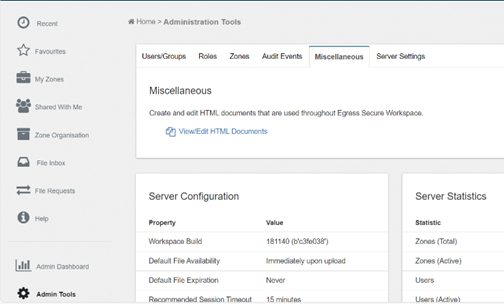
This feature is locked down to admins of the Workspace, specifically those who can access the Administration Tools area. To access this feature, navigate to Administration Tools > Miscellaneous > HTML Templates. A list of current templates and their outputs will be displayed. You can also add additional templates from this section.
Things to Consider When Creating a Template
A few things to consider before creating and applying a template are as follows:
- Is the message clear to users, and does it relay the message?
- Is the message clearly formatted?
- Does the message contain the required steps to proceed, such as the Accept and Decline buttons?
Should you have any questions about the formatting of your templates or wish for a base template to be provided, please reach out to our support team.
Applying Templates to Users
HTML templates are applied to users based on their System Role, meaning admins can be assigned an alternative message to guest users.
To assign a template or message to a specific role, follow the steps below:
- Navigate to Administration Tools > Roles > Manage System Roles.
- Select the relevant System Role.
- Select the relevant template from the HTML Template drop-down menu.
Example Template Format
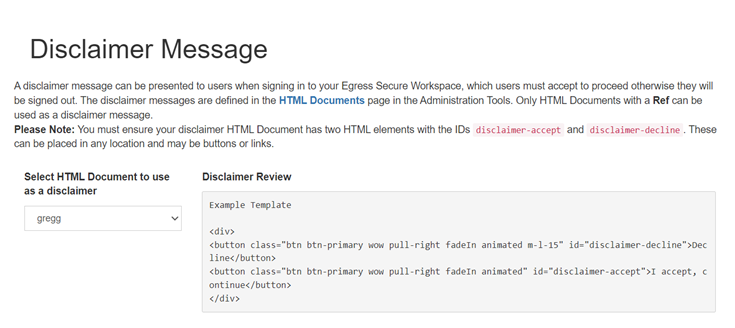
Please see below for an example template, as well as a screenshot of how this will display for the relevant users.
Example Template Code:
<ol>
  <li>Examples Disclaimer</li>
</ol>
<div>
  <button class="btn btn-primary wow pull-right fadeIn animated m-l-15" id="disclaimer-decline">
    Decline
  </button>
  <button class="btn btn-primary wow pull-right fadeIn animated" id="disclaimer-accept">
    I accept, continue
  </button>
</div>
The following template will provide the following for users:

Ensuring that any text is added between the relevant <li> </li> code will provide the relevant output and will provide the message in a listed format.
Applying the message between <p> </p> will “Paragraph” the inputs, rather than applying them to a numbered or listed format.
- Examples Disclaimer