Workspace provides robust data protection by featuring two distinct recovery tools: the file recycle bin and the zone recycle bin. This guide explains the function of both bins, details the differences between them, and provides instructions for admins to enable and manage these content recovery features. Understanding both the File Recycle Bin and the Zone Recycle Bin is key to maintaining data integrity and compliance within your organization.
Enabling the Recycle Bin
To enable the file or zone recycle bin, follow the steps below:
- Navigate to Admin Tools > Zones > Recycle Bin Settings.
- To enable the files and folders recycle bin, select the Files and folders tab and select the Enable File Recycle Bin check box.
- To enable the zone recycle bin, select the Zones tab and select the Enable Zone Recycle Bin check box.
- Select if files, folders, or zones should be automatically deleted from the recycle bins after a set time period.
- Select Save settings.
File Recycle Bin Considerations
Some essential considerations about the file recycle bin's scope, access, policy compatibility, and retention options are as follows:
- When enabled, each zone will have its own file and folder recycle bin.
- Whether a user can see or interact with it is based on their permissions.
- The file recycle bin can only be configured independently or when a soft delete retention policy is applied. It is incompatible with a hard delete retention policy.
- You can turn on the bin and have all files stored forever in the bin until manually deleted, or you can set up an automatic cleanup policy. For example, if you configure a three-month cleanup policy, all files in the bin will be permanently deleted unless they are restored.
If the recycle bin is enabled, an icon will be displayed at the top of the window for the zone that you are in. The icon is shown in the screenshot below.

Deleting Files
When you delete a file within a zone, it will be moved to the recycle bin. The deletion policy set up for your organization will be shown at the top-right corner of the window. Files and folders within the recycle bin will also display a deletion date under the Will Be Deleted column, helping users know exactly how long a file will be stored there.
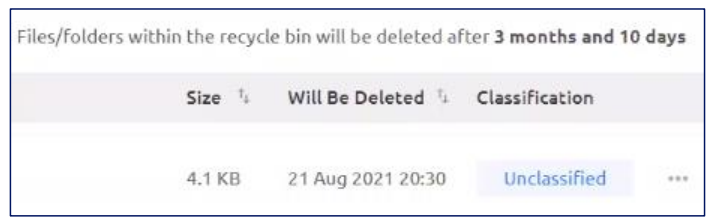
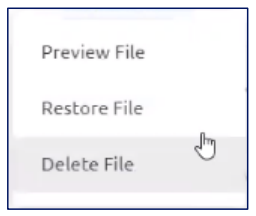
You can preview, restore, or delete items from the recycle bin by clicking on the three-dots icon next to a file.
Zone Recycle Bin Considerations
Some essential considerations about the zone recycle bin are as follows:
- The zone recycle bin will appear in the left navigation bar.
- An automatic cleanup policy can be set on the zone recycle bin, for example, for 30 days. This policy means users will have 30 days to restore the zone; otherwise, it will be permanently deleted.
- If the zone recycle bin is enabled, a user with the correct permissions can send a zone to the zone recycle bin.
- If the cleanup policy is enabled, the zone will follow the policy. If no cleanup policy is enabled, a user must manually access the zone recycle bin and delete the zone.