Note: This article has recently been added to our Knowledge Base. Thank you for your patience as we continue to make improvements.
Workspace comes with a file request feature, allowing users to request files to be uploaded to a specific location without requiring them to share an entire zone, file, or folder with the user.
This feature can be beneficial when requiring a recipient to upload data, but not have access to a particular location or active data.
Some key points to consider about file requests are as follows:
- The file request feature is a system permission, meaning anyone with the applied system role will be able to use the file request feature.
- A zone must be specified when creating a file request.
- File requests can either be sent as an email request or by creating a link to provide to the user.
- File requests can either be shared with an individual's email address or provided as a link for the user to upload anonymously, which doesn’t require an account.
Making a File Request
To create a file request, follow the steps below:
- Select Request a File in the navigation sidebar.
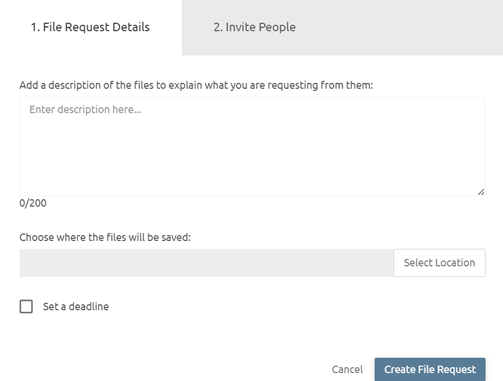
- Enter a description. The creator and recipient will see the text entered here as the description of the file request.
- Enter a location. This location will be applied for this file request.
-
Select the Set a deadline check box to set a deadline for uploading the file. The file request will expire after the deadline.
- Select whether you want to send the file request by email or via a link.
- Enter the email recipients and a message, or copy the provided request link.
Note: Sharing using a link means that anyone with the link will be able to upload data, and this option should therefore be used with caution.