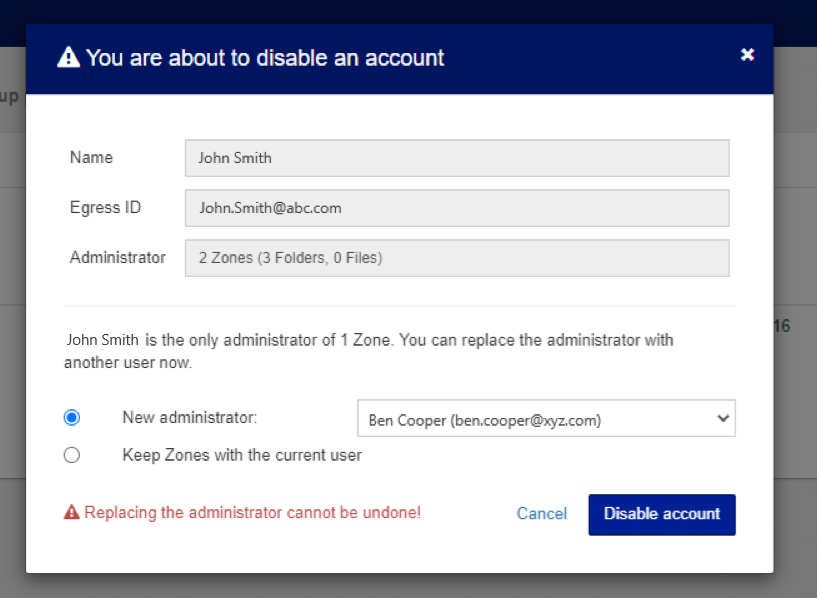
If you need to revoke a user's access to Workspace, it's important to know that you cannot completely delete a user's profile. Instead, you must block or deactivate the user. This action prevents them from logging in while ensuring their profile remains for auditing purposes and allows for potential future restoration. This guide shows you the simple steps to deactivate a user.
It is not possible to remove a user completely from Workspace due to the following reasons:
- Deleting a user would not prevent them from signing back in and having access granted automatically. If a user is blocked, they will not be able to sign in to Workspace.
- Ensuring users are blocked instead of deleted helps with auditing.
- Blocking a user instead of deleting ensures you have full control to restore the user's access in the future if required.
To block and deactivate a user from Workspace, follow the steps below:
- Navigate to Admin Tools > Users/Groups > Manage Users and Groups.
- Search for the user who needs to be deactivated.
- Select the Edit User button on the line entry of the user to open the User Profile page.
- In the Manage User Access tile, select Deactivate User.
There will be an additional option when disabling a user if that user has access to zones where they are the only zone admin. This option allows you to promote another active user from a drop-down menu to become the new zone admin.