When you receive an encrypted email, it is protected to ensure that only you can view its contents. This guide will help you access and reply to these secure messages using the secure web portal.
Accessing Your Secure Email
To open a secure email, follow the steps below:
Open the notification email in your standard inbox. An example notification email is shown in the screenshot below.
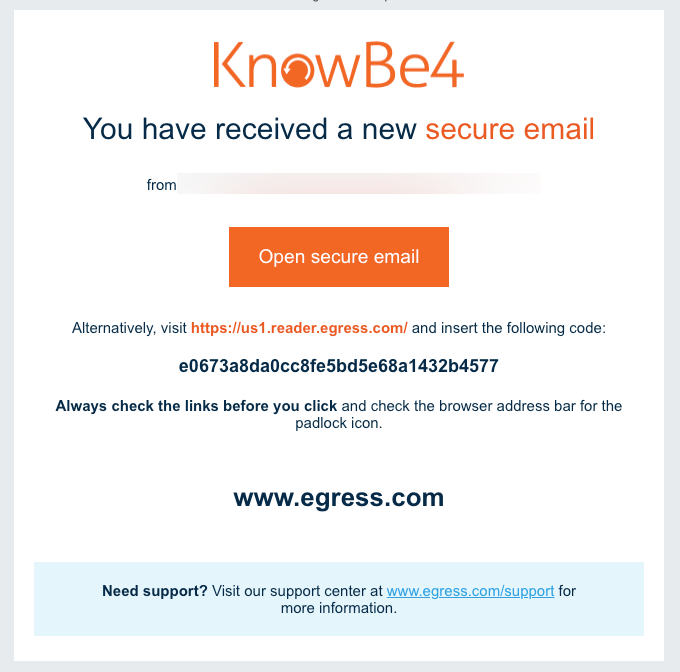
- Select Open secure email.
In the browser window that opens, sign in using your email address and password.
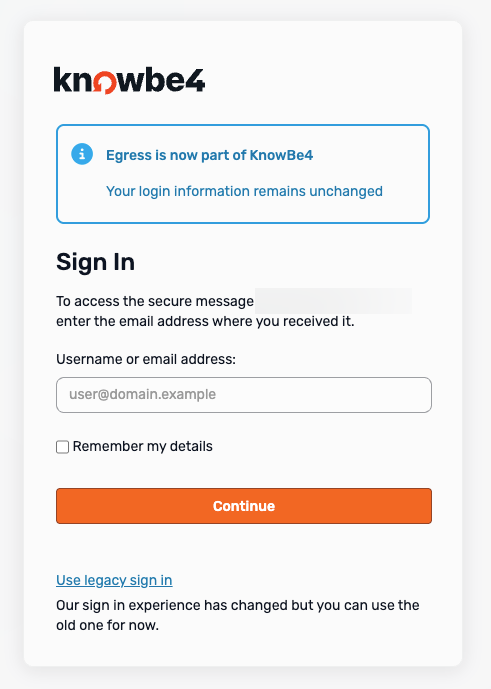
- Once signed in, your secure email and any attachments will display in your browser.
Replying to a Secure Email
You can respond to the sender directly from the secure portal by following the steps below:
- Select Reply at the top or bottom of the email.
- Compose your email and add any necessary attachments.
- Select Send.