The Microsoft Teams Phish Alert Button (PAB) allows your users to report suspicious messages directly in Microsoft Teams. This tool helps protect your organization from cyberattacks by providing your IT team with early warnings of potential security threats.
Prerequisites and Limitations
Before you can install the Microsoft Teams PAB for your organization, your organization will need to have the following:
- Microsoft 365
- Users' emails must be added to your KSAT account and match their MS Teams email.
Accepting Required Permissions
Before installing the Microsoft Teams PAB for Microsoft 365, follow the steps below:
- Log in to your KSAT console.
- Select your email address in the top-right corner of the page, and select Account Settings.
- Navigate to Account Integrations > Phish Alert.
- Select the Enable Phish Alert check box.
-
Scroll down to the PAB for Collaboration Platforms and select + Add Phish Alert Instance.
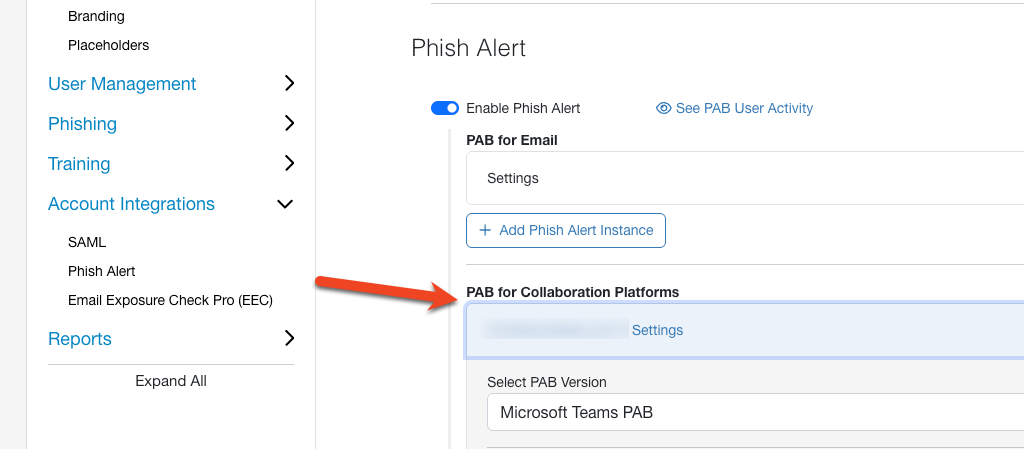
- From the Select PAB Version drop-down menu, select Microsoft Teams PAB.
-
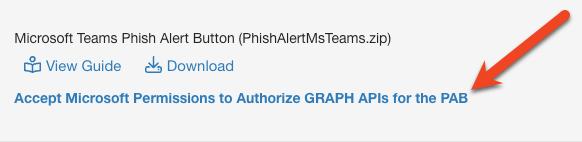
Select Accept Microsoft Permissions to Authorize GRAPH APIs for the PAB. You will be redirected to the Microsoft 365 login page.
- Log in to your Microsoft 365 account using your admin credentials.
-
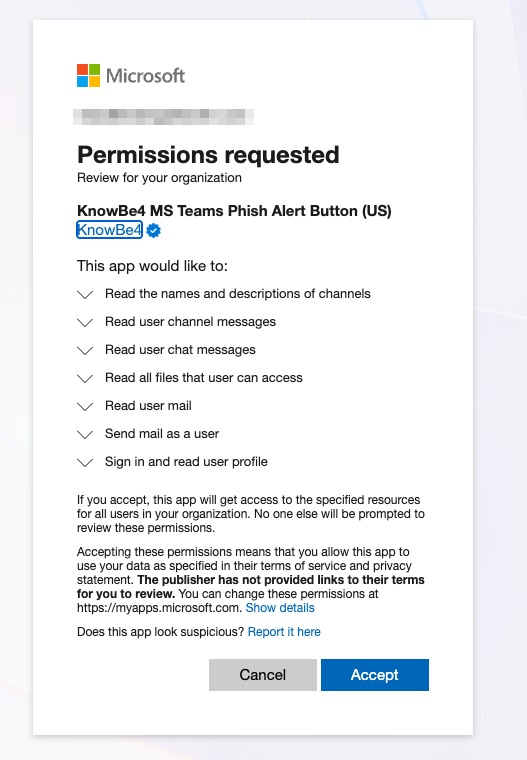
Once you log in, the Permissions requested pop-up window will display. Read the permissions, then select Accept.
-
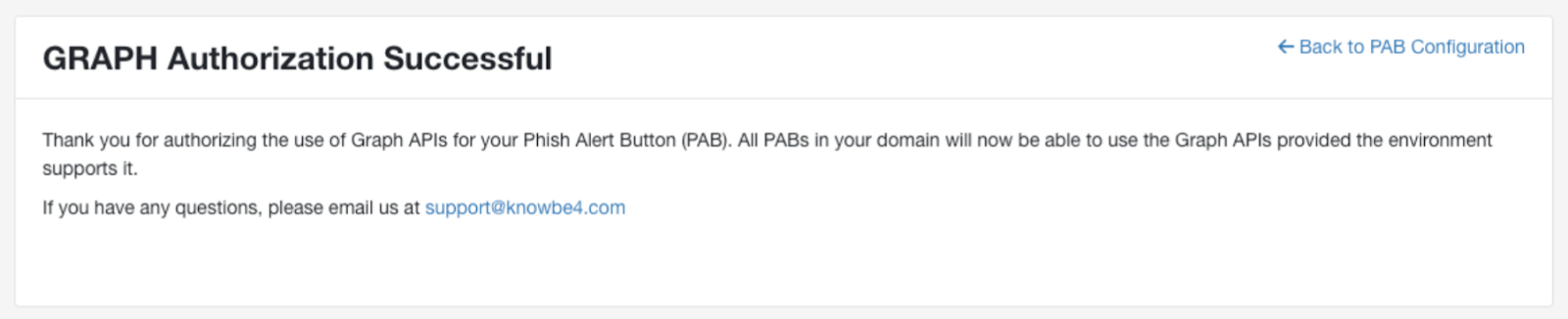
Once you accept the permissions, the GRAPH Authorization Successful window will display. Select Back to PAB Configuration to return to the Phish Alert settings.
Installing the Microsoft Teams PAB
There are two ways to install the PAB for Microsoft Teams. Choose the relevant section below.
Whole Organization Install
Follow the steps below to install the Microsoft Teams PAB for your whole organization:
-
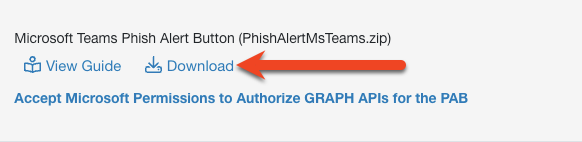
Select the Download icon next to the Microsoft Teams Phish Alert Button option to download the PhishAlertMsTeams.zip.
- In a new tab of your browser, log in to your Microsoft Teams admin center.
-
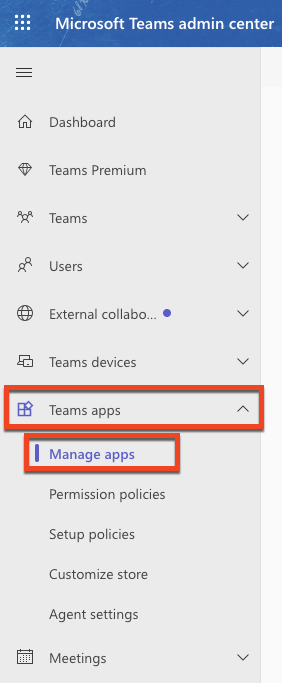
From the menu on the left side of the page, select Teams apps > Manage apps.
-
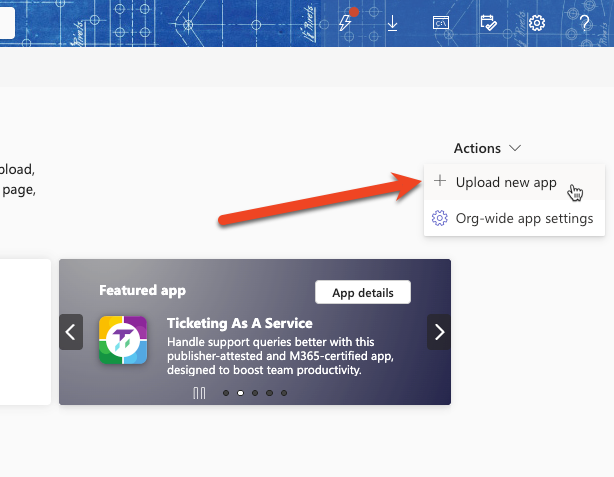
Select the Actions drop-down menu at the top-right corner of the page and click Upload new app.
-
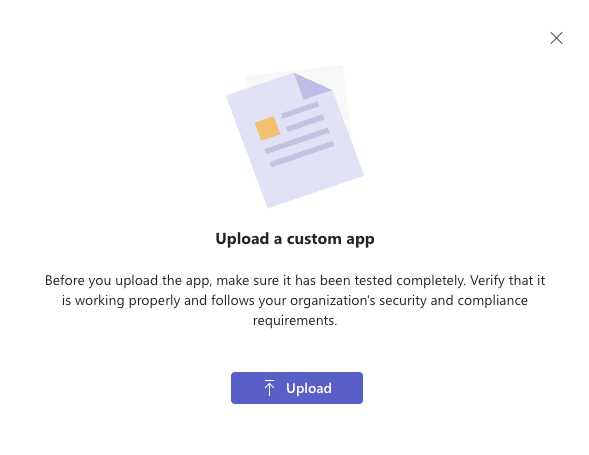
Click the Upload button and select the PhishAlertMSTeams.zip file.
-
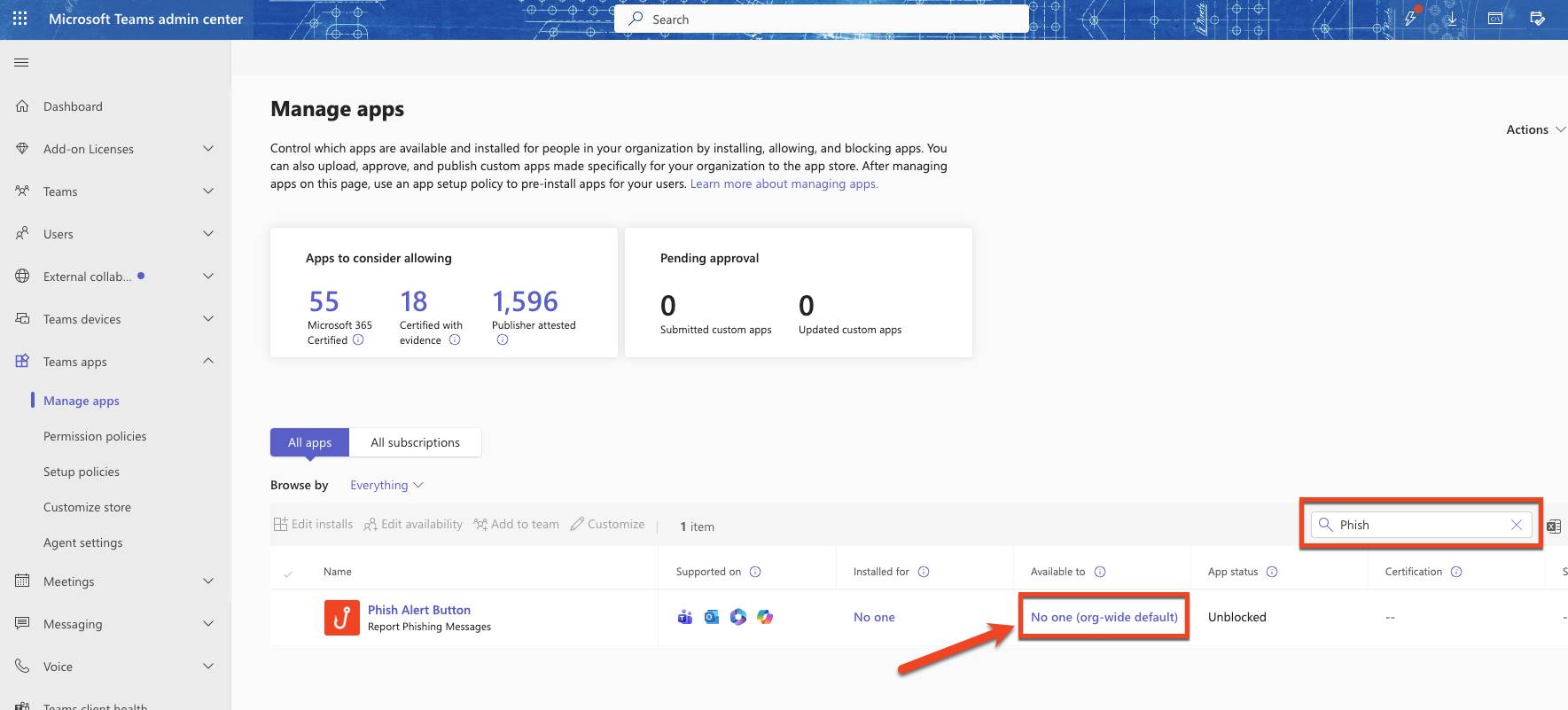
Type "Phish" in the search bar and locate the Phish Alert Button app. Click the link below Available to.
-
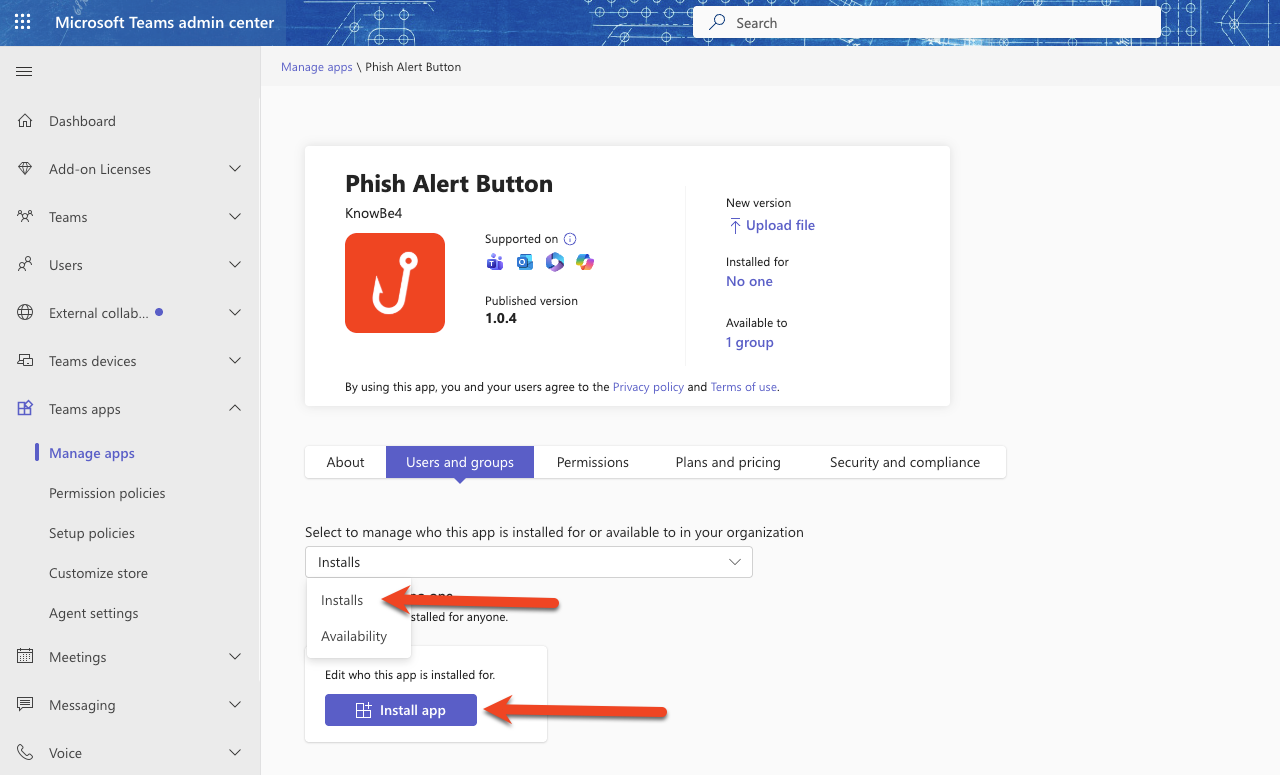
On the Users and groups tab of the Phish Alert Button app, select Installs in the drop-down menu. Then click the Install app or Edit installs button.
-
In the Install to drop-down menu, select Everyone.
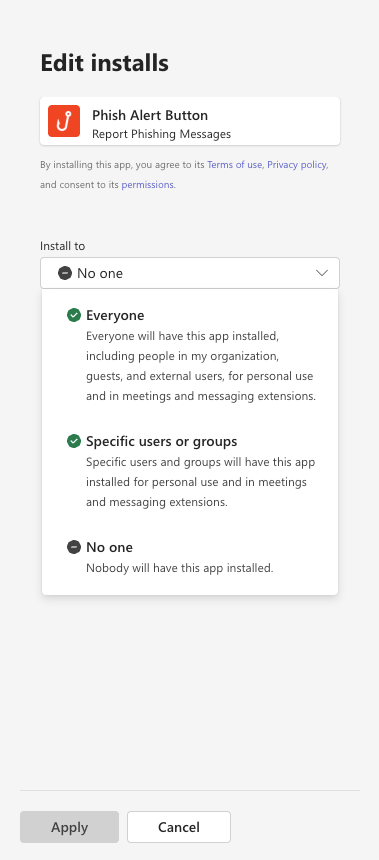
- Click Apply at the bottom of the Edit installs menu.
-
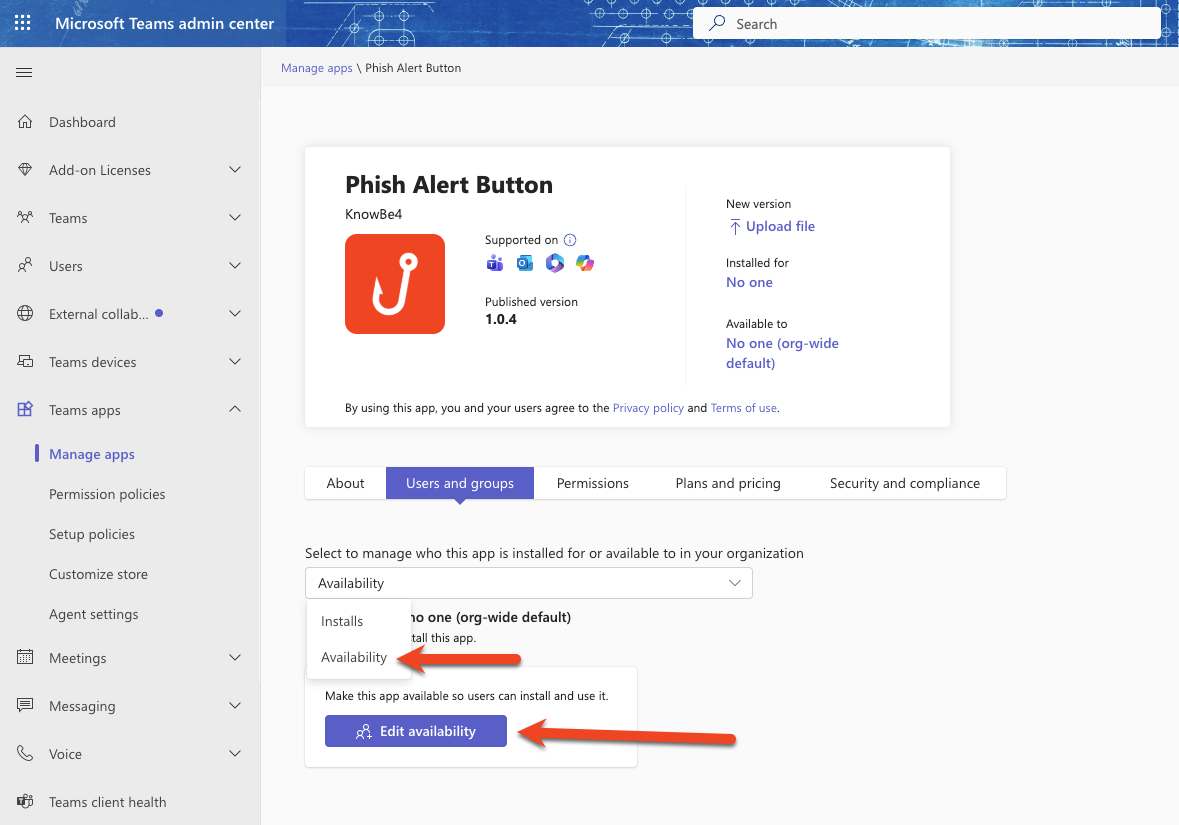
On the Users and groups tab of the Phish Alert Button app, select Availability in the drop-down menu. Then click Edit availability.
-
In the Available to drop-down menu, select Everyone.
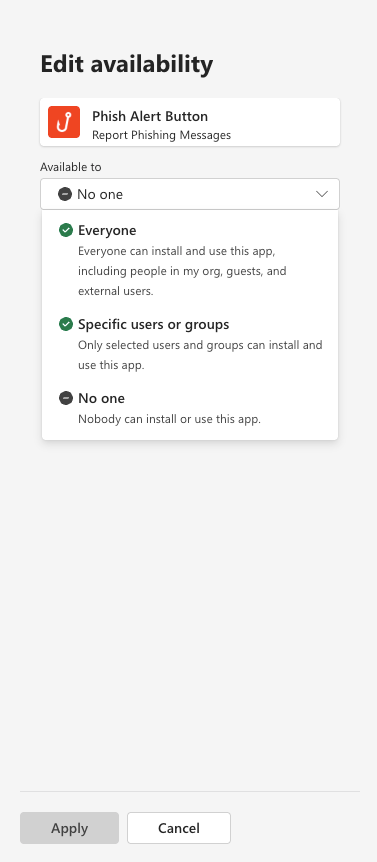
- Click Apply at the bottom of the Edit availability menu.
Deploy to Specific Users
- Log in to your Microsoft Teams admin center and navigate to Teams apps > Manage apps.
-
Type "Phish" in the search bar and locate the Phish Alert Button app. Click the link below Available to.
-
On the Users and groups tab of the Phish Alert Button app, select Installs in the drop-down menu. Then click the Install app or Edit installs button.
-
In the Install to drop-down menu, select Specific users or groups.
- Search and select the users or groups you want to install the app for, and then click Apply at the bottom of the Edit installs menu.
-
On the Users and groups tab of the Phish Alert Button app, select Availability in the drop-down menu. Then click Edit availability.
-
In the Available to drop-down menu, select Specific users or groups.
- Search and select the users or groups you would like to make the app available to, and then click Apply at the bottom of the Edit availability menu.
Side-Load Install
For a side-load install, you will need to complete the steps in the Accepting Required Permissions section above.
- Follow steps 1-6 in the Whole Organization Installation section above.
-
On the Users and groups tab of the Phish Alert Button app, select Availability in the drop-down menu. Then click Edit availability.
-
In the Available to drop-down menu, select Specific users or groups.
- Type in the display name, email or username that you want to make the PAB available to and click the Apply button.
- Go to https://teams.cloud.microsoft/# https://teams.cloud.microsoft/# (link opens in new window).
-
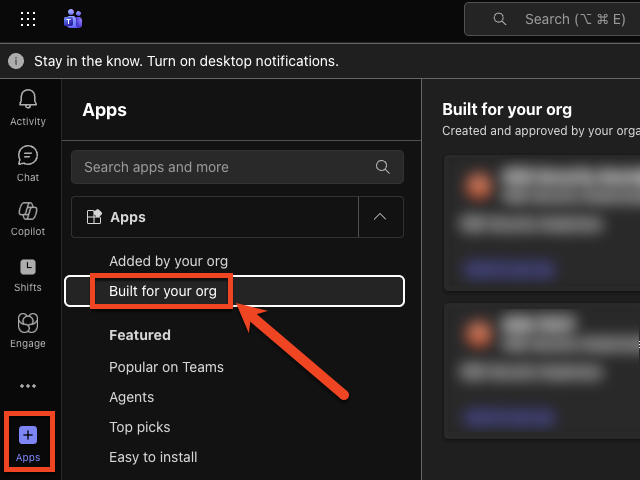
From the menu on the left side of the page, select Apps > Built for your org.
-
Click Add on the Phish Alert Button app.
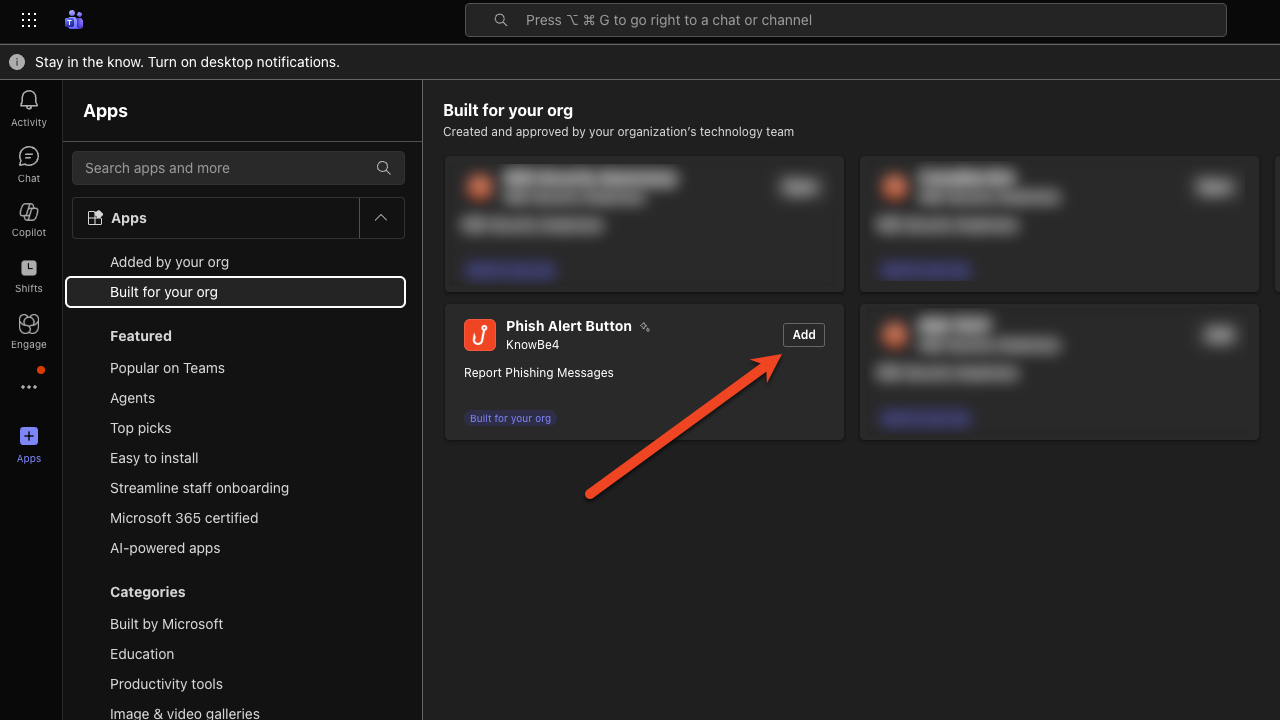
Note: Side-loading the app can take some time to apply.
Microsoft Teams PAB User Experience
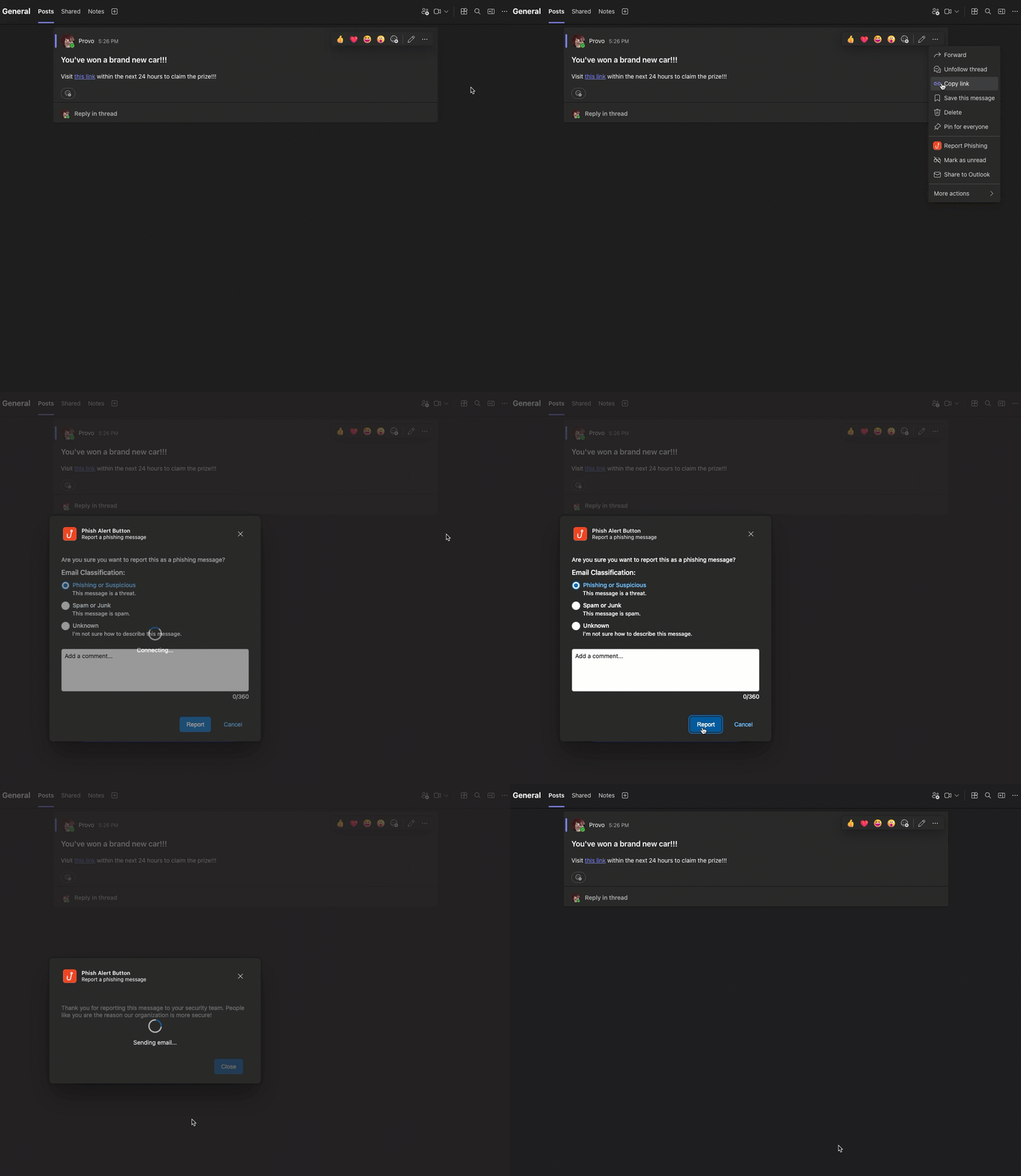
You can select the Phish Alert Button in any message that you would like to report. The Report Phishing option will appear when you hover over a message and click the ellipsis icon. If you do not see the Report Phishing option, it should be available in the More actions menu.
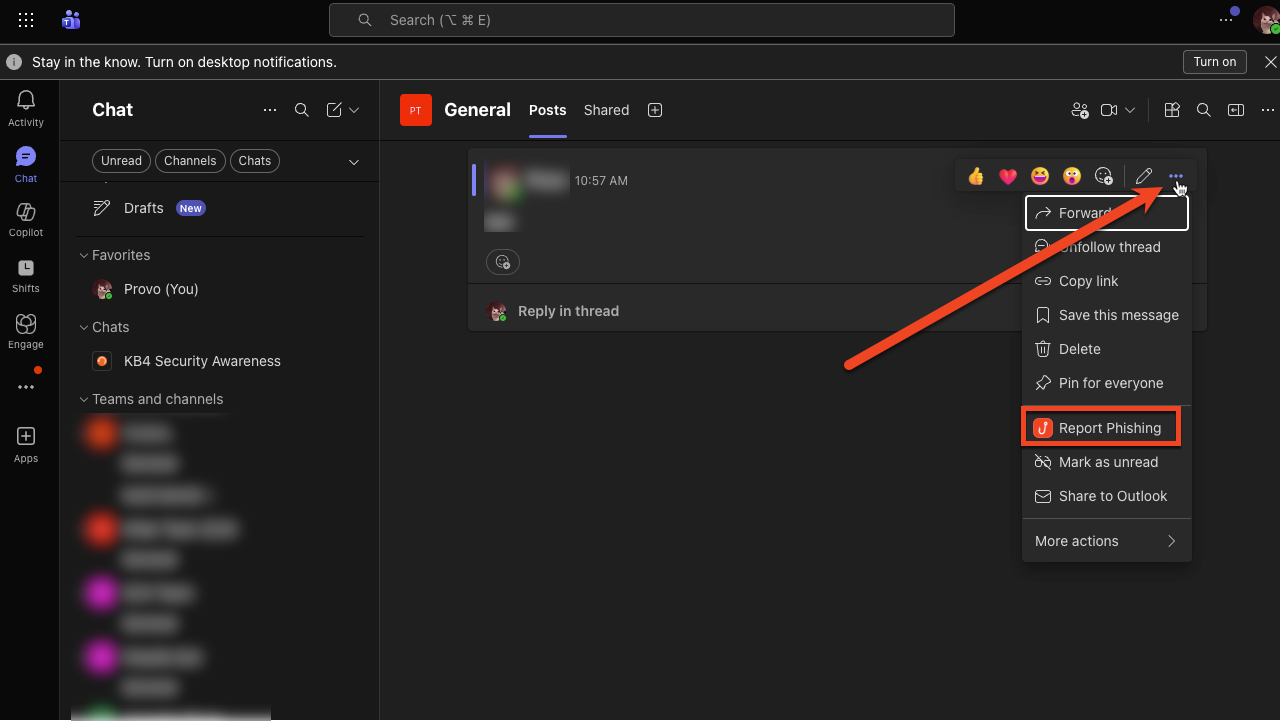
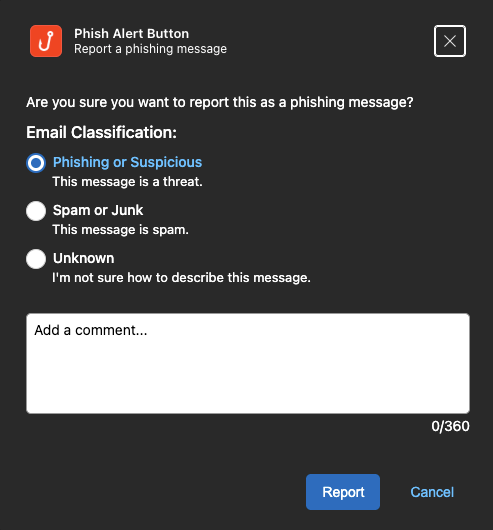
After clicking Report Phishing, a confirmation pop-up will appear. If the Allow users to leave comments and disposition setting is enabled for your account, your users can also provide an email classification and add a comment. Any reported messages will be available in the reporter's Sent Items folder in Microsoft Outlook.
Updating and Uninstalling the Microsoft Teams PAB
See the sections below for information on how to update or uninstall the Microsoft Teams PAB.
Updating the Microsoft Teams PAB
Below are instructions for updating or redeploying the Microsoft Teams PAB.
- Log in to your KSAT console.
- Select your email address in the top-right corner of the page, and select Account Settings.
- Navigate to Account Integrations > Phish Alert.
-
Scroll down to the PAB for Collaboration Platforms and click the name of your Microsoft Teams PAB instance to expand the settings.
-
Scroll down and select the Download icon under Microsoft Teams Phish Alert Button to download the PhishAlertMsTeams.zip.
- In a new tab of your browser, log in to your Microsoft Teams admin center.
- From the menu on the left side of the page, select Teams apps > Manage apps.
-
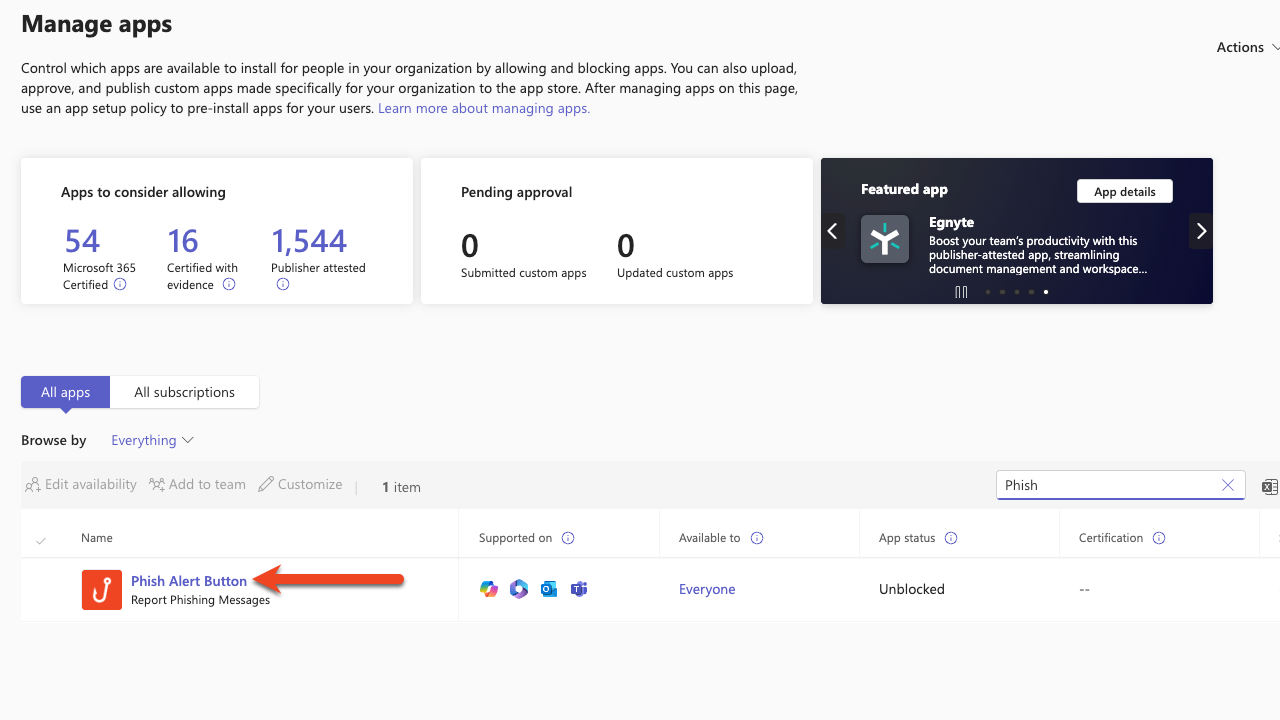
Type "Phish" in the search bar and click Phish Alert Button.
-
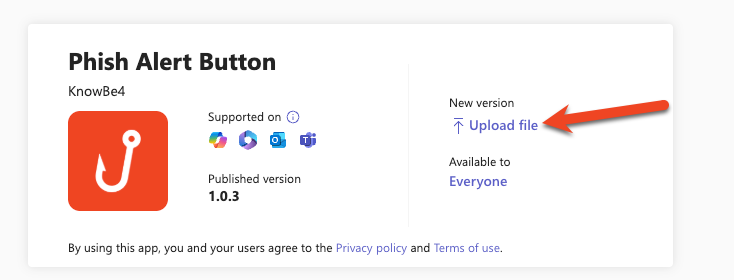
Towards the top of the page, click Upload file.
- In the pop-up window, click Select a file and select the PhishAlertMSTeams.zip file.
-
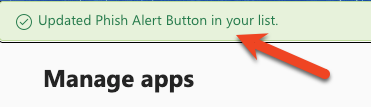
Check for the success message at the top of the page.
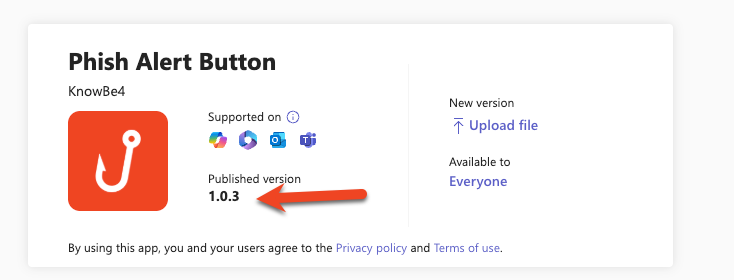
Note: The Published version number will change when you upload the PhishAlertMSTeams.zip.
Uninstalling the Microsoft Teams PAB
Below are instructions for uninstalling the Microsoft Teams PAB.
- Log in to your Microsoft Teams admin center.
- From the menu on the left side of the page, select Teams apps > Manage apps.
-
Type "Phish" in the search bar and click on Phish Alert Button.
-
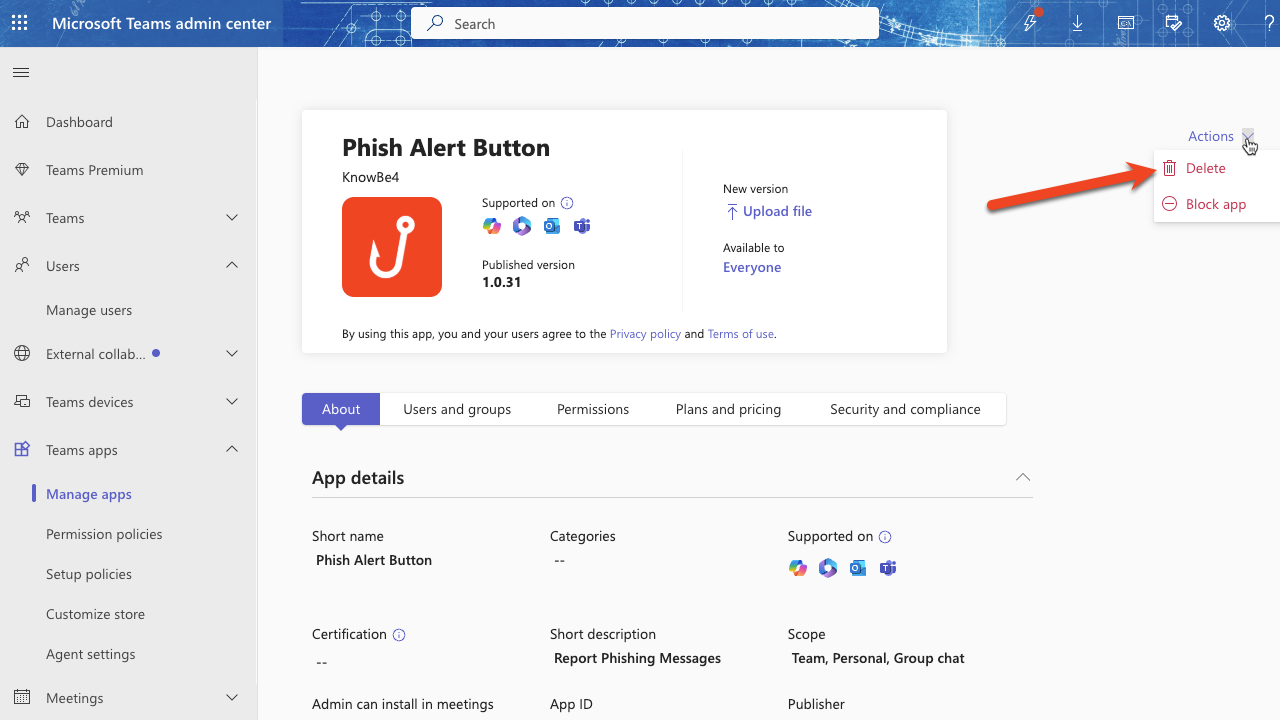
Select the Actions drop-down menu at the top-right corner of the page and click Delete.
Troubleshooting
Why can’t I see the Microsoft Teams PAB when I try to report messages from outside my organization?
The Microsoft Teams PAB can only report messages sent within your organization. For more information, see Microsoft’s Teams apps for external attendees or guests from outside an organization Teams apps for external attendees or guests from outside an organization (link opens in new window) article. If you receive a suspicious message from an external sender, we recommend contacting your IT admin for additional assistance.
I'm receiving an error stating: "Fetch Error KSAT Settings Request Failure - {“errors”: [{“message”:”Unauthorized”}]}”
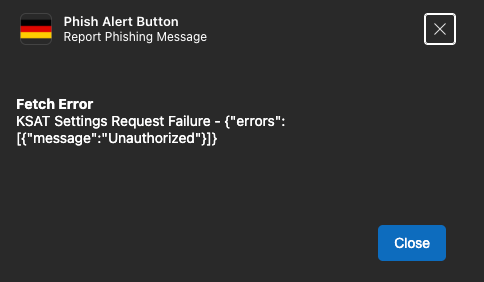
The Microsoft Teams PAB is not able to verify the user's email in your KSAT console. Confirm that your user's email address connected to Microsoft Teams matches their email address in your KSAT console.
I'm receiving an error stating: "This message is older than the allowed reporting limit. Please contact your IT admin for help." How can I resolve it?
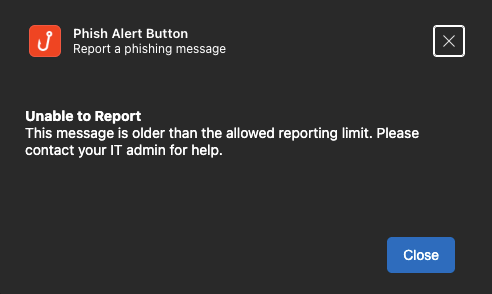
This error means that the message is too old to report. We recommend contacting your IT admin for additional assistance.
I'm receiving an error showing: "Error sending mail: {"error":{"code":"Authorization_RequestDenied","message":"Insufficient privileges to complete the operation.","innerError"..."
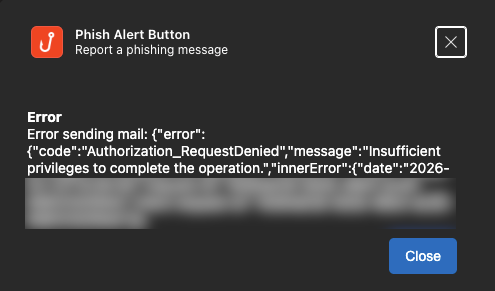
This error means that the Graph API permissions needed for the Microsoft Teams PAB have not been authorized in your Microsoft account. To resolve this, follow the steps under the Accepting Required Permissions section of this article.
I added a new language to the Microsoft Teams PAB in my KSAT console, but some users are seeing a different language in certain text fields for their PAB. How do I fix it so users only see the PAB in their language?
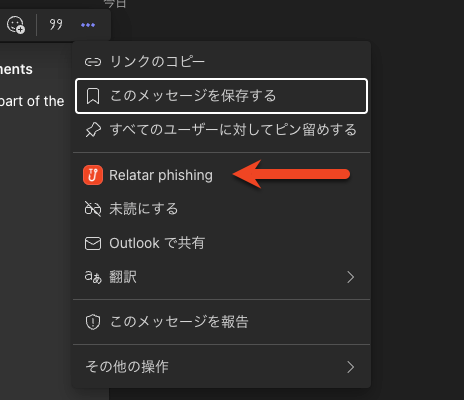
Certain text fields for the Microsoft Teams PAB are stored within the PhishAlertMsTeams.zip file. If you add a language to your Microsoft Teams PAB, you must redeploy the zip file for the changes to take effect. For detailed steps on this process, see the Updating and Uninstalling the Microsoft Teams PAB section of this article.