The Deepfakes training feature allows you to create simulated deepfake videos to enhance your security awareness training. By creating a deepfake of a known executive or leader in your organization, you can demonstrate to your users how easily someone can be convincingly impersonated. These videos are controlled and bound to pre-recorded scripts, ensuring the content is used strictly for educational purposes.
The Deepfake Agent is available for AIDA and SAT Advanced subscriptions.
Prerequisites
Before you create a deepfake video, please ensure you meet the following requirements:
- You must have legal authorization from the individual being recorded.
- The source video must be an .mp4 or .mov file, two minutes or shorter, and a file size of 150 MB or less.
Creating a Deepfake Video
To create a deepfake video, log in to your KnowBe4 console and click the Training tab. Then, click the Deepfakes subtab.
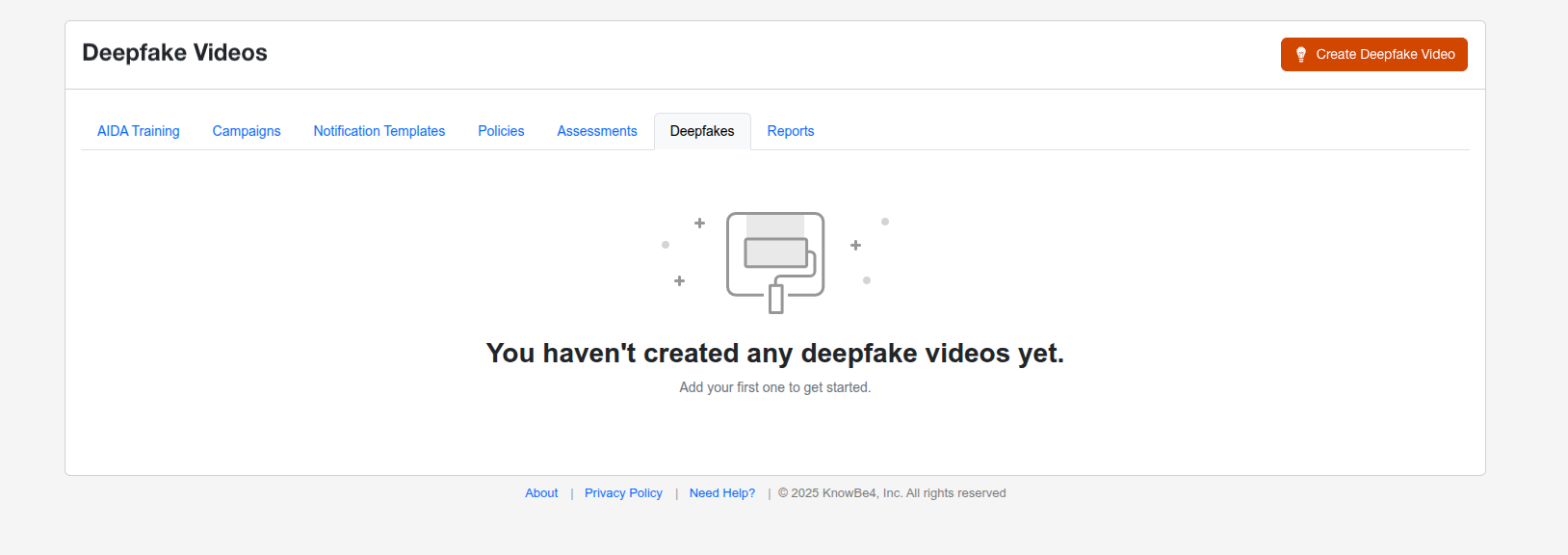
When you first access the Deepfakes subtab, you won’t see any deepfake videos. To add a new video, click the Create Deepfake Video button. This button opens the Create Deepfake Video page, which will guide you through the five steps required to create a deepfake video.
Step 1: Name Your Video
In this step, you will name the video and set the language.
To learn more about the options in this step, see the screenshot and the list below:
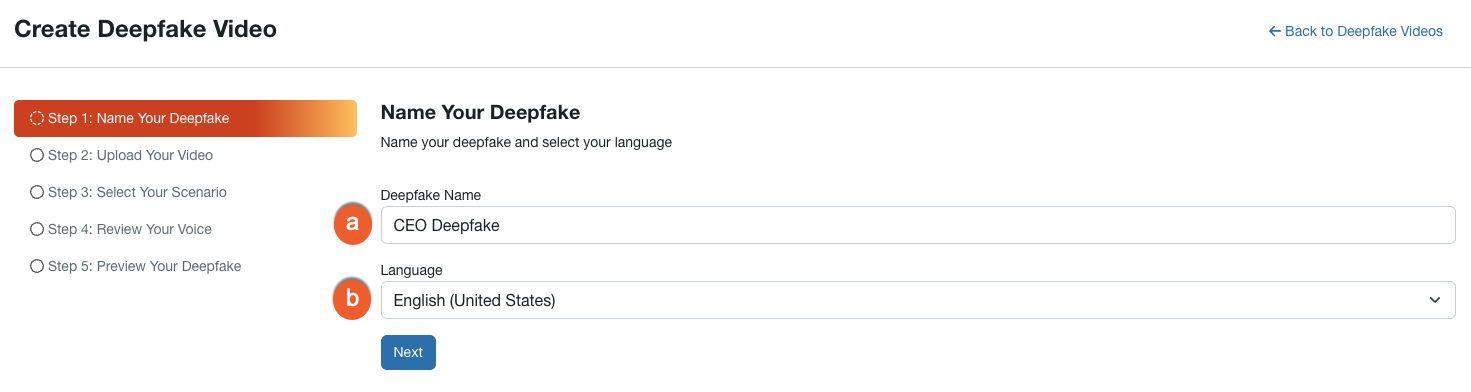
- Deepfake Name: Enter a name for your deepfake. Choose a name that helps you identify this video later.
- Language: Select the language used in your source video.
Click the Next button to proceed to Step 2.
Step 2: Upload Your Video
In this step, you will upload the source video of the person you want to feature.
To learn more about the options in this step, see the screenshot and the list below:
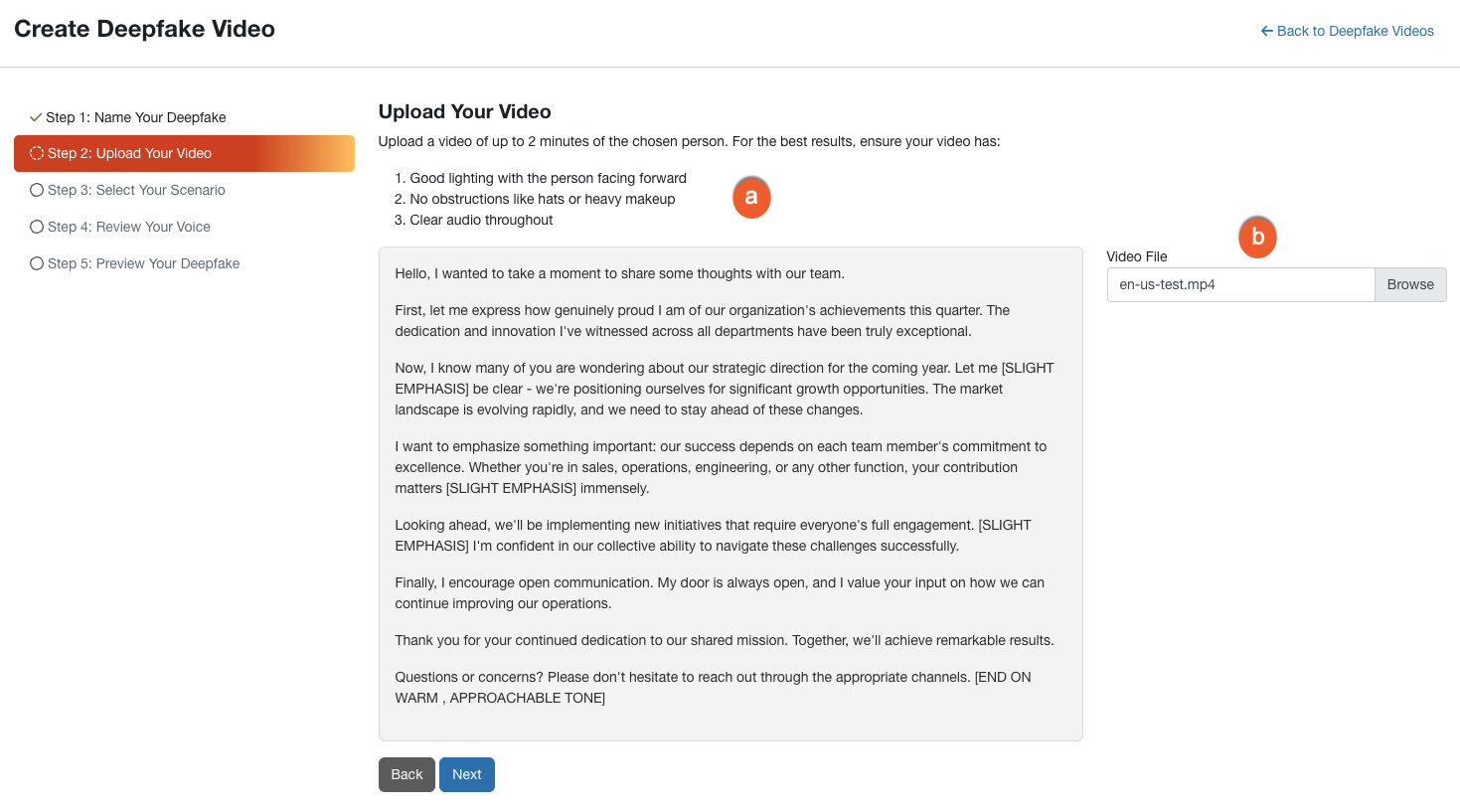
- Recording Requirements and Script: Review these tips to ensure the best quality. Ensure your video features good lighting with the person facing forward, no face obstructions like hats, and clear audio.
- Video File: Drag and drop your file here, or click the button to browse your computer.
Click the Next button to proceed.
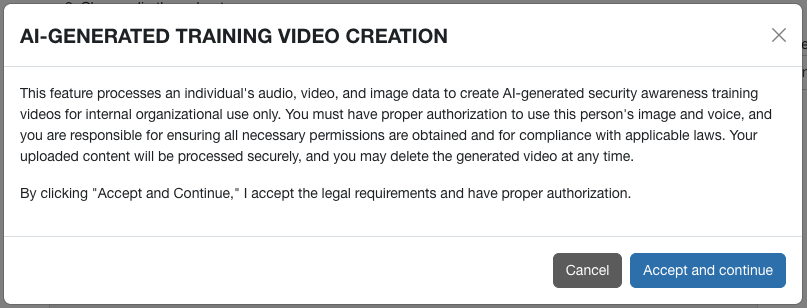
After clicking the Accept and Continue button, your video will be uploaded.
Step 3: Choose Your Scenario
It’s time to select a training scenario for your deepfake video. Each scenario includes a pre-written script that demonstrates a specific security concept.
To learn more about the options in this step, see the screenshot and the list below:
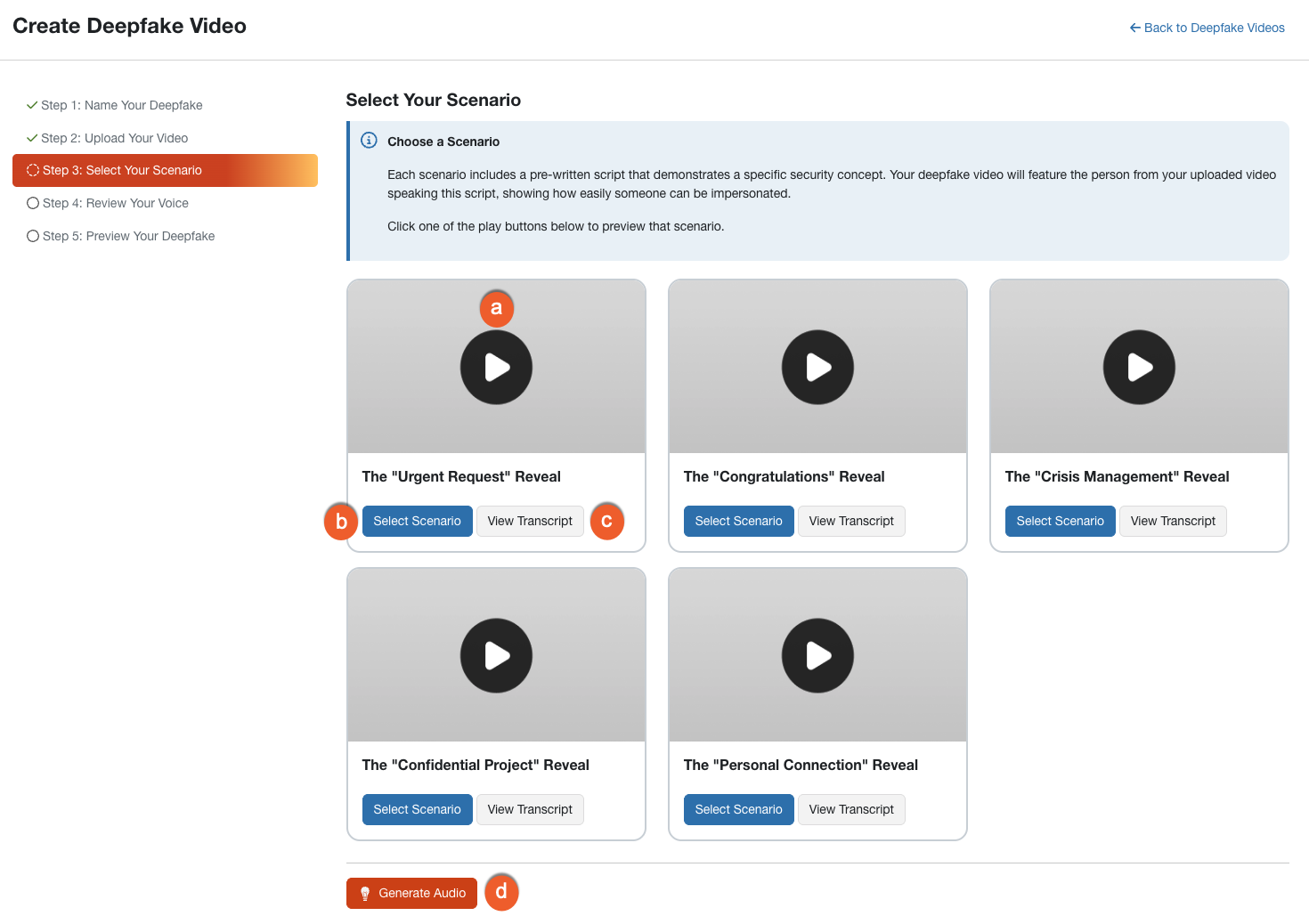
- Scenario Preview: Click the play button on any card to preview the scenario context.
-
Select Scenario: Click this button to select the scenario you want to use. A green box will appear around the selected scenario.
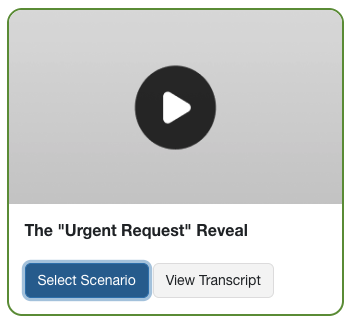
- View Transcript: Click this button to read the specific script the subject will speak.
-
Generate Audio: Click this button to begin processing the audio.
Note: Once you proceed, you will not be able to change the scenario for this video.
Step 4: Review Your Voice
The system will process the audio to clone the voice from your uploaded video.
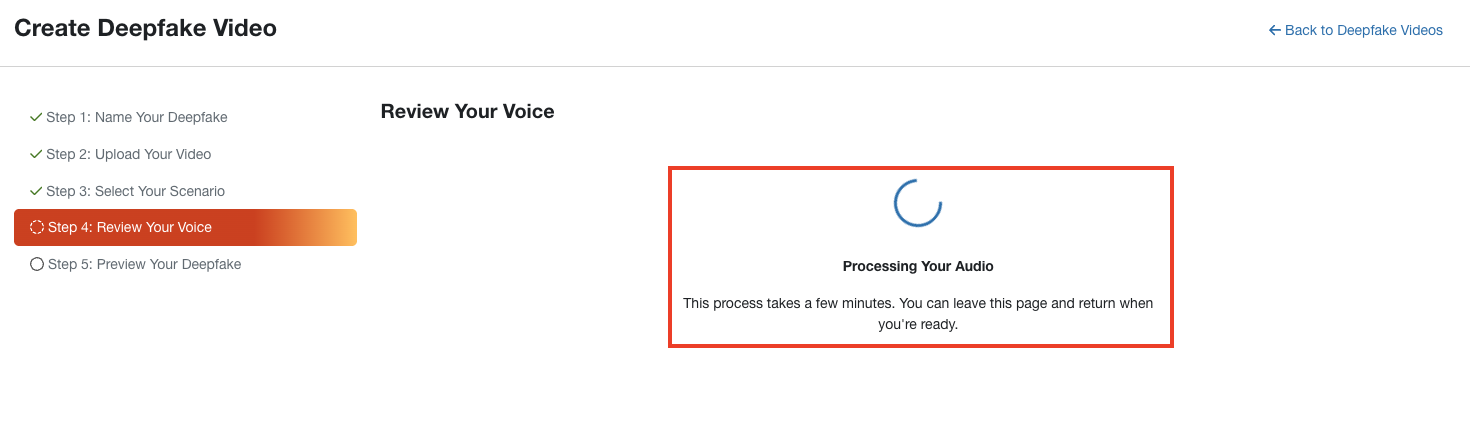
To learn more about the options in this step, see the screenshot and the list below:
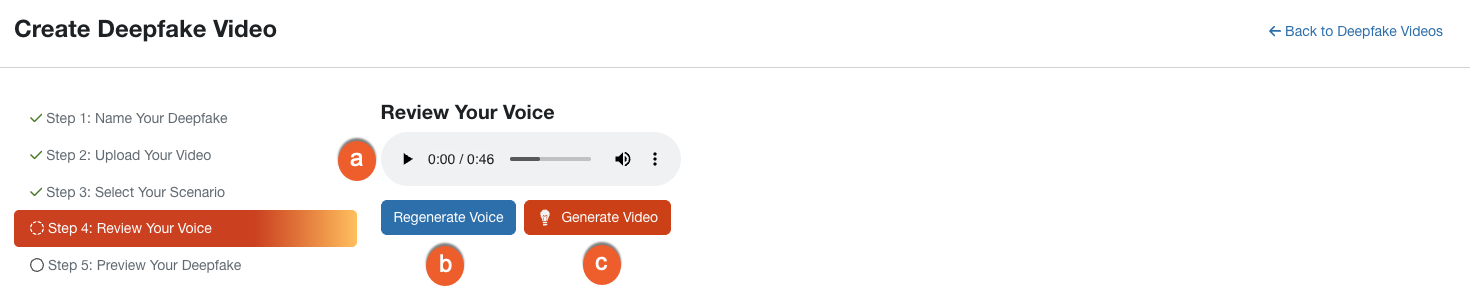
- Audio Player: Click play to listen to the generated audio and ensure the voice sounds accurate.
- Regenerate Voice: If you are not satisfied with the result, click this button to retry the generation process.
-
Generate Video: If you are satisfied with the audio, click this button to combine the voice and video.
Warning: After you click the Generate Video button, you'll see a confirmation message. Once you accept, you won't be able to regenerate the voice. Click the Accept and Continue button to proceed to Step 5.
Step 5: Preview Your Video
The system will now generate the final video.
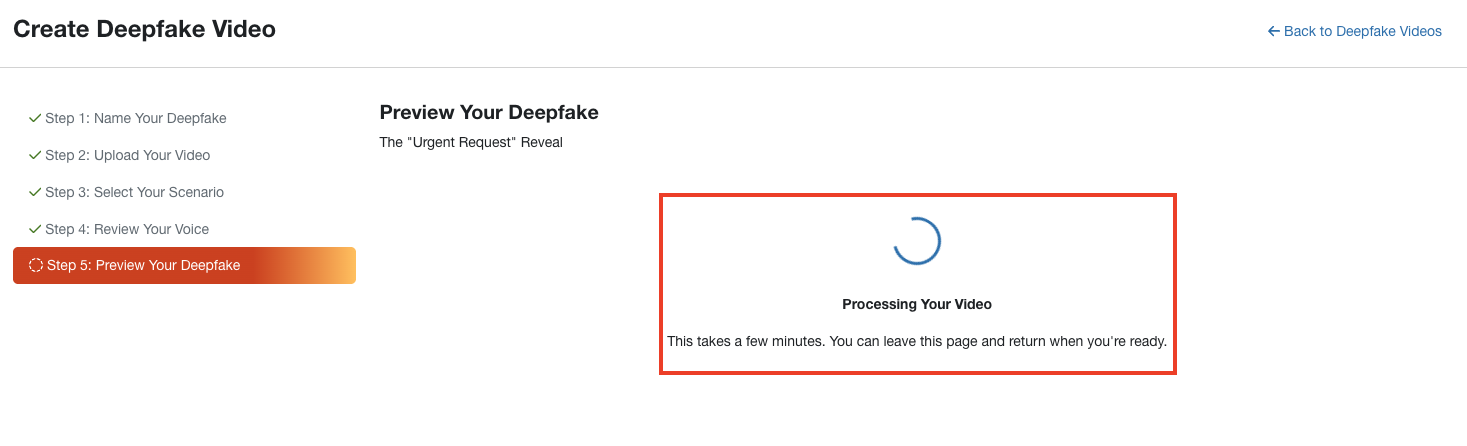
When the processing is complete, you can review the final video. To learn more about the options in this step, see the screenshot and the list below:
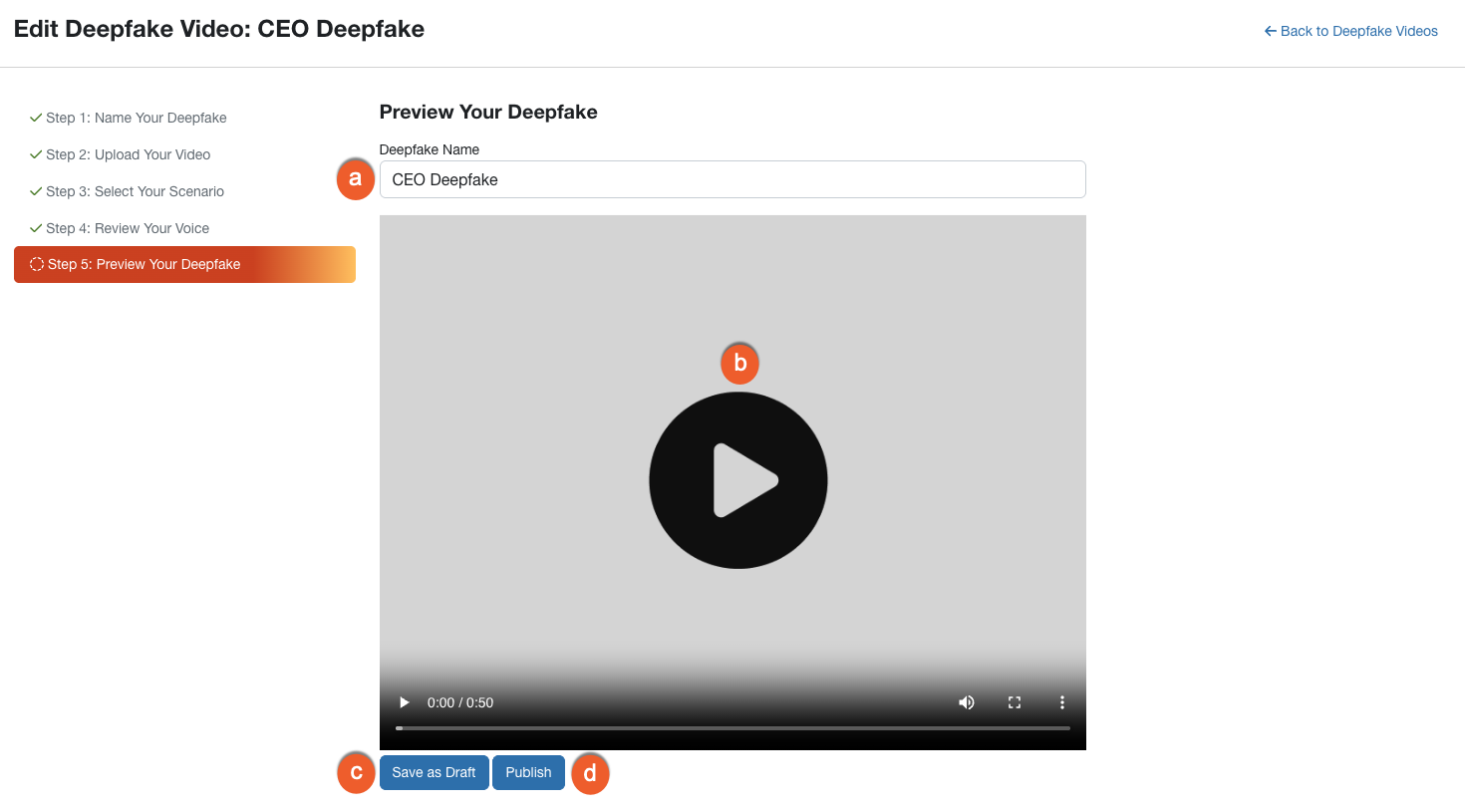
- Deepfake Name: Update the name in this field if you would like to change the name of your deepfake.
- Video Player: Watch the full video to ensure the likeness and audio are synchronized correctly.
- Save as Draft: Click this button to save your progress without making the video available for training yet.
- Publish: Click this button to finalize the video. Once published, the video will be available to use in training campaigns.
Managing Deepfake Videos
To view the deepfake videos you have created, click the Deepfakes subtab. This page displays a list of your videos, your usage limits, and their status.
To learn more about the management options on this subtab, see the screenshot and the list below:
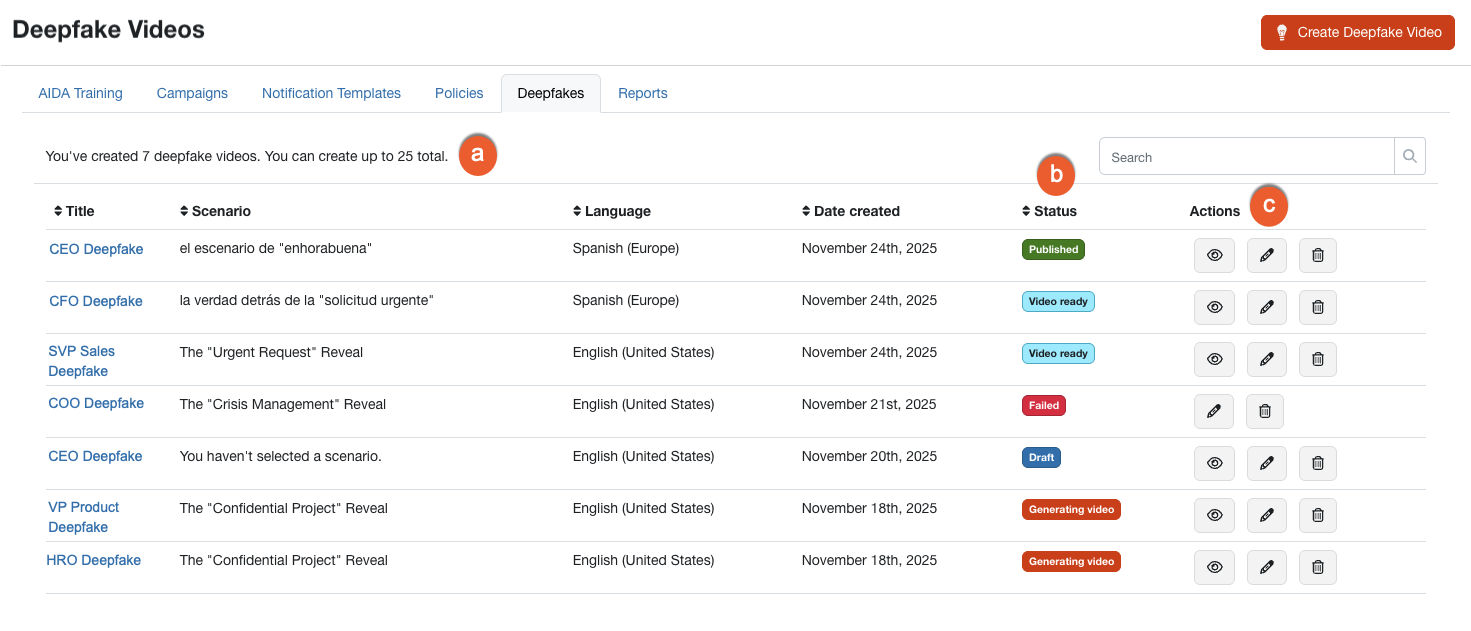
- Video Limit: This counter displays how many videos you have created out of your limit of 25.
- Status: This column displays the current state of the video. For more information on statuses, see the Understanding Video Statuses section below.
-
Actions: To manage a specific video, use the icons in this column.
- Preview: Click the eye icon to watch the video or listen to the audio.
- Edit: Click the pencil icon to return to the creation workflow.
-
Delete: Click the trashcan icon to remove a video permanently.
Warning: This action can't be undone, and any active training campaigns using the video will close immediately.
Understanding Video Statuses
The list below describes the different statuses you may see in the Status column:
- Select Scenario: The source video has been uploaded, but a scenario has not been selected. See Step 3 above for more information.
- Draft: The video has been saved but not published.
- Generating Audio: The AI is currently creating the cloned voice. See Step 4 above for more information.
- Audio Ready: The cloned voice is complete and ready for your review. See Step 4 above for more information.
- Generating Video: The AI is currently creating the final deepfake video. See Step 5 above for more information.
- Video Ready: The video is complete and ready to be previewed or published. See Step 5 above for more information.
- Published: The video is finalized and available for use in training campaigns.
- Failed: The processing encountered an error. You may need to try again.
Using Deepfake Videos in Training
Once your deepfake video is published, it becomes available for use in your training campaigns. You can select these videos when creating a campaign, just as you would select standard KnowBe4 training modules.
Log in to your KnowBe4 console and click the Training tab. Then, click the + Create Training Campaign button at the top-right corner of the page to open the Create New Training Campaign page.
In the Content drop-down menu, you'll see your deepfake videos listed under the Deepfakes section.
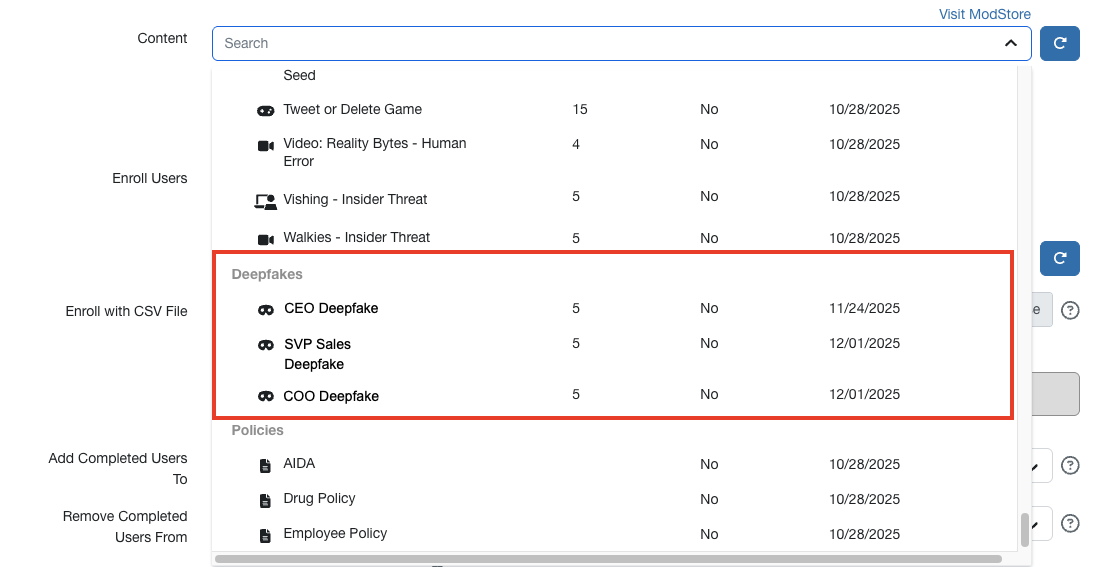
For more information on setting up a training campaign and assigning content, see our Training Campaigns Guide.