The Deepfakes training feature allows you to create simulated deepfake videos to enhance your security awareness training. By creating a deepfake of a known executive or leader in your organization, you can demonstrate to your users how easily someone can be convincingly impersonated. These videos are controlled and bound to pre-recorded scripts, ensuring the content is used strictly for educational purposes.
The Deepfake Agent is available for AIDA and SAT Advanced subscriptions.
Prerequisites
Before you create a deepfake video, please ensure you meet the following requirements:
- You must have legal authorization from the individual being recorded.
- The source video must be an .mp4 or .mov file, two minutes or shorter, and a file size of 150 MB or less.
Creating a Deepfake Video
To create a deepfake video, log in to your KnowBe4 console and click the Training tab. Then, click the Deepfakes subtab.
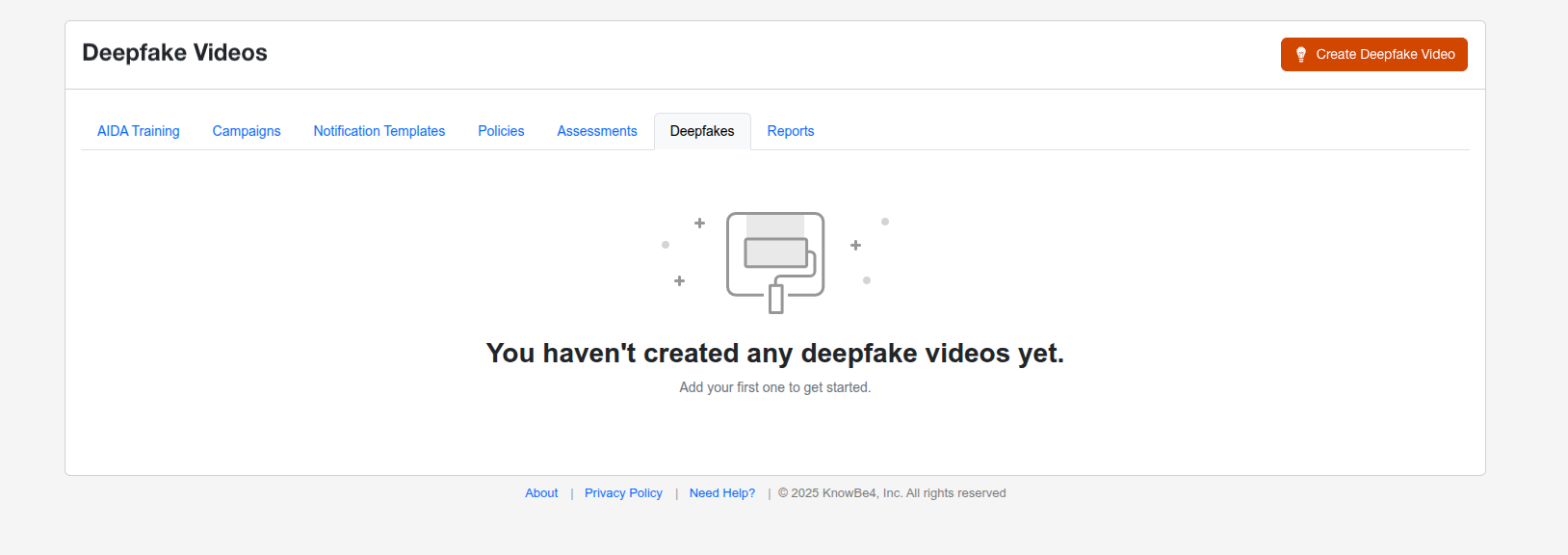
When you first access the Deepfakes subtab, you won’t see any deepfake videos. To add a new video, click the Create Deepfake Video button. This button opens the Create Deepfake Video page, which will guide you through the five steps required to create a deepfake video.
Step 1: Name Your Video
In this step, you will name the video and set the language.
To learn more about the options in this step, see the screenshot and the list below:
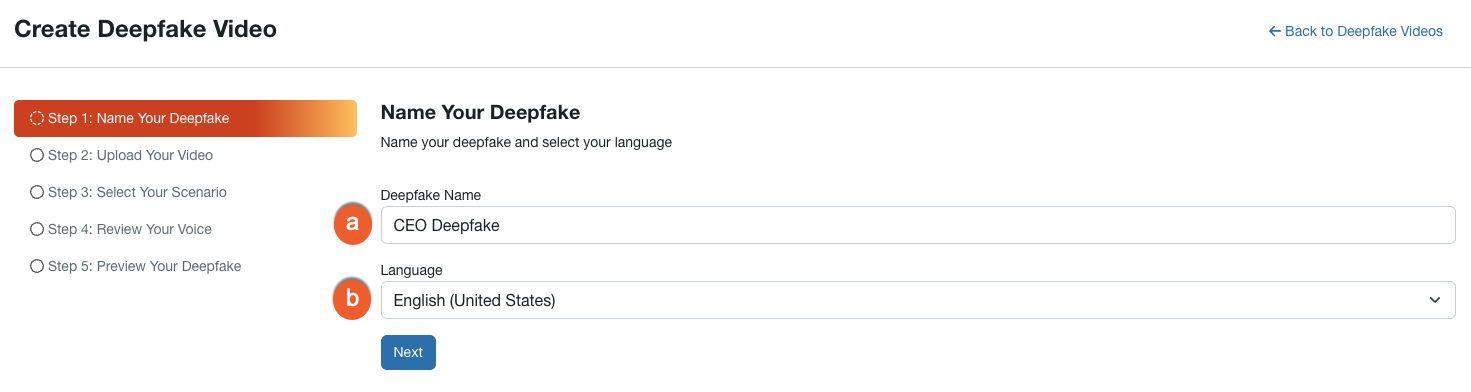
- Deepfake Name: Enter a name for your deepfake. Choose a name that helps you identify this video later.
- Language: Select the language used in your source video.
Click the Next button to proceed to Step 2.
Step 2: Upload Your Video
In this step, you will upload the source video of the person you want to feature.
To learn more about the options in this step, see the screenshot and the list below:
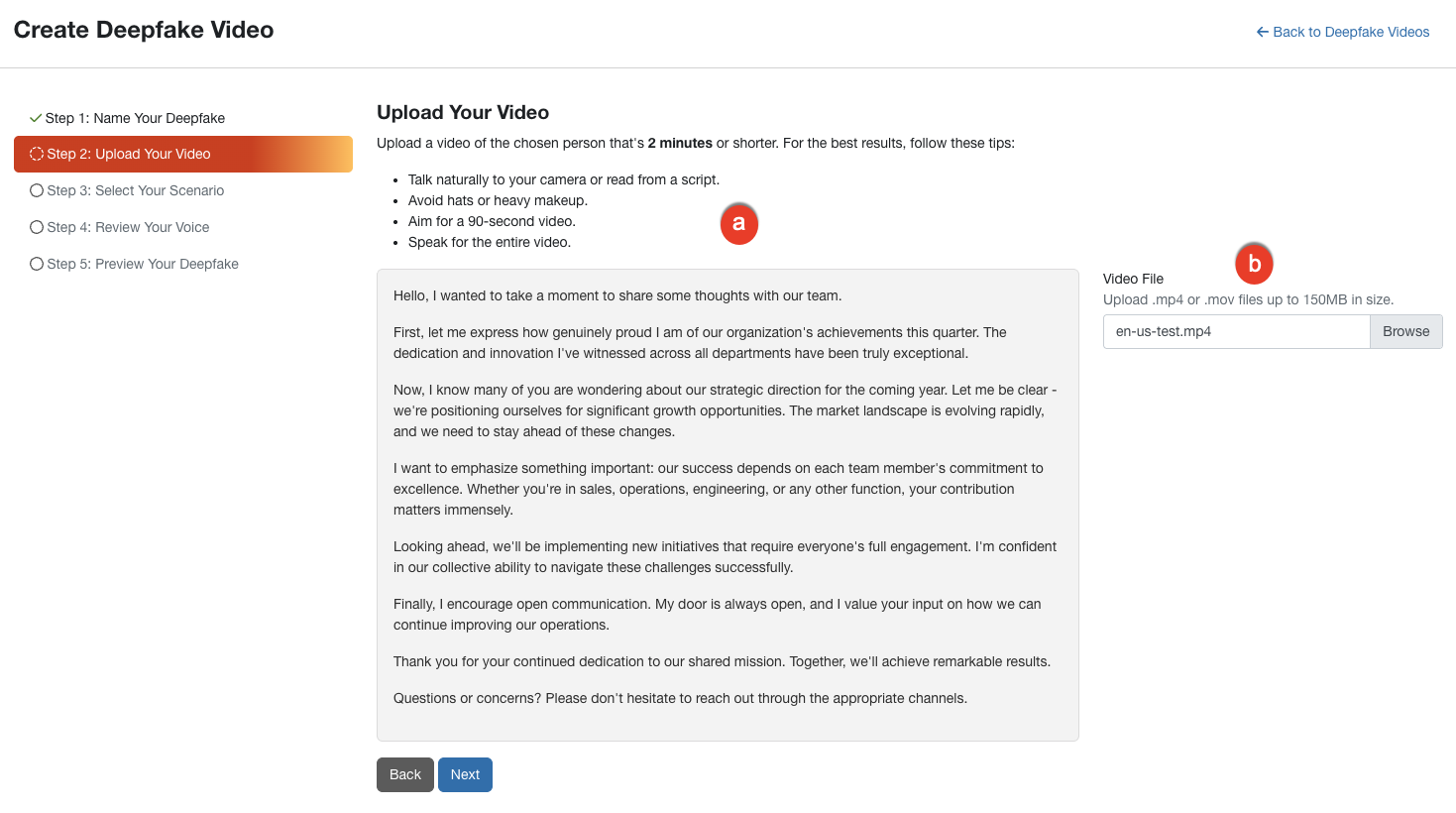
- Recording Requirements and Script: Review these tips to ensure the best quality. Ensure your video features good lighting with the person facing forward, no face obstructions like hats, and clear audio.
- Video File: Drag and drop your file here, or click the button to browse your computer.
Click the Next button to proceed.
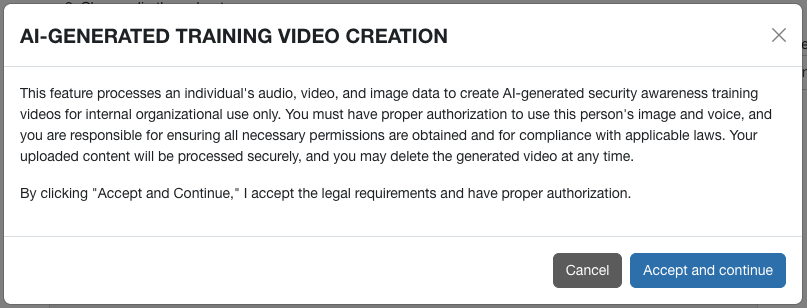
After clicking the Accept and Continue button, your video will be uploaded.
Step 3: Choose Your Scenario
In this step, you'll select a training scenario for your deepfake video. You can choose one of the pre-written scenarios or create a custom scenario with your own script. Each pre-written scenario includes a script that demonstrates a specific security concept.
To learn more about the options in this step, see the screenshot and the list below:
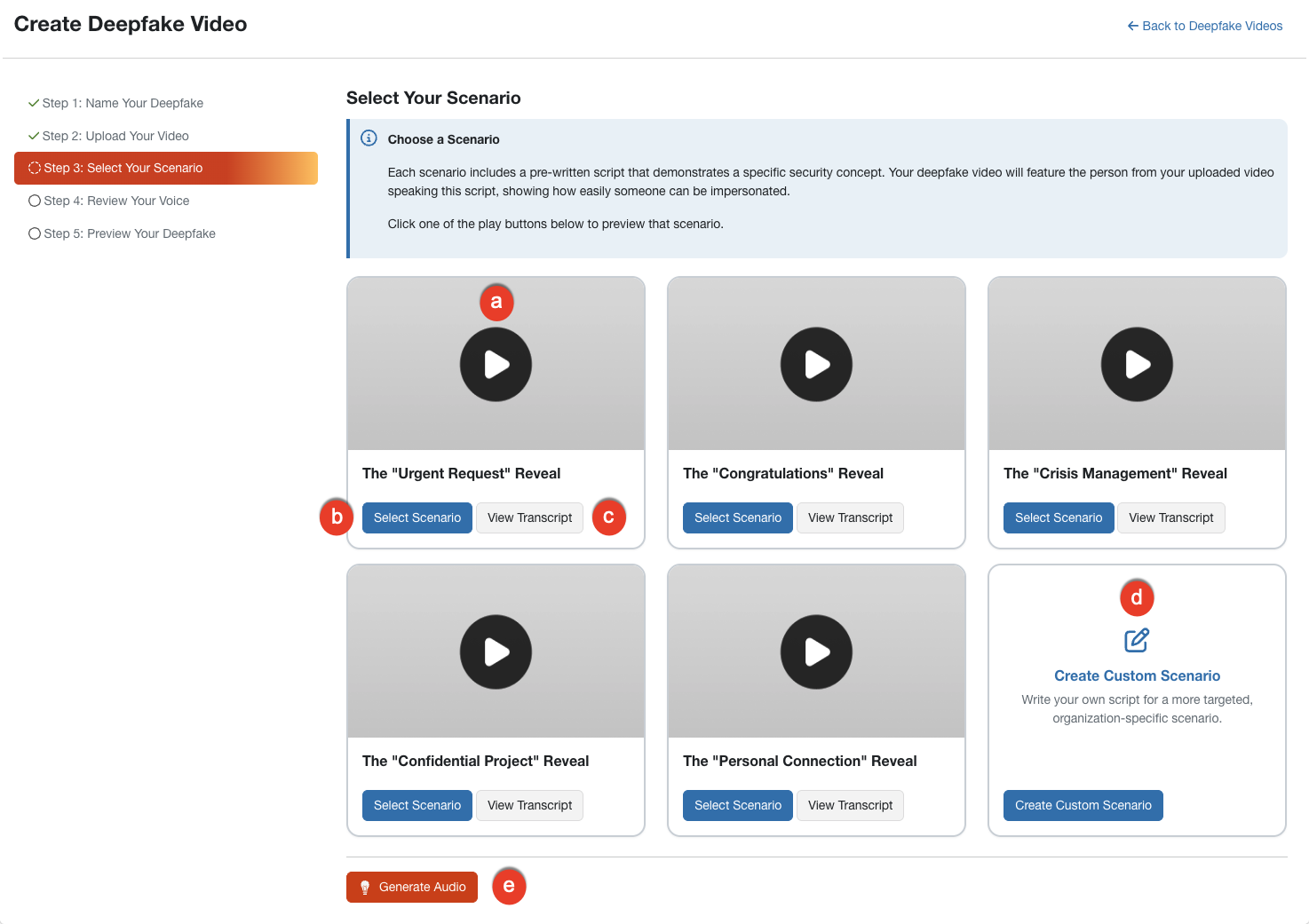
- Scenario Preview: Click the play button on any card to preview the scenario context.
-
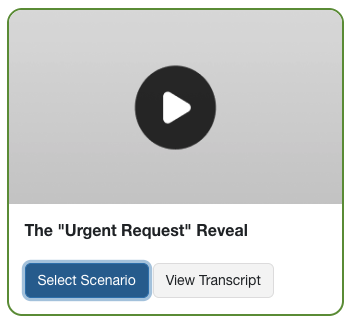
Select Scenario: Click this button to select the scenario you want to use. A green box will appear around the selected scenario.
- View Transcript: Click this button to read the specific script the subject will speak.
-
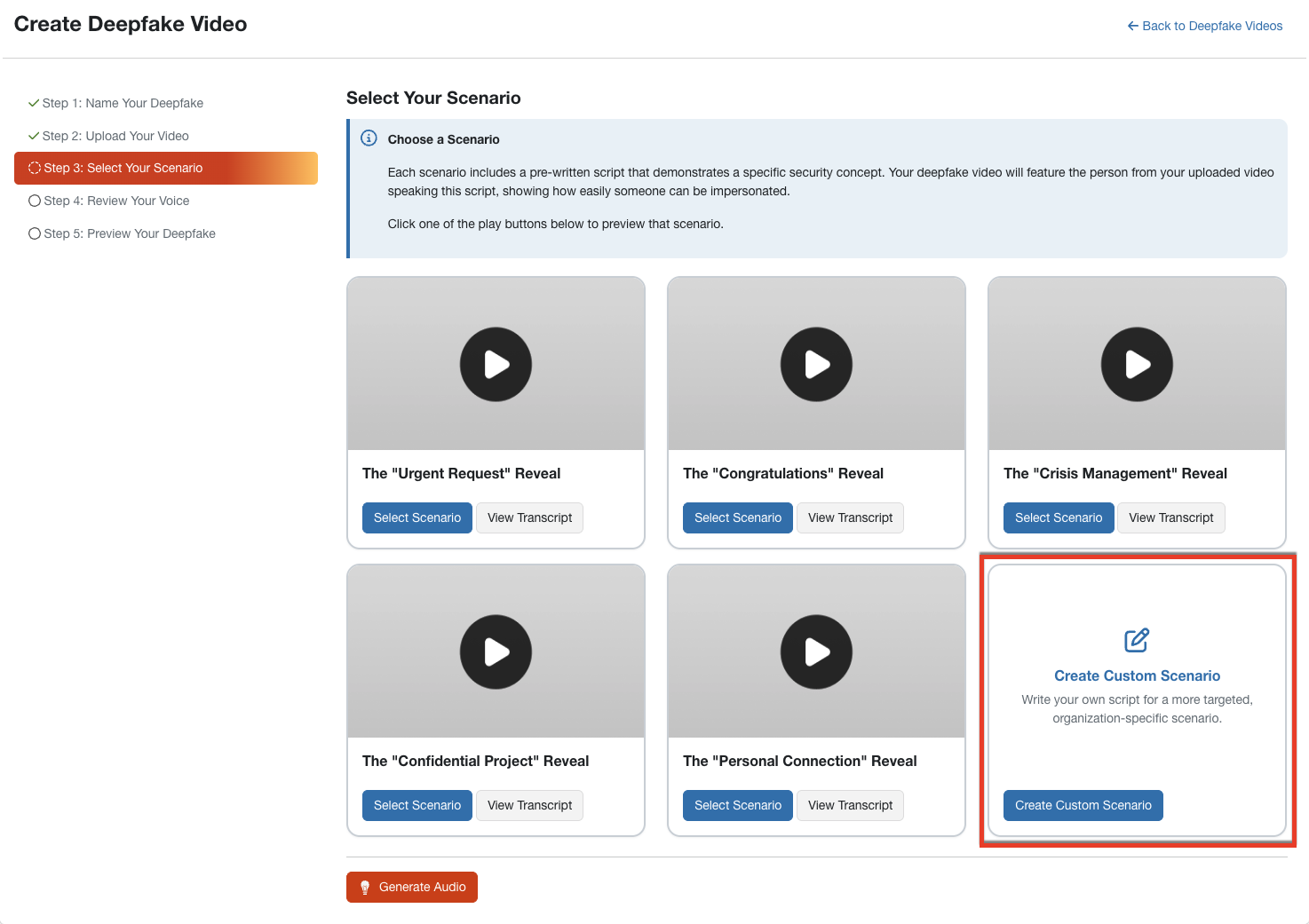
Create Custom Scenario: Click this button to write your own script. For more information, see the Creating a Custom Scenario section below.
-
Generate Audio: Click this button to begin processing the audio.
Note: Once you click the Generate Audio button, you won't be able to change the scenario for this video.
Creating a Custom Scenario
A custom scenario allows you to write your own script for a more targeted, organization-specific training experience. For example, you can write a script about a request or process that your users will recognize. For more information, see the Tips for Writing Your Script section below.
To create a custom scenario, follow the steps below:
-
Click the Create Custom Scenario button. The Create a Custom Scenario pop-up window will open.
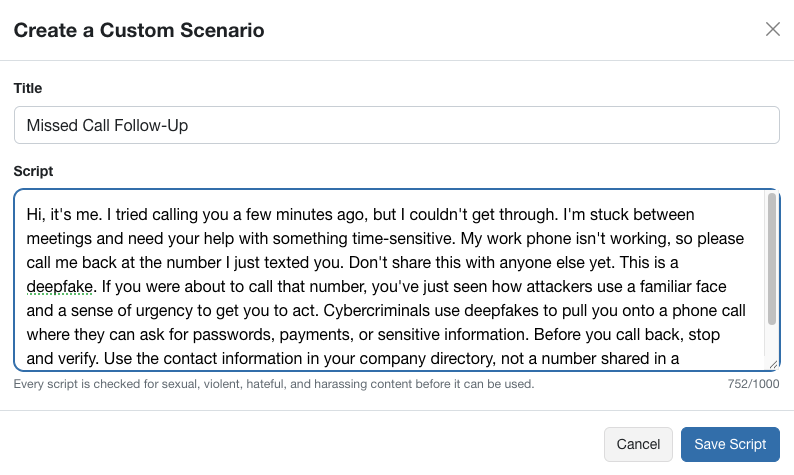
- In the Title field, enter a name for your scenario.
- In the Script field, enter the script that the person in your video will speak. Your script can be up to 1,000 characters. The character counter below the field shows how many characters you've used.
-
Click the Save Script button. Your script will be checked for sexual, violent, hateful, and harassing content. This check usually takes a few seconds.
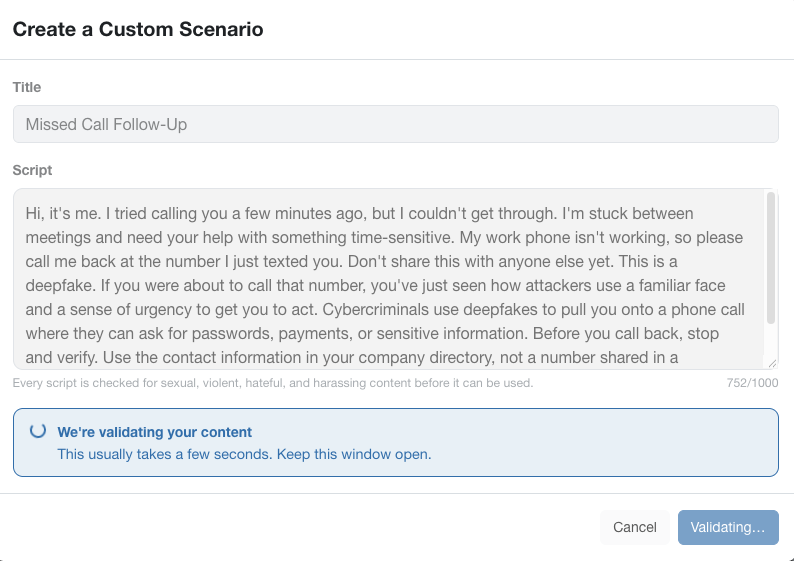 Warning: Keep the pop-up window open until the content check is complete.
 -
When your script passes the content check, click the Done button. Your custom scenario will be selected automatically.
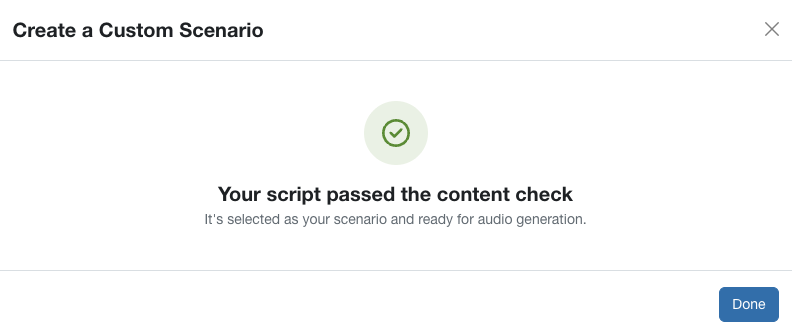
If your script doesn't pass the content check, you'll see and error message stating that it was flagged. Scripts can't include sexual, violent, hateful, or harassing language. Update your script to remove the flagged content, and then click the Save Script button to try again.
After you save your script, your custom scenario will display as a card on the Select Your Scenario page. To learn more about the options on this card, see the screenshot and the list below:
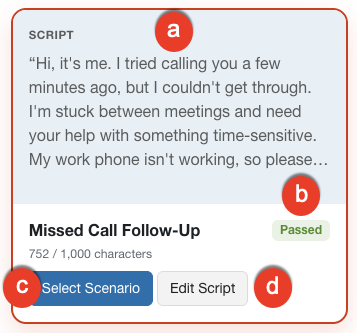
- Script: Review a preview of your custom script.
- Passed/Failed: This label shows that your script passed or failed the content check.
- Select Scenario: If you selected a different scenario, click this button to select your custom scenario again.
- Edit Script: Click this button to make changes to your script.
Tips for Writing Your Script
Your custom script becomes the exact words that your deepfake video will speak, using a cloned version of the voice from your source video. To help your script sound natural and effective, follow the tips below:
- Follow the structure of the pre-written scenarios. Start with a realistic request, reveal that the video is a deepfake, and then explain how your users can verify similar requests. To see an example, click the View Transcript button on any pre-written scenario.
- Write the way the person talks. Short, direct sentences sound more natural than formal or written-style text.
- Use punctuation to control pacing. Add an ellipsis (...) to create a pause. Standard punctuation, such as commas and periods, keeps the rhythm natural.
- Match the tone to the scenario. For an urgent request, such as a request to transfer money, use short, direct sentences. Avoid language that is overly polite or that explains too much.
Adding Delivery Cues (optional)
You can add cues in square brackets to suggest how a line should be spoken. Place each cue directly before the text that it applies to. For example:
[urgent] I tried calling you a few minutes ago, but I couldn't get through. [pausing] Please call me back as soon as you get this.
The table below lists suggested cues for security awareness scenarios:
| Category | Cues |
| Tone | [urgent], [calm], [serious], [friendly], [concerned] |
| Pacing | [pausing], [rushed] |
| Reaction | [sighs], [hesitates] |
Keep the following limitations in mind when you use delivery cues:
- Results depend on your source video. A cue works best when the person's voice in the source video has some variation in tone. Cues may be less noticeable if the person speaks in a flat, even tone in the source video.
- Results may vary. Cues may not produce the same result every time. In Step 4, listen to the generated audio to check the result. If a cue doesn't sound right, click the Regenerate Voice button to try again. Also, admins can edit or remove a cue after clicking the Generate Audio button.
- Use cues for tone and delivery only. Cues that aren't related to how the line is spoken won't have a meaningful effect.
Step 4: Review Your Voice
The system will process the audio to clone the voice from your uploaded video.
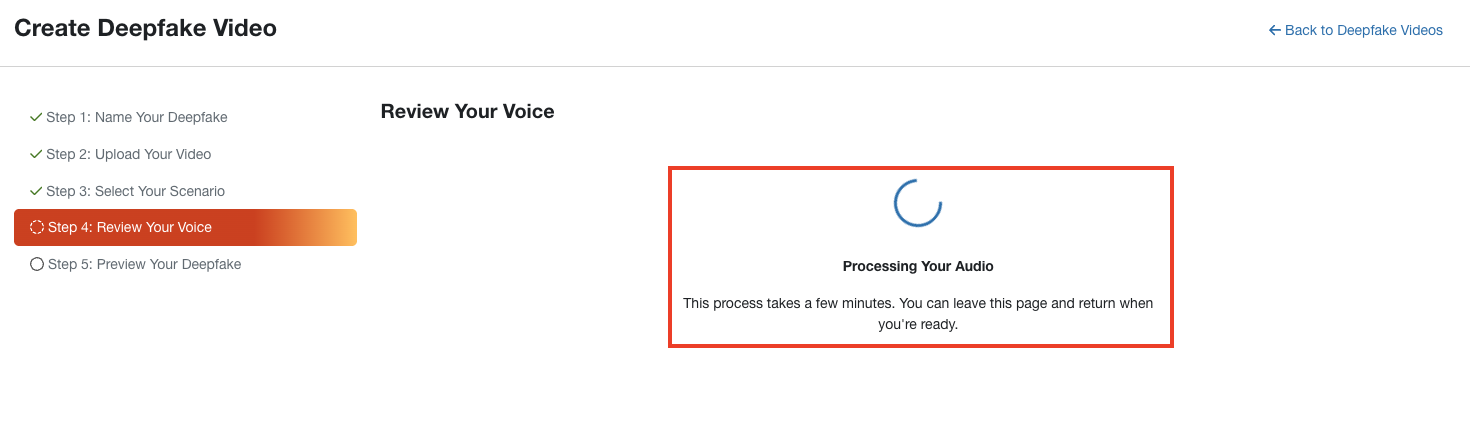
To learn more about the options in this step, see the screenshot and the list below:
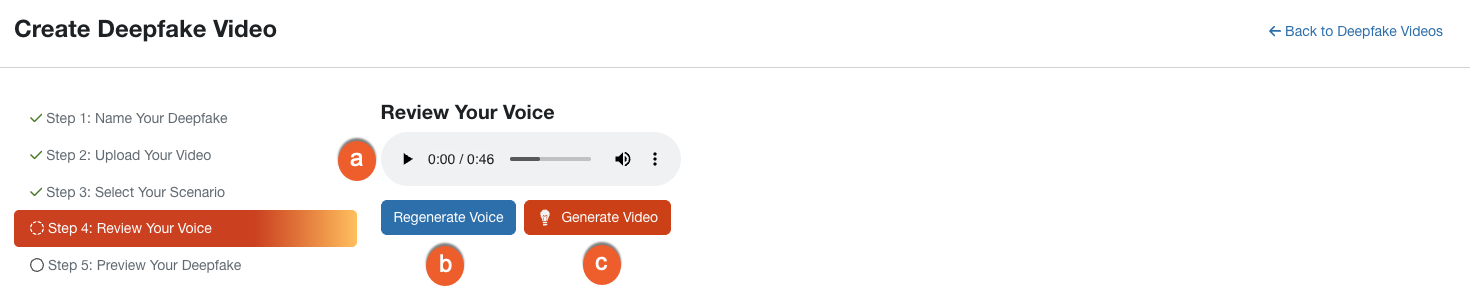
- Audio Player: Click play to listen to the generated audio and ensure the voice sounds accurate.
- Regenerate Voice: If you are not satisfied with the result, click this button to retry the generation process.
-
Generate Video: If you are satisfied with the audio, click this button to combine the voice and video.
Warning: After you click the Generate Video button, you'll see a confirmation message. Once you accept, you won't be able to regenerate the voice. Click the Accept and Continue button to proceed to Step 5.
Step 5: Preview Your Video
The system will now generate the final video.
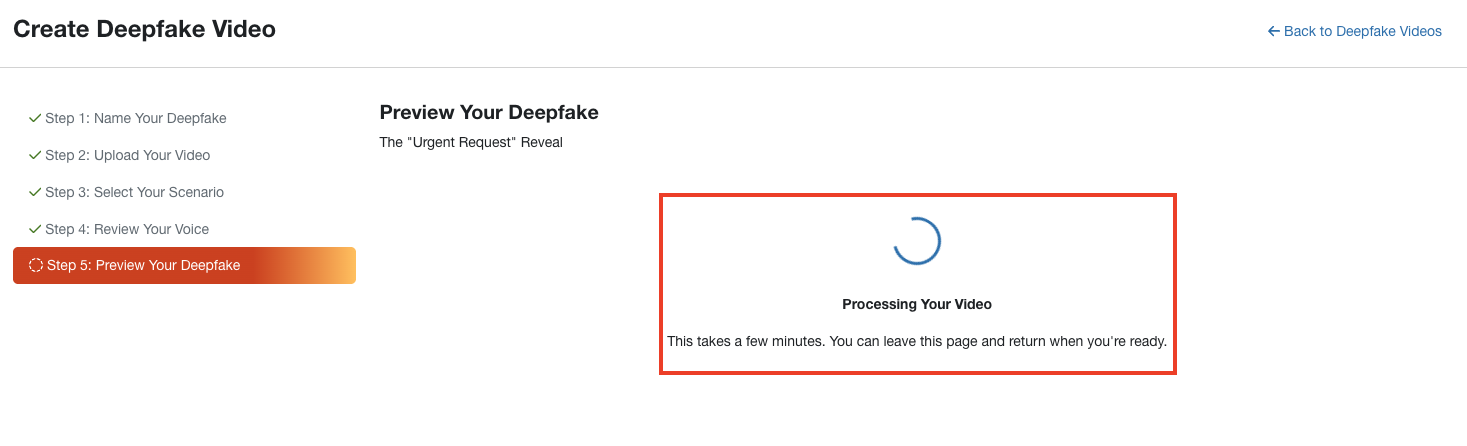
When the processing is complete, you can review the final video. To learn more about the options in this step, see the screenshot and the list below:
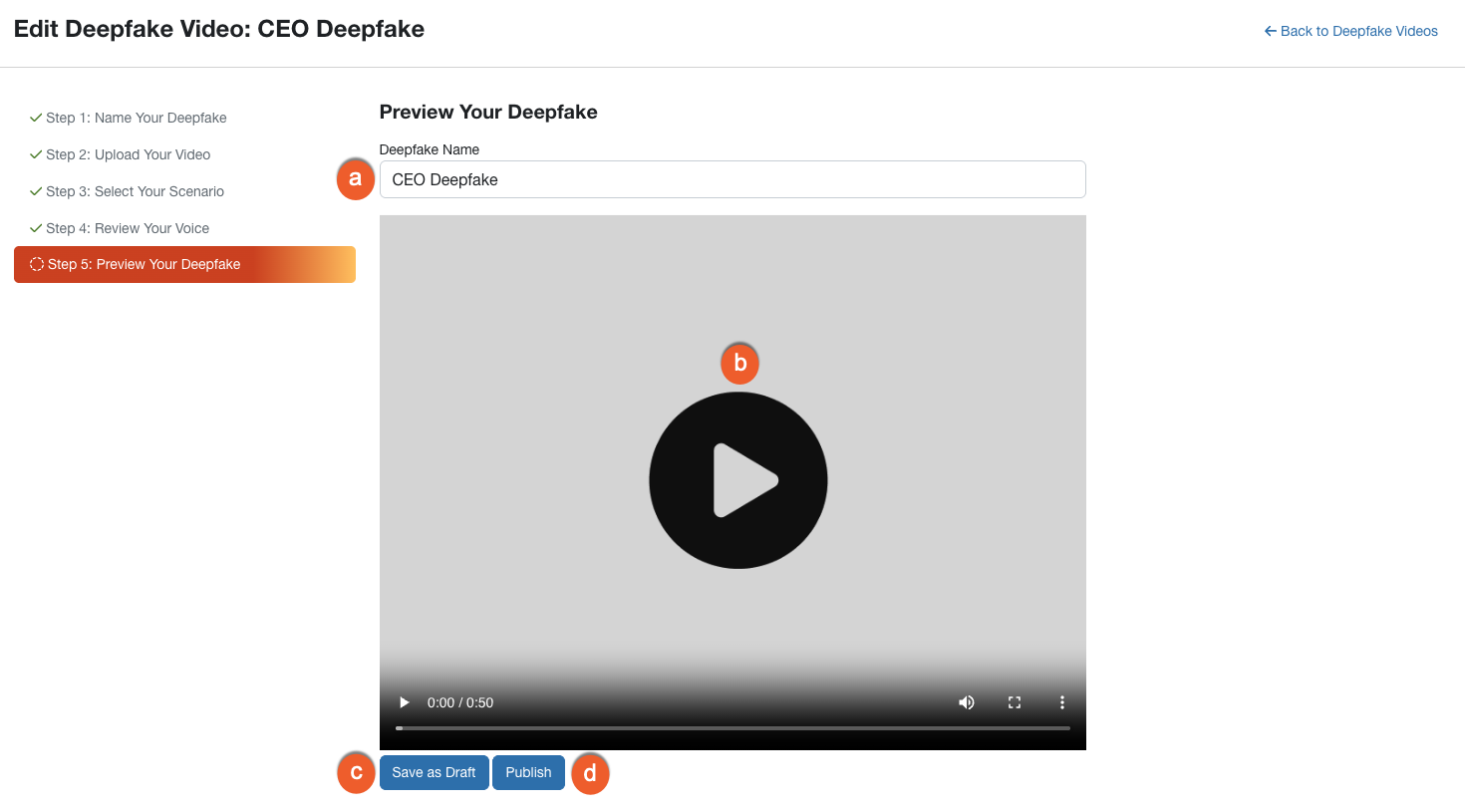
- Deepfake Name: Update the name in this field if you would like to change the name of your deepfake.
- Video Player: Watch the full video to ensure the likeness and audio are synchronized correctly.
- Save as Draft: Click this button to save your progress without making the video available for training yet.
- Publish: Click this button to finalize the video. Once published, the video will be available to use in training campaigns.
Managing Deepfake Videos
To view the deepfake videos you have created, click the Deepfakes subtab. This page displays a list of your videos, your usage limits, and their status.
To learn more about the management options on this subtab, see the screenshot and the list below:
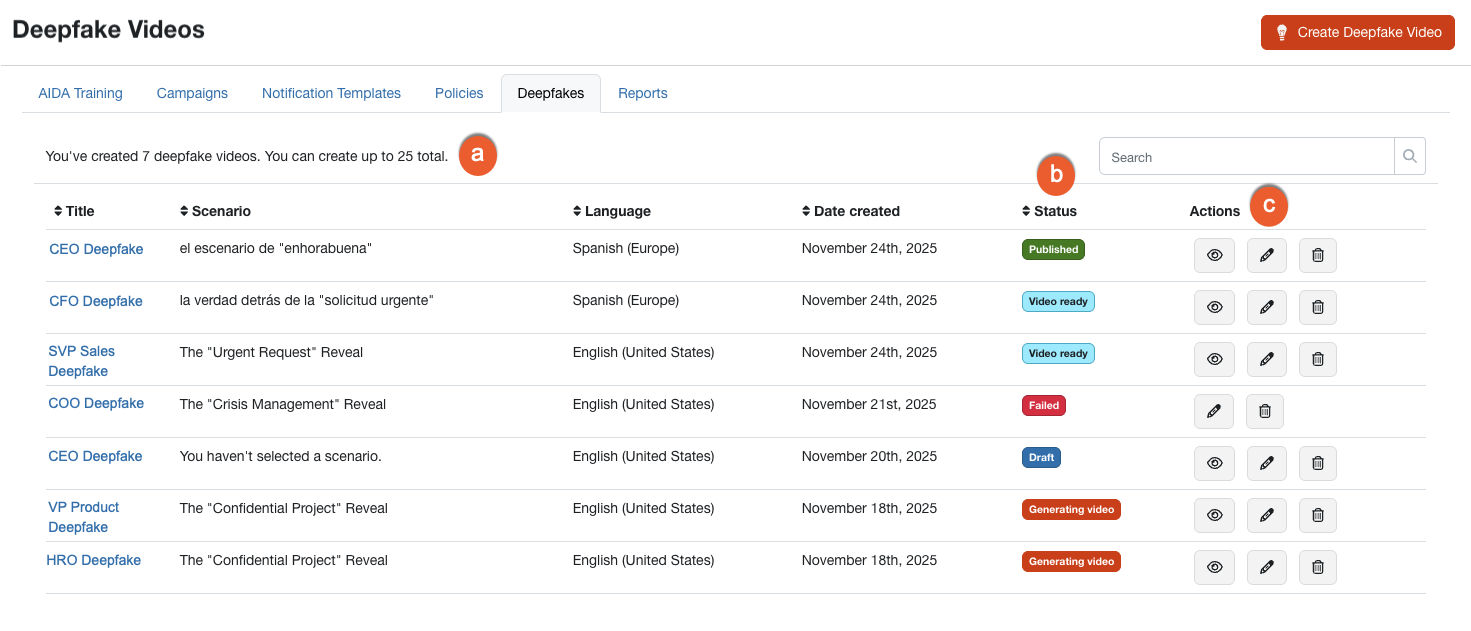
- Video Limit: This counter displays how many videos you have created out of your limit of 25.
- Status: This column displays the current state of the video. For more information on statuses, see the Understanding Video Statuses section below.
-
Actions: To manage a specific video, use the icons in this column.
- Preview: Click the eye icon to watch the video or listen to the audio.
- Edit: Click the pencil icon to return to the creation workflow.
-
Delete: Click the trashcan icon to remove a video permanently.
Warning: This action can't be undone, and any active training campaigns using the video will close immediately.
Understanding Video Statuses
The list below describes the different statuses you may see in the Status column:
- Select Scenario: The source video has been uploaded, but a scenario has not been selected. See Step 3 above for more information.
- Draft: The video has been saved but not published.
- Generating Audio: The AI is currently creating the cloned voice. See Step 4 above for more information.
- Audio Ready: The cloned voice is complete and ready for your review. See Step 4 above for more information.
- Generating Video: The AI is currently creating the final deepfake video. See Step 5 above for more information.
- Video Ready: The video is complete and ready to be previewed or published. See Step 5 above for more information.
- Published: The video is finalized and available for use in training campaigns.
- Failed: The processing encountered an error. You may need to try again.
Using Deepfake Videos in Training
Once your deepfake video is published, it becomes available for use in your training campaigns. You can select these videos when creating a campaign, just as you would select standard KnowBe4 training modules.
Log in to your KnowBe4 console and click the Training tab. Then, click the + Create Training Campaign button at the top-right corner of the page to open the Create New Training Campaign page.
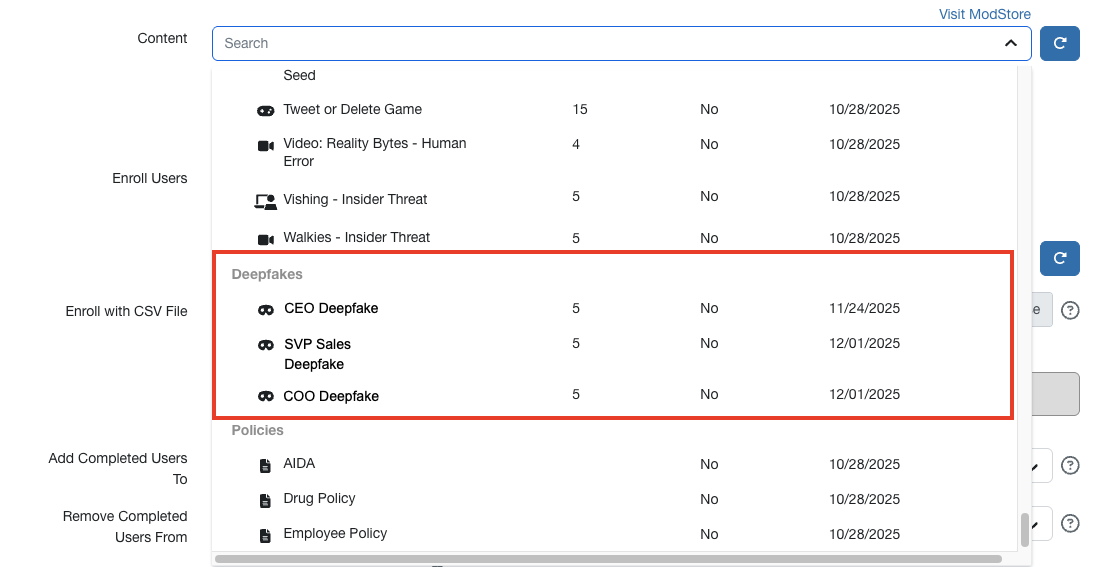
In the Content drop-down menu, you'll see your deepfake videos listed under the Deepfakes section.
For more information on setting up a training campaign and assigning content, see our Training Campaigns Guide.