For personalized training, phishing, and communication with your users, KnowBe4 offers the ability to use your own images in templates and landing pages. These images can be hosted externally or on your KnowBe4 Security Awareness Training (SAT) console. For more information on adding and managing custom images to templates and landing pages, see the sections below.
Add Images to Templates or Landing Pages
To use your own images in templates or landing pages:
- Log in to your KnowBe4 SAT console.
- Navigate to your desired template or landing page, then either create a new template or landing page or edit an existing one.
-
In the WYSIWYG (What You See Is What You Get) editor, find and select the image icon. This icon will open an Image Properties pop-up window.
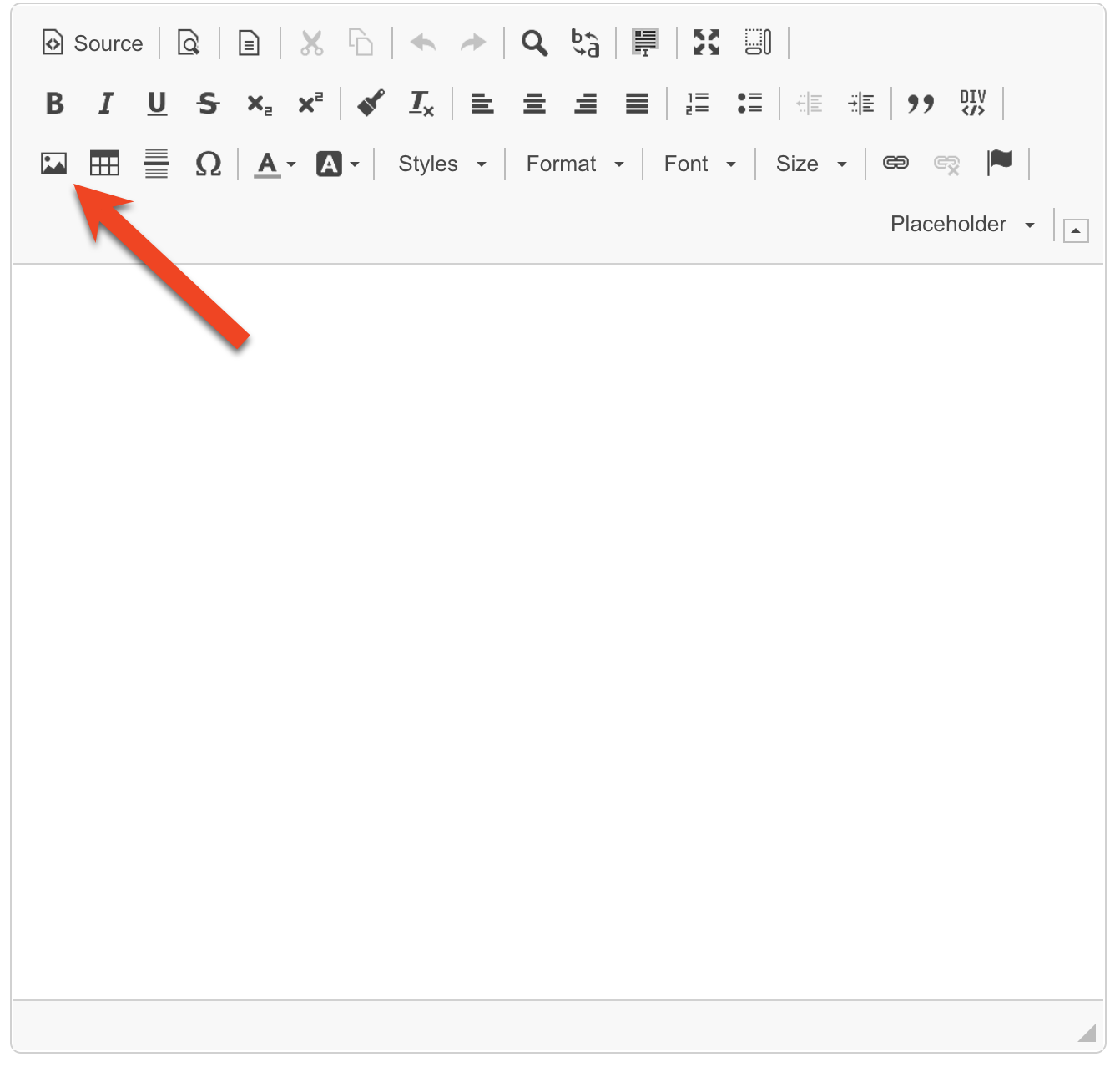
-
From the Image Properties window, you can link an image URL. If you have enabled image hosting in KnowBe4 SAT, you can also select a hosted image.
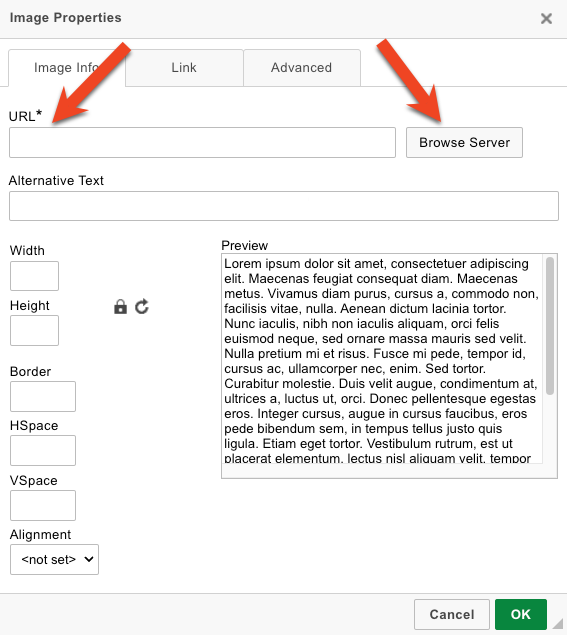
- To link an externally hosted image URL, enter the image URL into the URL field.
-
To select a hosted image, select the Browse Server button. This button will open your Hosted Image Library, where you can select your preferred image.
Note:As part of our data retention policy, hosted image links expire approximately 60 days after being sent to users. Once expired, the images will no longer display in previously sent messages. Images in your Hosted Image Library and saved templates or landing pages do not expire. To display images for longer than 60 days, we recommend using an externally hosted image URL. - Once you have selected your image, select OK to save your changes and insert the image into your template or landing page.
Host Images in KnowBe4 SAT
KnowBe4 supports uploading your own images, which are hosted in your KnowBe4 SAT console and available across all your email templates and landing pages. For more information on using hosted images, see the sections below.
Enable Image Hosting
To enable image hosting for your account:
- Log in to your KnowBe4 SAT console.
- Select your username in the top-right corner.
- Select Account Settings.
- Navigate to Account Information > Image Hosting.
- Select the Enable Image Hosting check box. A pop-up window will appear.
- Select Enable.
Once this feature is enabled, a Manage Images button will appear in the Image Hosting section. You can use this button to access your Hosted Image Library and manage your hosted images.
Manage Hosted Images
Once you have enabled image hosting, you can manage your hosted images using the Hosted Image Library. You can access your Hosted Image Library through your Account Settings by following the Enabling Image Hosting article section, or through the WYSIWYG template editor.
To use the Hosted Images Library, see the screenshot and list below:

-
Use Image: Select an image in your library, then select this button to use it in your template or landing page.
Note:This button is only available if you are accessing the Hosted Images Library through a template or landing page editor. -
Upload Image: Select this button to open the Upload Image pop-up window and upload your image.
Note:Images must be 5 MB or less and in one of the following formats: .jpg, .png, .gif, or .webp. - Rename Image: Select an image in your library, then select this button to open the Rename Image pop-up window and rename the image.
-
Delete Image: Select an image in your library, then select this button to open the Delete Image pop-up window and delete the image.
Warning:Deleting a hosted image cannot be undone. If the deleted image was used in any templates or landing pages, a broken image icon will appear where the image used to be in those templates or landing pages.
Image Upload Terms
Uploaded images must comply with our image upload terms:
“By uploading this image (which constitutes “Customer Content”), you confirm that:
- You have the right to upload this image and grant KnowBe4 a license to host, store, and display it to provide the Services.
- This image complies with all terms of your agreement with KnowBe4 your agreement with KnowBe4 (link opens in new window), including all Customer Content requirements.”
Troubleshoot Images
If your template or landing page images are not displaying correctly, see our Troubleshooting Template Image Issues article or contact our support team contact our support team for assistance.