You can integrate your Workato Workato (link opens in new window) platform into your KSAT console. Workato allows you to utilize Workbots for conversational process automation, allowing users to initiate KnowBe4 actions, view statuses, or receive context-aware notifications directly within Slack or Microsoft Teams. Workato utilizes KnowBe4’s Graph APIs to enable automated security awareness training workflows and data management in areas including groups, users, phishing, and training.
For more information about Workato, visit its website website (link opens in new window).
Before You Connect Workato to Your KSAT Console
Before integrating Workato into your KSAT console, you must find your API address and create a Product API token. Follow the steps below to do both actions.
-
Your API address depends on where your KnowBe4 account is located. Please see the table below to find the API address for your region.
Region Base URL US https://us.api.knowbe4.com CA https://ca.api.knowbe4.com EU https://eu.api.knowbe4.com UK https://uk.api.knowbe4.com DE https://de.api.knowbe4.com - Log in to your KSAT console as an admin.
- Navigate to Account Settings in the top-right corner under your account’s email address.
- In Account Settings, navigate to Account Integrations.
- Under Product API, select Product API. The Product API subtab will open.
- At the top-right corner of the Product API subtab, select + Create New API Token.
- Fill out the fields on the Create New API Token page.
- Select Create Token. The Product API Token pop-up window will open.
- Select the Product API token to copy the token. Be sure to save your copied API token in a location that you can easily access. After you close this window, you will not be able to view this token again.
Connecting Workato to Your KSAT Console
You can connect your Workato platform to your KSAT console by following the steps below.
- Log in to your Workato platform as an admin.
-
In your workspace, navigate to Projects > Create project.

-
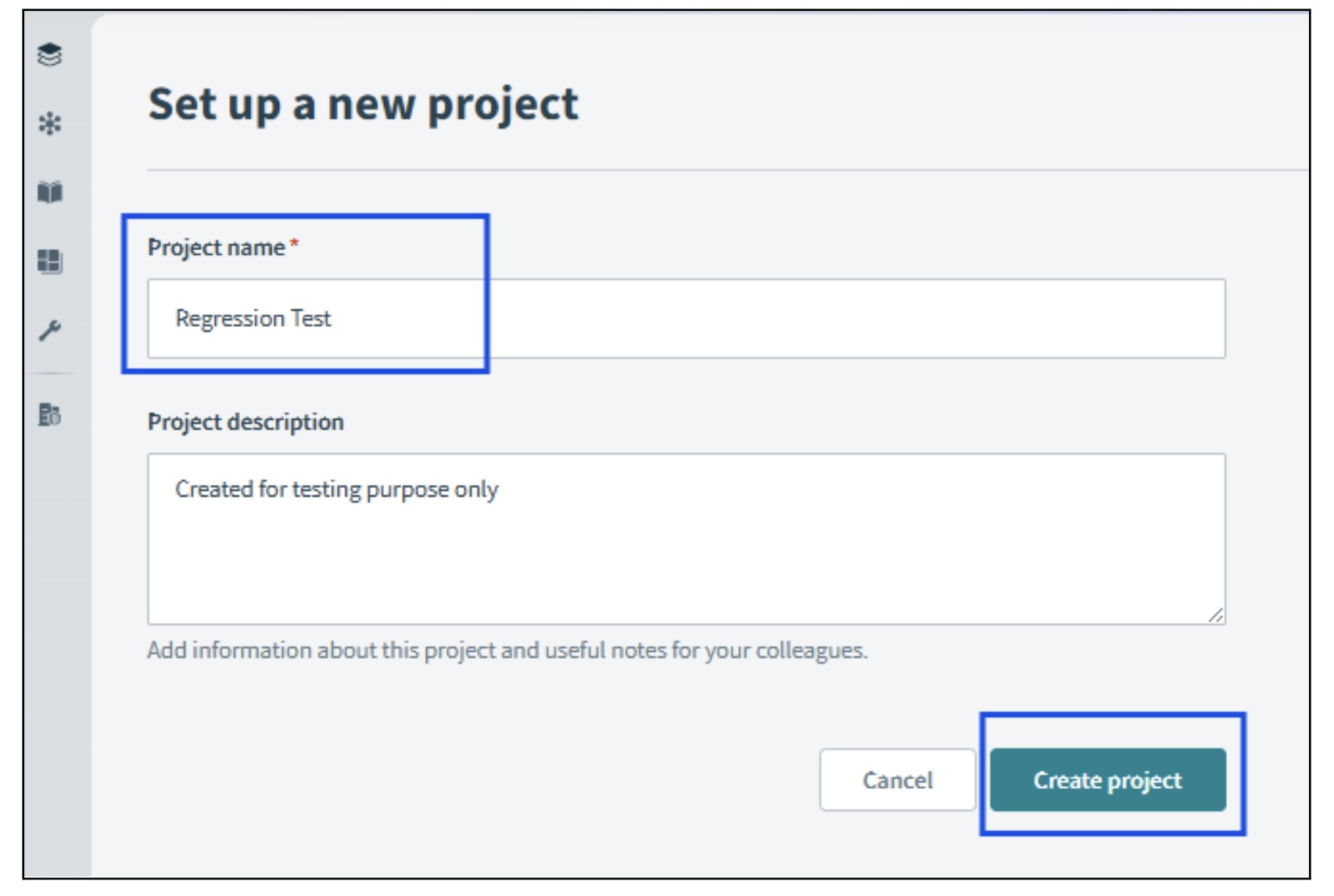
Provide the Project name (required) and Project description, then select Create project. It is suggested that you create a Project name for testing purposes only, as seen in the screenshot below.
-
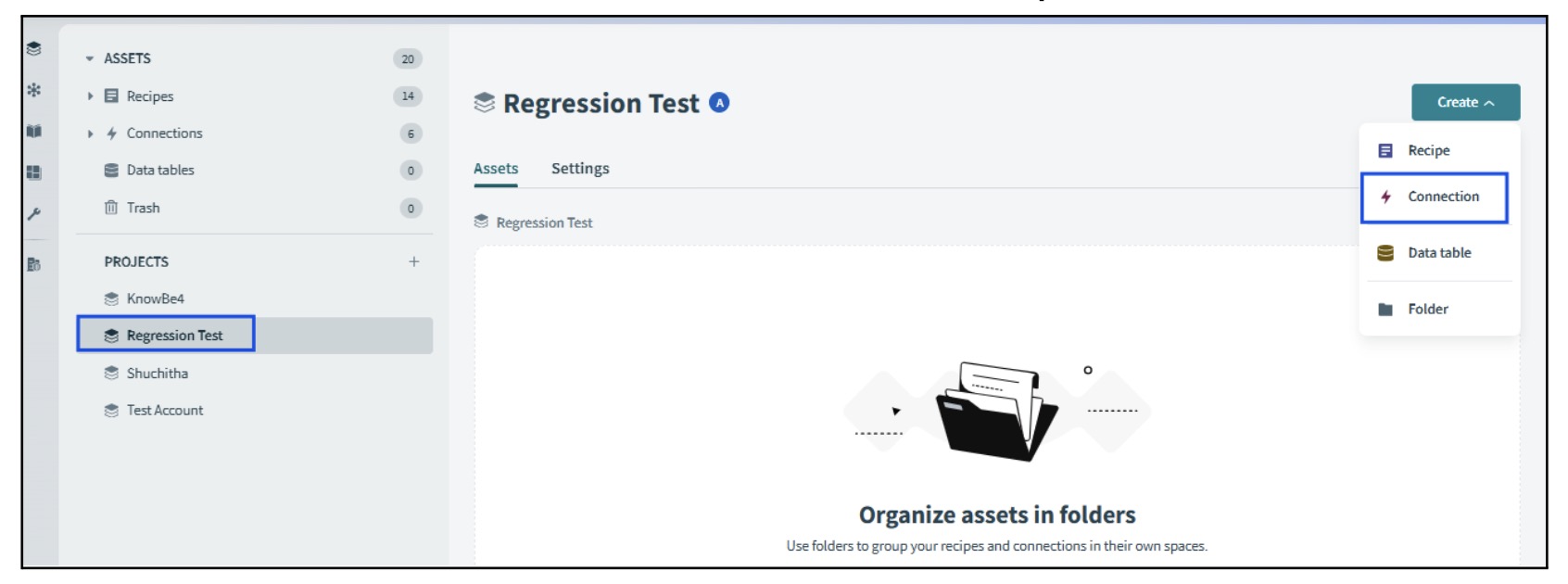
In your newly created project, navigate to Create > Connection.
-
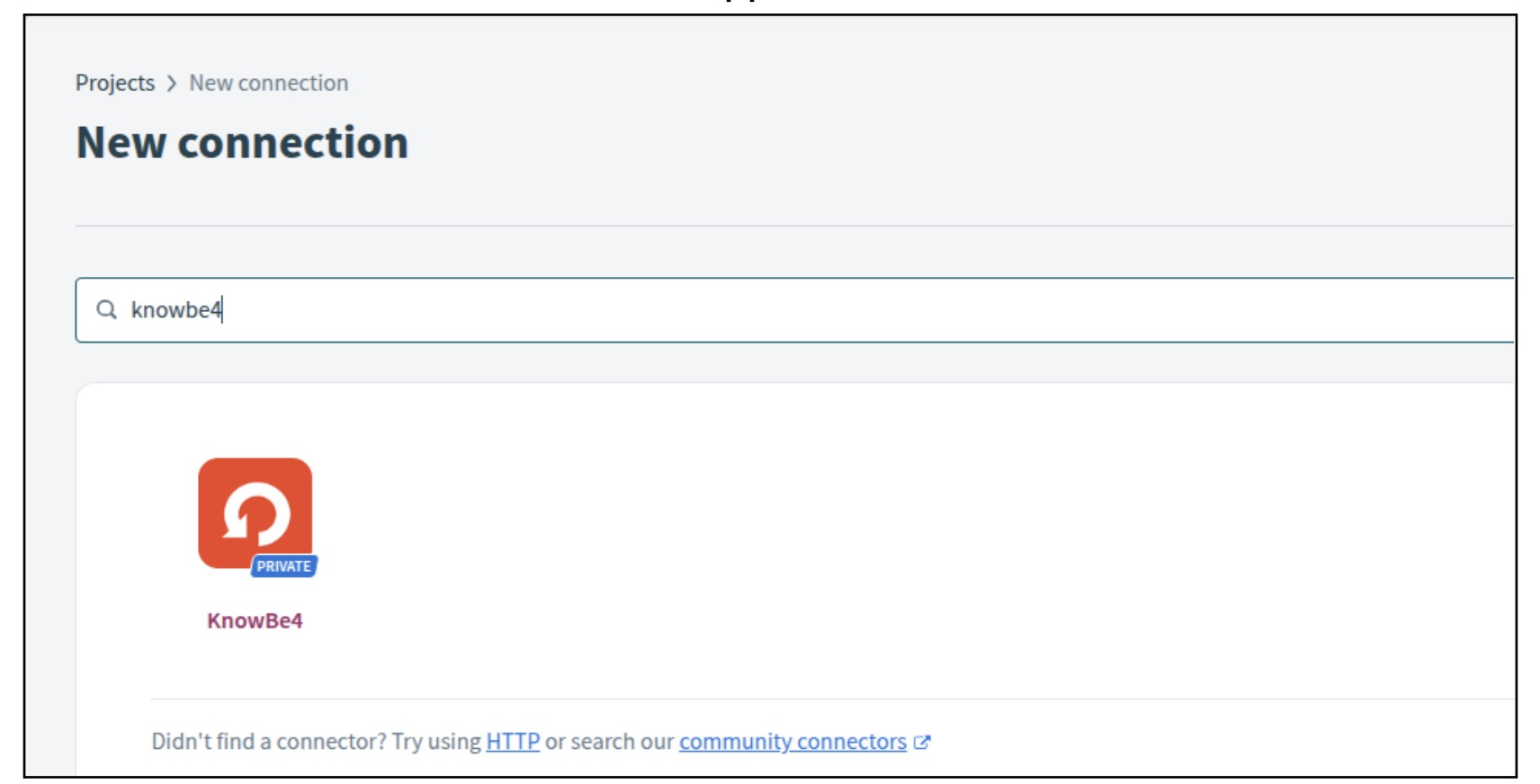
Search for and select KnowBe4 to establish a connection.
-
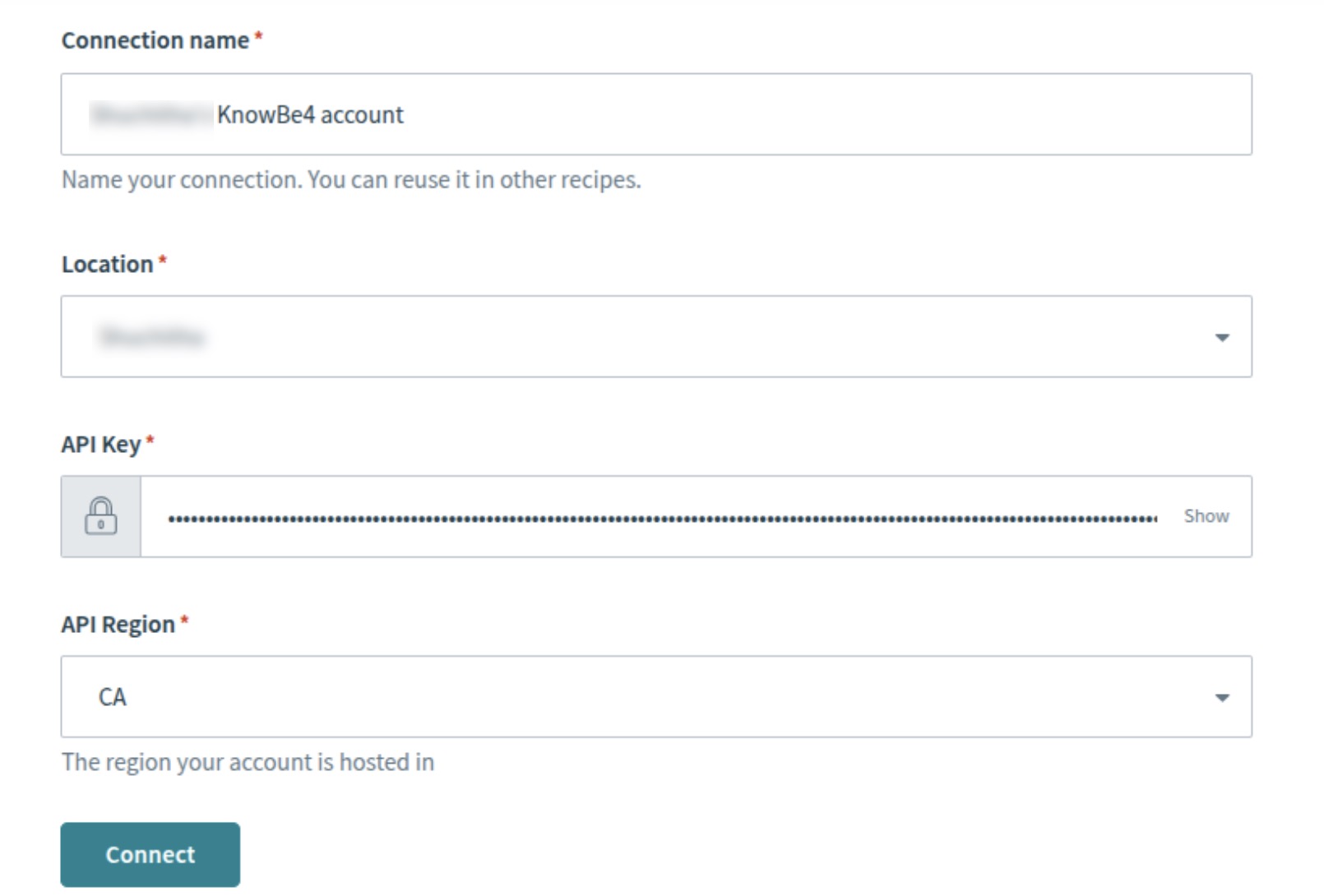
Provide the Connection name, Location, API Key, and API Region of your KnowBe4 account. You should have the Product API token and API address from the previous steps.
- Select Connect.
Setting Up KnowBe4 Workflows in Workato
You can set up KSAT workflows in your Workato platform by following the steps below.
-
In your project, navigate to Create > Recipe.
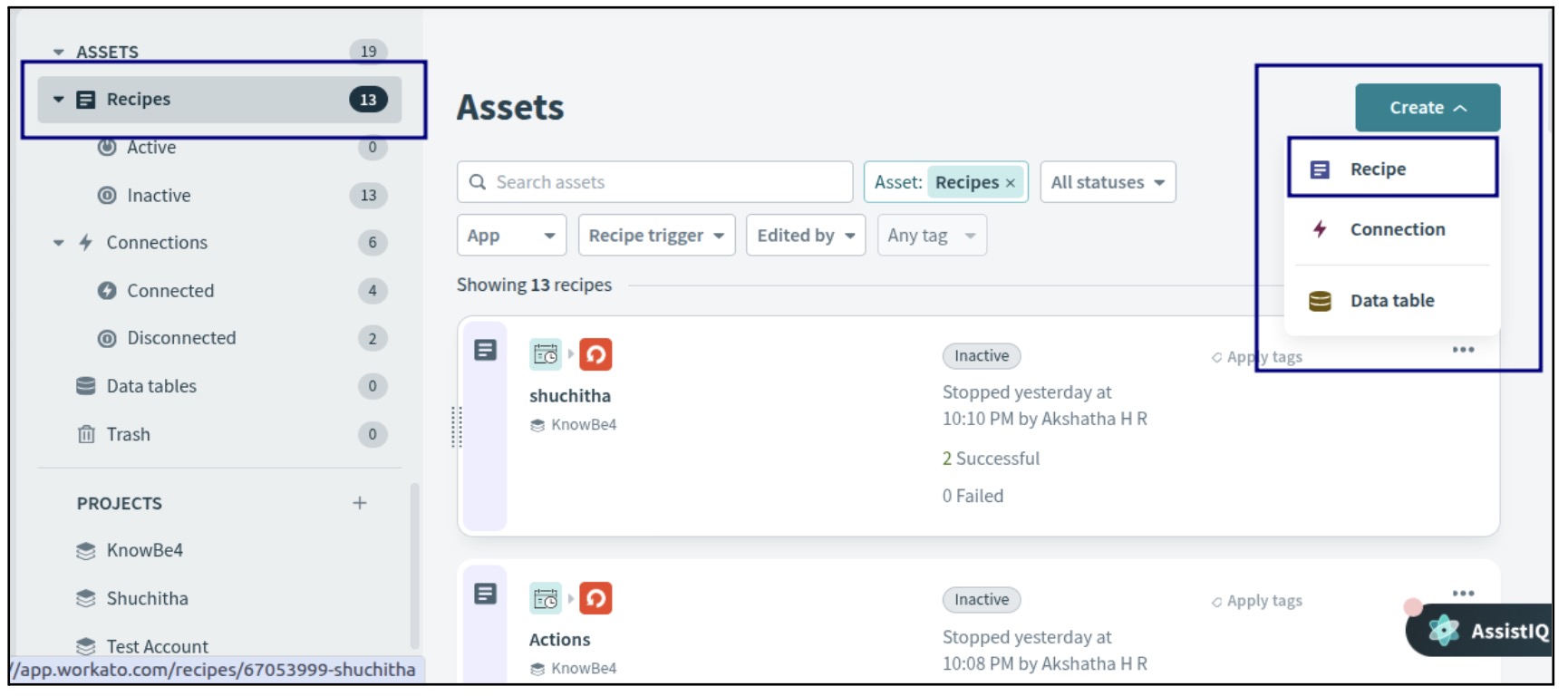
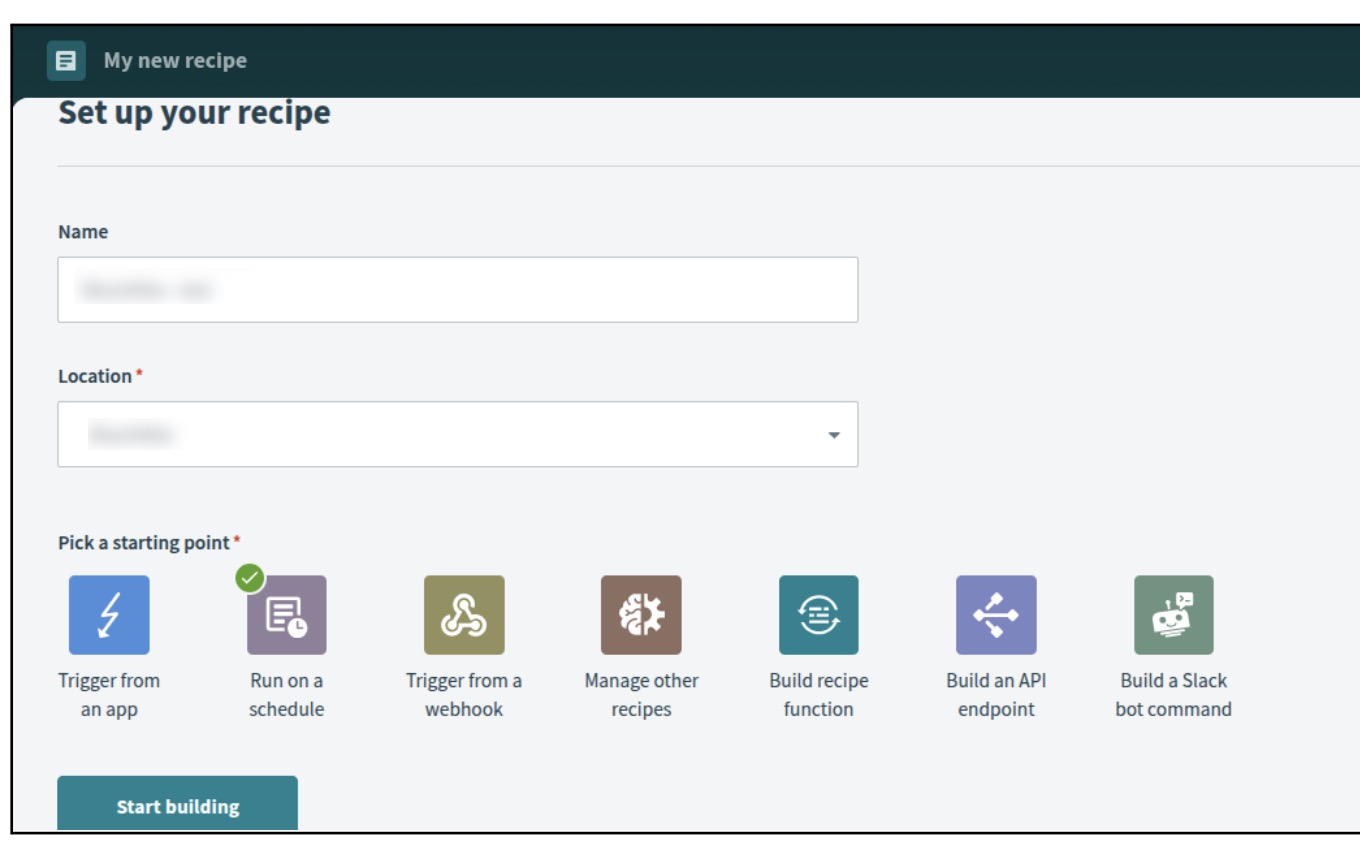
- Provide a Name and Location for your new recipe.
-
Select a starting point for your recipe. In this example, we will select Run on a schedule. Then, select the Start building button.
-
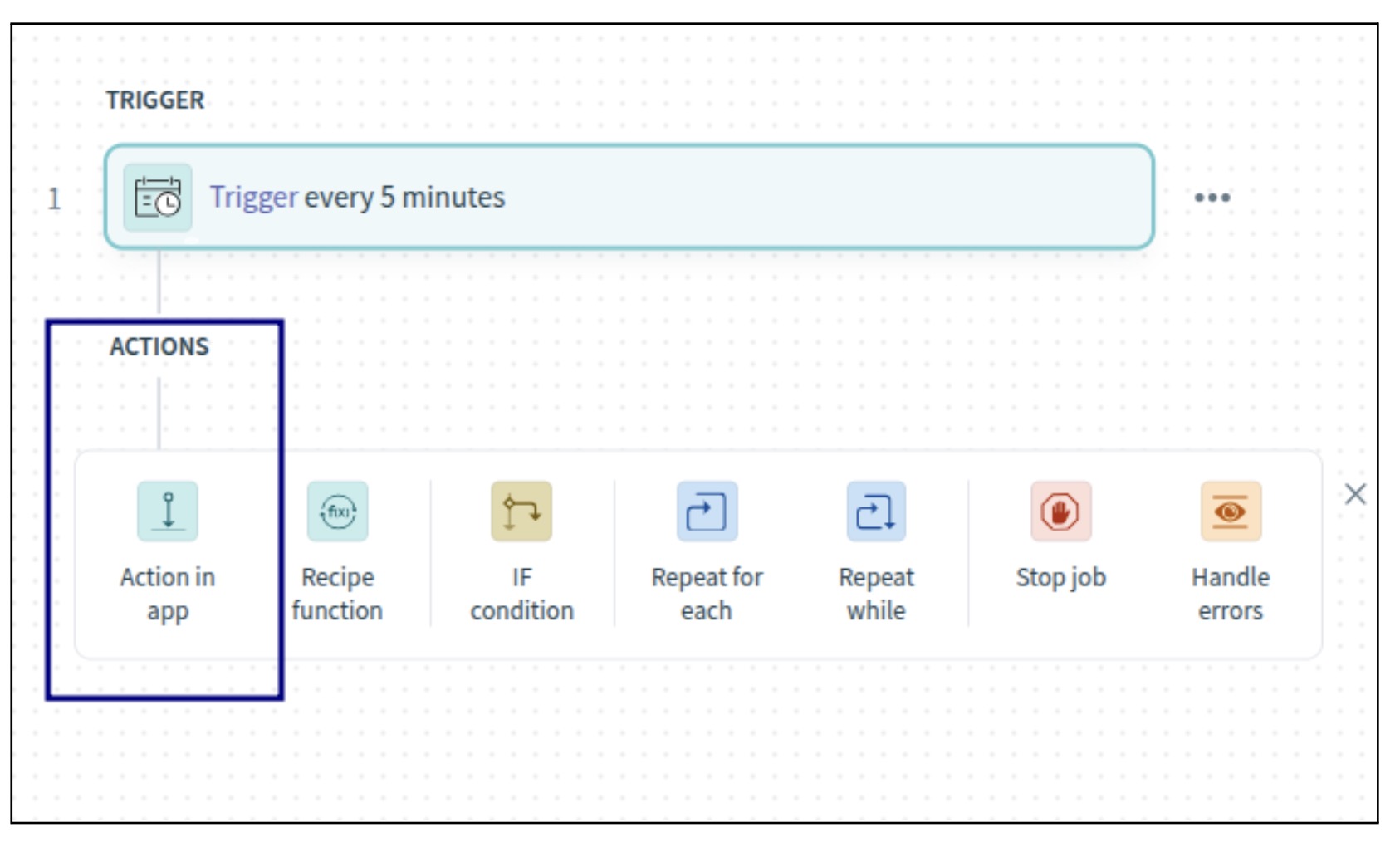
Next, you should see an Actions page. In this example, our Action in app will be the Trigger every 5 minutes option.
-
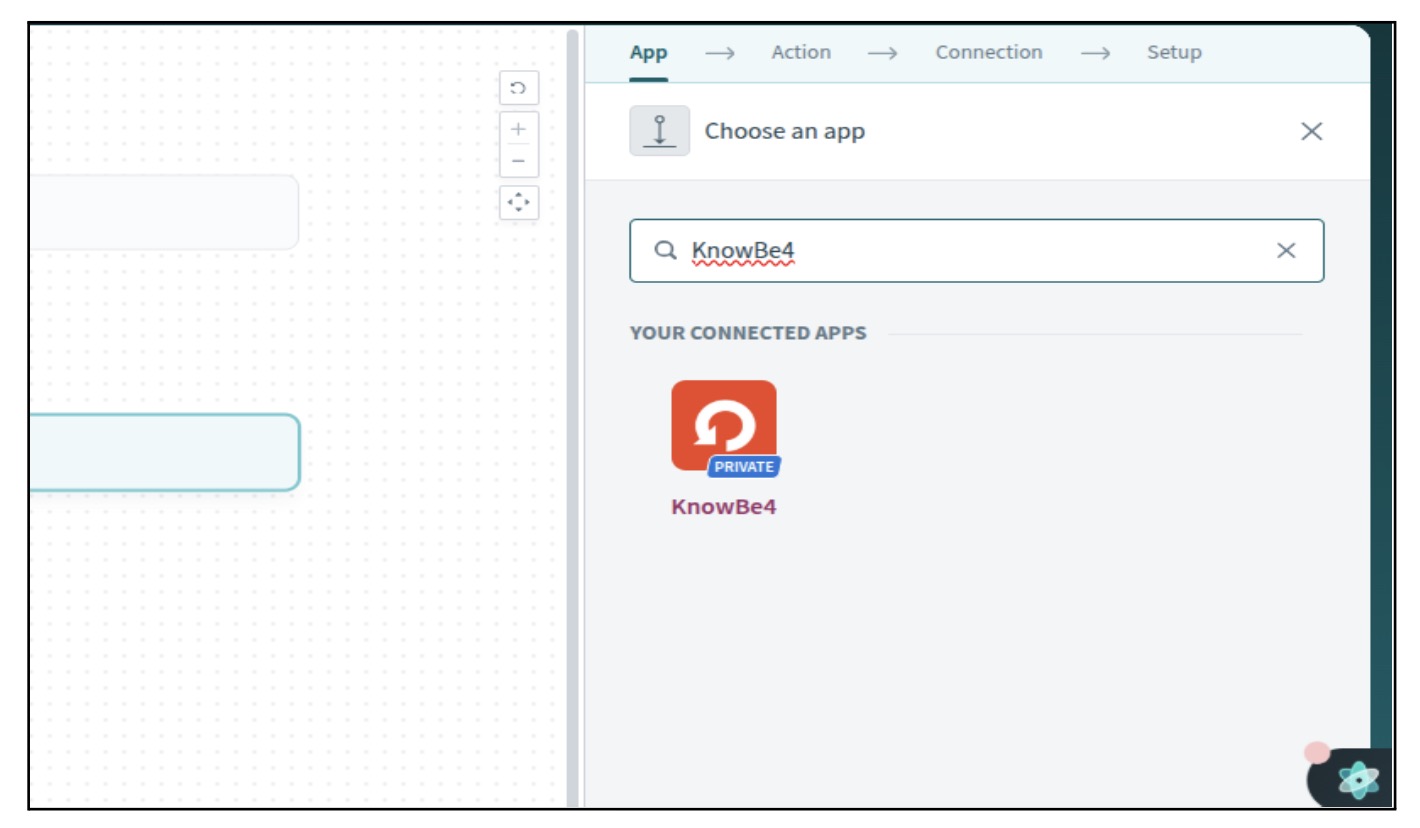
Next, you will be taken to the Choose an app section. Search for and select the KnowBe4 app.
-
Under Actions, choose the action you want to perform. In this example, you want to select the Archive one or more users by ID option.
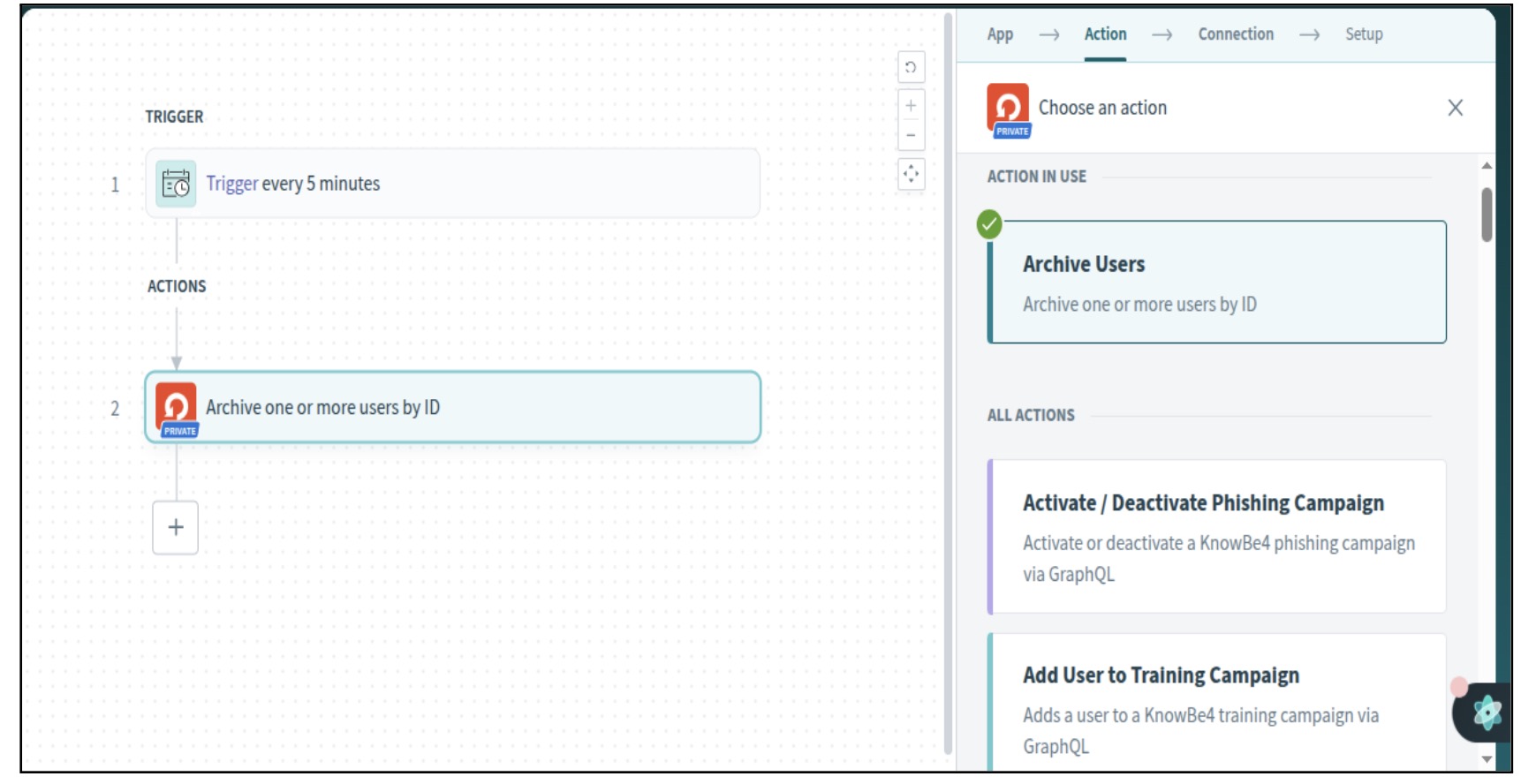
- You should already have an existing connection to KnowBe4. If you haven't yet connected, you will be prompted to enter your connection name, Location, API Key, and API Region to establish a connection.
-
Next, provide the required information for the action you want to perform. In this case, you want to select the Archive one or more users by ID option, so you would select one or more users from the drop-down menu to archive them.
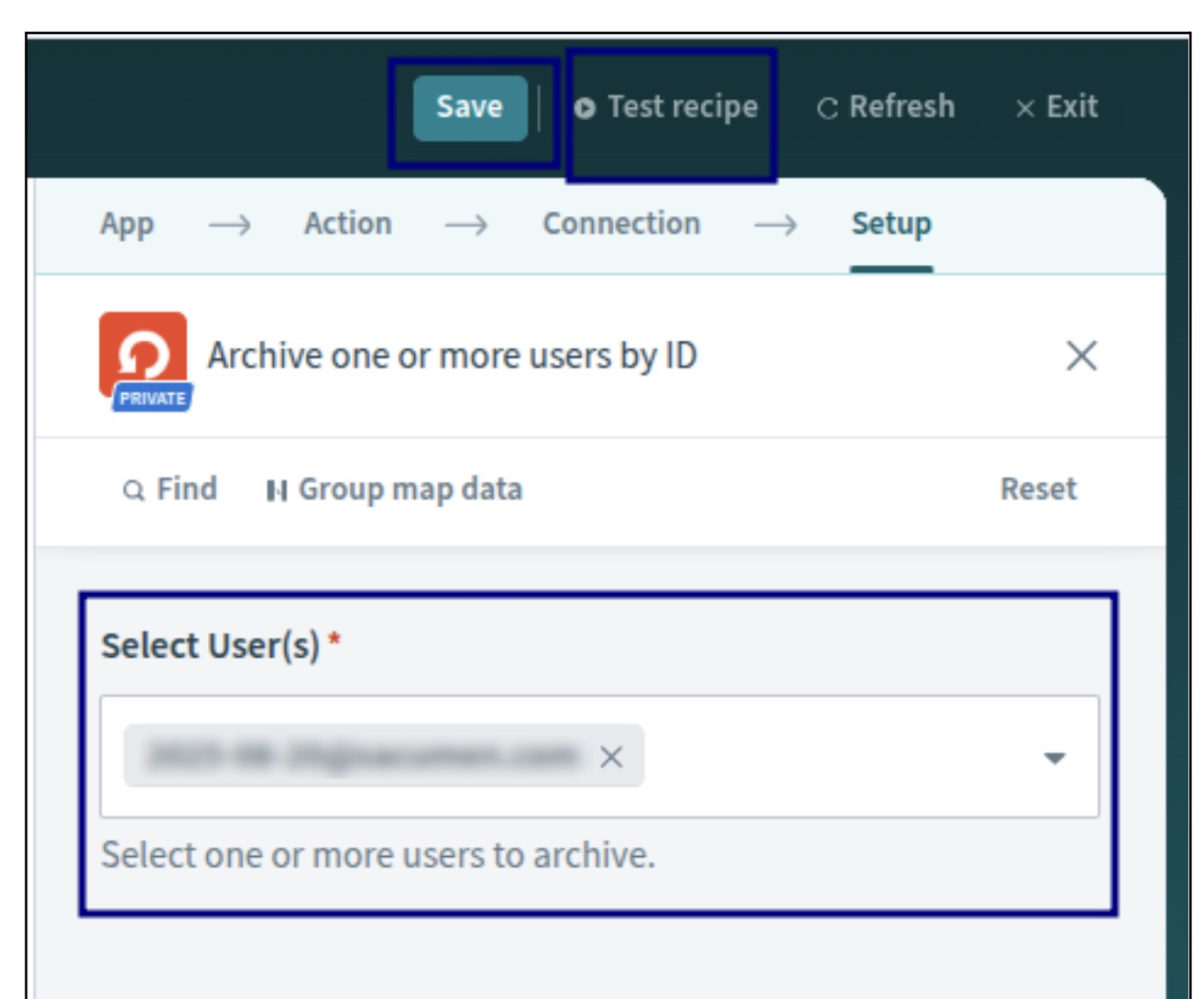
- Select Save at the top of this page.
-
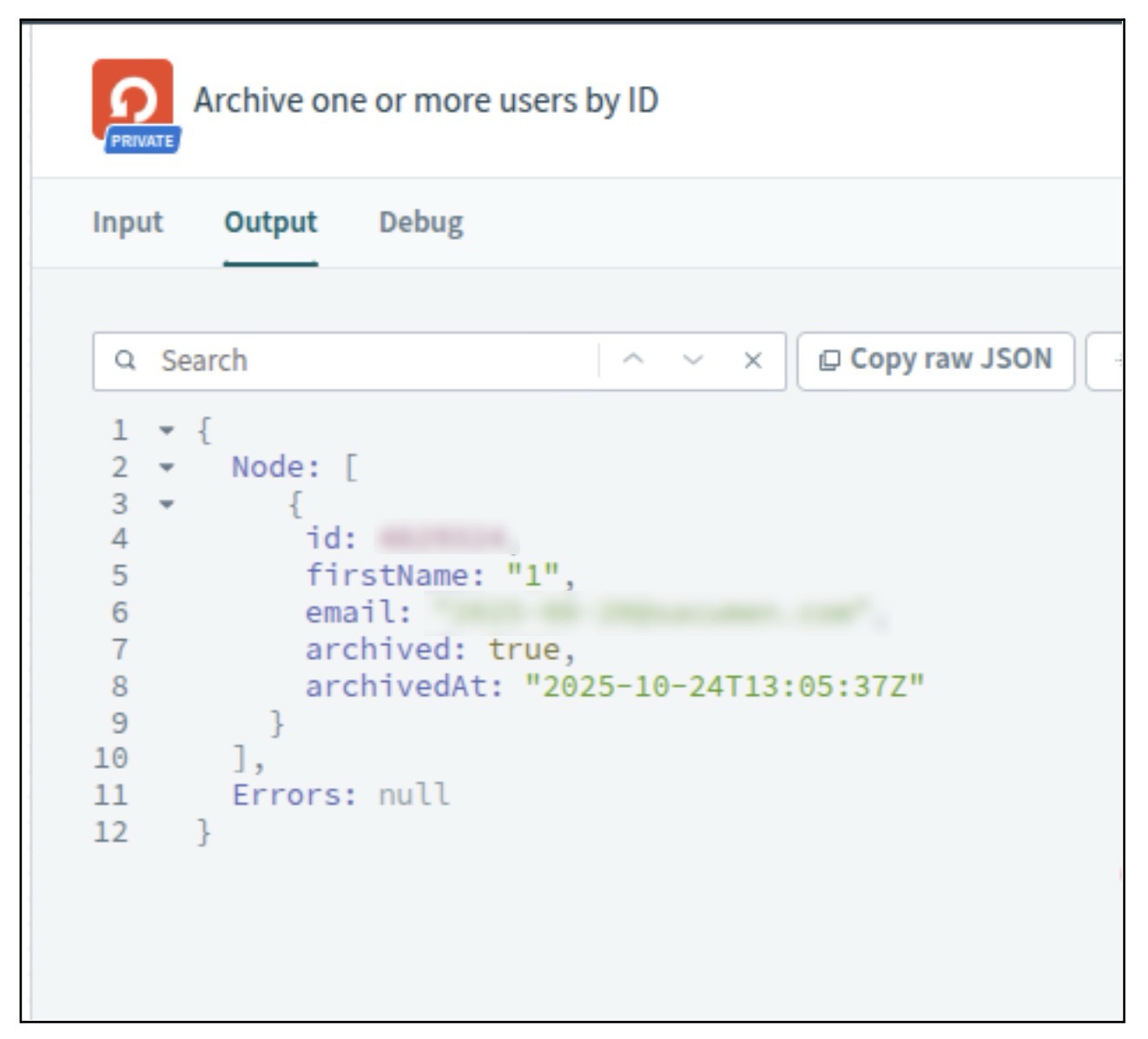
Select the Test recipe option, located next to the Save button, to test your action. You should be able to view Output, which will display the action you have taken.
-
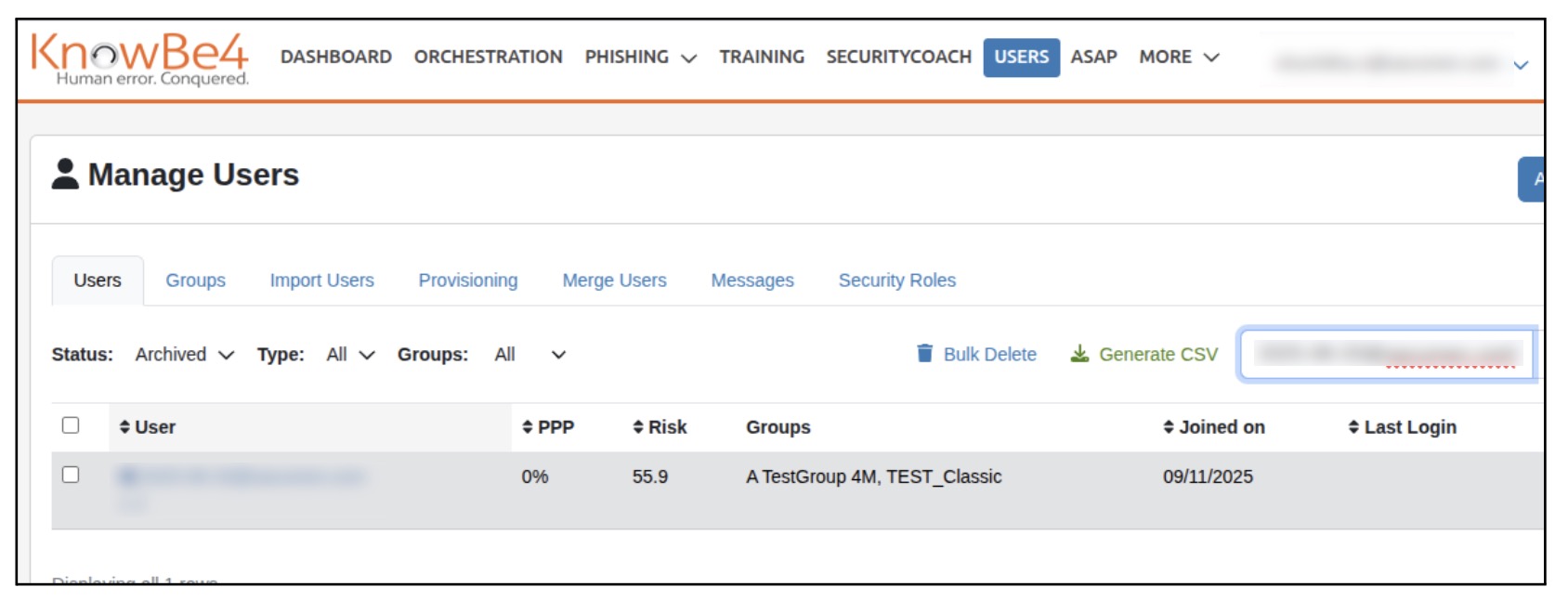
Verify your action against what is displayed in the KSAT console. In this example, the archived user’s email address should be displayed in the Users tab.
-
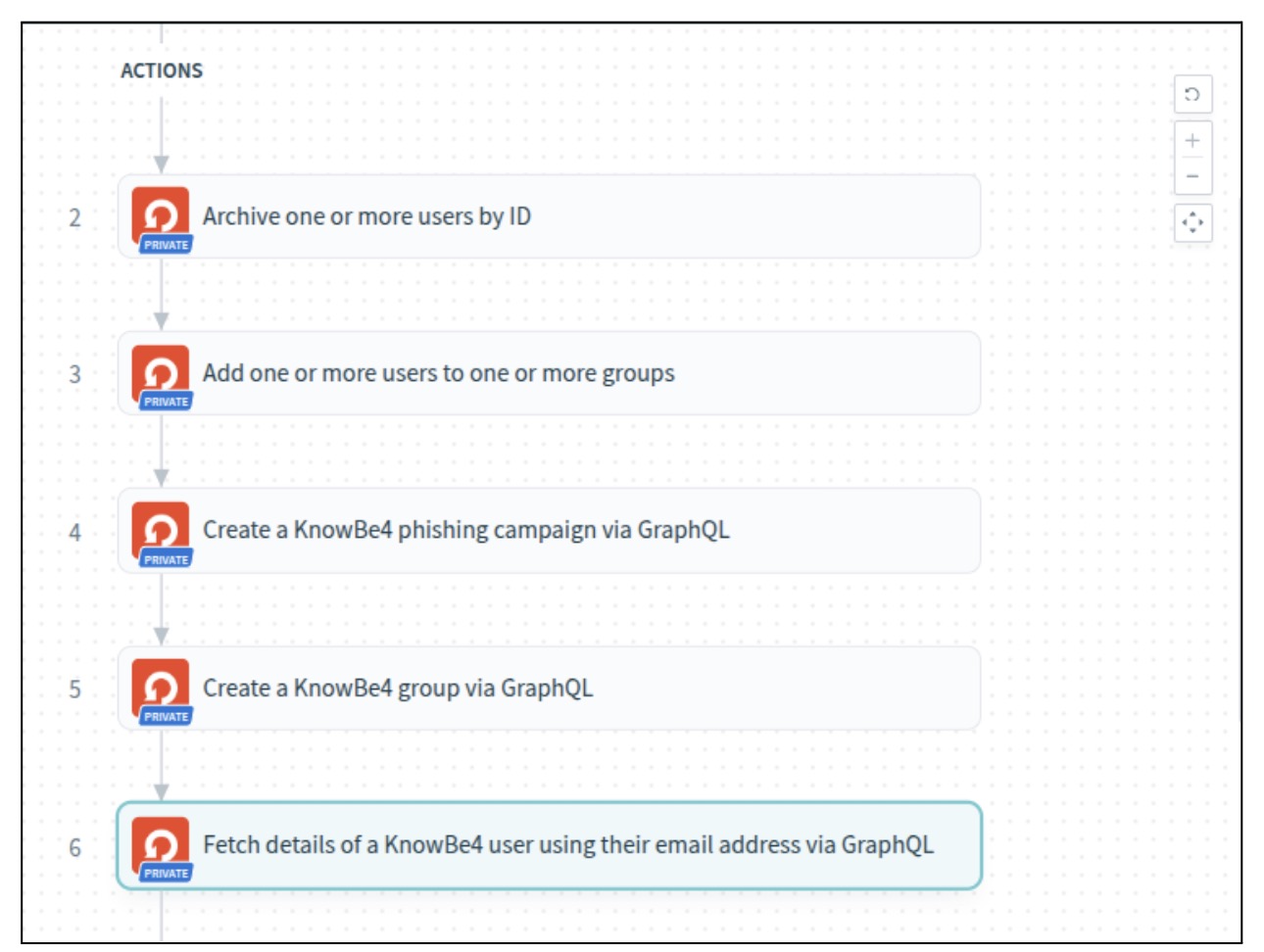
You can also create multiple actions by using the recipes workflow, as shown in the screenshot below:
If you experience issues integrating Workato with your KSAT console, please contact Workato’s technical support Workato’s technical support (link opens in new window)