You can integrate your Tray Tray (link opens in new window) platform into your KSAT console. Tray allows you to make highly customizable and easy-to-build workflows, enabling deep integrations with niche, proprietary, or highly customized internal security tools. Tray utilizes KnowBe4’s Graph APIs to enable automated security awareness training workflows and data management in areas including groups, users, phishing, and training.
For more information about Tray, visit its website website (link opens in new window).
Before You Connect Tray to Your KSAT Console
Before integrating Tray into your KSAT console, you must find your API address and create a Product API token. Follow the steps below to do both actions.
-
Your API address depends on where your KnowBe4 account is located. Please see the table below to find the API address for your region.
Region Base URL US https://us.api.knowbe4.com CA https://ca.api.knowbe4.com EU https://eu.api.knowbe4.com UK https://uk.api.knowbe4.com DE https://de.api.knowbe4.com - Log in to your KSAT console as an admin.
- Navigate to Account Settings in the top-right corner under your account’s email address.
- In Account Settings, navigate to Account Integrations.
- Under Product API, select Product API. The Product API subtab will open.
- At the top-right corner of the Product API subtab, select + Create New API Token.
- Fill out the fields on the Create New API Token page.
- Select Create Token. The Product API Token pop-up window will open.
- Select the Product API token to copy the token. Be sure to save your copied API token in a location that you can easily access. After you close this window, you will not be able to view this token again.
Connecting Tray to Your KSAT Console
You can connect your Tray platform to your KSAT console by following the steps below.
- Log in to your Tray platform as an admin.
- Navigate to your desired workspace for testing your connector.
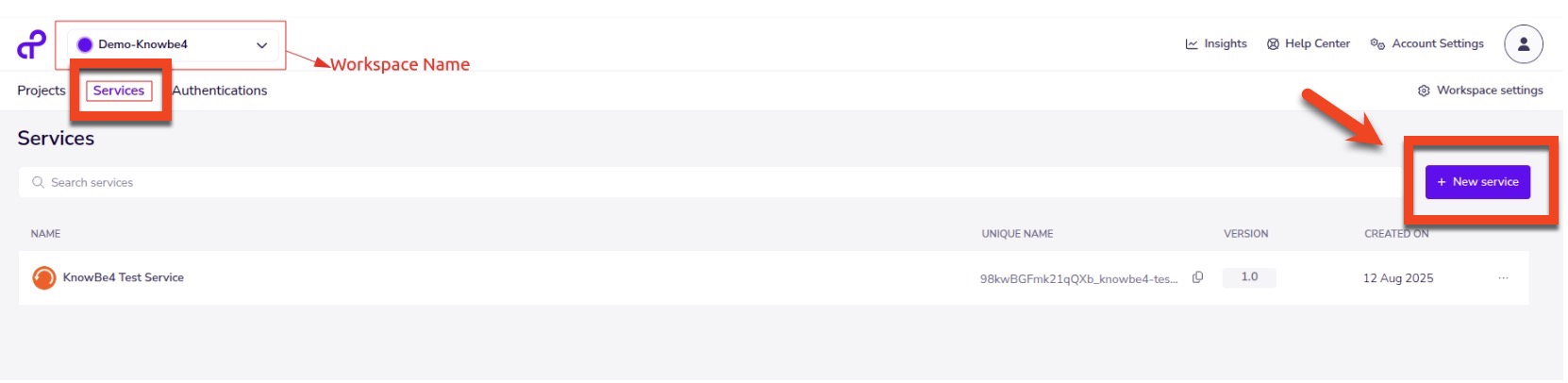
- Navigate to the Services tab.
-
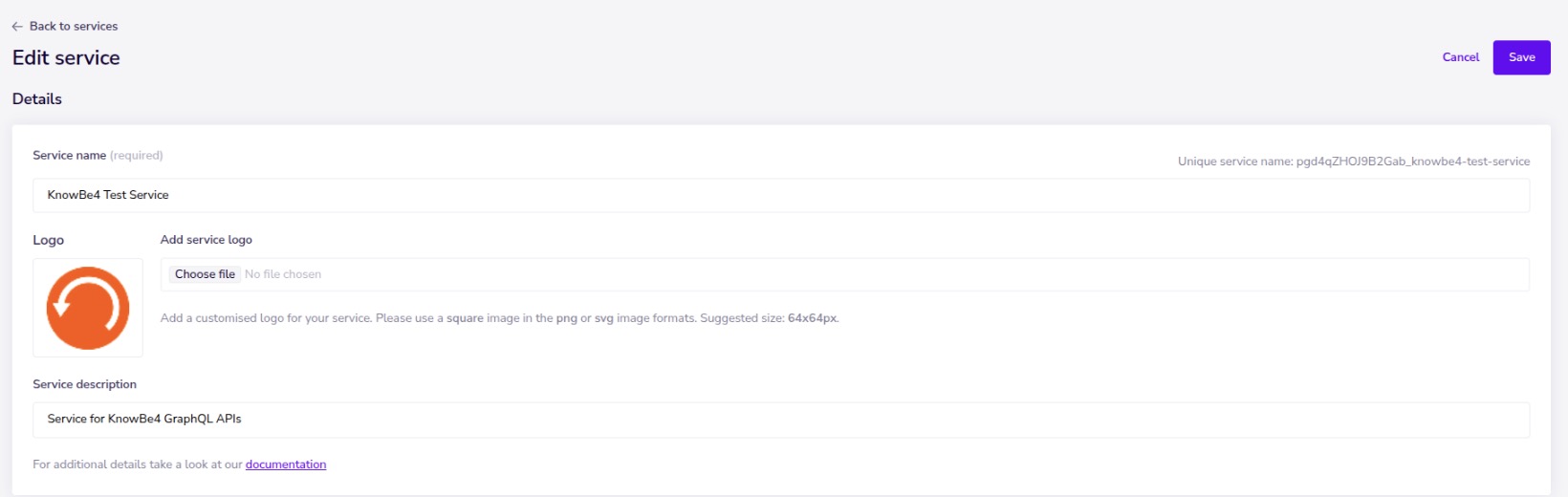
Select the + New service button to create a new service for KnowBe4. In this example, KnowBe4 Test Service is used.
-
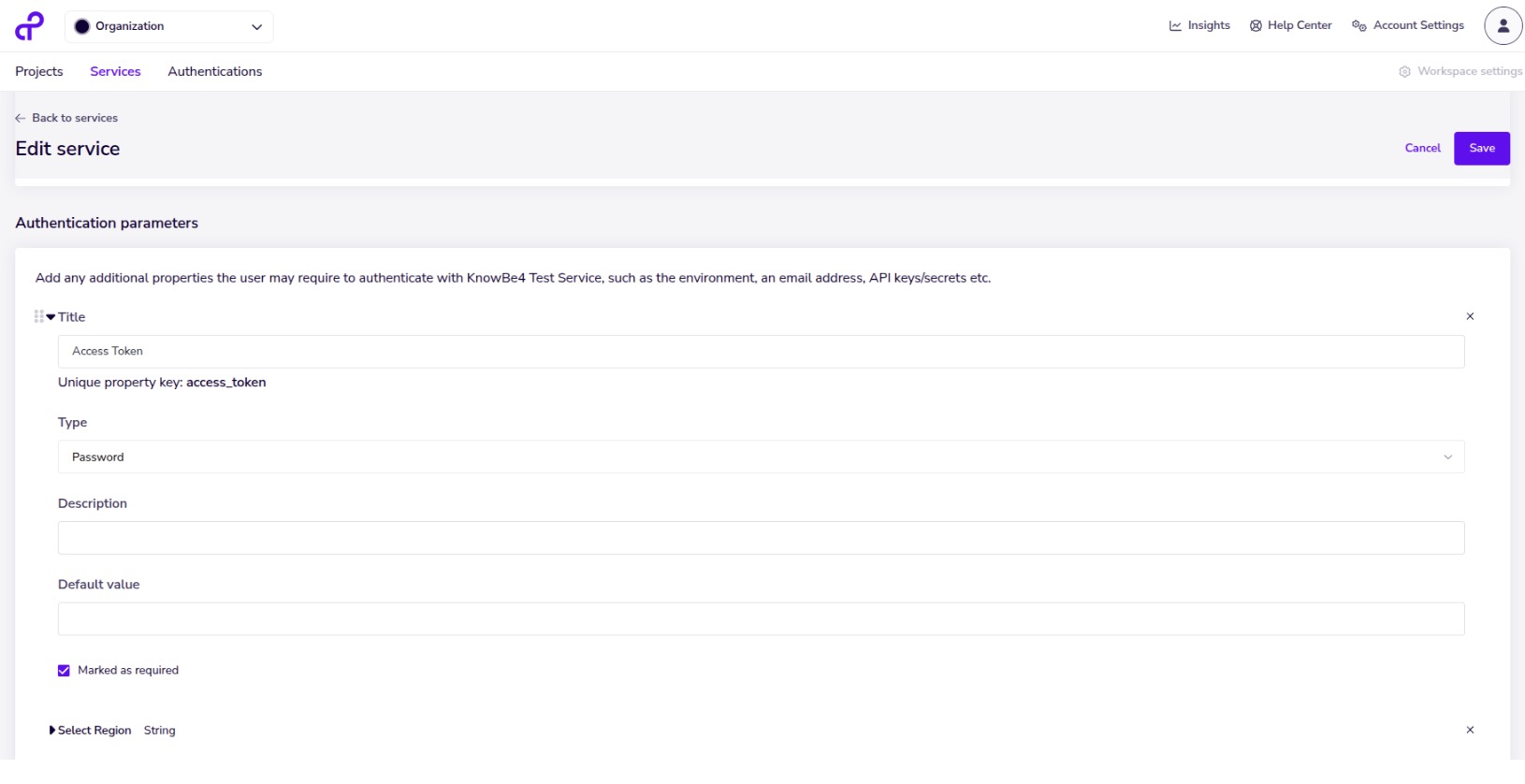
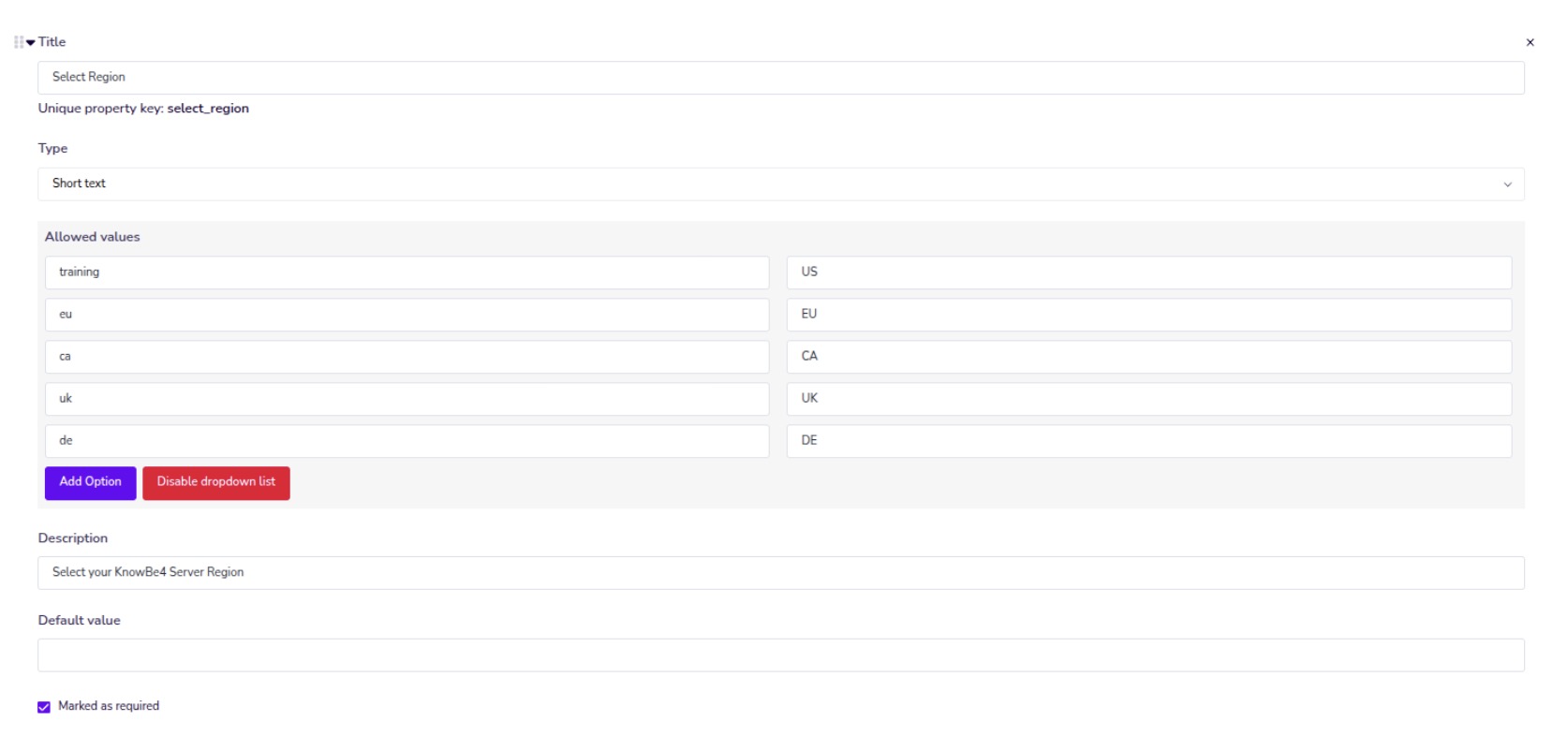
In Edit service, add required authentication parameters, including access_token and select_region, as shown below.
- Save the service created by selecting Save in the upper-right corner of the page.
- Navigate to the Authentication tab.
-
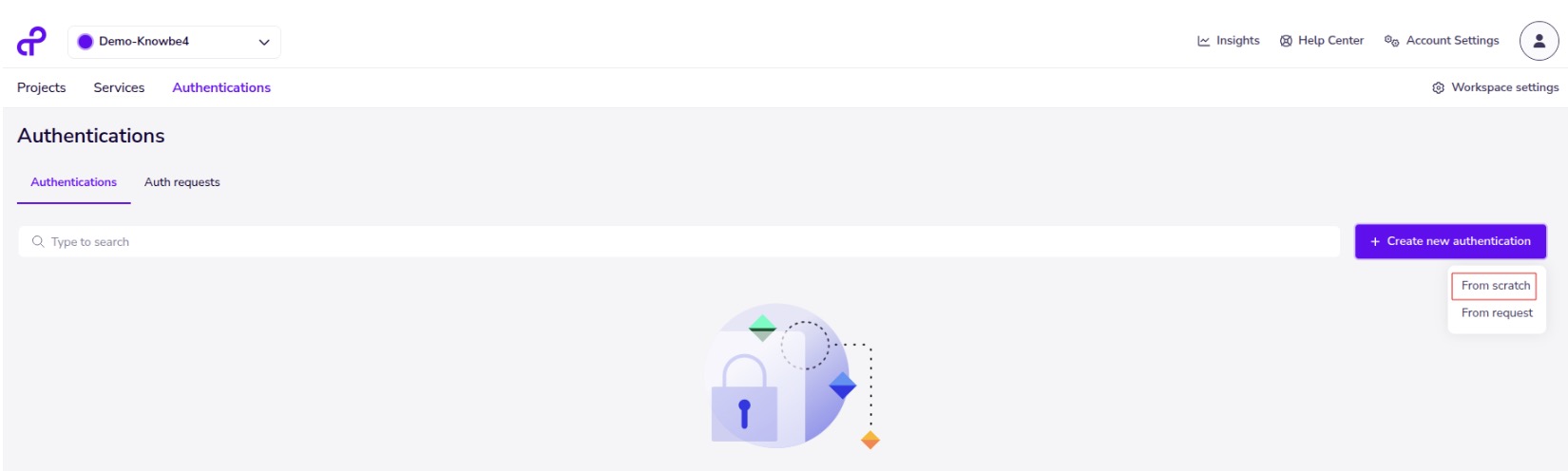
Select + Create new authentication. In the drop-down menu, select From scratch.
-
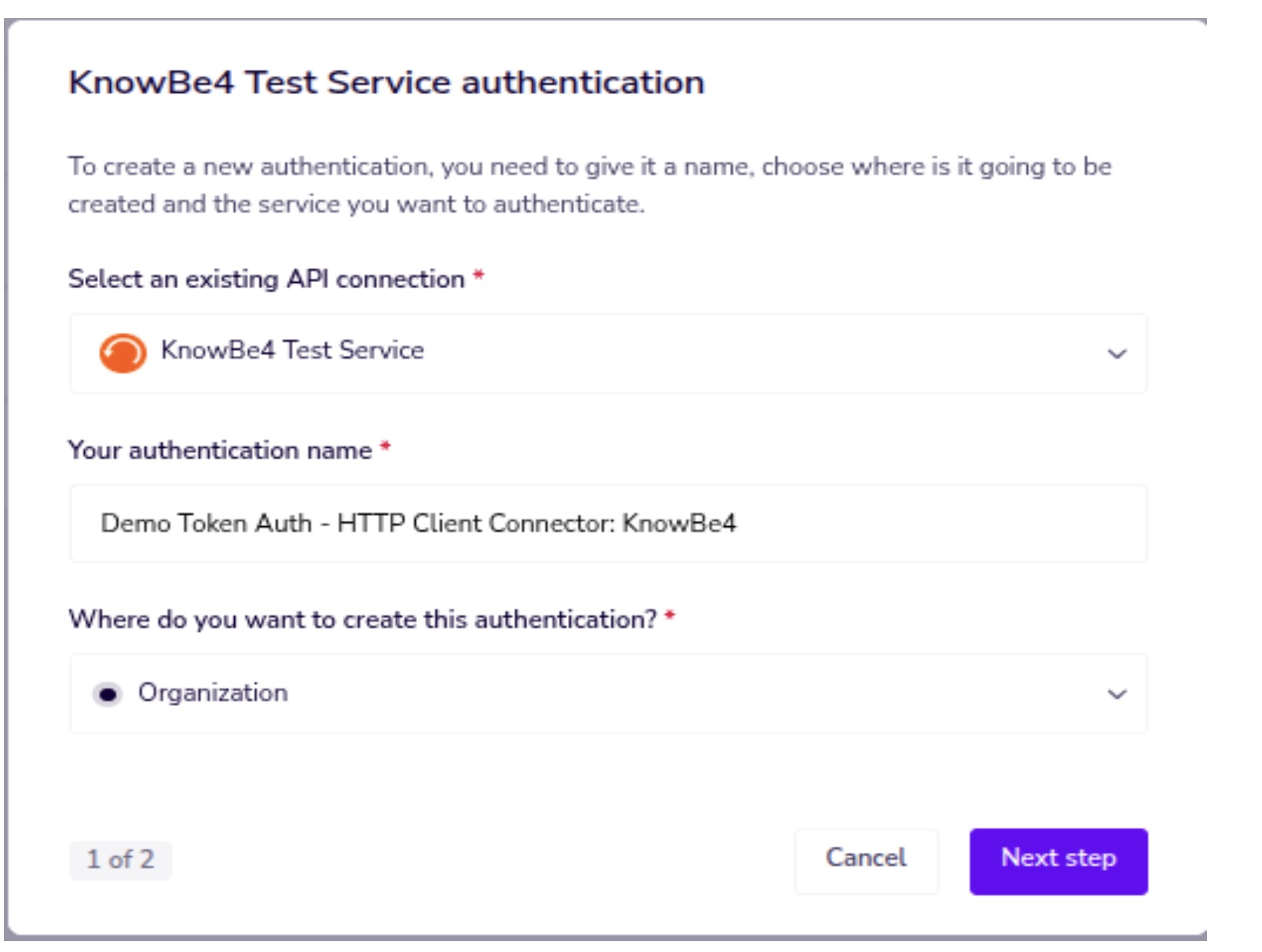
From the pop-up window, select the KnowBe4 service you created and provide other required details, such as the authentication name.
-
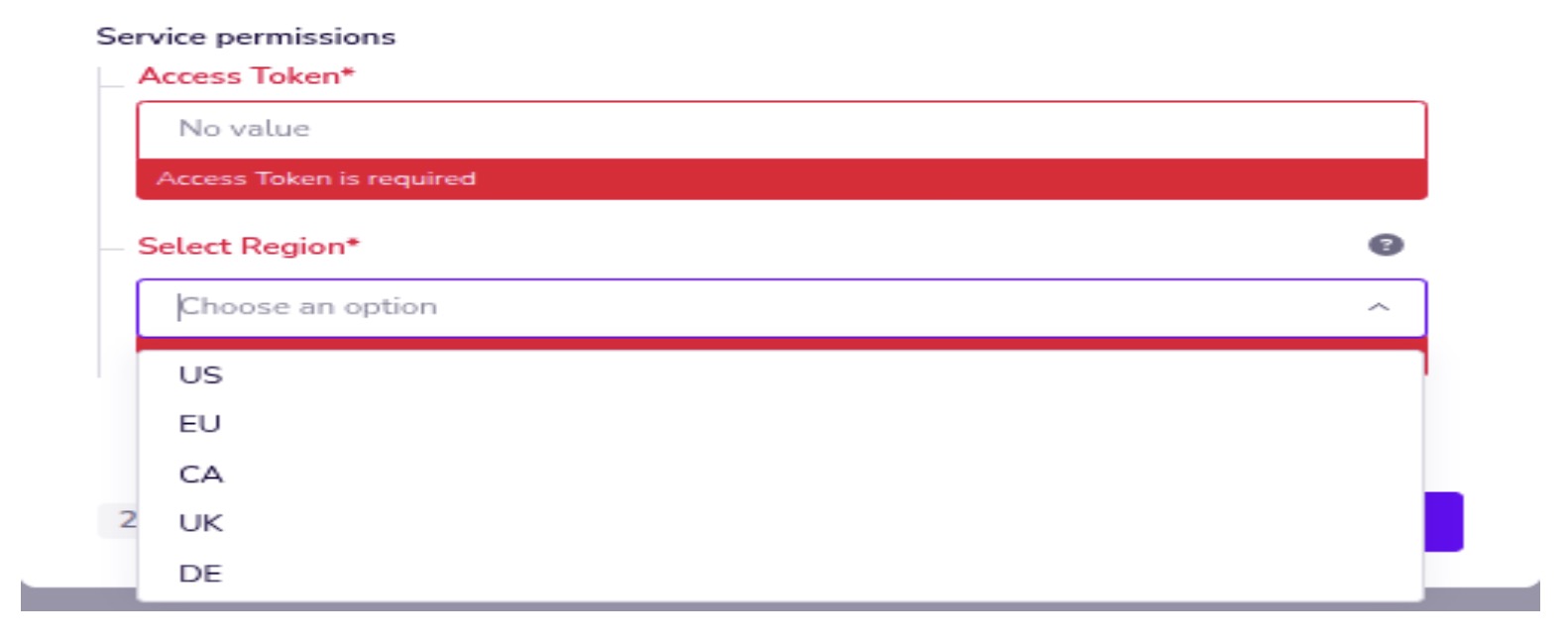
Enter the Product API token and API address you received in the previous steps.
Setting Up KnowBe4 Workflows in Tray
You can set up KSAT workflows in your Tray platform by following the steps below.
- Navigate to the Projects tab.
-
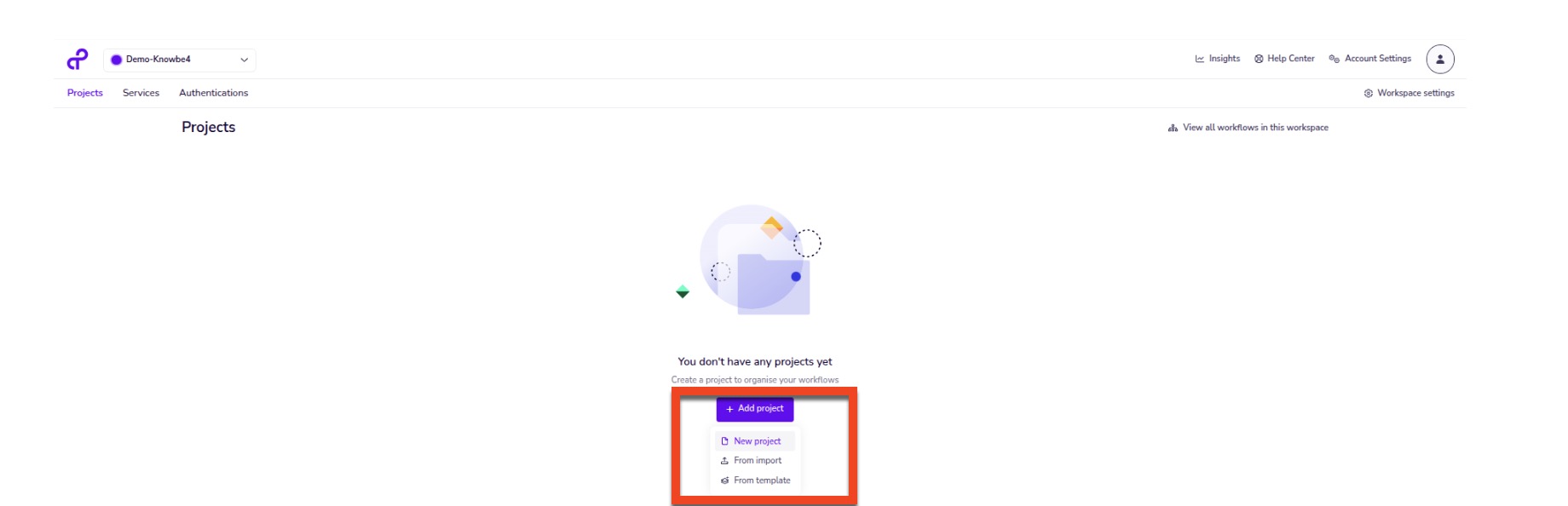
Navigate to Add project > New project.
-
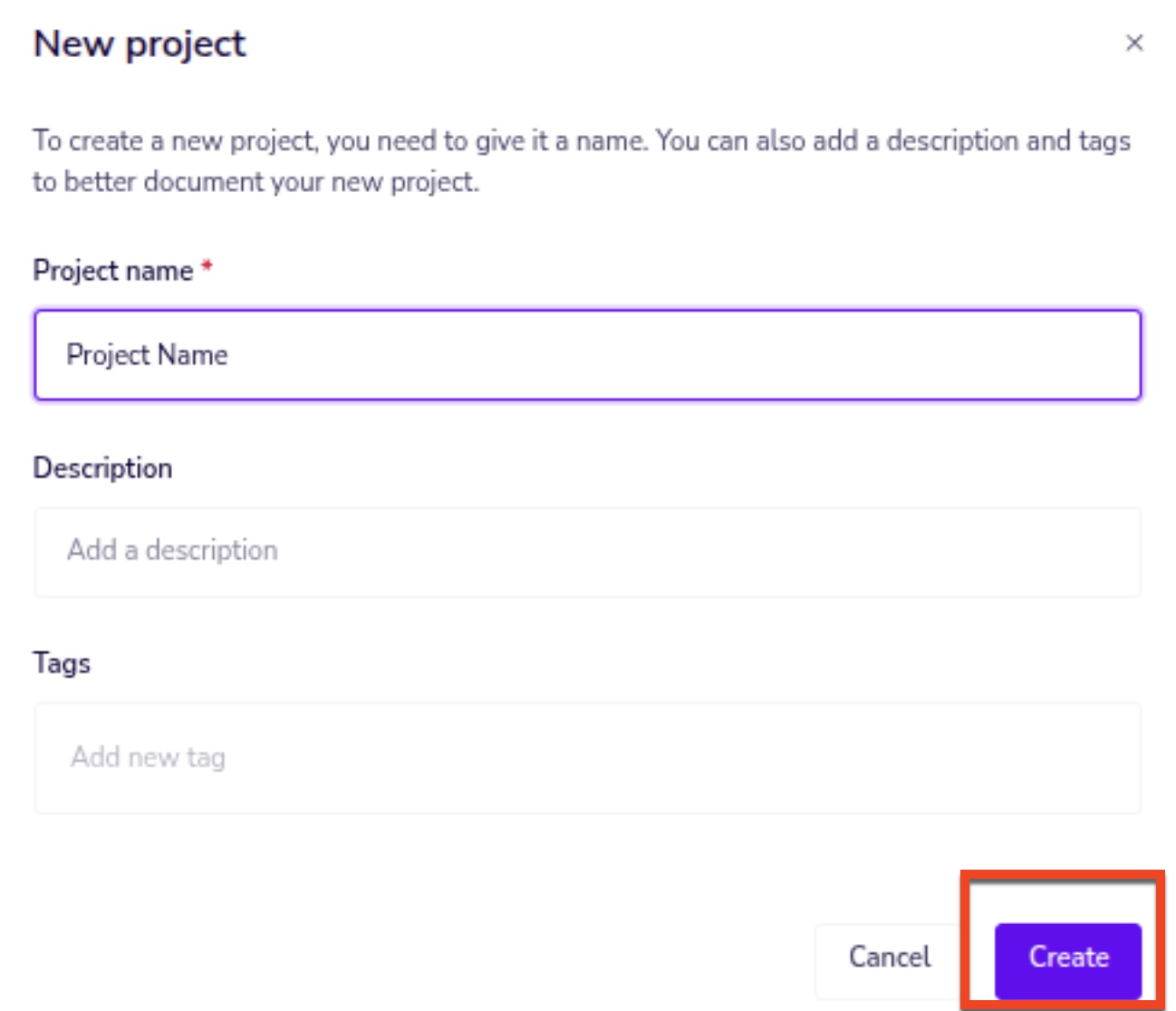
Add your project name (required), description, and tags to your project. When finished, select Create.
-
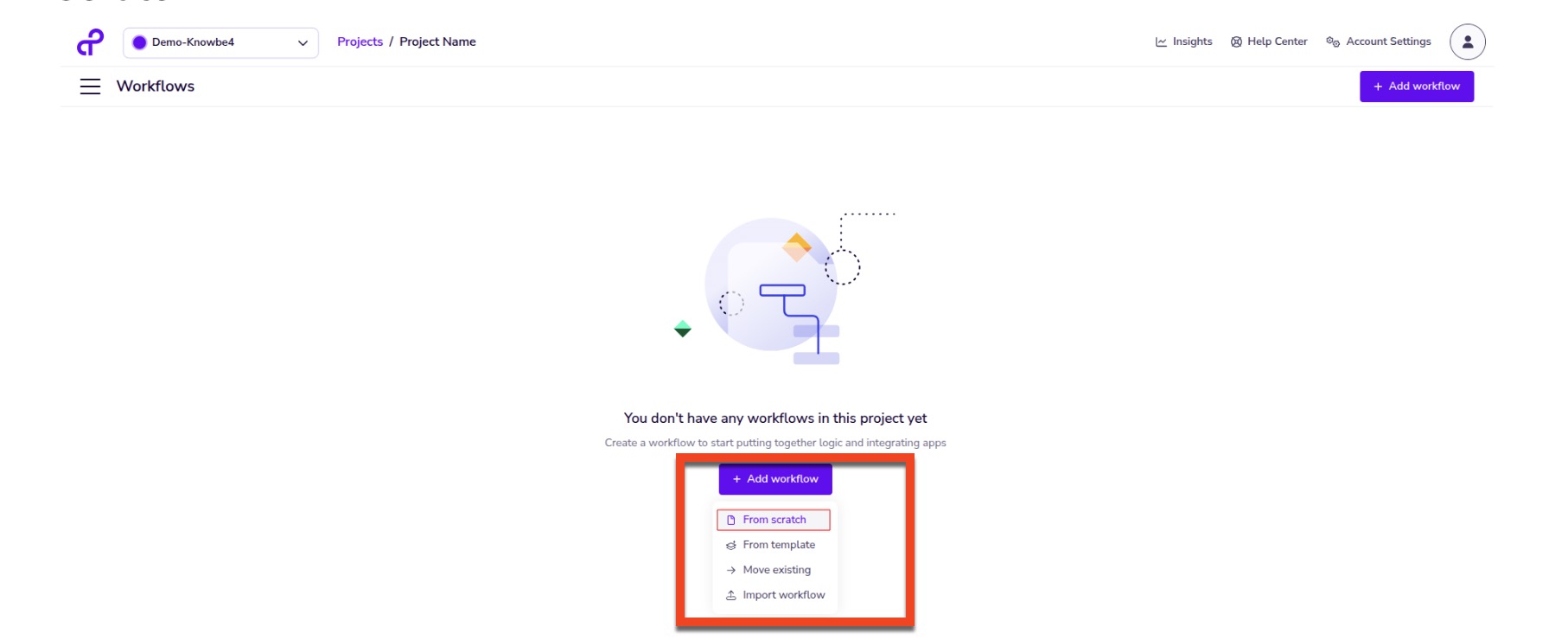
In the project you created, navigate to + Add workflow > From scratch.
-
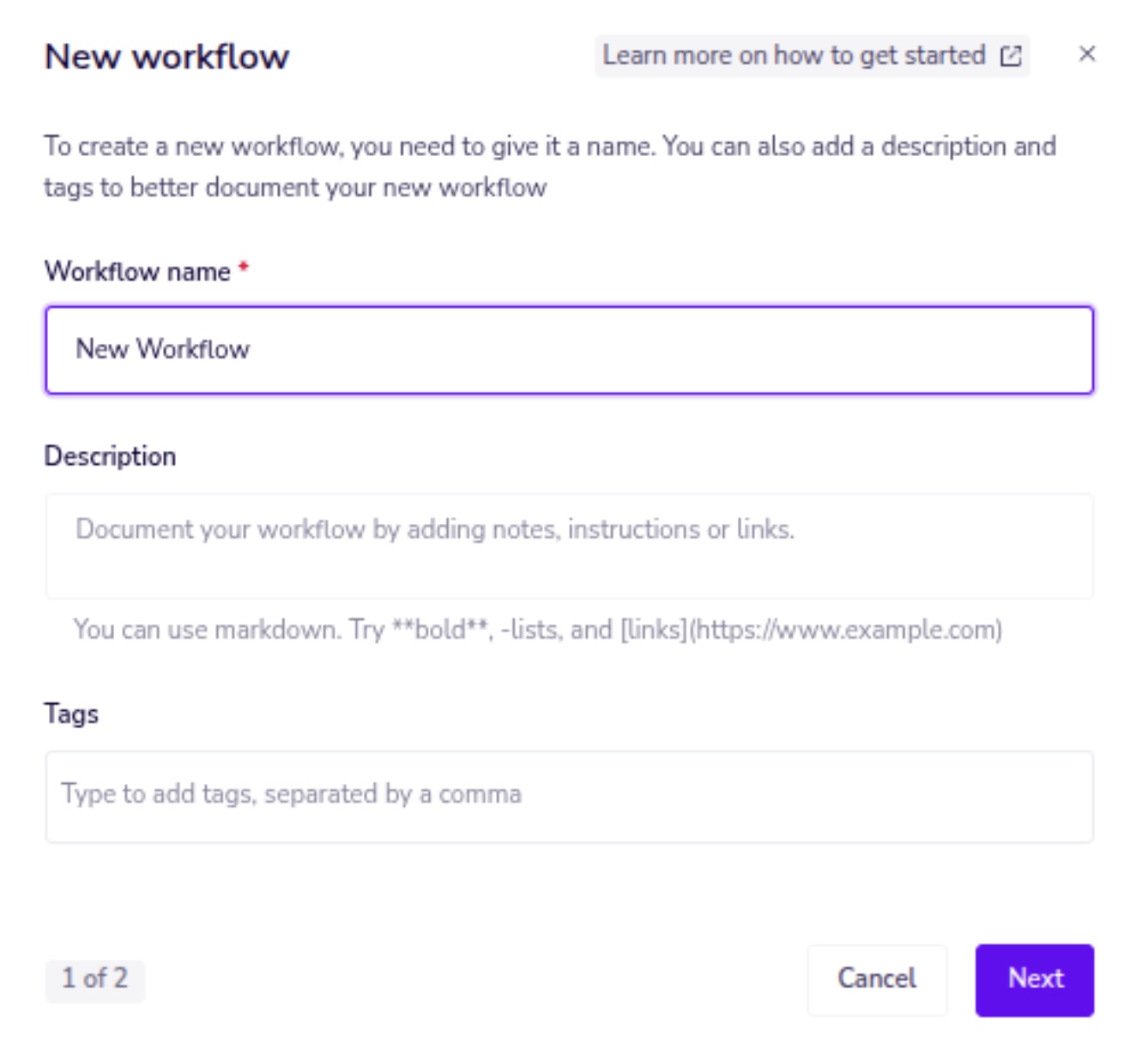
In the new workflow, name your workflow. This field is required.
-
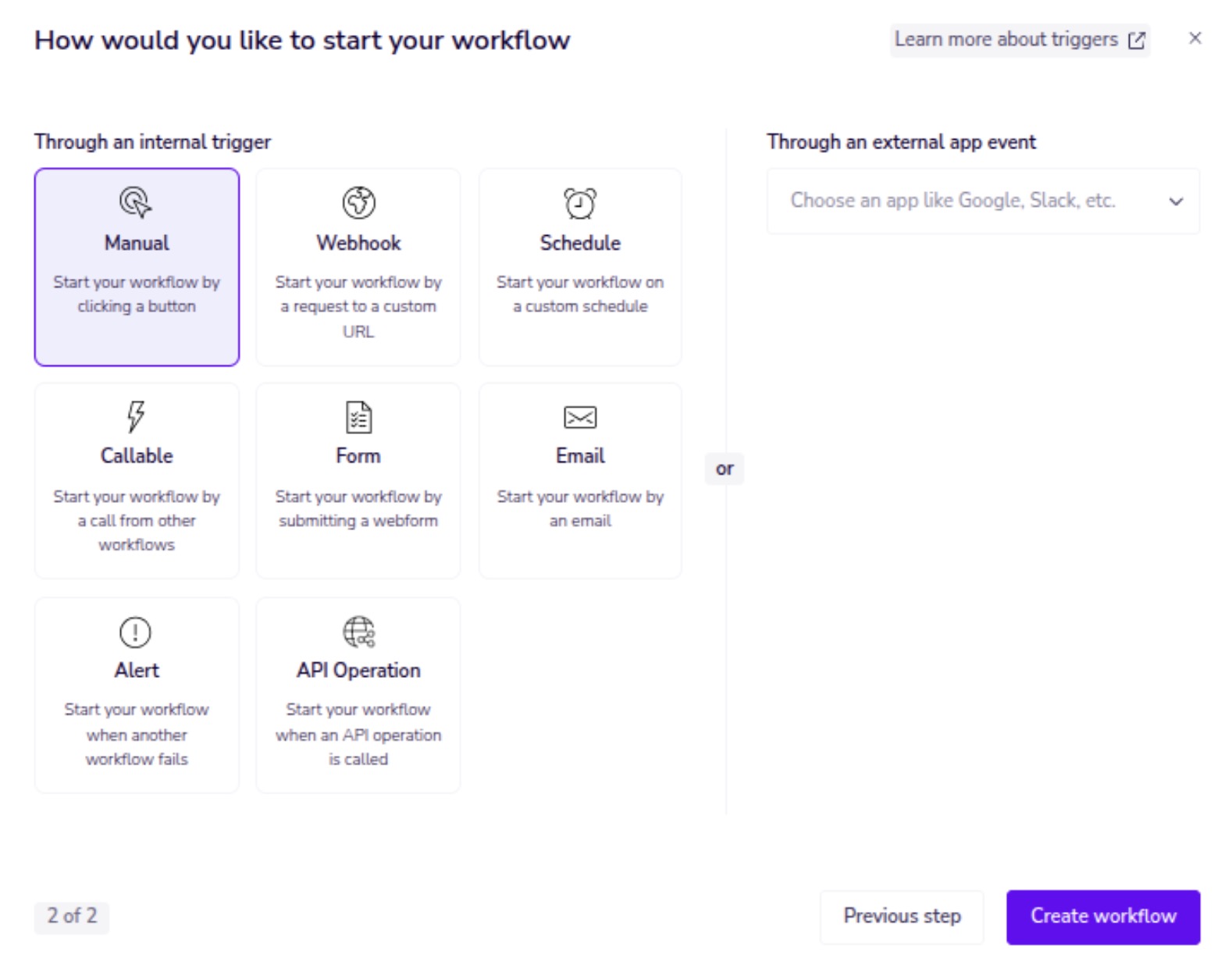
On the next page, select a Manual trigger. After selecting the trigger, select Create workflow.
-
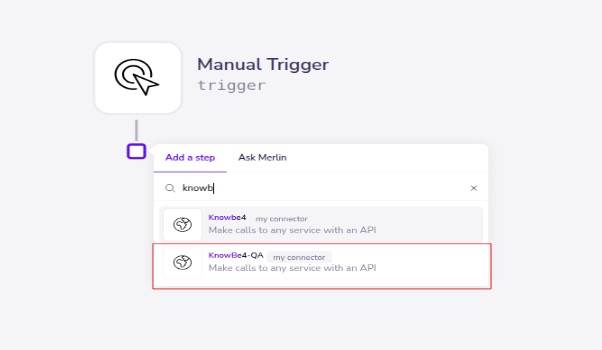
Select the KnowBe4 connector.
-
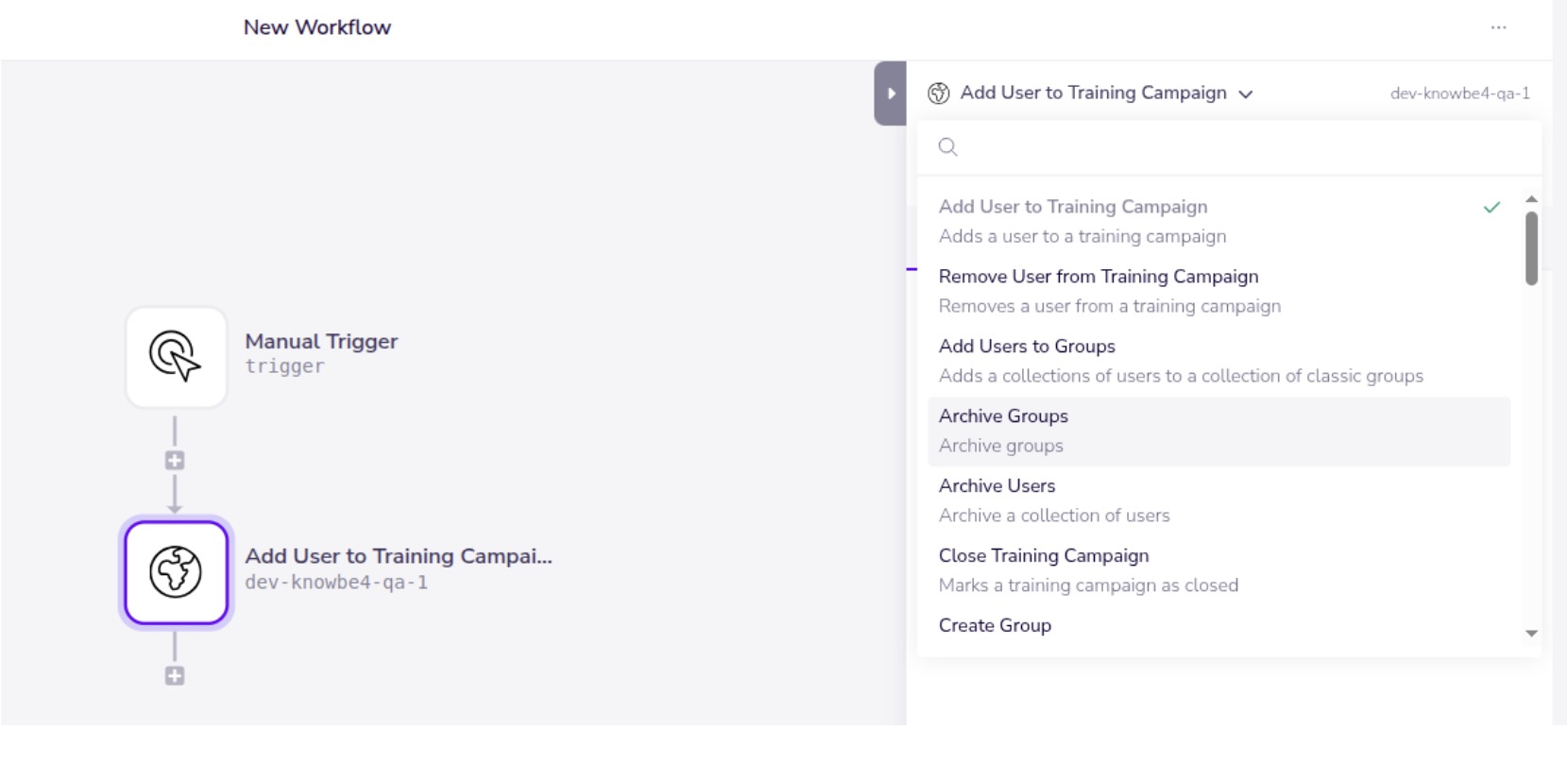
When you select the KnowBe4 connector, 37 operations should appear in a drop-down menu. For this example, we will test the Add User to Training Campaign operation.
-
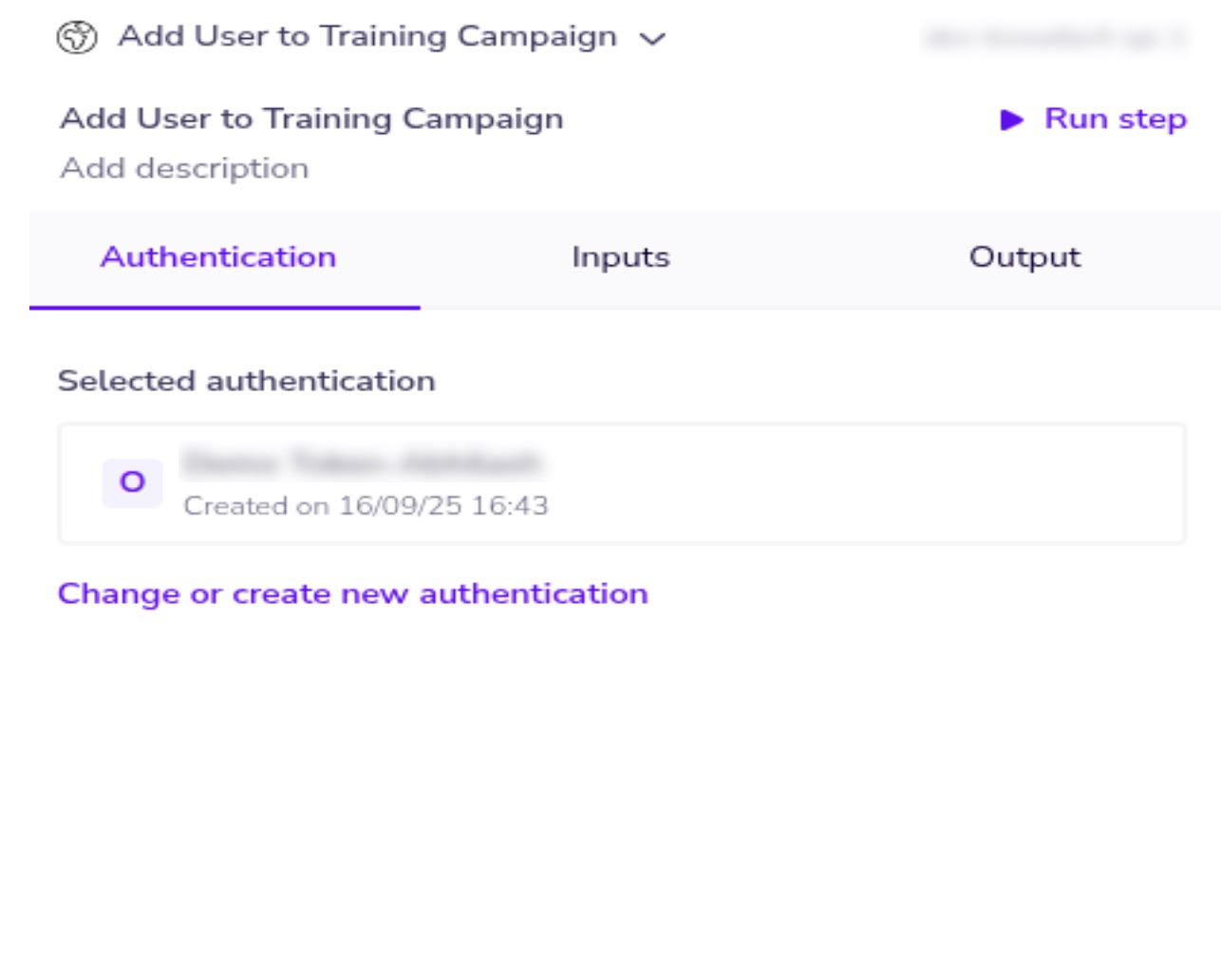
Select Authentication to begin running the operation.
-
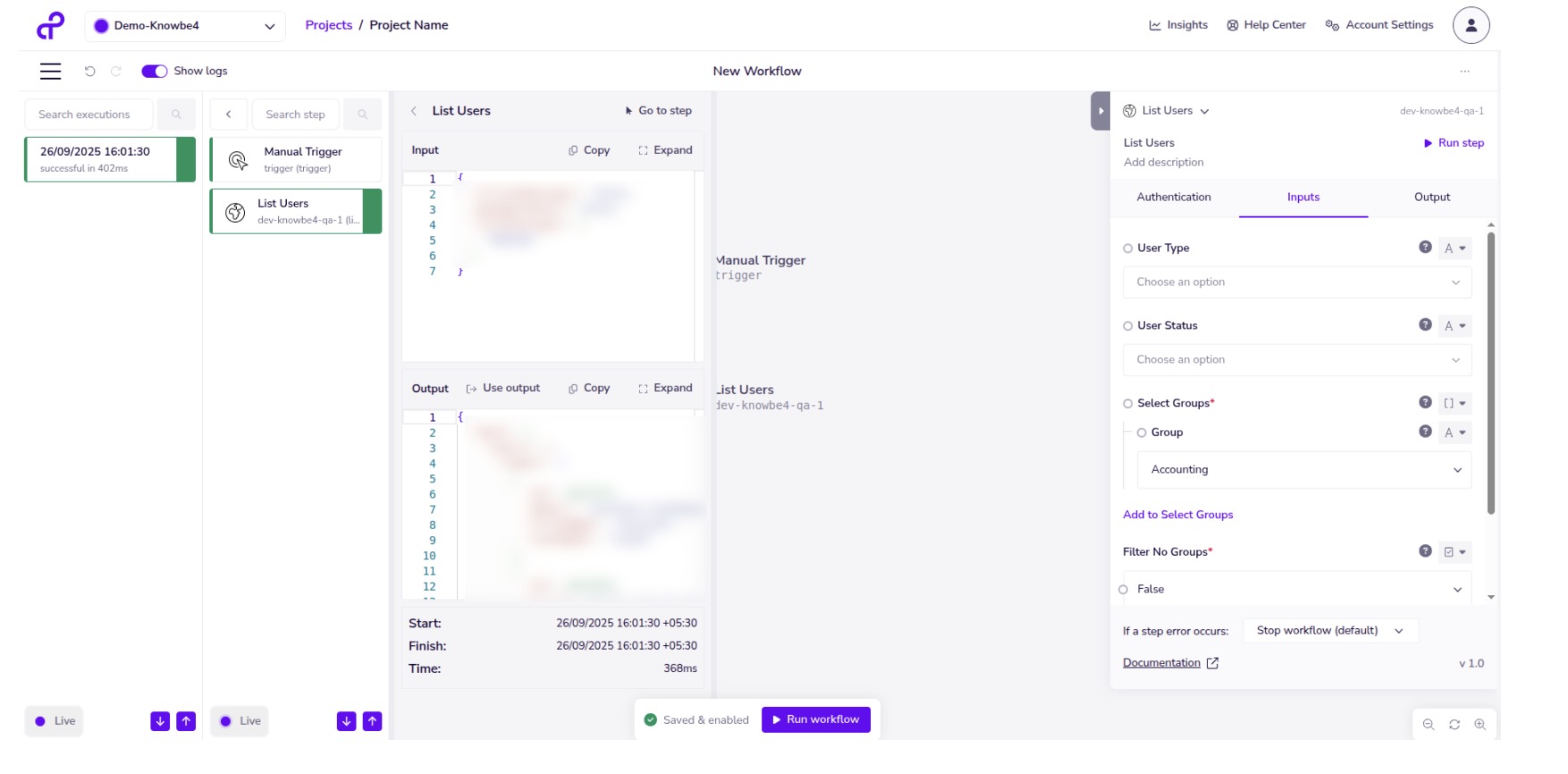
Provide Inputs and select Run step to run a single operation. To run the entire workflow, select Run workflow.
-
You can enable the Show logs toggle at the top-right corner of the page to view input and output.

If you experience issues integrating Tray with your KSAT console, please contact Tray’s technical support Tray’s technical support (link opens in new window).