You can integrate your Make platform your Make platform (link opens in new window) into your KSAT console. Make allows you to visually design and deploy event-driven, real-time automations that respond instantly to user actions, such as failed phishing tests or course completions. Make utilizes KnowBe4’s Graph APIs to enable automated security awareness training workflows and data management in areas including groups, users, phishing, and training.
For more information about Make, visit its website website (link opens in new window).
Before You Connect Make to Your KSAT Console
Before integrating Make into your KSAT console, you must find your API address and create a Product API token. Follow the steps below to do both actions.
-
Your API address depends on where your KnowBe4 account is located. Please see the table below to find the API address for your region.
Region Base URL US https://us.api.knowbe4.com CA https://ca.api.knowbe4.com EU https://eu.api.knowbe4.com UK https://uk.api.knowbe4.com DE https://de.api.knowbe4.com - Log in to your KSAT console as an admin.
- Navigate to Account Settings in the top-right corner under your account’s email address.
- In Account Settings, navigate to Account Integrations.
- Under Product API, select Product API. The Product API subtab will open.
- At the top-right corner of the Product API subtab, select + Create New API Token.
- Fill out the fields on the Create New API Token page.
- Select Create Token. The Product API Token pop-up window will open.
- Select the Product API token to copy the token. Be sure to save your copied API token in a location that you can easily access. After you close this window, you will not be able to view this token again.
Connecting Make to Your KSAT Console
You can connect your Make platform to your KSAT console by following the steps below.
- Log in to your Make platform as an admin.
-
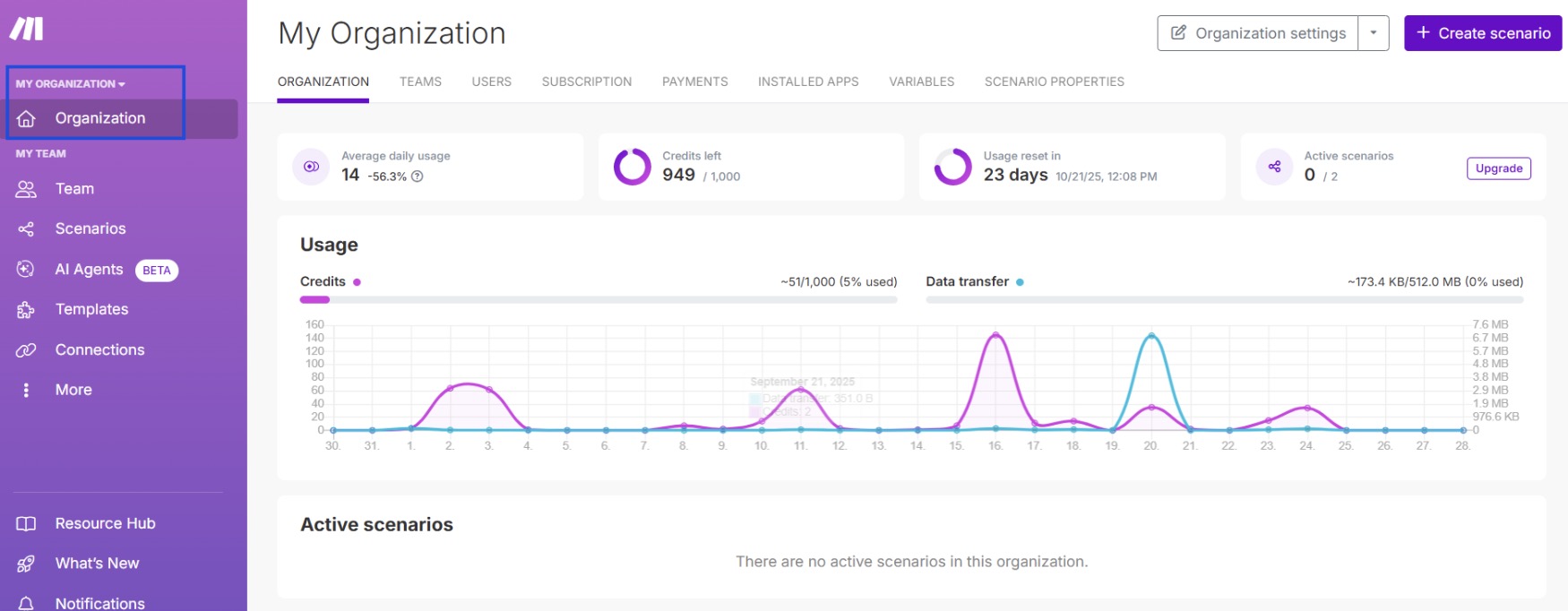
Select your desired organization.
-
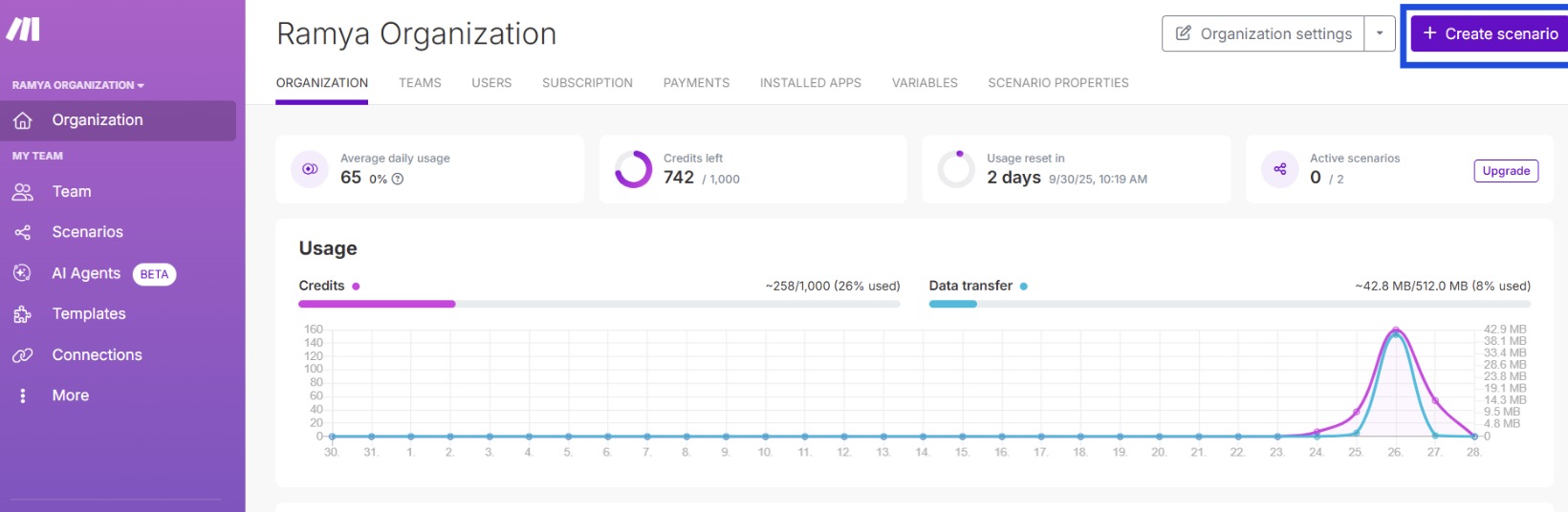
In your chosen organization, select + Create scenario.
-
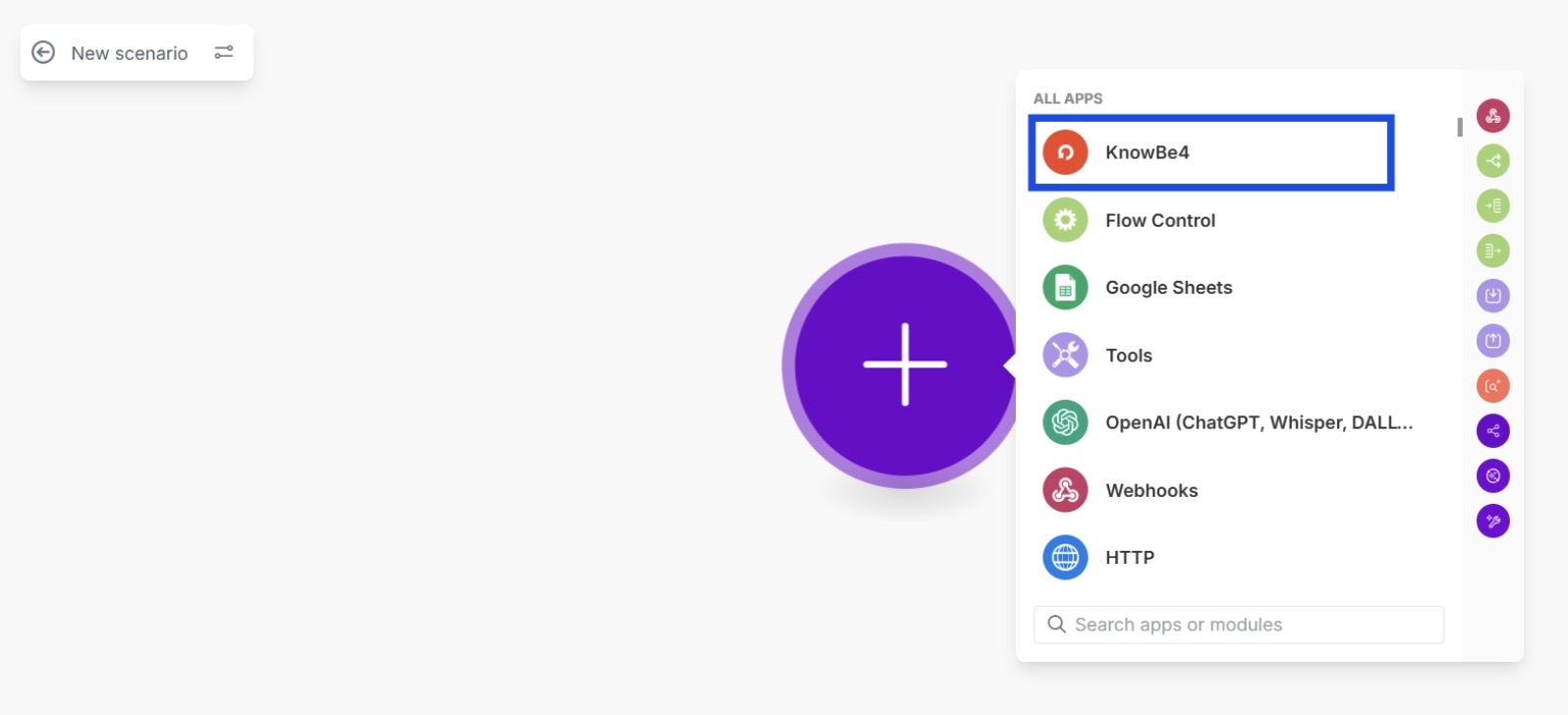
In the New scenario section, search for KnowBe4 under All Apps. Select the KnowBe4 app.
-
Once you select the KnowBe4 app, you should be able to view 37 actions.
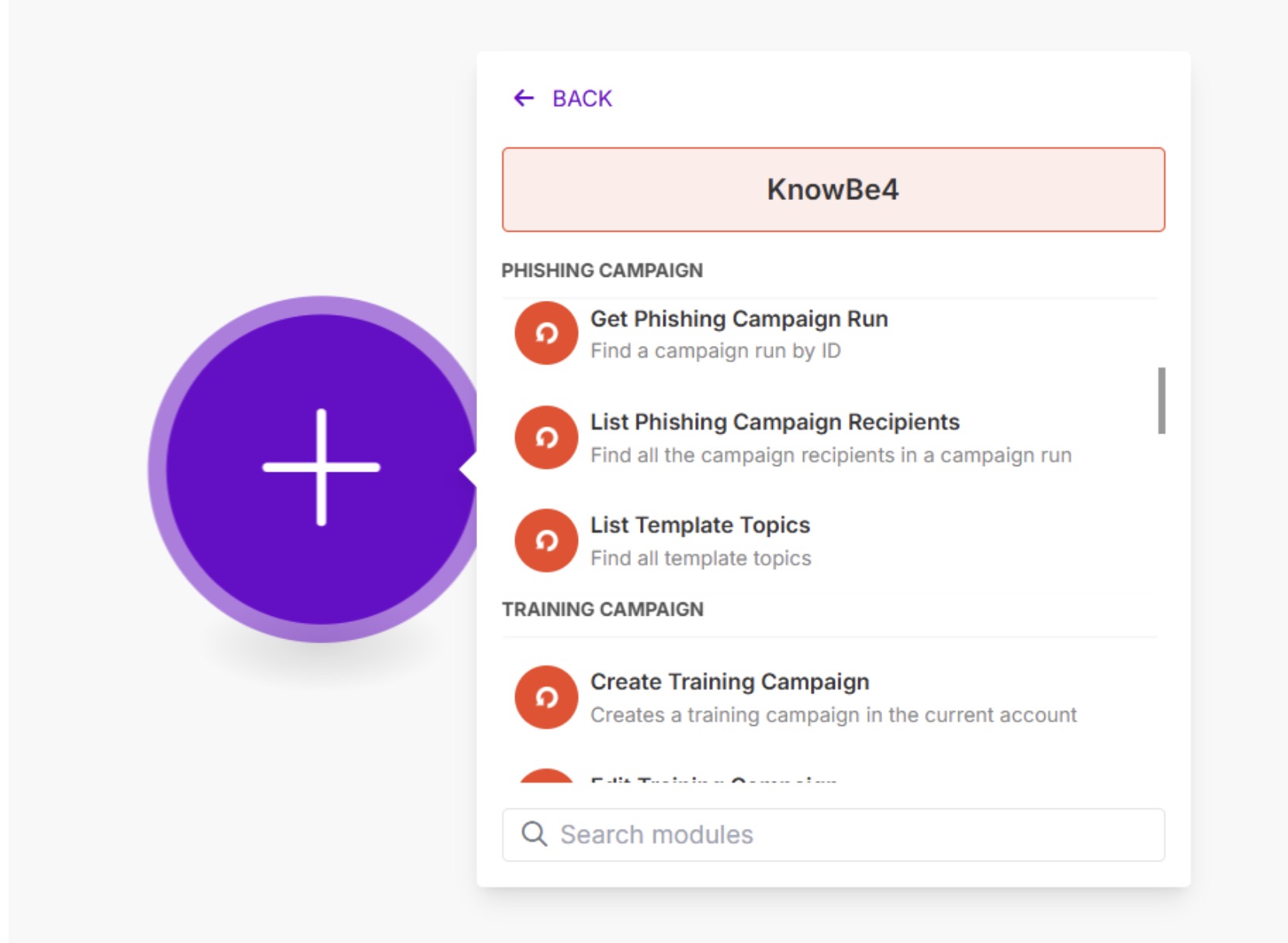
- Select any of the actions you would like to take.
-
Select Create a connection.
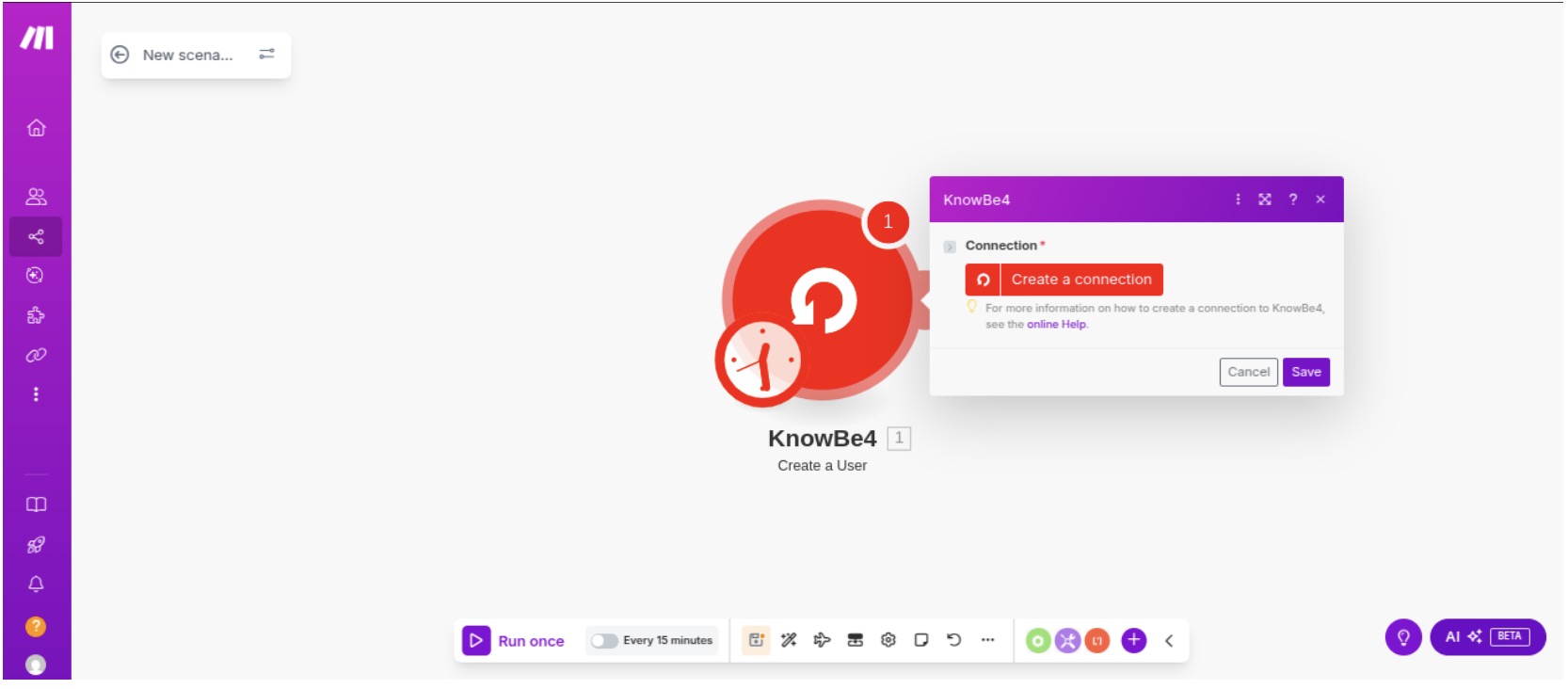
-
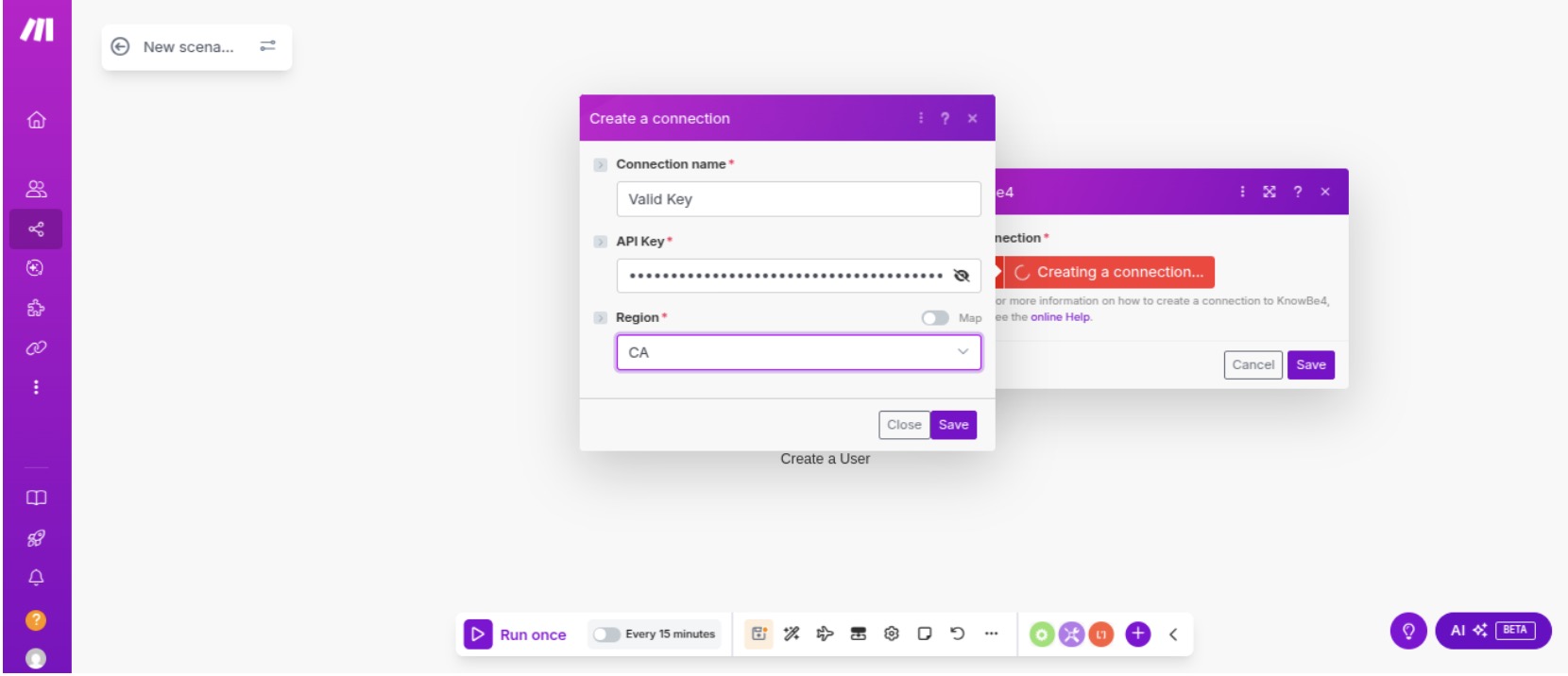
A pop-up window should allow you to enter the Product API token and API address you received in the previous steps. Once you have established a connection, it can be used for other Make modules.
Setting Up KnowBe4 Workflows in Make
You can set up KSAT workflows in your Make platform by following the steps below.
-
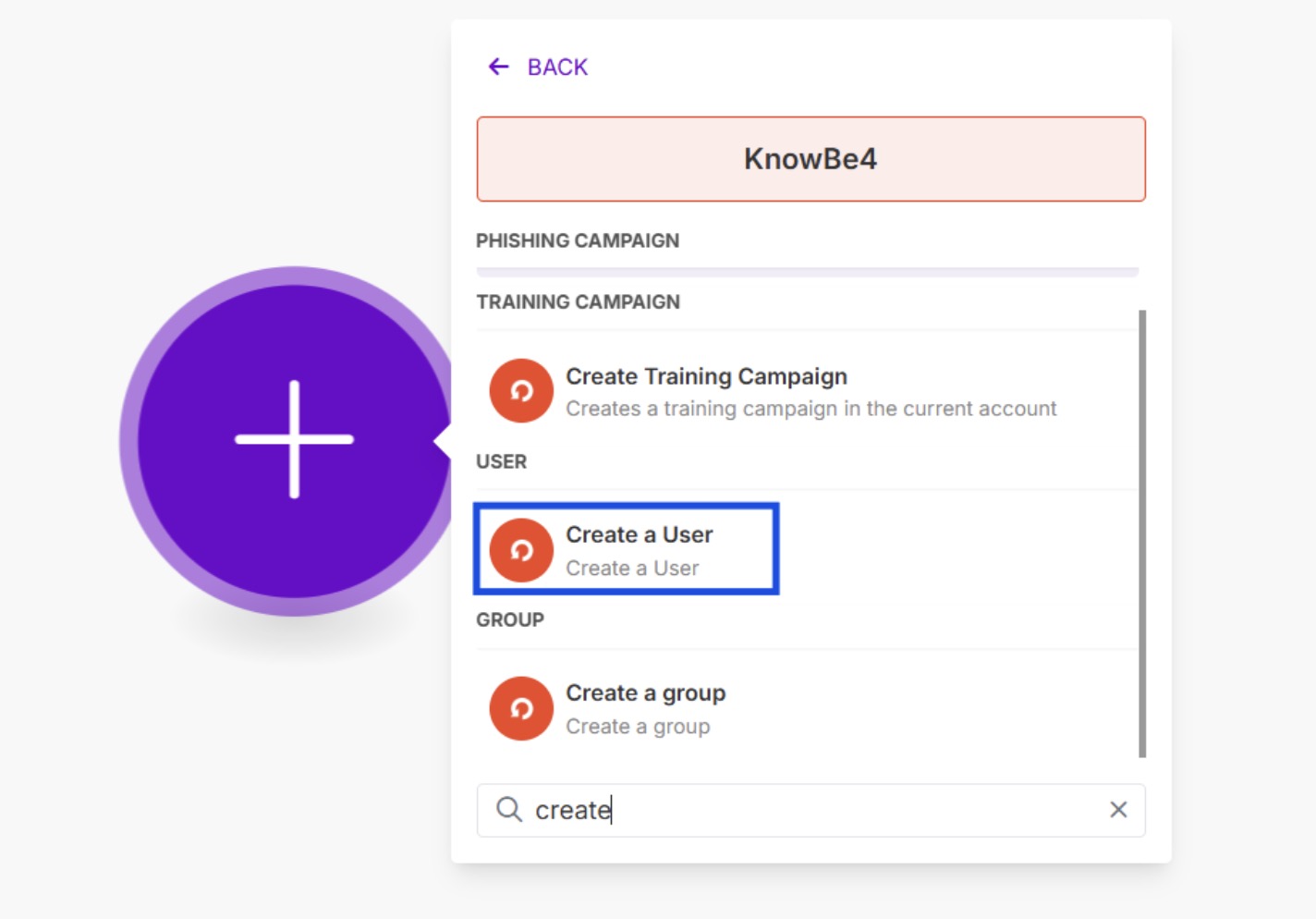
In your Make organization, navigate to Scenarios > All Apps > KnowBe4. Select an action. In this example, we will select Create a User.
-
Provide the required user information in the pop-up screen.
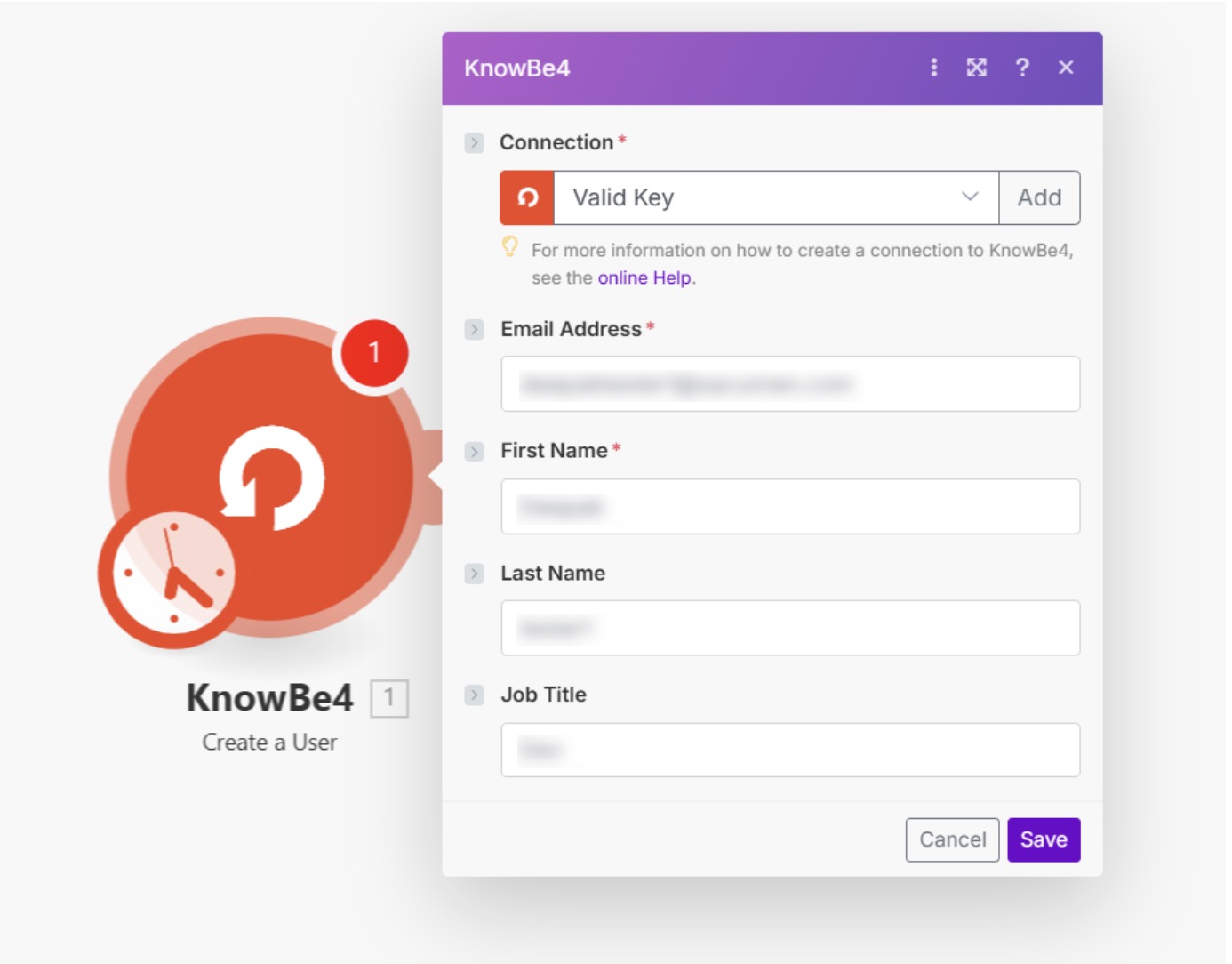
- Select Save to save the user information.
-
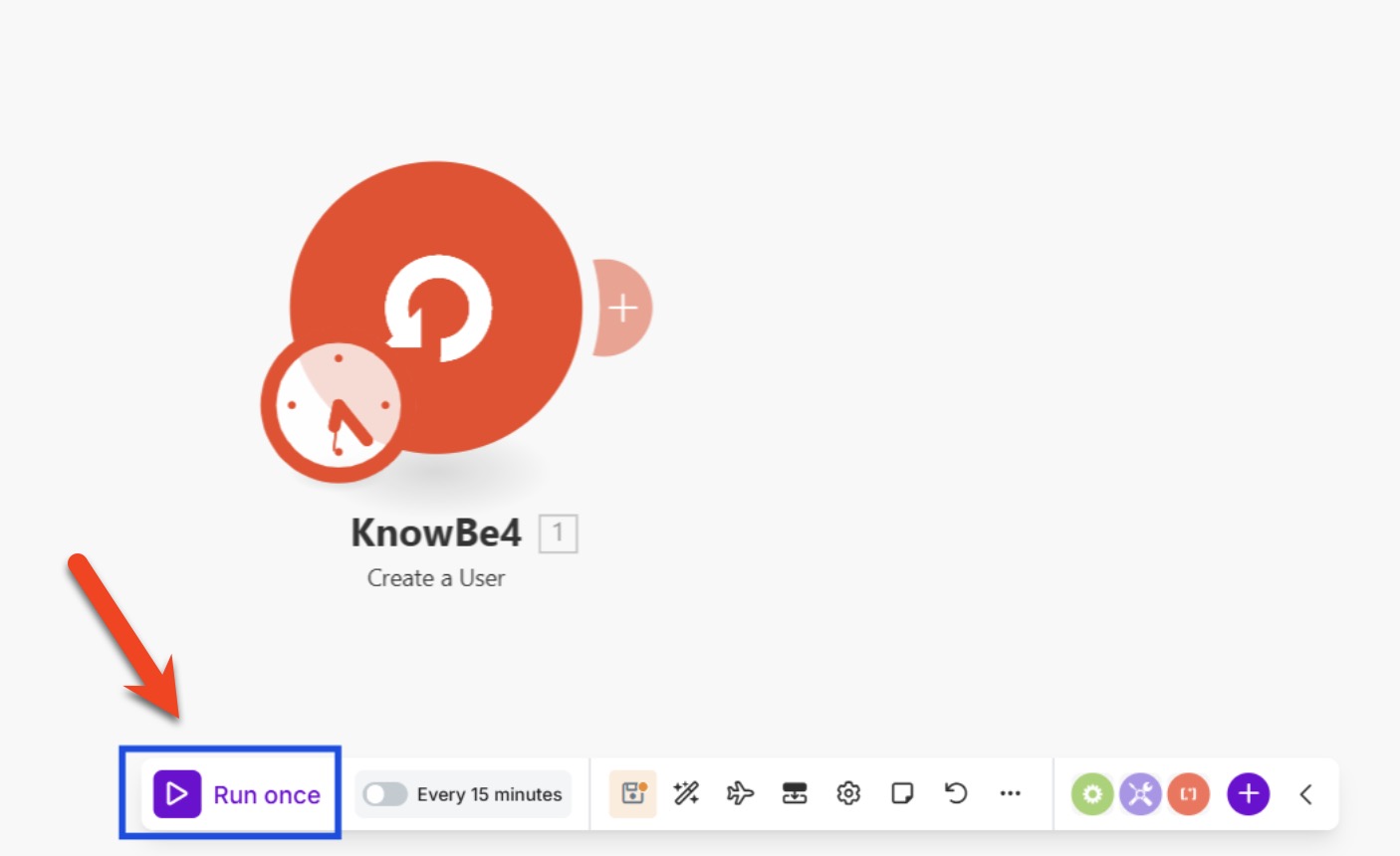
In the lower-left corner of the page, select Run once.
-
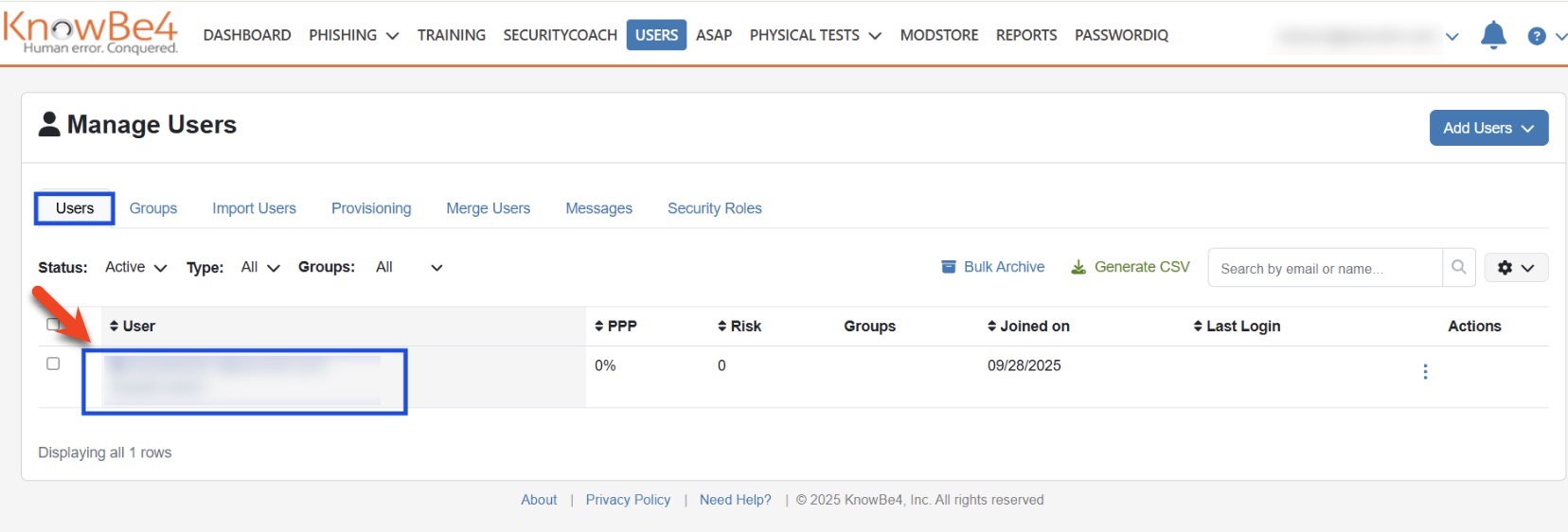
The user’s information should now be visible in KSAT. In your KSAT console, the user’s email address should be visible by navigating to Users > Manage Users > Users.
-
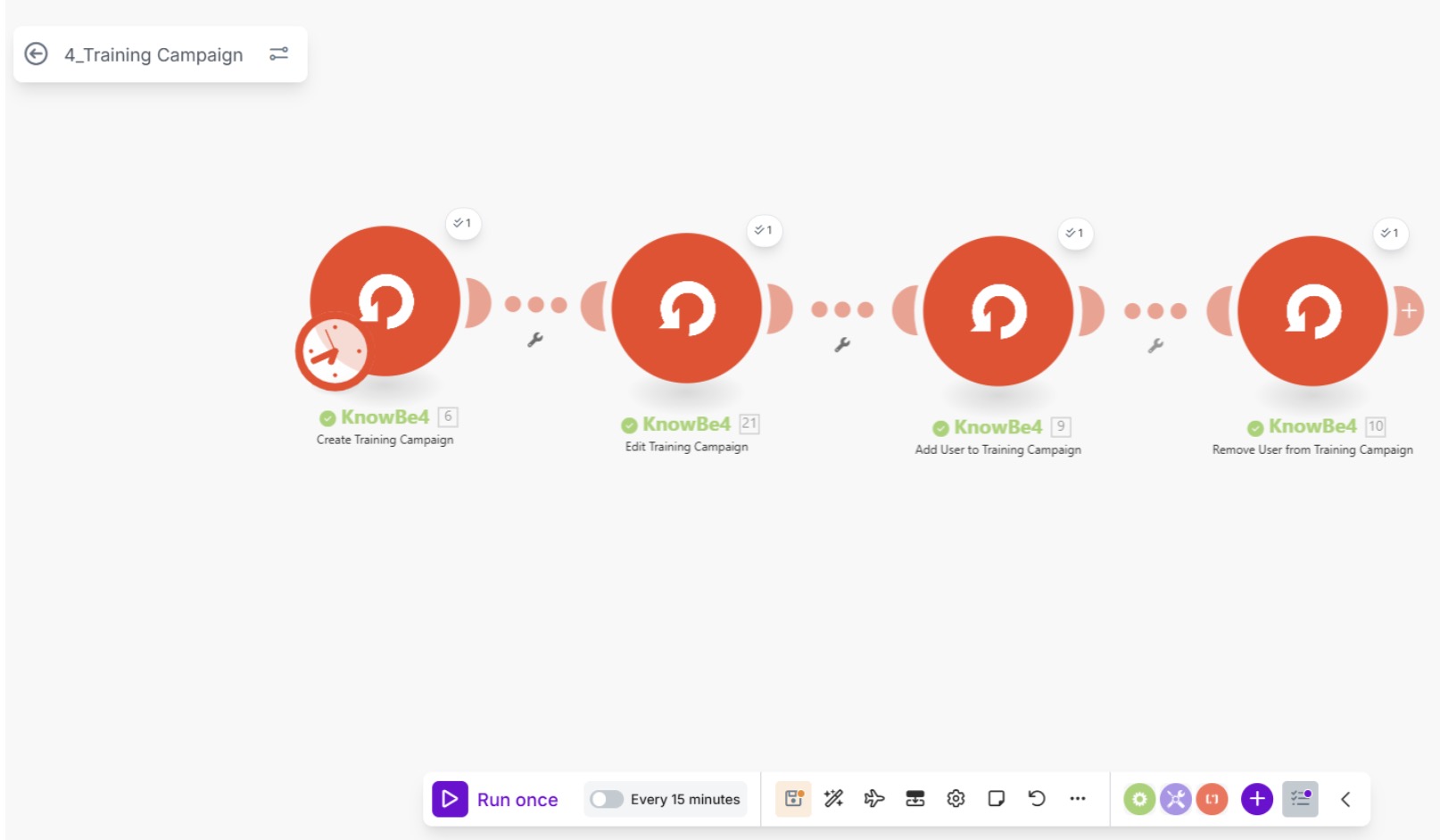
If you would like to run multiple modules in Make, you can also connect them and select Run once.
If you experience issues integrating Make with your KSAT console, please contact Make’s technical support Make’s technical support (link opens in new window).