In your KCM GRC platform, you can create tasks for your controls. Depending on your user role, you can update a task's details after you create it, including the approving managers, assigned user, description, due date, and evidence requirements. For general information about using tasks in your platform, see our How to Work with Tasks for Controls article.
See the sections below to learn how to edit tasks for controls, including one-time tasks and recurring tasks.
Updating One-Time Tasks
You can use one-time tasks for controls when the task doesn't need to occur on a recurring basis.
After you create a one-time task, you can update it by following the steps below:
- Navigate to the Controls tab of your navigation panel.
- Select a control from the Name column.
- Click the Tasks tab.
- Select a task from the Name column.
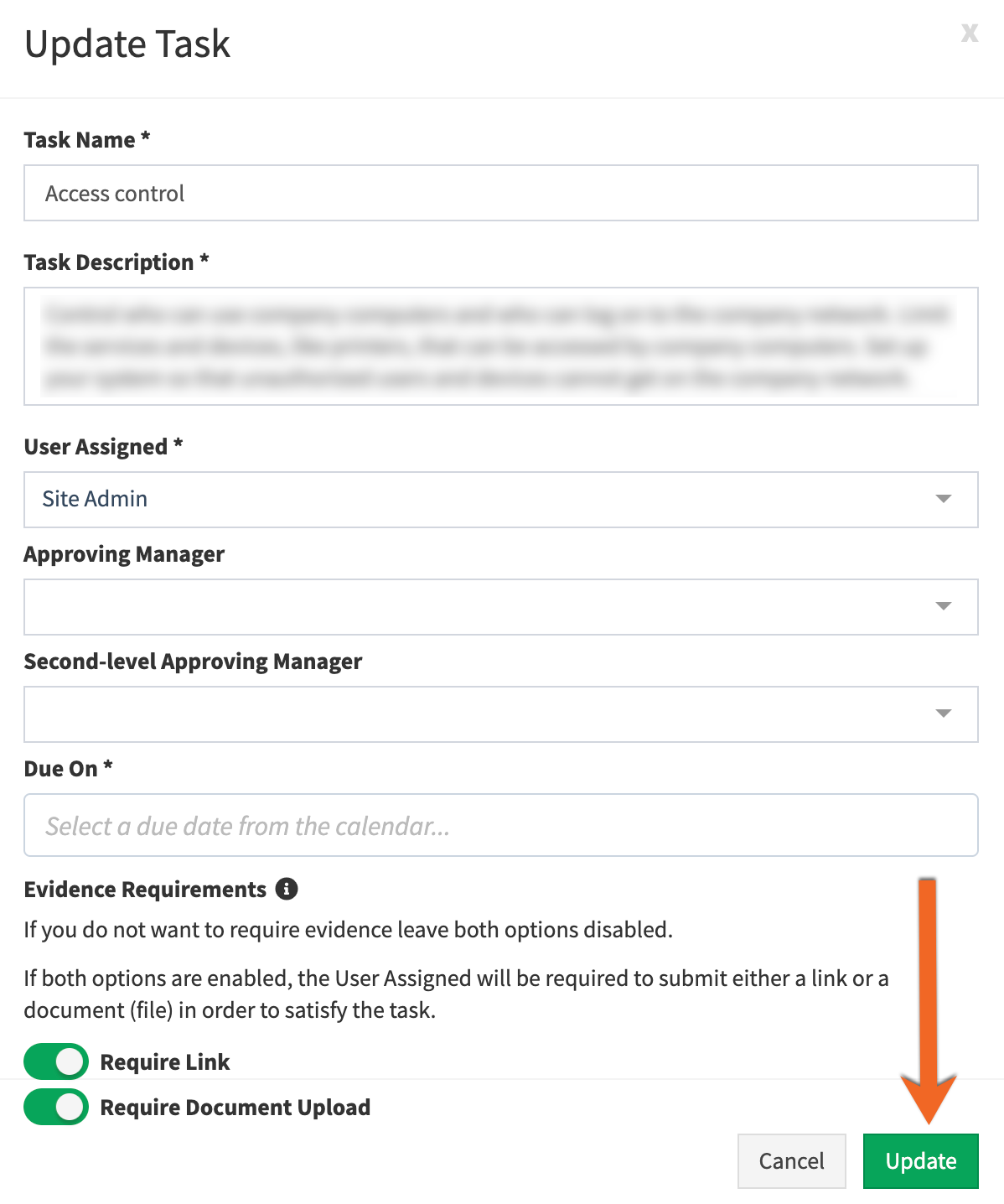
- On the View Task page, click the Update Task button.

- Update the task details that you would like to change.
- Click the Update button
Permissions for Editing One-Time Tasks
You can update the details for a one-time task, depending on your user role.
See the list below for information about which task fields you can update based on your user role.
- Account Administrator: Account Administrators can update all fields for all tasks that are in any status.
- Group Lead: Group Leads can update tasks that they are the Group Lead for. They can edit the User Assigned field for tasks that are in any status.
- Risk Administrator: Risk Administrators can update tasks for the controls that are mapped to risks or tasks that they are assigned to. They can edit all fields for tasks that are in the Active, Past Due, or Failed status.
- Scope Administrator: Scope Administrators can update tasks that are in their allowed scopes. They can edit all fields except for the Approving Manager and Second-level Approving Manager fields for tasks that are in the Active, Past Due, or Failed status.
Updating the Due Date for One-Time Tasks
If you update a one-time task's due date in the Due On field, the task's Start Date and End Date will change. You can select any date that is after the initial due date. You cannot select a new date that is before the initial due date, even if the new date is in the future.
Updating Recurring Tasks
You can use recurring tasks for controls that require evidence on a recurring basis. After you create a recurring task, you can update the current task in the recurring task's schedule.
You are unable to update all instances of a recurring task. However, you can cancel the recurring task and create a new recurring task. To learn how to cancel a recurring task, see the Canceling Recurring Tasks subsection below.
To update the current task of a recurring task's schedule, follow the steps below:
- Navigate to the Controls tab of your navigation panel.
- Select a control from the Name column.
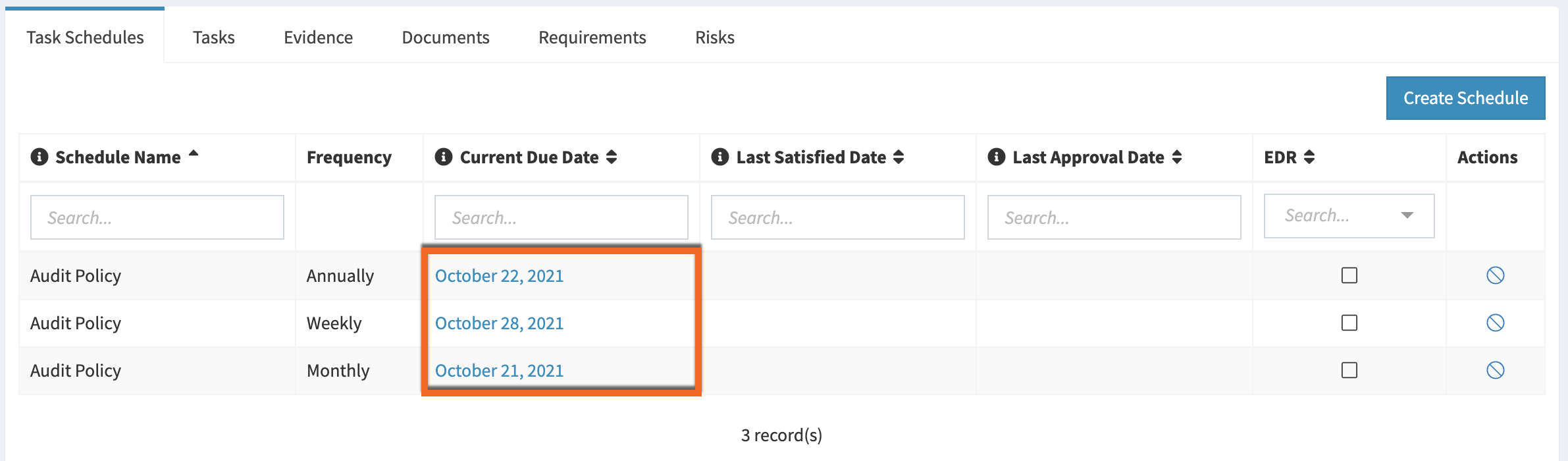
- Select the Task Schedules tab.
- Select a due date from the Current Due Date column.
- On the View Task page, click the Update Task button.
- Update the task details that you would like to change.
- Click the Update button.
Permissions for Editing Recurring Tasks
Depending on your user role, you can update the details of a recurring task.
See the list below for information about which of the task's details you can update based on your user role.
- Account Administrator: Account Administrators can update all of the current task's fields for tasks that are in any status.
- Group Lead: Group Leads can update tasks for the controls that their User Group is responsible for. They can edit the current task's User Assigned field for tasks that are in any status.
- Risk Administrator: Risk Administrators can update tasks for the controls that are mapped to risks. They can edit all of the current task's fields for tasks that are in the Active, Past Due, or Failed status.
- Scope Administrator: Scope Administrators can update tasks that are in their allowed scopes. They can edit the current task's User Assigned field for tasks that are in the Active, Past Due, or Failed status.
Updating the Due Date for Recurring Tasks
When you edit the due date for the current task in a recurring task's schedule, you may notice that you have different options for selecting a date, depending on the task's frequency. After you edit a task's due date in the Due On field, the task's Start On and End On dates will also change.
For information about changing the current task's due date for each task frequency, see the list below:
- Weekly: If the current task's due date has not passed, you can change the due date to up to one week after the initial due date. If the current task's due date has passed, you can change the due date up to two weeks after the initial due date. You cannot select a new date that is before the initial due date, even if the new date is in the future.
- Monthly: If the current task's due date has not passed, you can change the due date to up to one month after the initial due date. If the current task's due date has passed, you can change the due date up to two months after the initial due date. You cannot select a new date that is before the initial due date, even if the new date is in the future.
- Annually: If the current task's due date has not passed, you can change the due date up to one year after the initial due date. If the current task's due date has passed, you can not change the due date. You cannot select a new date that is before the initial due date, even if the new date is in the future.
Canceling Recurring Tasks
To cancel a recurring task, follow the steps below:
- Navigate to the Controls tab of your navigation panel.
- Select a control from the Name column.
- Select the Task Schedules tab.
- In the Actions column, click the Cancel button.

- In the pop-up window that opens, click the Yes button.