The list below includes frequently asked questions about PasswordIQ. If this article doesn't answer the question you're looking for, please submit a ticket to our support team.
For more information about PasswordIQ, see our PasswordIQ Product Manual.
General Information
For general information about PasswordIQ, click the links below.
- How does KnowBe4 protect my data?
- Can I view the passwords of users that were detected to have vulnerabilities?
- Can KnowBe4 see users' passwords?
- Can I install the client on my domain controller?
- Can I install the client on a different computer than the client is installed on?
- I have multiple AD domains in my organization. Can I add these domains to the same client?
- Can I create a different scan schedule for each of my domains?
- Since I can run scans from KSAT, do I need to keep the client installed on my computer?
- Why does PasswordIQ require a service account with more permissions than ADI?
- Does PasswordIQ scan AD accounts that are disabled?
- Does PasswordIQ scan AD accounts that don't have KSAT accounts?
- What data does PasswordIQ read from Active Directory (AD)?
- What is the 175 MB .bin file used for?
- How does the breached password test in PasswordIQ work?
- Where do you get your breach data from? Can I see it?
- Why doesn’t PasswordIQ work with Azure?
- Can I add a list of custom weak passwords to PasswordIQ?
- What ports does PasswordIQ use?
1. How does KnowBe4 protect my data?
Your data stays protected since everything, including all verification for PasswordIQ, is handled by the client on your local computer. Any data that PasswordIQ uses is never uploaded to a KnowBe4 server.
2. Can I view the passwords of users that were detected to have vulnerabilities?
No. The passwords that the client scans are hashed, so PasswordIQ can't access your users' passwords. Your scan results are based on the password-related settings and password hashes in your AD.
3. Can KnowBe4 see users’ passwords?
No. Hashed passwords are a long combination of letters and numbers that are in place to disguise an actual password. KnowBe4 can’t find out what your users’ passwords are from the hashed text.
4. Can I install the client on my domain controller?
We recommend that you don't install the client on your domain controller. If you install the client on a domain controller, you'll need to allow the service account to log in to the computer locally. For computers that are not domain controllers, you won't have to allow the service account to log in to the computer locally.
Additionally, the scan process may generate high network traffic and computer processing unit (CPU) usage, which can interfere with your domain controller's processes.
5. Can I install the client on a different computer than the client is installed on?
Yes. However, you'll need to uninstall the client on its current computer before you install it on the new computer.
To uninstall the client on its current computer and install it on the new computer, follow the instructions below:
- On the computer that currently runs the client, open the Control Panel.
- Under the Programs section, click the Uninstall a program link.
- Select KnowBe4 PasswordIQ.
- Click the Uninstall button.
-
In the pop-up window, click the Yes button to keep your configuration files.
Important:This step will save your API token, last scan summary, and proxy server settings. If your configuration files contain proxy server settings, the new computer will need to have the same proxy server settings as the current computer. - After the uninstallation completes, open the File Explorer application on the new computer.
- Navigate to the %WINDIR%\Temp folder.
- Copy the pqServerDataDirUninstallBk folder.
- Transfer the pqServerDataDirUninstallBk folder to the %WINDIR%\Temp path of the new computer. For some potential methods that you could use to transfer this folder, see the list below:
- Paste the folder to a network drive or another drive that you can access from the new computer. Then, from the new computer, copy and paste the folder to the %WINDIR%\Temp path.
- Paste the folder to a cloud storage service that you can access from the new computer. Then, from the new computer, copy and paste the folder to the %WINDIR%\Temp path.
- Email the folder to yourself, and sign in to your email on the new computer. Then, from the new computer, copy and paste the folder to the %WINDIR%\Temp path.
- In a new window, log in to your KSAT console and navigate to PasswordIQ.
- Click the Download PasswordIQ client button to begin installing the client on the new computer.
6. I have multiple AD domains in my organization. Can I add these domains to the same client?
No. You'll need to install one instance of the client for each domain so that each domain name can be tracked separately. If you encounter errors or issues with the client, individual domain tracking will help our support team troubleshoot any issues with your AD.
7. Can I create a different scan schedule for each of my domains?
No. You can only create one scan schedule. Your scan schedule will initiate scans for all of the domains that are connected to PasswordIQ.
For more information, see the Running Scans from Your Dashboard section of our PasswordIQ Dashboard Guide.
8. Since I can run scans from KSAT, do I need to keep the client installed on my computer?
Yes. While you can initiate scans from the PasswordIQ tab of your KnowBe4 SAT console, you'll need to keep the client to continue running scans. The client is used to scan your AD.
9. Why does PasswordIQ require a service account with more permissions than ADI?
The service account for PasswordIQ needs to be able to access information about your users' password security, including password hashes, from AD. The Replicating Directory Changes and Replicating Directory Changes All allow the account to request this information. These permissions are higher than the service account requires for ADI, which only requires permissions for performing LDAP queries.
10. Does PasswordIQ scan AD accounts that are disabled?
No. PasswordIQ will only scan active AD accounts.
11. Does PasswordIQ scan AD accounts that don't have KSAT accounts?
Yes. PasswordIQ will scan all active AD accounts and display the results, so your users don't need to have KSAT accounts to be included in scans. For more information about filtering your scan results, see our PasswordIQ Dashboard Guide.
12. What data does PasswordIQ read from AD?
PasswordIQ uses a third-party library that utilizes Microsoft's APIs to compare hashes from your AD.
- Deleted
- Description
- DisplayName
- DistinguishedName
- Enabled
- GUID
- GivenName
- KeyCredentials
- LMHash
- LMHashHistory
- LastLogonTimestamp
- LogonName
- NTHash
- NTHashHistory
- Name
- OperatingSystem
- PasswordLastChanged
- PrimaryGroupID
- ProxyAddresses
- RoamedCredentials
- RoamedCredentials Modified
- RoamedCredentialsCreated
- SAMAccountName
- SAMAccountType
- SID
- SIDHistory
- SecurityDescriptor
- ServicePrincipalName
- SupplementalCredentials
- Surname
- UserAccountControl
- UserPrincipalName
If PIQ finds any vulnerabilities, it will create a list with the vulnerable users’ names, email addresses, and specific vulnerabilities.
13. What is the 175 MB .bin file used for?
The 175 MB data.bin file is a list of weak passwords used for detecting the Weak Password vulnerability. After you install the PasswordIQ client, this file will be available in the installation directory.
14. How does the breached password test in PasswordIQ work?
All passwords found in the Breached Password Test (BPT) online database get hashed, which is a form of encryption. PasswordIQ compares the hashed passwords from the online database with the hashed passwords for each user found in your Active Directory (AD). If there’s a match, the user gets flagged for having a breached password.
15. Where do you get your breach data from? Can I see it?
We get our data for breached passwords in PasswordIQ through our Breached Password Test (BPT) database, which is a compilation of multiple sources on the internet and not a public database. We update our data on breached passwords once a month. For privacy and security purposes, the BPT database is proprietary information.
16. Why doesn’t PasswordIQ work with Azure?
Azure uses a different hash than PasswordIQ to store its passwords. There isn’t an existing API that allows PasswordIQ to extract Azure’s hashes.
17. Can I add a list of custom weak passwords to PasswordIQ?
Yes! Open the data.bin file in the PasswordIQ agent's install directory with a text editor, then add the custom weak passwords you want.
18. What ports does PasswordIQ use?
The following ports must be open between PasswordIQ and your domain controller:
- TCP 135 Report Procedure Call (RPC) Endpoint Mapper
- TCP 1024–65535 Dynamic RPC ports or a properly configured custom RPC port range
Viewing Your Scan Results
For information about viewing your scan results, click the links below.
- What should I do after I receive my scan results?
- How do I change my default dashboard?
- I changed the status of a user's vulnerability to Resolved. Why did the status revert to New?
- Many of my users were detected for the Shared Password vulnerability. Do they all have the same password?
1. What should I do after I receive my scan results?
You can use your scan results to review and resolve your users' vulnerabilities and to reduce your organization’s vulnerability to cyberattacks. To review and resolve your users' vulnerabilities, we recommend that you follow the steps below:
- In the User Table widget of the PasswordIQ dashboard, review the vulnerabilities that were found for each user.
- Change the status of each vulnerability to Reviewed. For more information about changing vulnerability statuses, see the User Table section of our PasswordIQ Dashboard Guide.
- Help resolve your users' password vulnerabilities. For recommendations about resolving each vulnerability, see our Resolve Password Vulnerabilities article.
- After an admin or user resolves each vulnerability, change the status of the vulnerability to Resolved. For more information, see the User Table section of our PasswordIQ Dashboard Guide.
- Run a new scan to confirm that the vulnerabilities have been resolved. For more information, see the Running Scans section of our PasswordIQ Product Manual.
2. How do I change my default dashboard?
To change your default dashboard, follow the instructions below:
- Log in to your KSAT account and select the Password IQ tab.
- In the top-left corner of the page, click the name of your current default dashboard to open a drop-down menu.
- Select the dashboard that you would like to set as your default dashboard.
- In the top-right corner of the page, click the Set as Default button.
3. I changed the status of a user's vulnerability to Resolved.
Why did the status revert to New? Most likely, another scan has run since you changed the status of the vulnerability. This change also indicates that the user's vulnerability has not been resolved in your AD account. If the vulnerability cannot be resolved by an admin we recommend that you contact the user to help them resolve the vulnerability.
4. Many of my users were detected for the Shared Password vulnerability. Do they all have the same password?
No. If a user is detected for the Shared Password vulnerability, the user shares a password with at least one other user in your AD account. Unless an admin sets the same password for all of the users who were detected for this vulnerability, the users most likely don't all share the same password.
Troubleshooting
For troubleshooting information, click the links below.
1. What should I do if I receive an error in the client?
1. What should I do if I receive an error in the client?
For a list of errors and our recommendations for resolving each error, see the table below:
| Error | Recommended Troubleshooting Steps |
|---|---|
| Unable to scan for all vulnerabilities because the server is unavailable. Please check your API token and your internet connection, and try again. |
To resolve this error, follow the steps below:
|
| Unable to send scan results to KSAT. Please check your internet connection, and try again. |
To resolve this error, follow the steps below:
|
| Unable to identify the computer's domain. Please verify that the local computer is connected to a domain, and try again. |
To resolve this error, follow the steps below:
|
| Unable to run the scan due to an unexpected error. Please restart the PasswordIQ service, and try again. If the error persists, contact support. |
To resolve this error, follow the steps below:
|
2. I tried all of the recommended troubleshooting steps in the question above, but I'm still receiving the same error. What should I do now?
You can send a folder that contains troubleshooting files to our support team. To create and copy this folder to send to our support team, follow the steps below:
- Open your client installation folder.
- Double-click the support_enable_logging.bat file.
-
In the pop-up window that opens, click Yes to allow the Troubleshooter app to make changes to your device.
Important:This step enables verbose debug logging, which prompts your computer to thoroughly record the events that happen as the client runs. - When the Command Prompt window displays the Press any key to continue... message, press a key on your keyboard.
- Perform the action that caused the error to appear before you enabled verbose debug logging.
- When the error message appears again, write down the time and date. The time that the error occurs may help our support team troubleshoot the problem.
- Open your client installation folder again.
- Double-click the support_collect_logs.bat file.
-
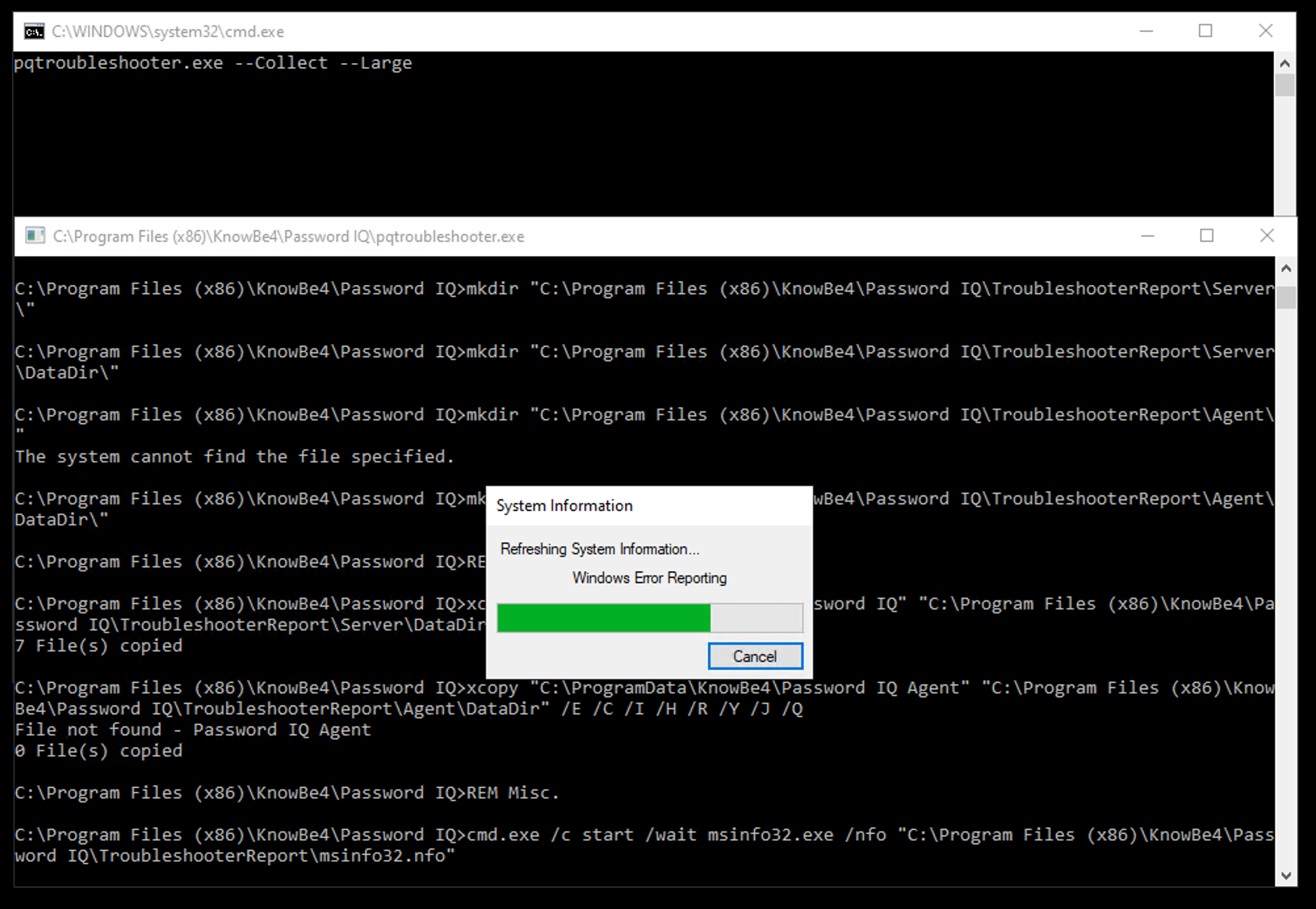
In the pop-up window that opens, click Yes to allow the Troubleshooter app to make changes to your device. Two Command Prompt windows will open and begin collecting logs, and a System Information window will open and display a progress bar.
-
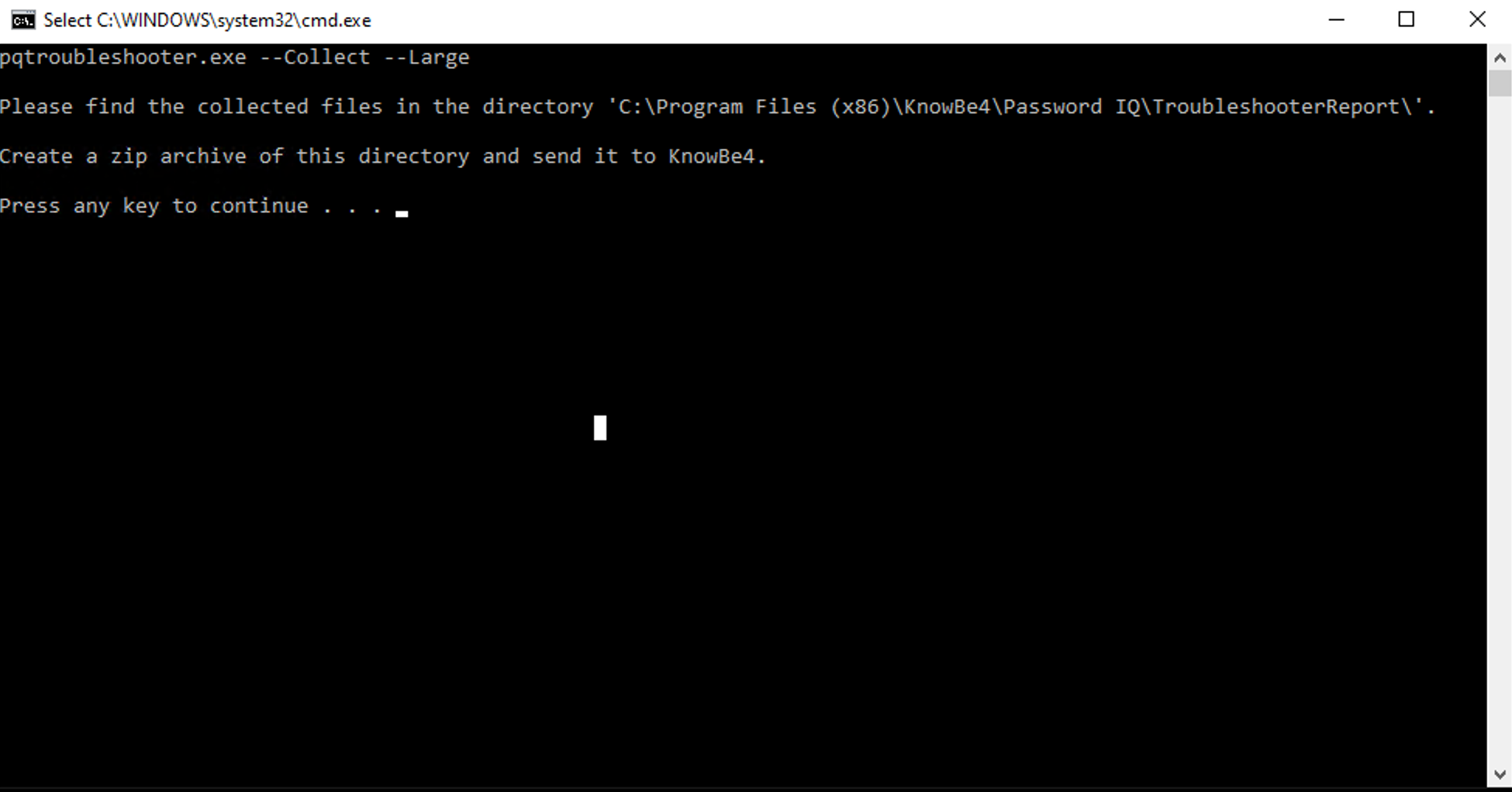
When the Command Prompt window displays the Press any key to continue... message, press a key on your keyboard.
-
In the client installation folder, copy the TroubleshooterReport file.
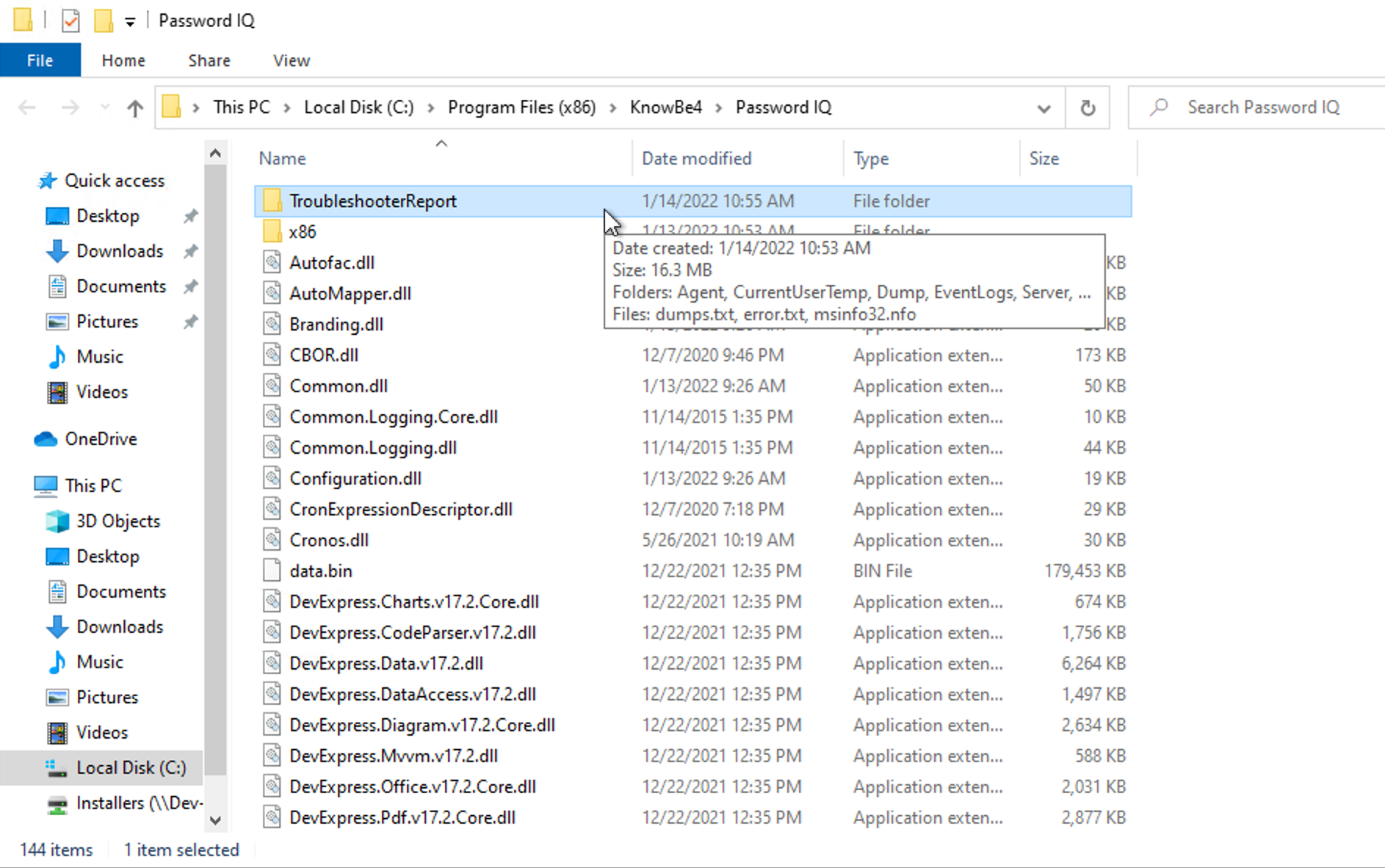
- Send the TroubleshooterReport file to our support team.
3. I received an error that a group that was selected in my widget's group filter no longer exists in my account. How can I resolve this error?
You'll need to remove the groups that no longer exist from the widget's Group filter. To remove the groups from this filter, follow the instructions below:
- Log in to your KSAT account and select the PasswordIQ tab.
- In the top-right corner of the page, click the Edit Dashboard button.
- In the top-right corner of the widget that is displaying the error, click the settings icon.
- In the Groups field, click the x next to the group or groups that no longer exist in your account.
- Click the Save button.