In the KCM GRC Vendor Risk Management module, you can send questionnaire assessments to your organization's vendors or third parties. Then, you can use the Send Link button to send a follow-up email that prompts vendors to complete questionnaires. For more details about the full vendor workflow, see our Vendor Risk Management Module Guide.
You can find the Send Link button by selecting a vendor profile on the Vendor Details page (Vendor Management > Vendors) and navigating to the Assigned Questionnaires tab.
The Send Link button creates an email draft that contains a link to the questionnaire. This email draft automatically opens in your device's default email application. If your default email application is not your preferred email application, this article can help you change your default settings in web browsers, Windows 10 OS, and Mac OS.
Change Your Default Email Web Application for Your Web Browser
The web browsers Chrome, Edge, and Firefox automatically open email links in your device's default email application, which is typically a desktop application. If you want the Send Link button to open a web application instead of a desktop application, you can change the default email web application for any browser without affecting your device's default settings.
To learn how to change your default email settings, select your browser from the tabs below.
Change Default Email Web Application in Google Chrome
To change your default email web application in Chrome, follow the instructions below.
- Open Google Chrome.
- Click the three vertical dots icon in the top-right corner.
- Click Settings.
- Select Privacy and security from the navigation bar.
- Select Site Settings under Privacy and security.
- Click Additional permissions under Permissions.
- Select Handlers.
- Select Sites can ask to handle protocols. If this was already selected, make sure that your preferred email web application is not blocked.
- Navigate to your preferred email web application. For example, navigate to emailclient.com.
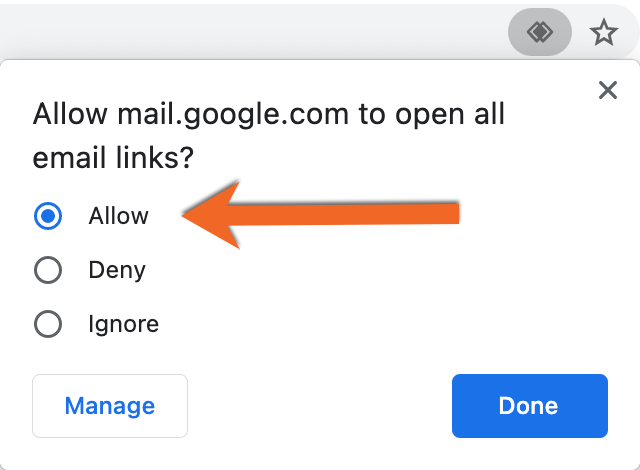
- Click the double-diamond icon in your address bar.
- Select Allow under Allow [web application] to open all email links?.
Change Default Email Web Application in Microsoft Edge
To change your default email web application in Edge, follow the instructions below.
- Open Microsoft Edge.
- Click the three horizontal dots icon in the top-right corner.
- Select Cookies and site permissions from the navigation bar.
- Select Handlers from the list of site permissions.
- Select Sites can ask to handle protocols. If this was already selected, make sure that your preferred email web application is not blocked.
- Navigate to your preferred email web application. For example, navigate to emailclient.com.
- Click the double-diamond icon in your address bar.
- Select Allow under Allow [web application] to open all email links?
Change Default Email Web Application in Firefox
To change your default email web application in Firefox, follow the instructions below.
- Open Firefox.
- Click the three horizontal lines icon in the top-right corner.
- Select Preferences if you're using Mac or Options if you're using Windows.
- Navigate to General > Applications.
- Enter "mailto" into the search bar.
- Select mailto from the Content Type section.
- Click the drop-down arrow next to Action.
- Select your preferred email web application from the list of applications.
Change Your Default Email Application for Your Operating System
Windows 10 OS
To change the Windows 10 system settings for your device's default email application, follow the instructions below.
- Click the Start button in the Windows taskbar.
- Click the gear icon to open your Settings.
- Select Apps from the list of settings.
- Select Default Apps from the navigation bar.
- Click the current default email application under Email.
- Select your preferred email application from the list of applications.
Important:If you select a web browser for your default email application, you will need to follow the instructions above to change your default email web application for the web browser.
Mac OS
To change the Mac system settings for your device's default email application, follow the instructions below.
- Open the Mail application.
- Select Mail > Preferences from the top menu bar.
- Select your preferred email application from the Default email reader drop-down menu.
Important:If you select a web browser for your default email application, you will need to follow the instructions above to change your default email web application for the web browser.