This article shows admins how to customize the Phish Alert Button (PAB) display settings and provides visual examples of how these customizations will appear across different email platforms. By configuring these display options, admins can tailor the PAB's appearance, messaging, and user feedback to match their organization's requirements and branding standards across all supported email environments.
If you'd like additional information about the PAB, see our Phish Alert Button (PAB) Product Manual.
Comments and Disposition
Click the tabs below to see how the Comments and Disposition Settings will display for your PAB version.
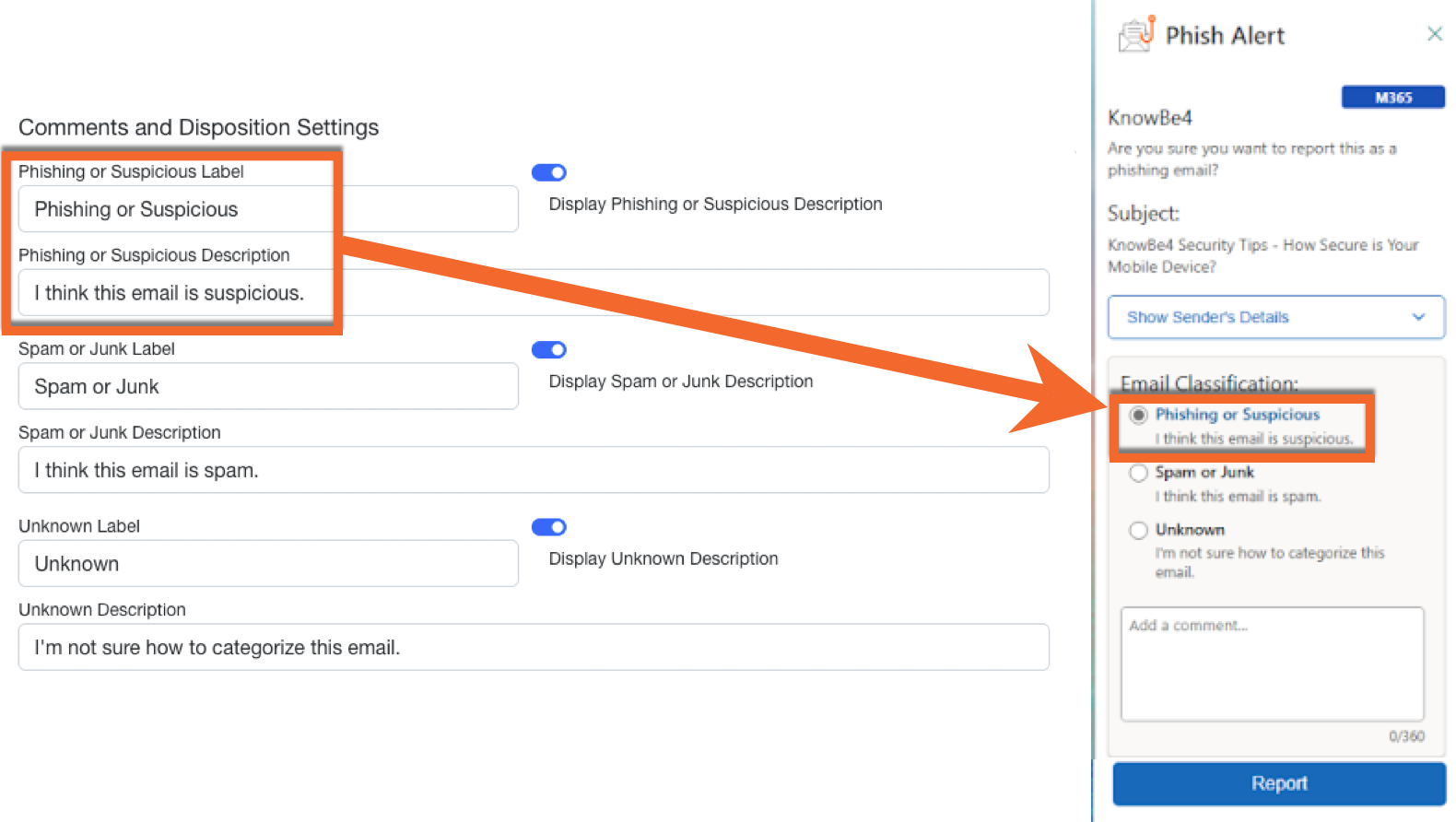
Screenshot: The Comments and Disposition Settings interface, where admins configure the Phish Alert Button (PAB) label and description text that will appear in users' Email Classification section when they access the PAB.
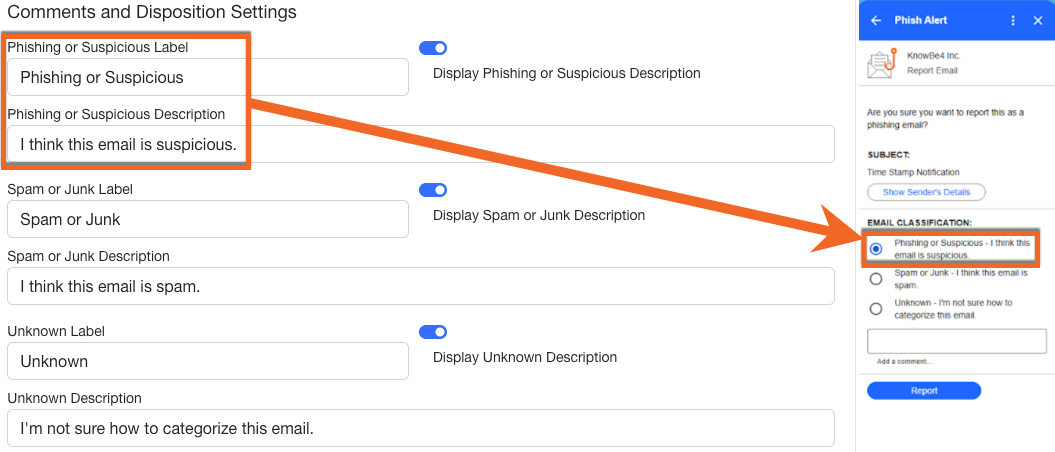
Screenshot: The Comments and Disposition Settings interface, where admins configure the Phish Alert Button (PAB) label and description text that will appear in users' Email Classification section when they access the PAB.
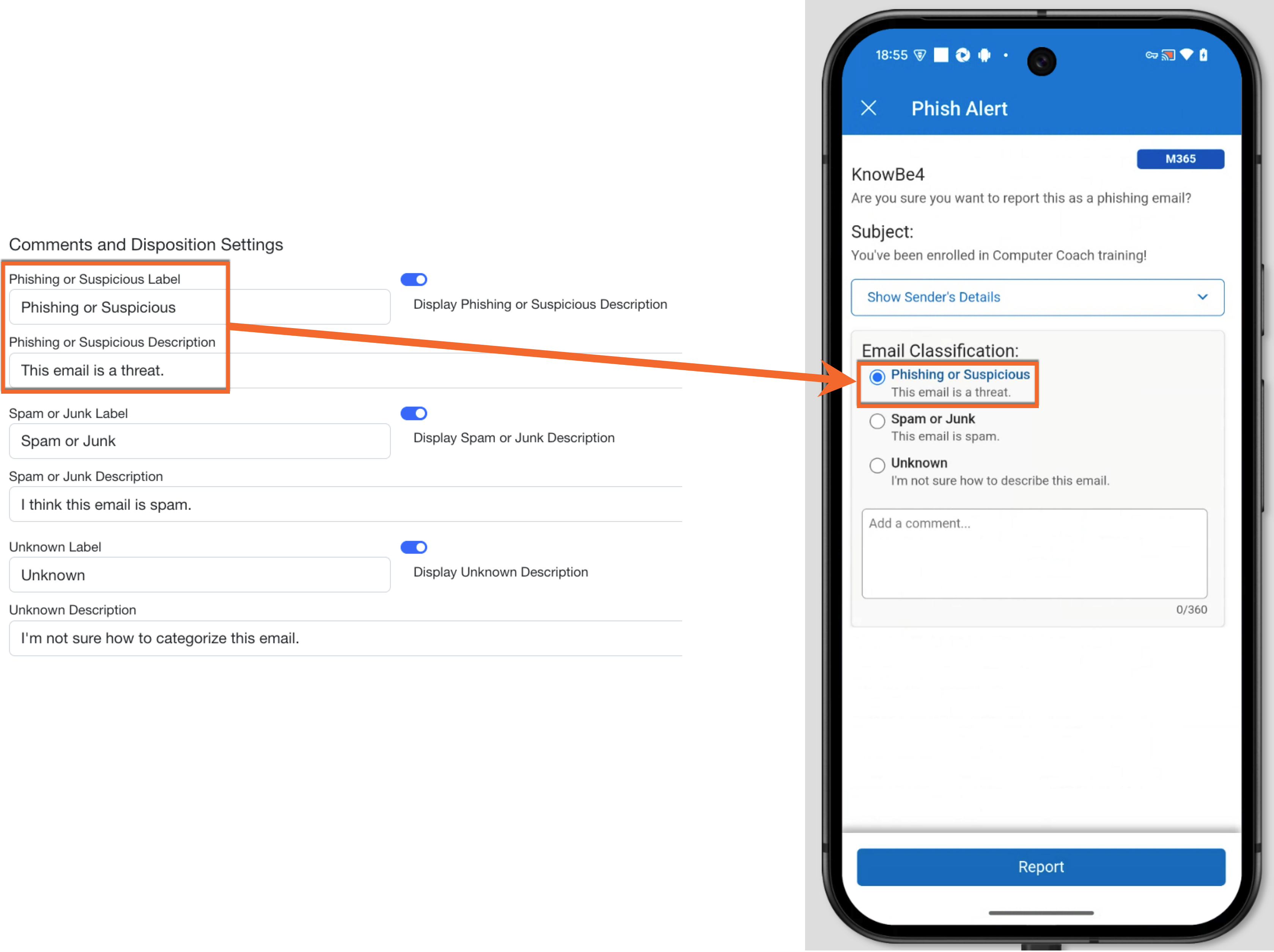
Screenshot: The Comments and Disposition Settings interface, where admins configure the Phish Alert Button (PAB) label and description text that will appear in users' Email Classification section when they access the PAB.
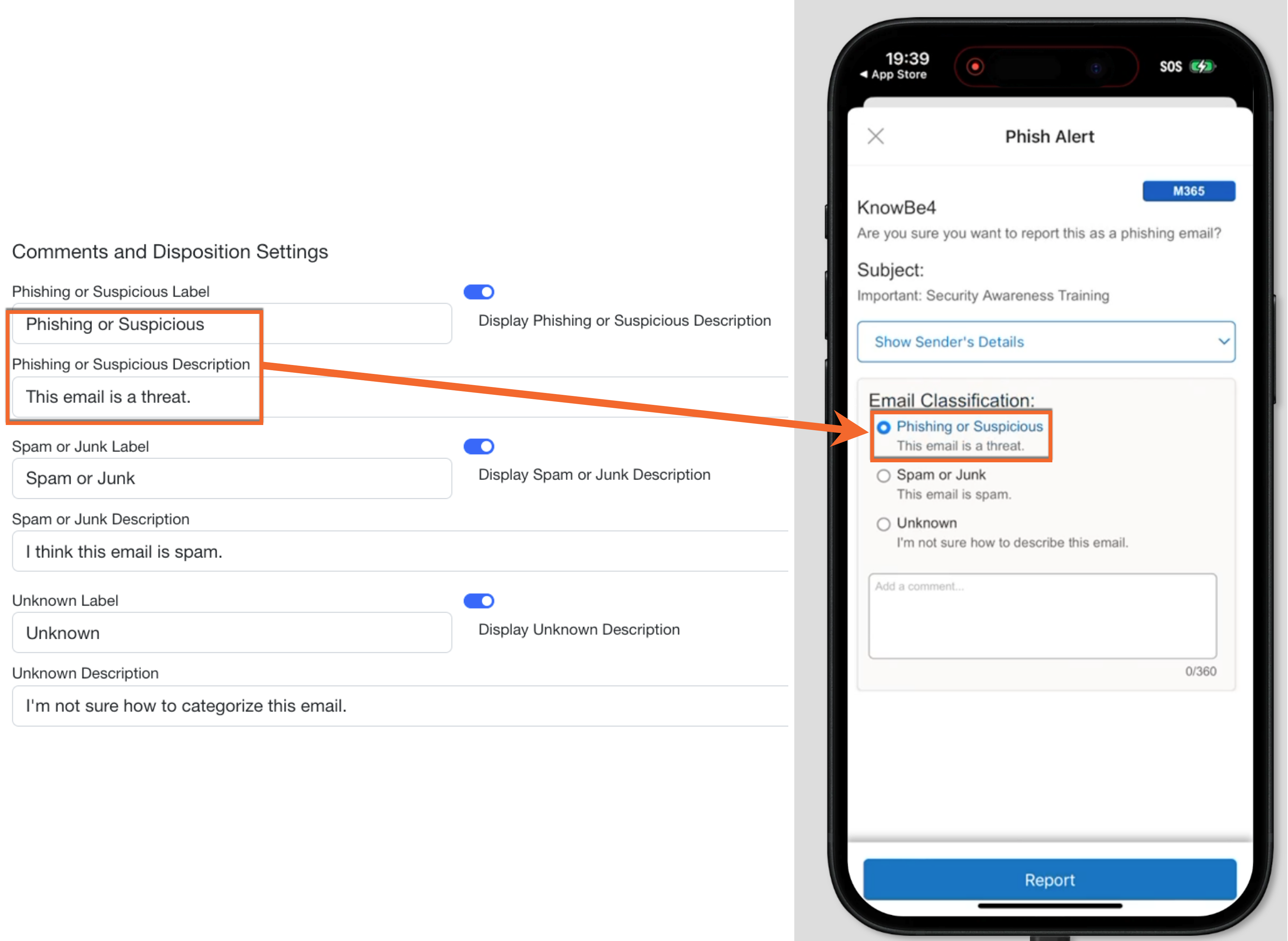
Screenshot: The Comments and Disposition Settings interface, where admins configure the Phish Alert Button (PAB) label and description text that will appear in users' Email Classification section when they access the PAB.
Button Text
Click the tabs below to see how the Button Text setting will display for your PAB version.
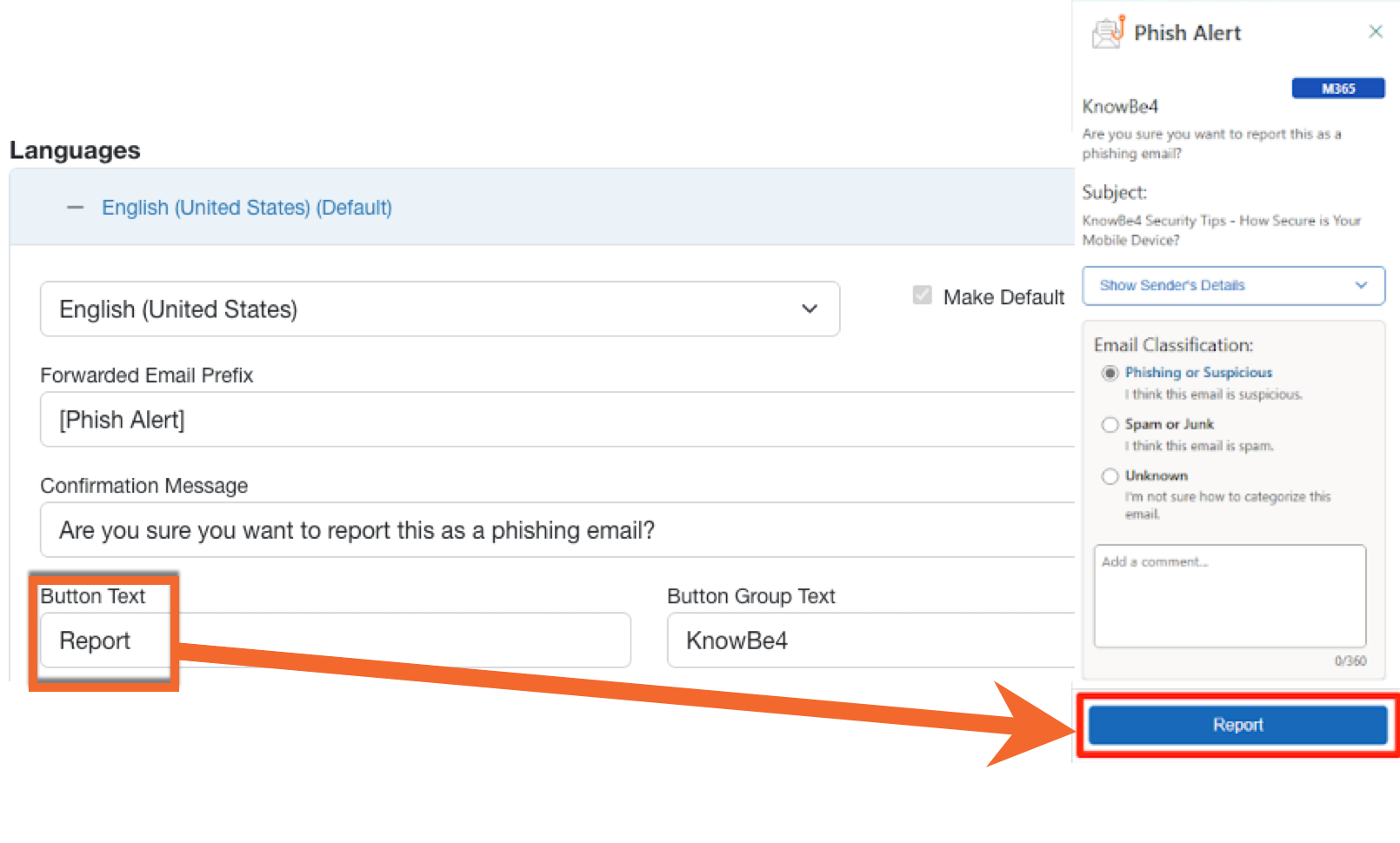
Screenshot: The Button Text setting field, where admins configure the text that will appear on the Phish Alert Button (PAB) when users access it to report suspicious emails.
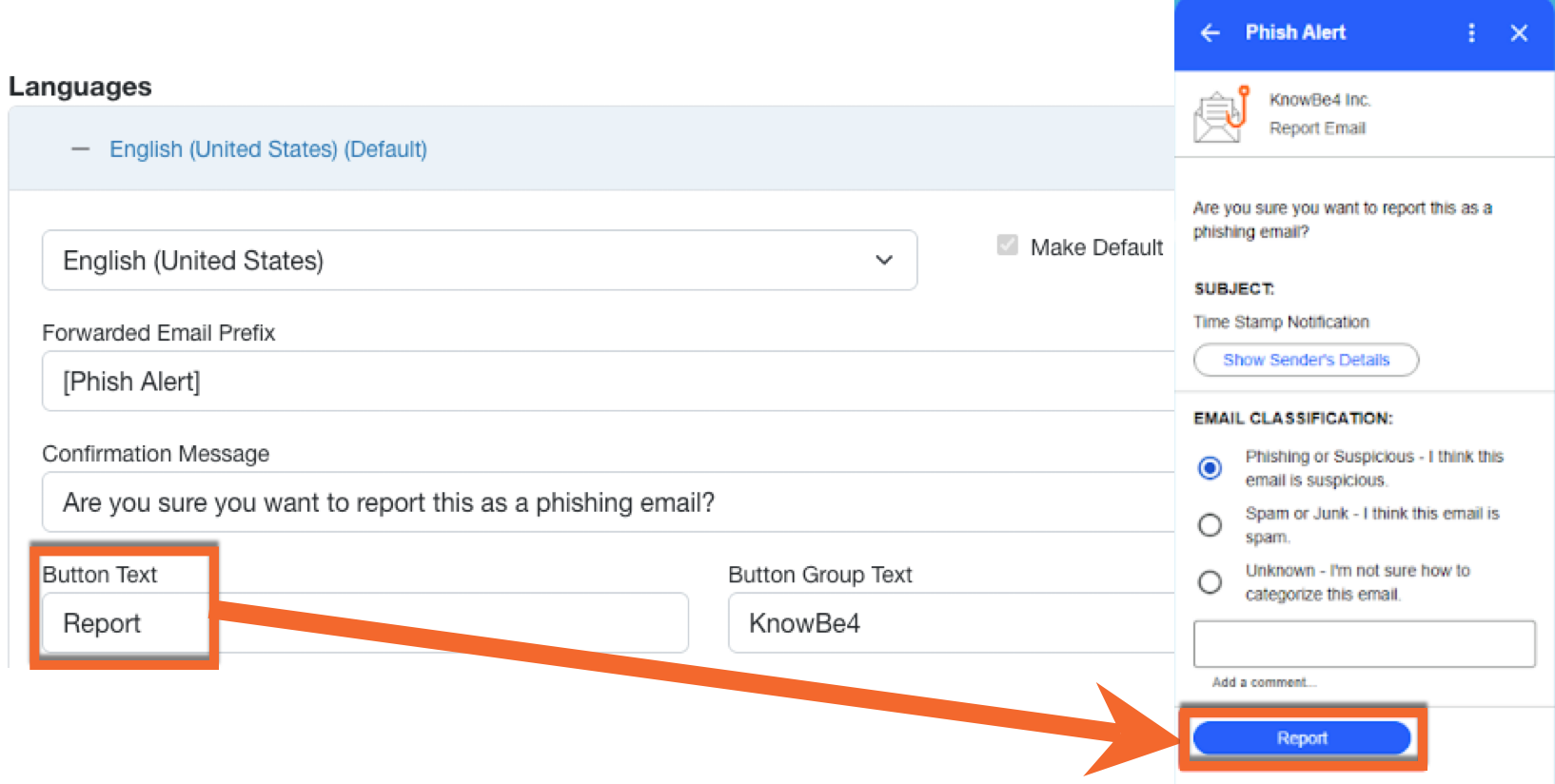
Screenshot: The Button Text setting field, where admins configure the text that will appear on the Phish Alert Button (PAB) when users access it to report suspicious emails.
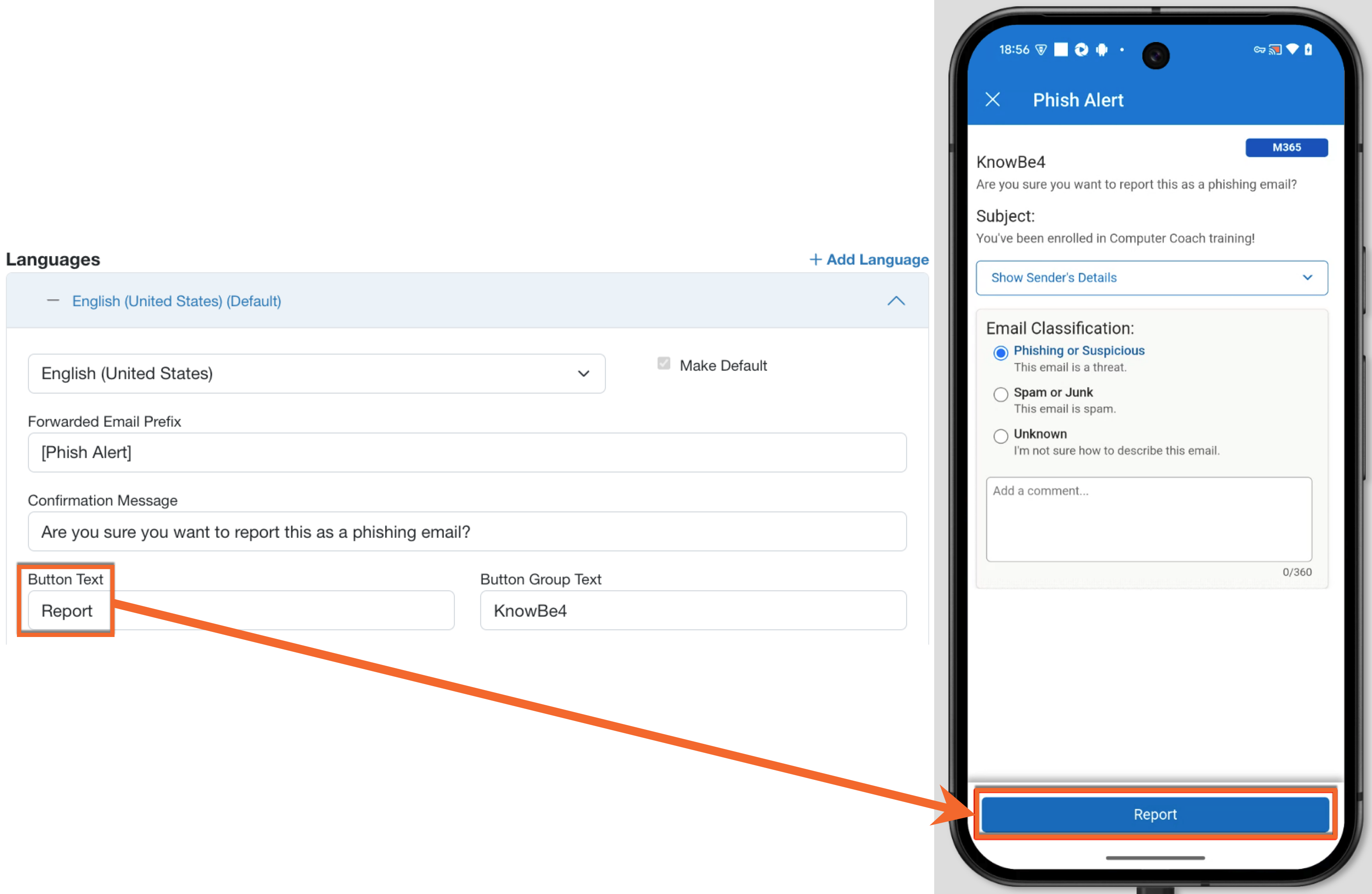
Screenshot: The Button Text setting field, where admins configure the text that will appear on the Phish Alert Button (PAB) when users access it to report suspicious emails.
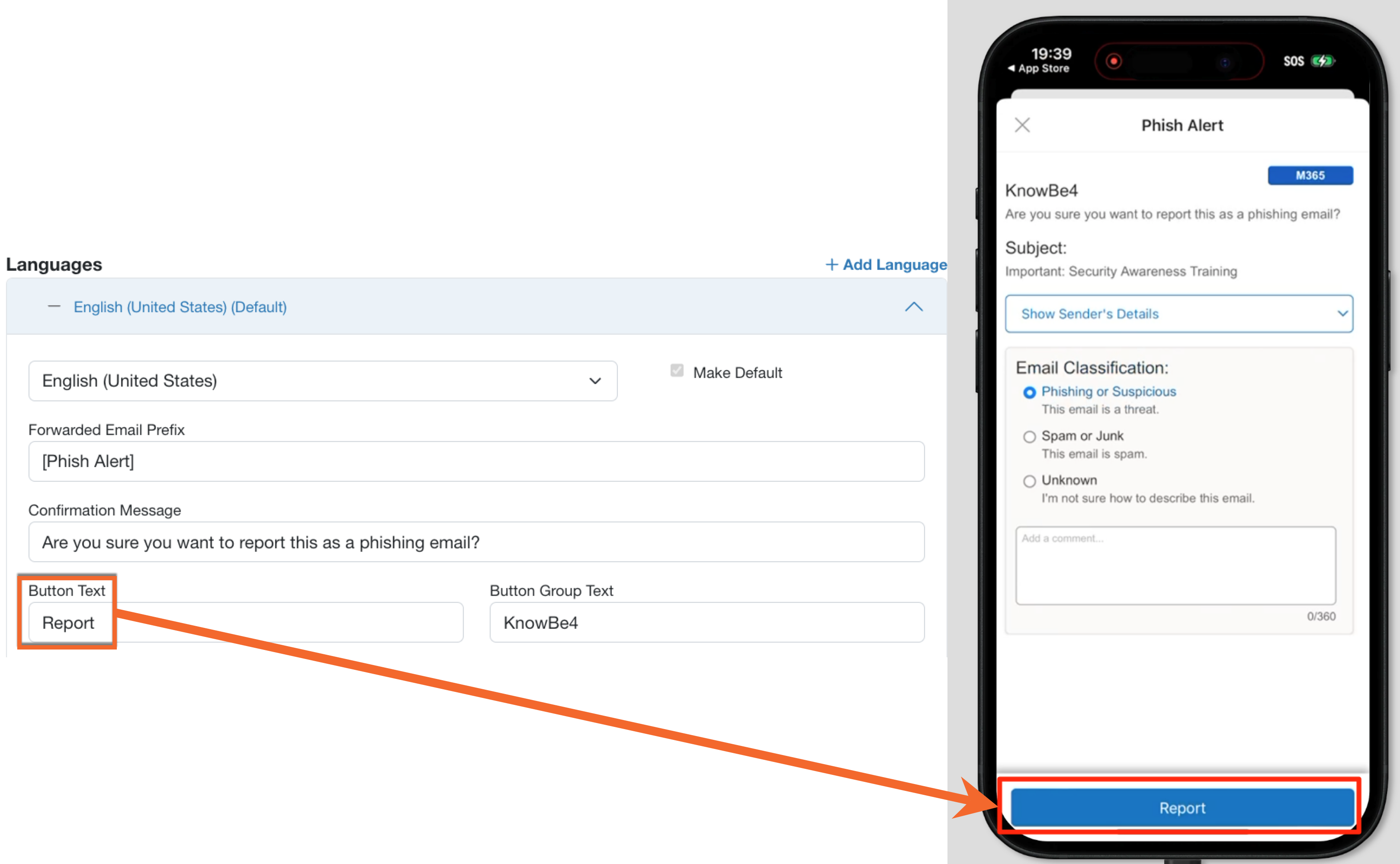
Screenshot: The Button Text setting field, where admins configure the text that will appear on the Phish Alert Button (PAB) when users access it to report suspicious emails.
Button Group Text
Click the tabs below to see how the Button Group Text setting will display for your PAB version.
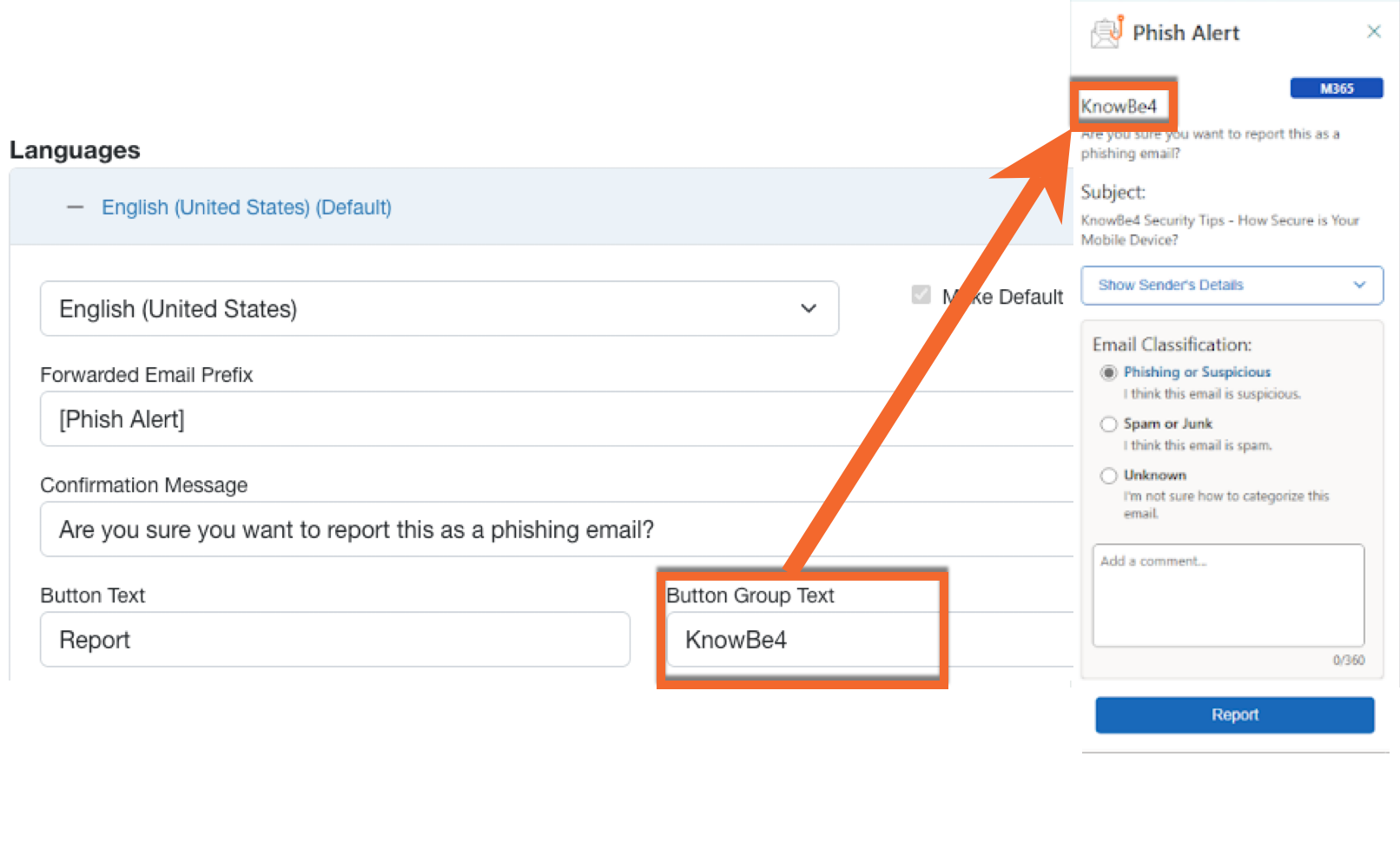
Screenshot: The Button Group Text input field, where admins configure the text that appears at the top-left corner of the Phish Alert Button (PAB) menu when users click the PAB to report suspicious emails.
The Gmail versions of the PAB do not have Button Group Text.
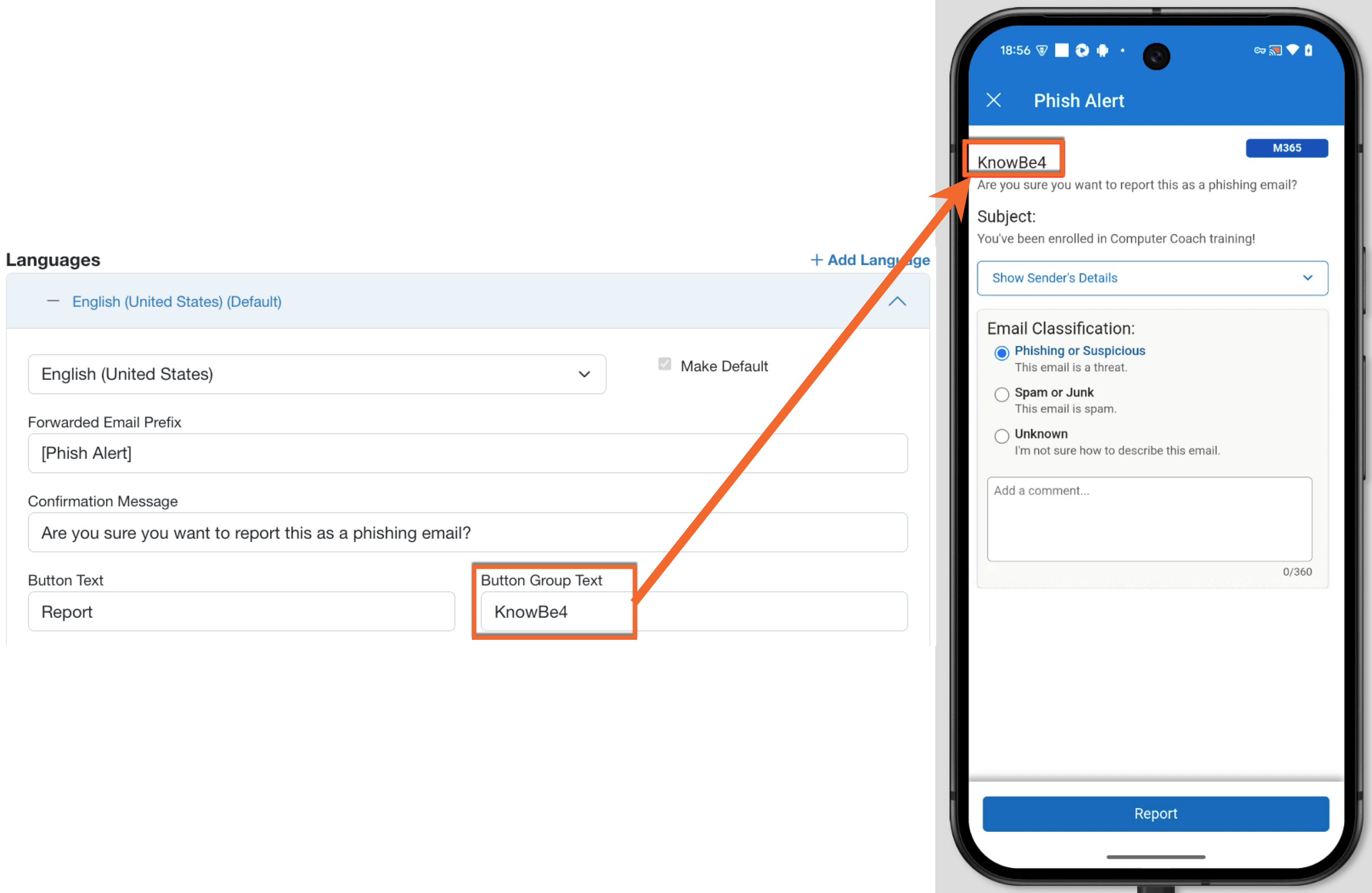
Screenshot: The Button Group Text input field, where admins configure the text that appears at the top-left corner of the Phish Alert Button (PAB) menu when users click the PAB to report suspicious emails.
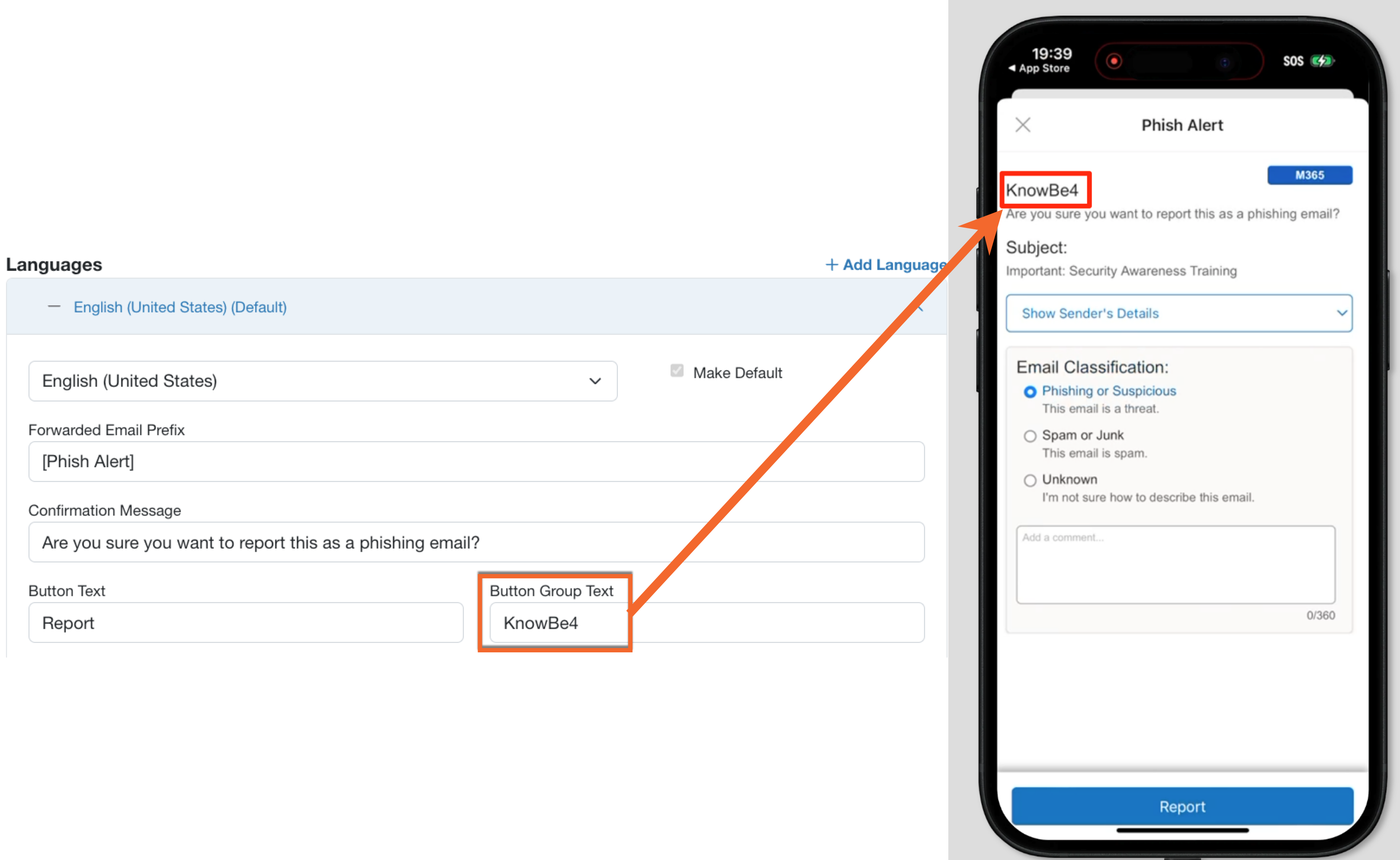
Screenshot: The Button Group Text input field, where admins configure the text that appears at the top-left corner of the Phish Alert Button (PAB) menu when users click the PAB to report suspicious emails.
User Response Report non-simulated
Click the tabs below to see how this setting will display for your PAB version.
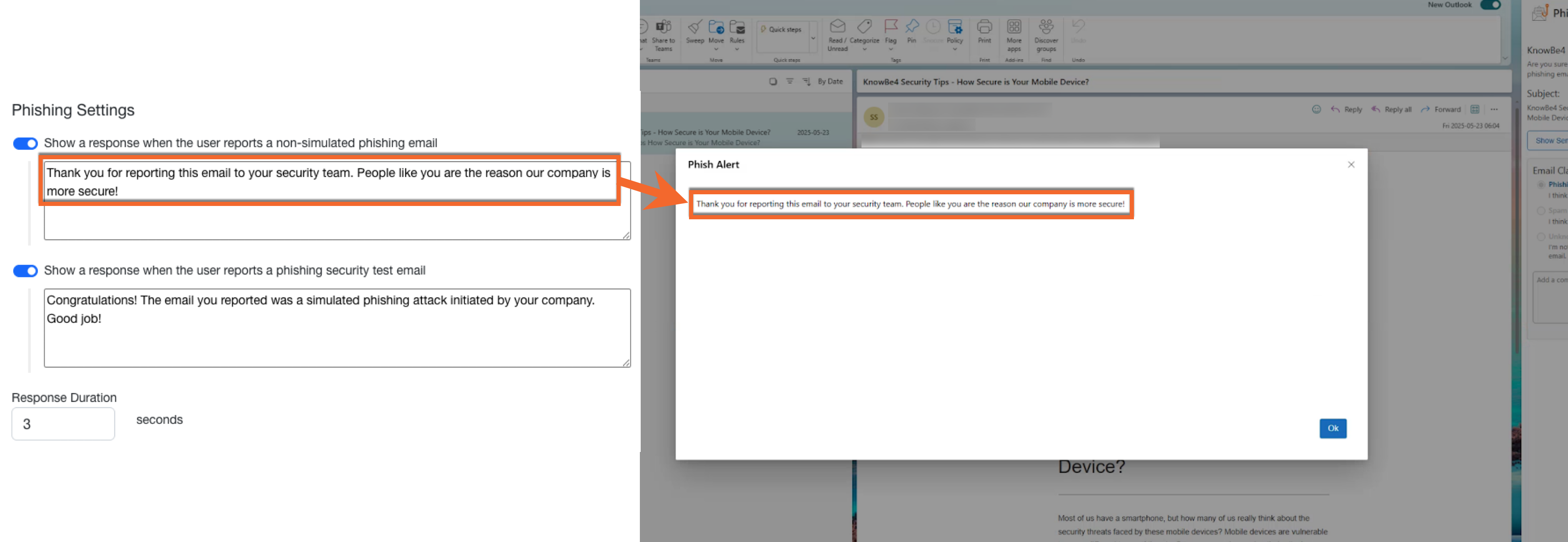
Screenshot: The Show a response when the user reports a non-simulated phishing email field, where admins configure the text that will appear in the Phish Alert Button (PAB) menu when users access it to report suspicious emails.
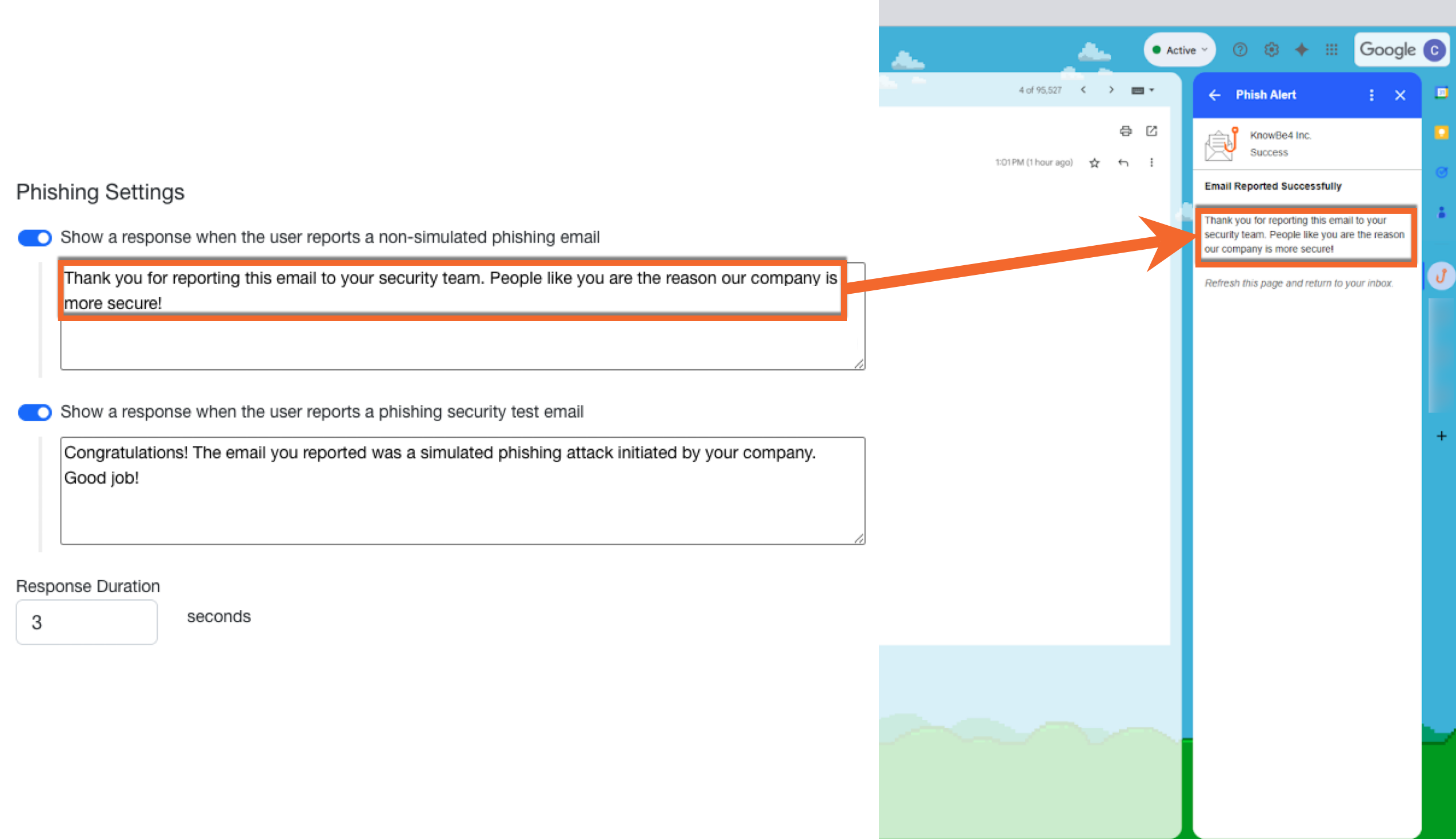
Screenshot: The Show a response when the user reports a non-simulated phishing email field, where admins configure the text that will appear in the Phish Alert Button (PAB) menu when users access it to report suspicious emails.
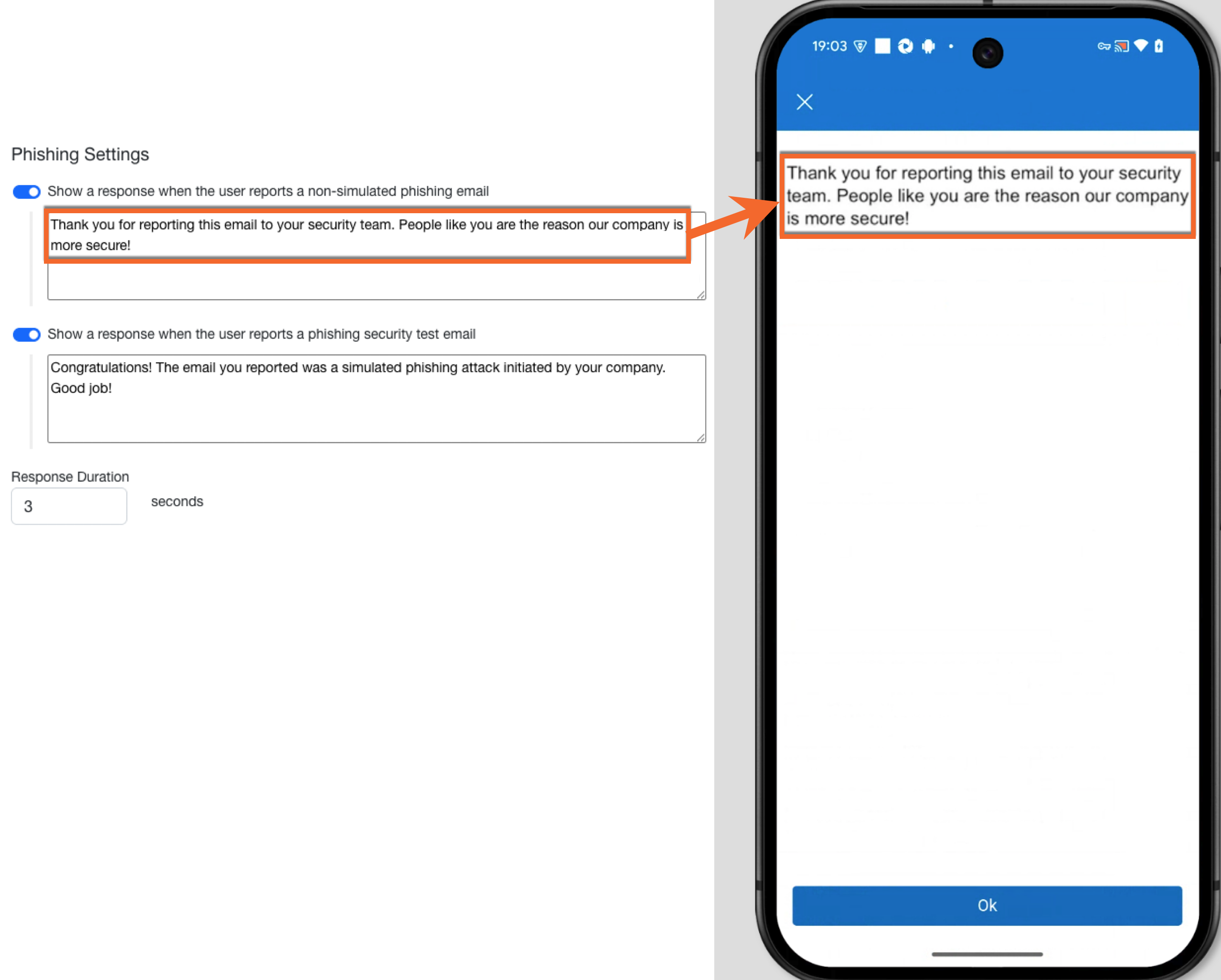
Screenshot: The Show a response when the user reports a non-simulated phishing email field, where admins configure the text that will appear in the Phish Alert Button (PAB) menu when users access it to report suspicious emails.
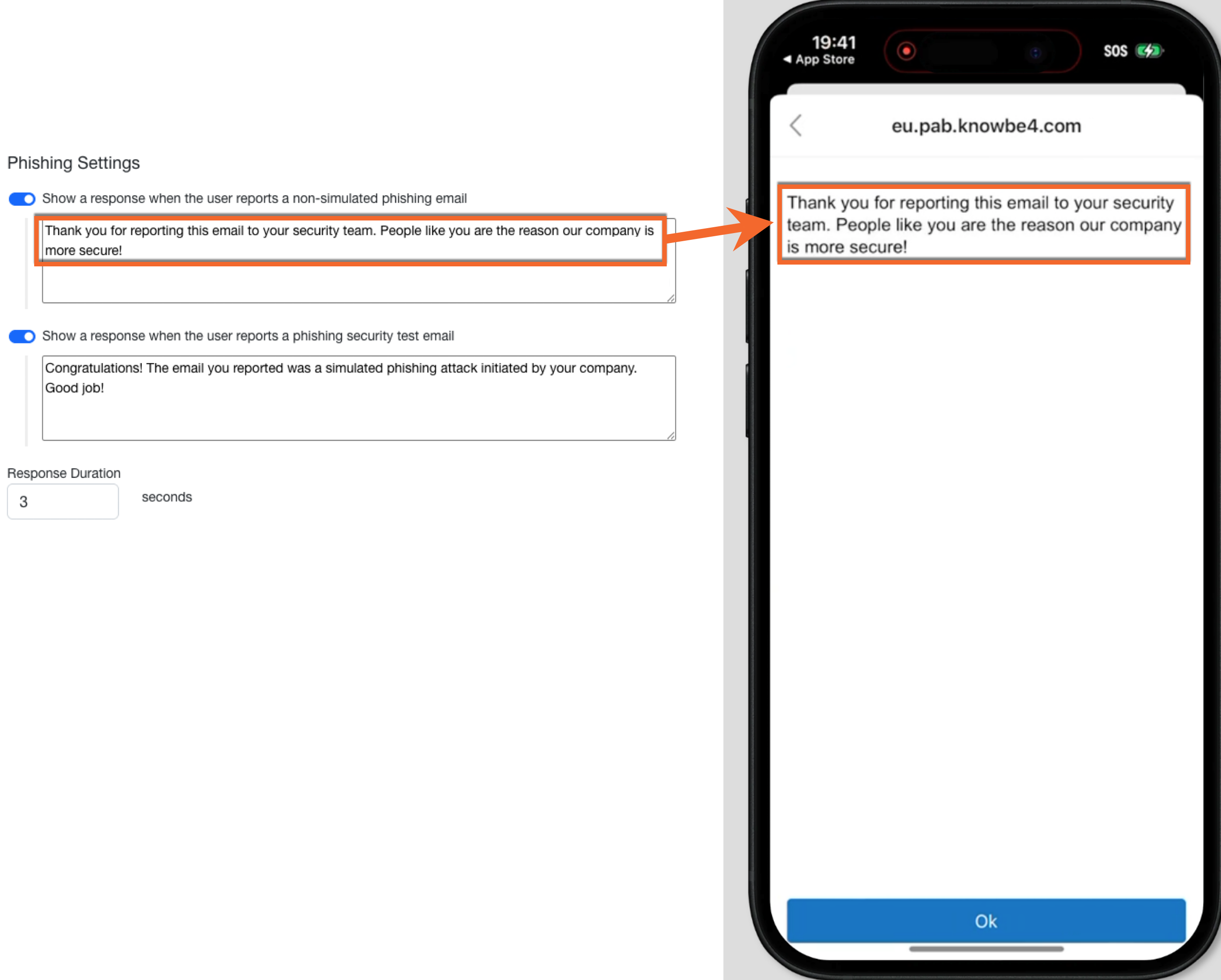
Screenshot: The Show a response when the user reports a non-simulated phishing email field, where admins configure the text that will appear in the Phish Alert Button (PAB) menu when users access it to report suspicious emails.
User Response Report simulated
Click the tabs below to see how this setting will display for your PAB version.
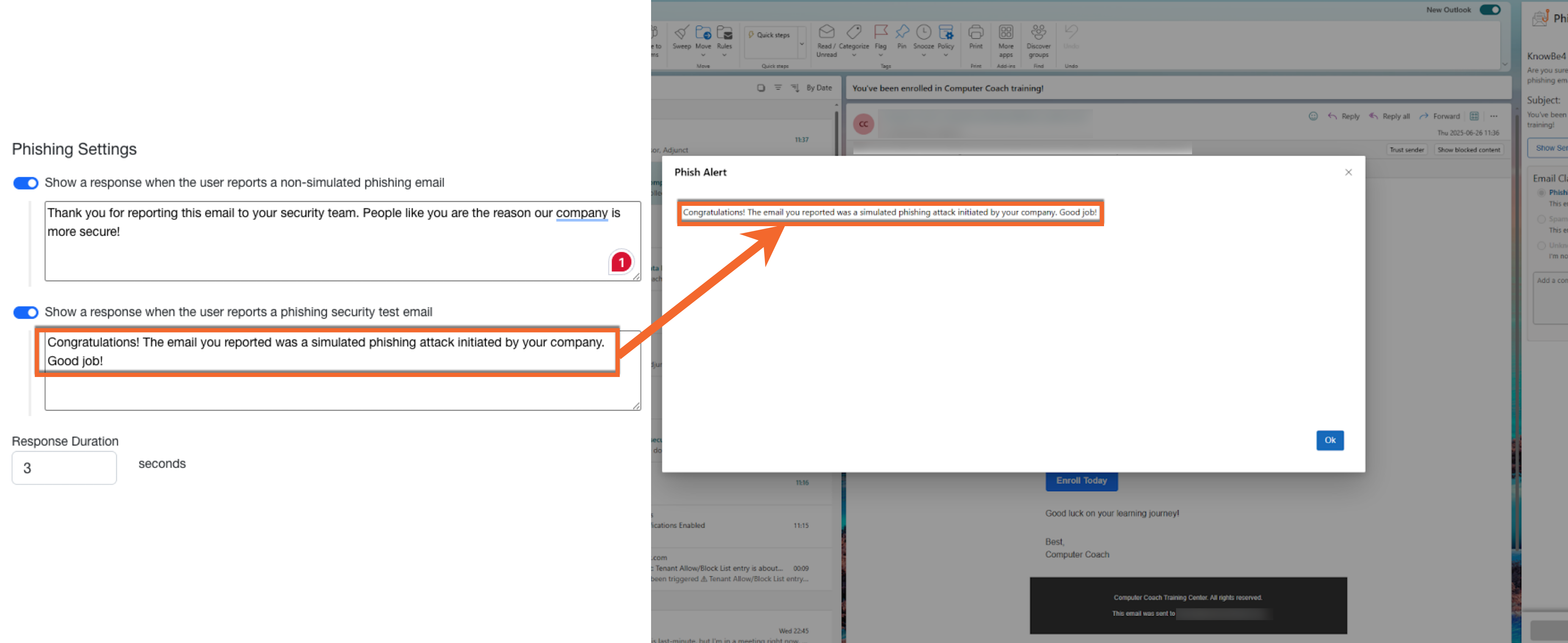
Screenshot: The Show a response when the user reports a phishing security test email field, where admins configure the text that will appear in the Phish Alert Button (PAB) menu when users access it to report suspicious emails.

Screenshot: The Show a response when the user reports a phishing security test email field, where admins configure the text that will appear in the Phish Alert Button (PAB) menu when users access it to report suspicious emails.
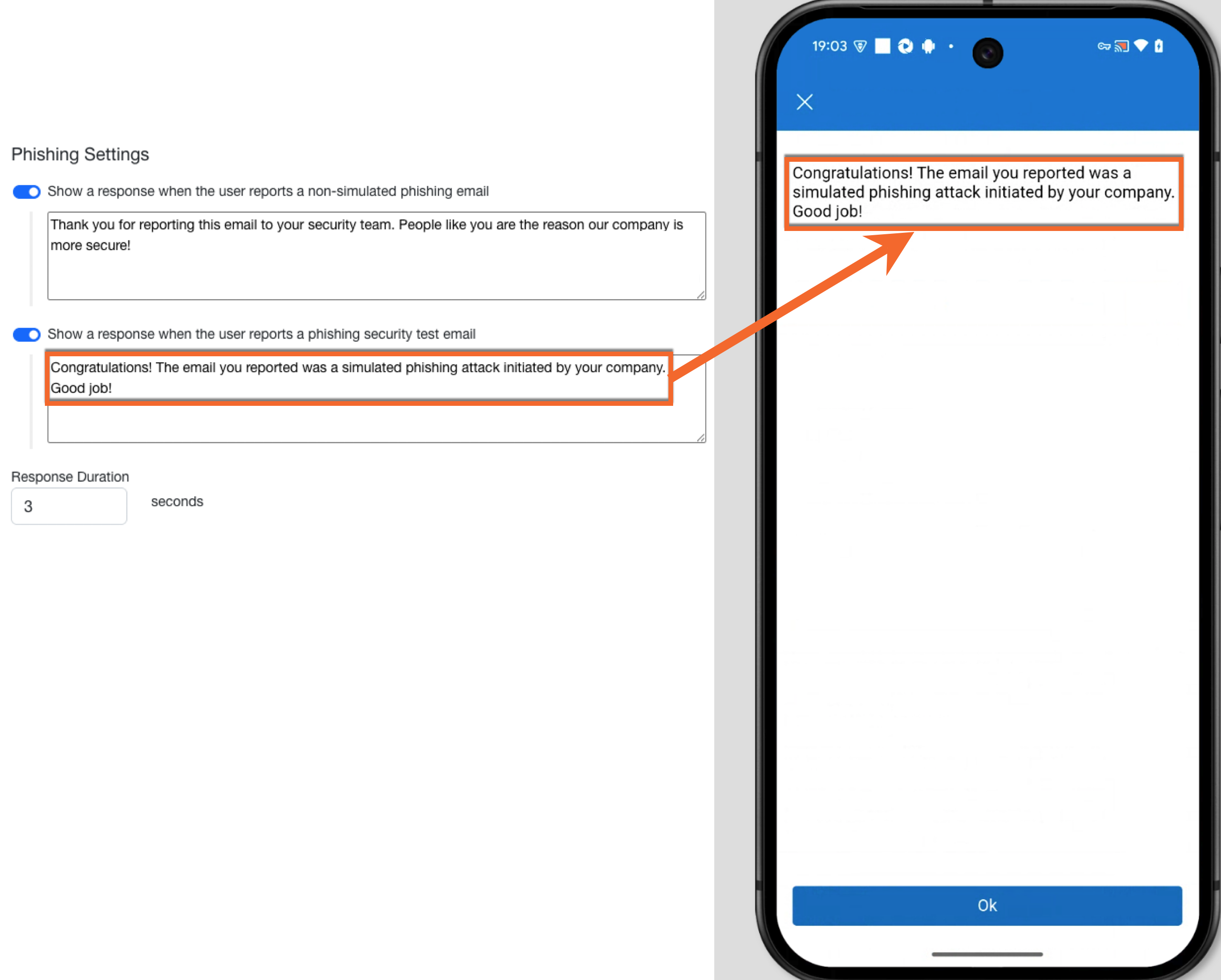
Screenshot: The Show a response when the user reports a phishing security test email field, where admins configure the text that will appear in the Phish Alert Button (PAB) menu when users access it to report suspicious emails.
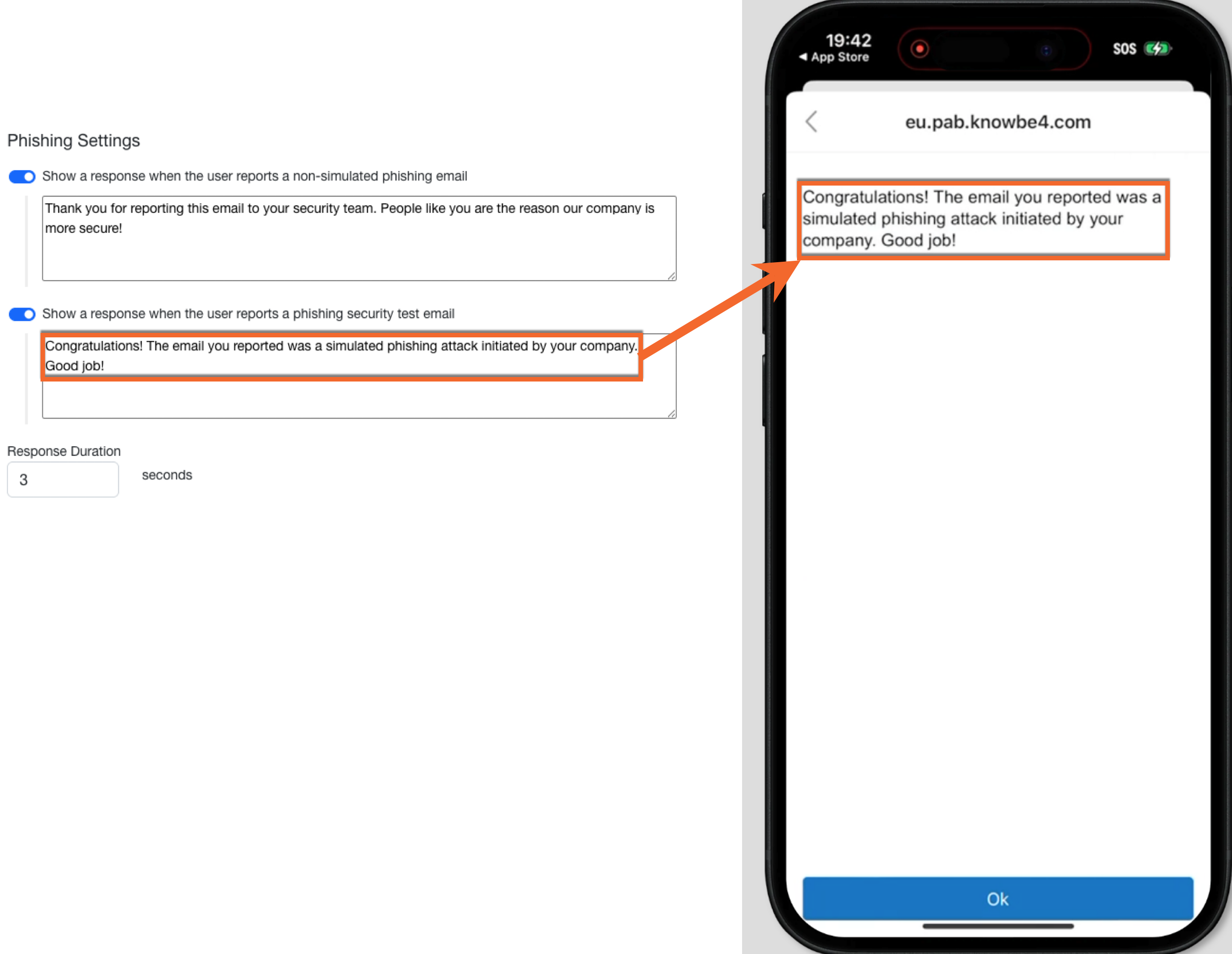
Screenshot: The Show a response when the user reports a phishing security test email field, where admins configure the text that will appear in the Phish Alert Button (PAB) menu when users access it to report suspicious emails.
PAB Icon
Click the tabs below to see how the PAB icon will display for your PAB version.
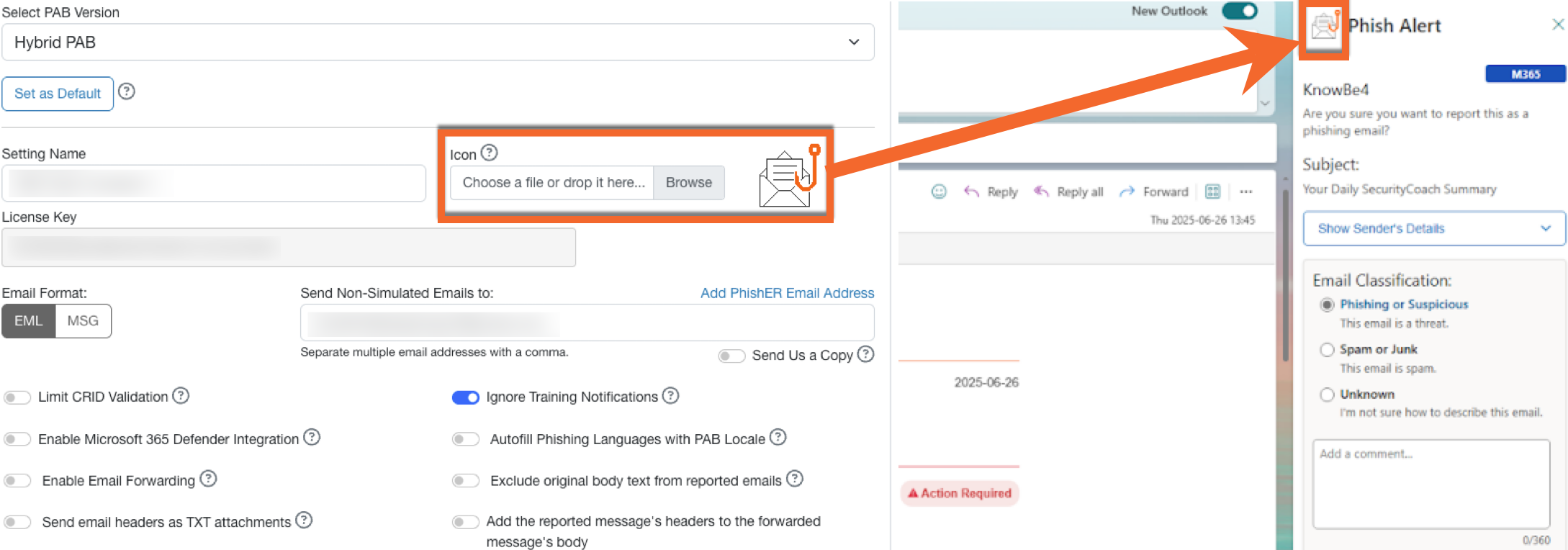
Screenshot: The Icon field, where admins upload the icon that will appear in the Phish Alert Button (PAB) menu when users access it to report suspicious emails.
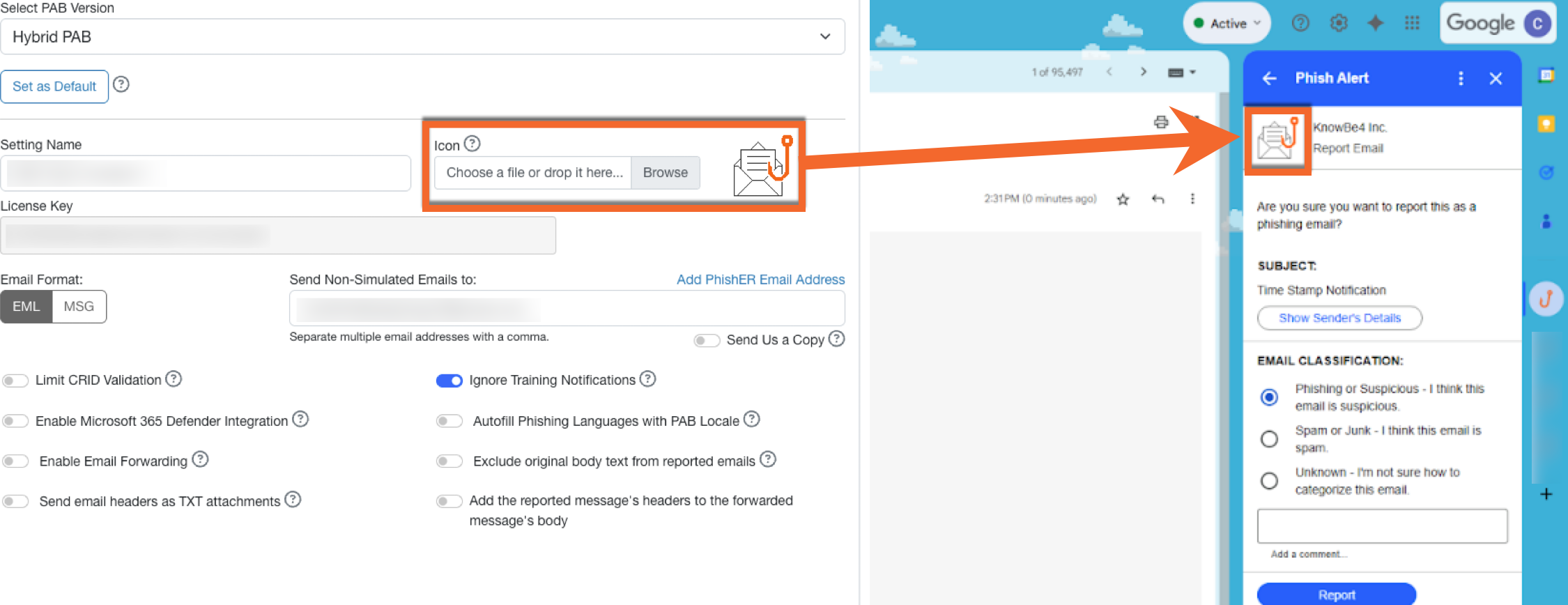
Screenshot: The Icon field, where admins upload the icon that will appear in the Phish Alert Button (PAB) menu when users access it to report suspicious emails.
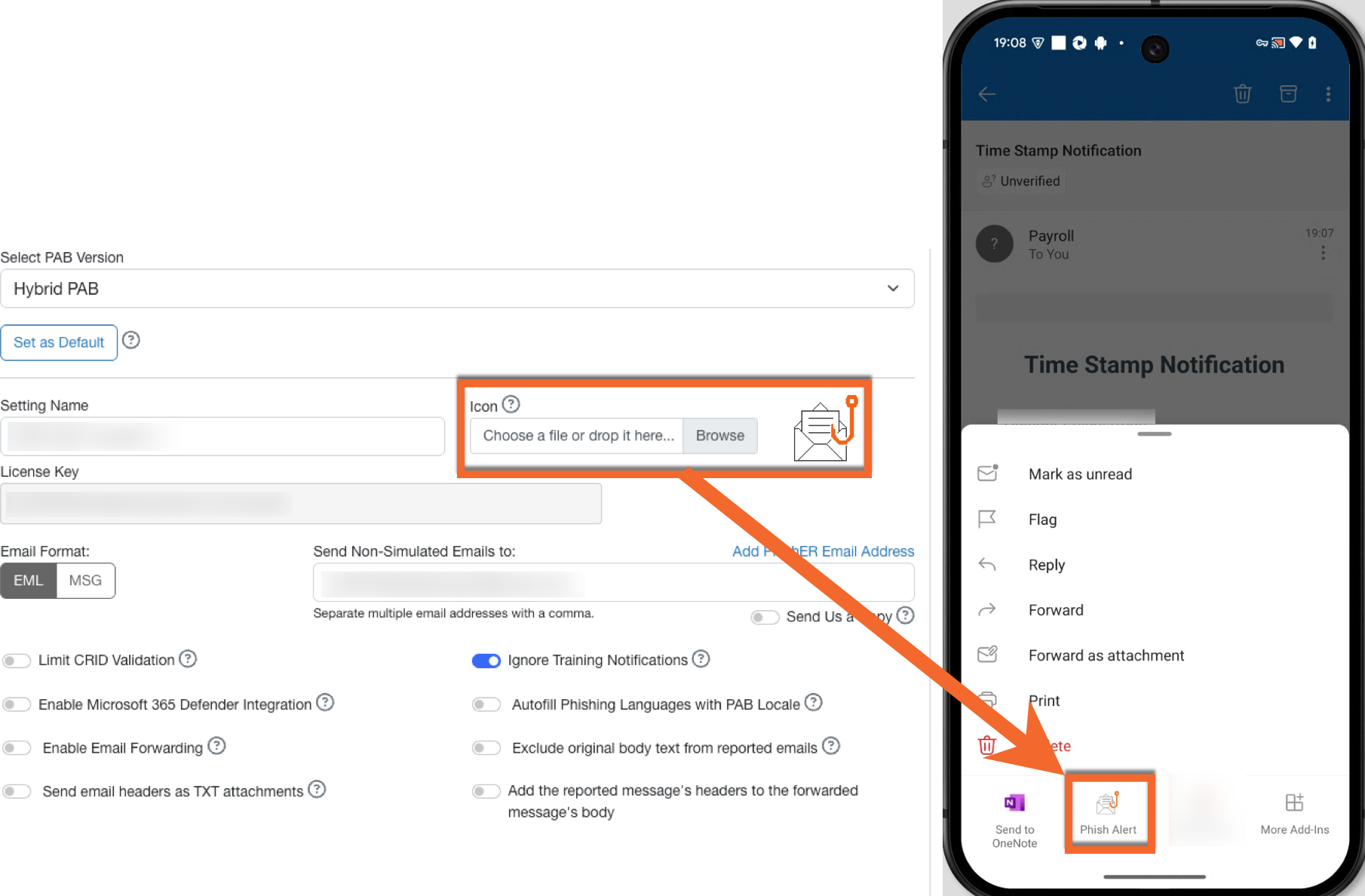
Screenshot: The Icon field, where admins upload the icon that will appear in the Phish Alert Button (PAB) menu when users access it to report suspicious emails.

Screenshot: The Icon field, where admins upload the icon that will appear in the Phish Alert Button (PAB) menu when users access it to report suspicious emails.
Confirmation Message
Click the tabs below to see how the Confirmation Message setting will display for your PAB version.
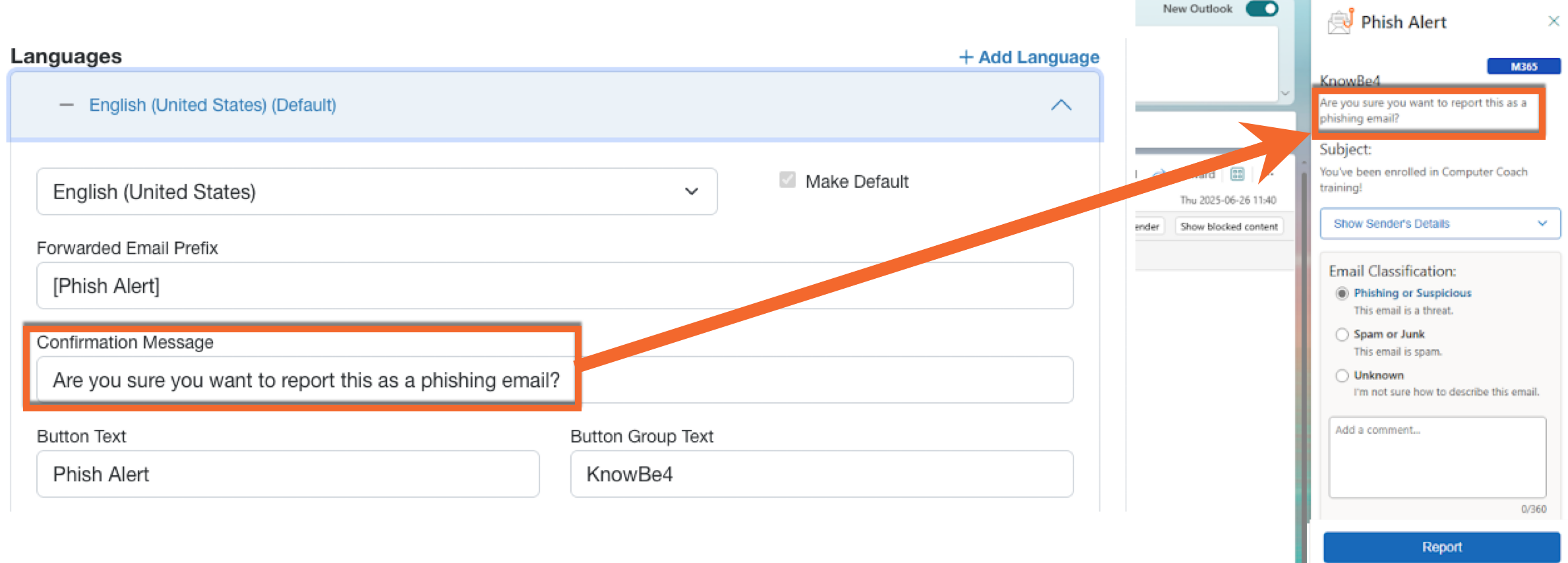
Screenshot: The Confirmation Message field, where admins configure the text that will appear in the Phish Alert Button (PAB) menu when users access it to report suspicious emails.
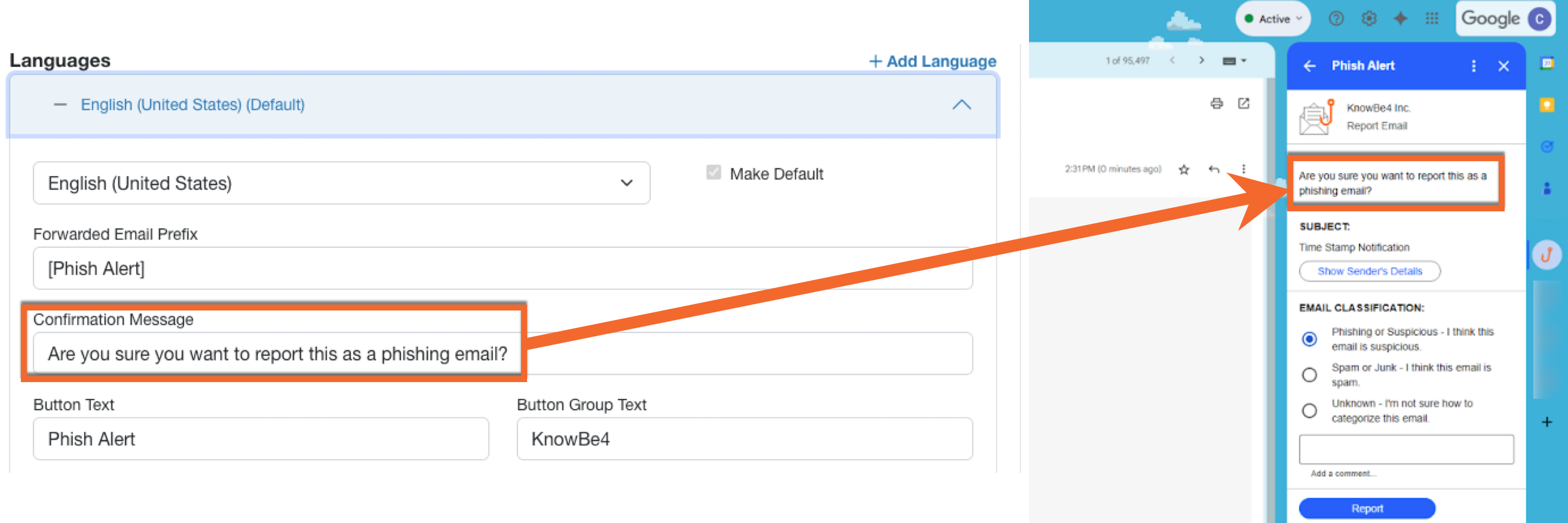
Screenshot: The Confirmation Message field, where admins configure the text that will appear in the Phish Alert Button (PAB) menu when users access it to report suspicious emails.
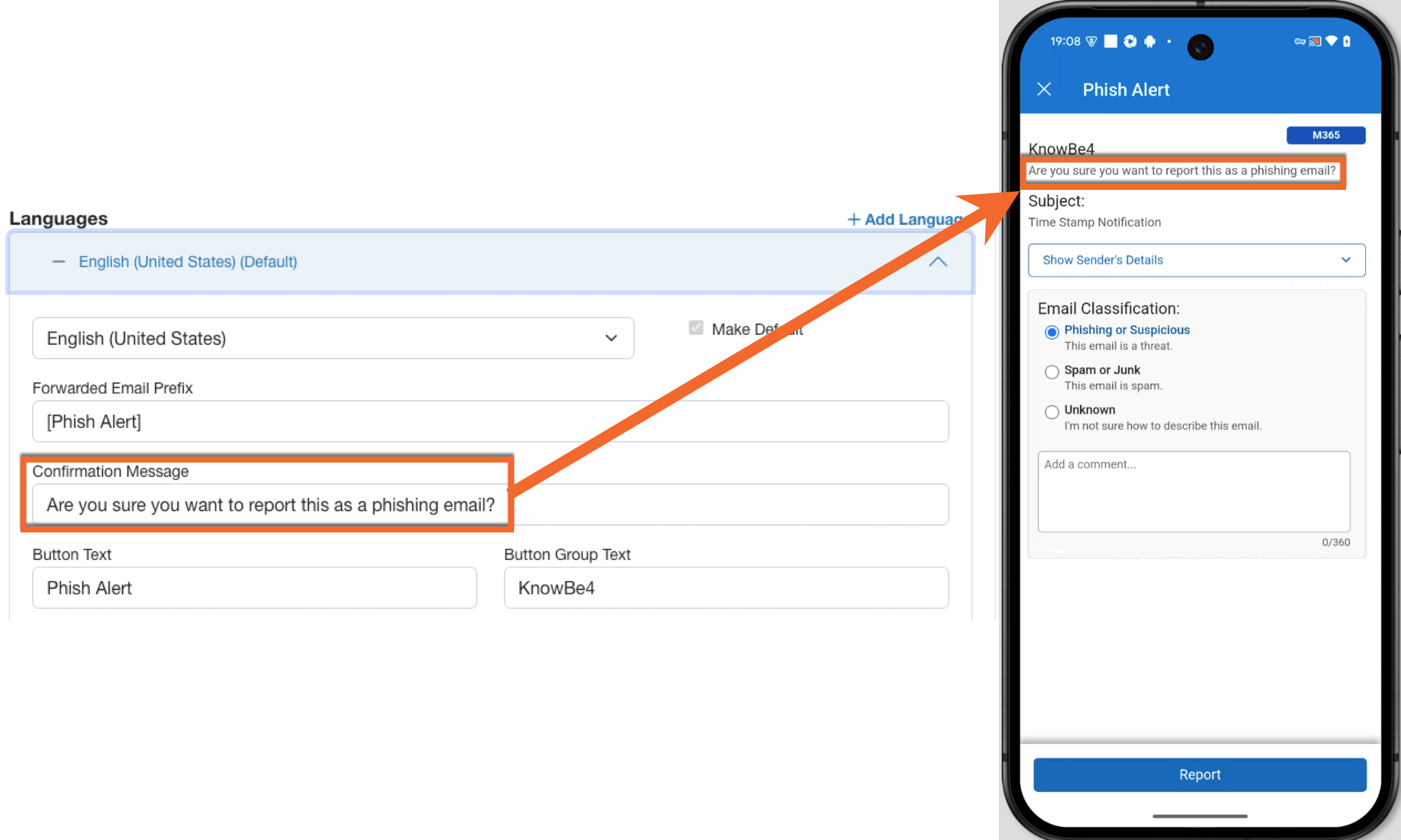
Screenshot: The Confirmation Message field, where admins configure the text that will appear in the Phish Alert Button (PAB) menu when users access it to report suspicious emails.
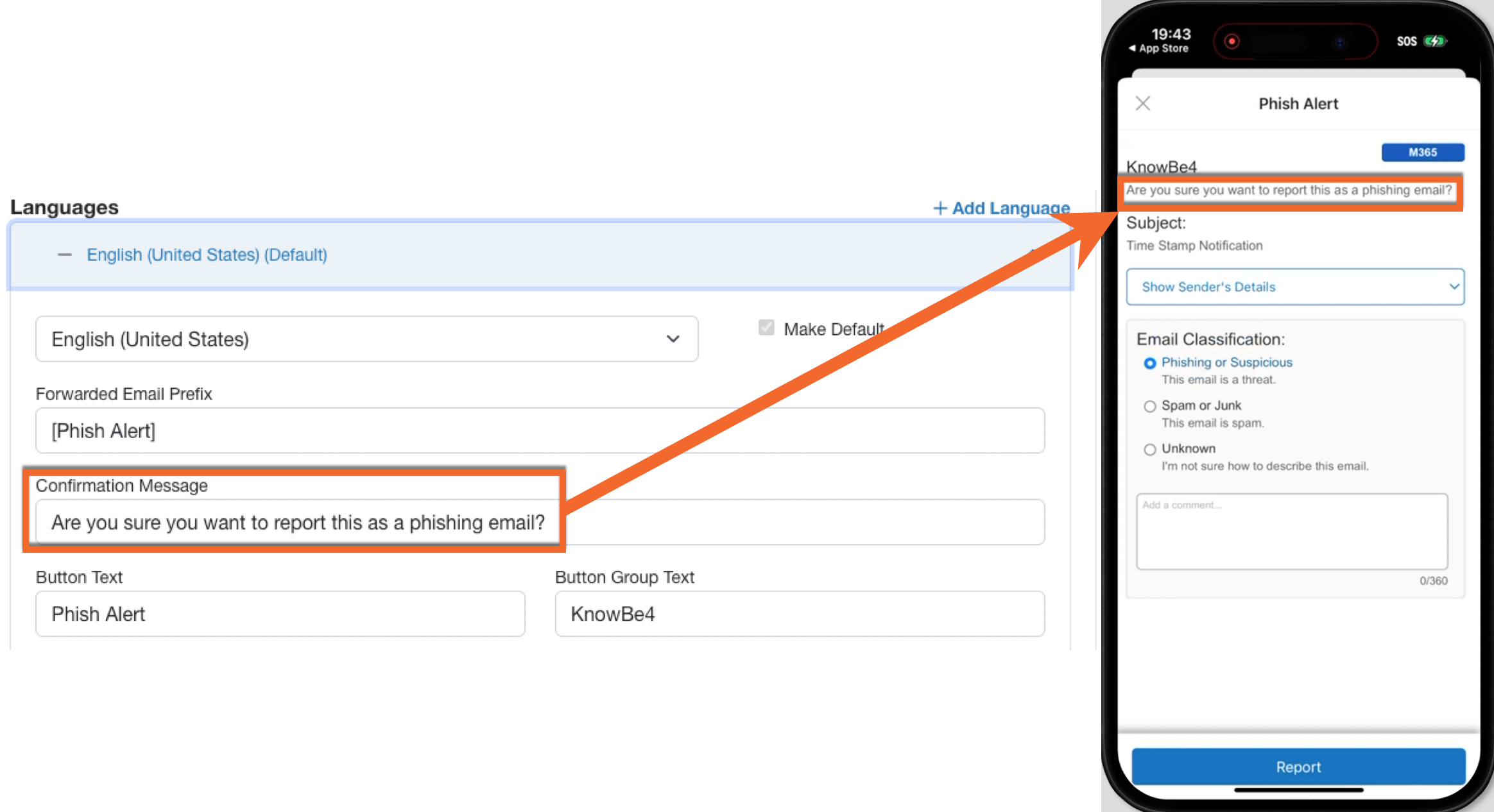
Screenshot: The Confirmation Message field, where admins configure the text that will appear in the Phish Alert Button (PAB) menu when users access it to report suspicious emails.
Forwarded Email Prefix
Click the tabs below to see how the Forward Email Prefix setting will display for your PAB version.
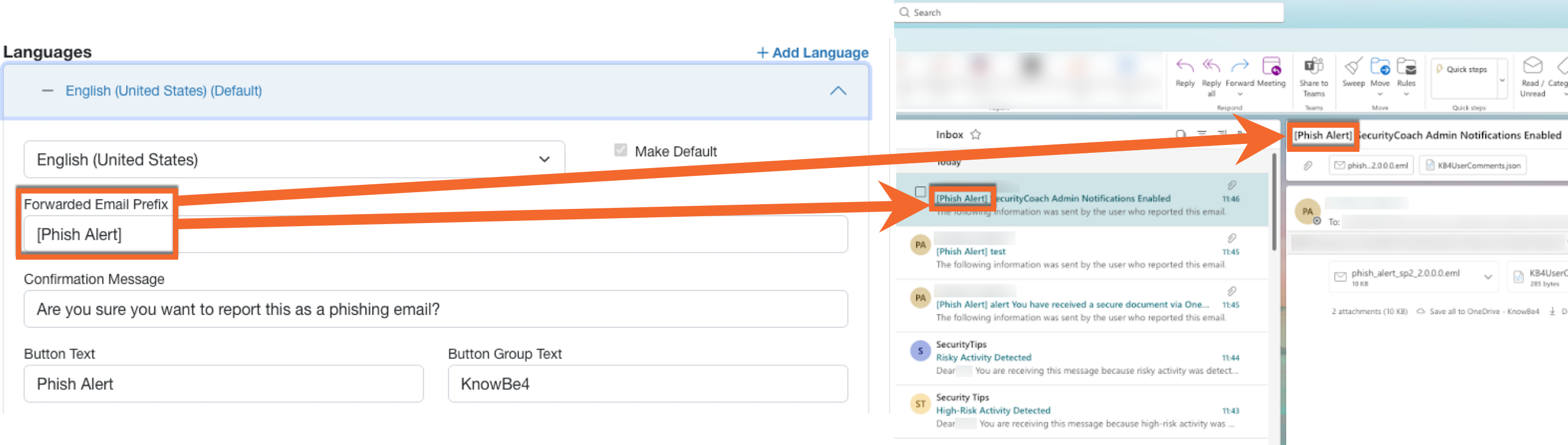
Screenshot: The Forwarded Email Prefix field, where admins configure the text that will appear in the Phish Alert Button (PAB) menu when users access it to report suspicious emails.
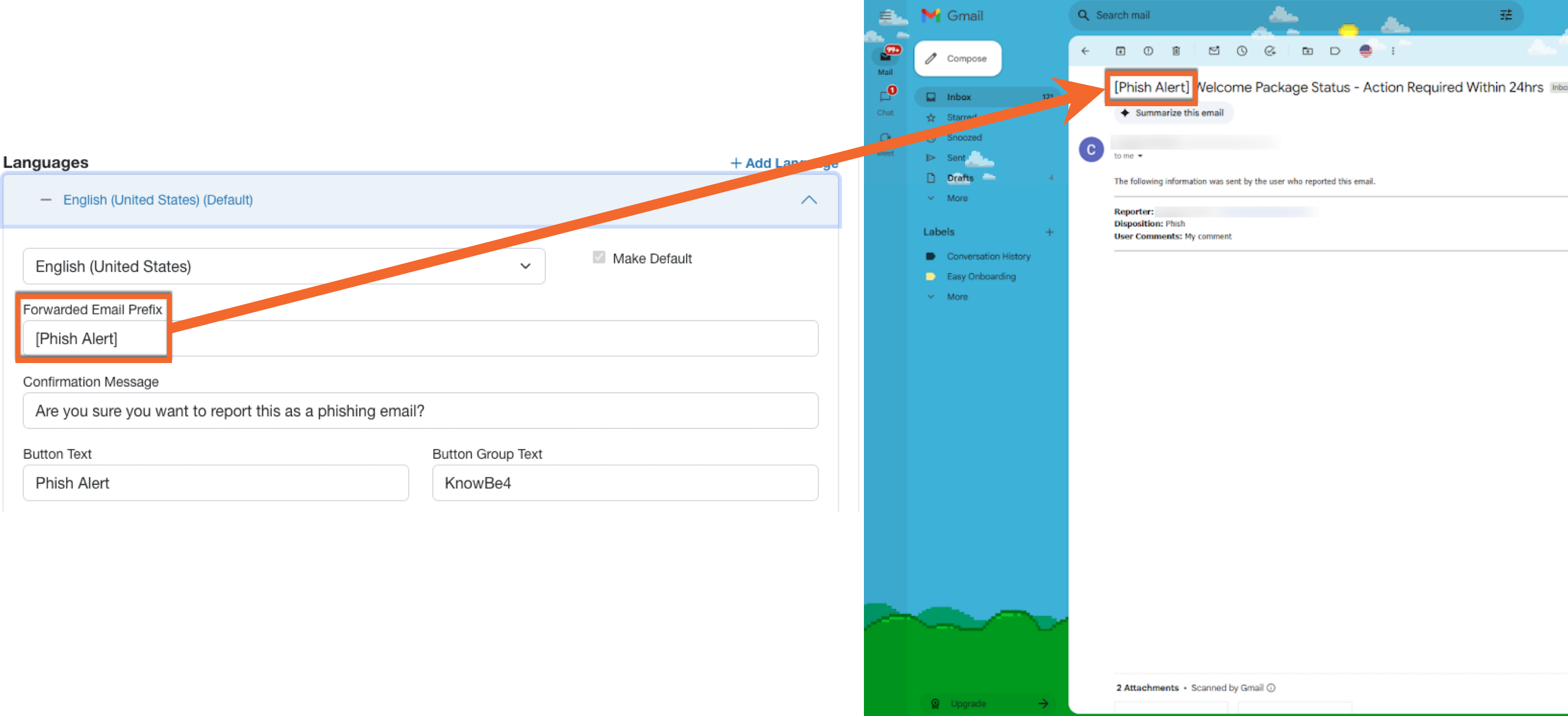
Screenshot: The Forwarded Email Prefix field, where admins configure the text that will appear in the Phish Alert Button (PAB) menu when users access it to report suspicious emails.
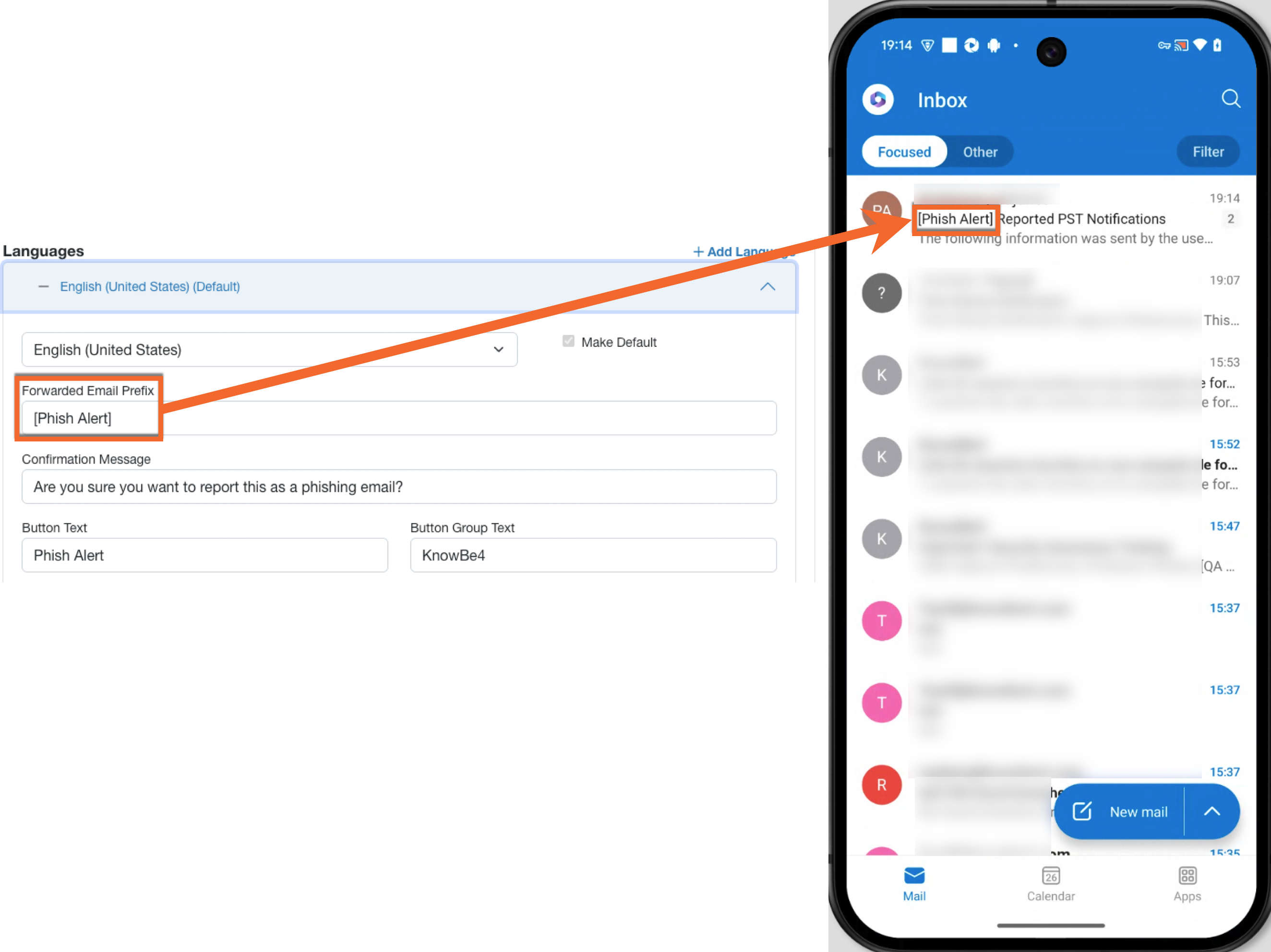
Screenshot: The Forwarded Email Prefix field, where admins configure the text that will appear in the Phish Alert Button (PAB) menu when users access it to report suspicious emails.
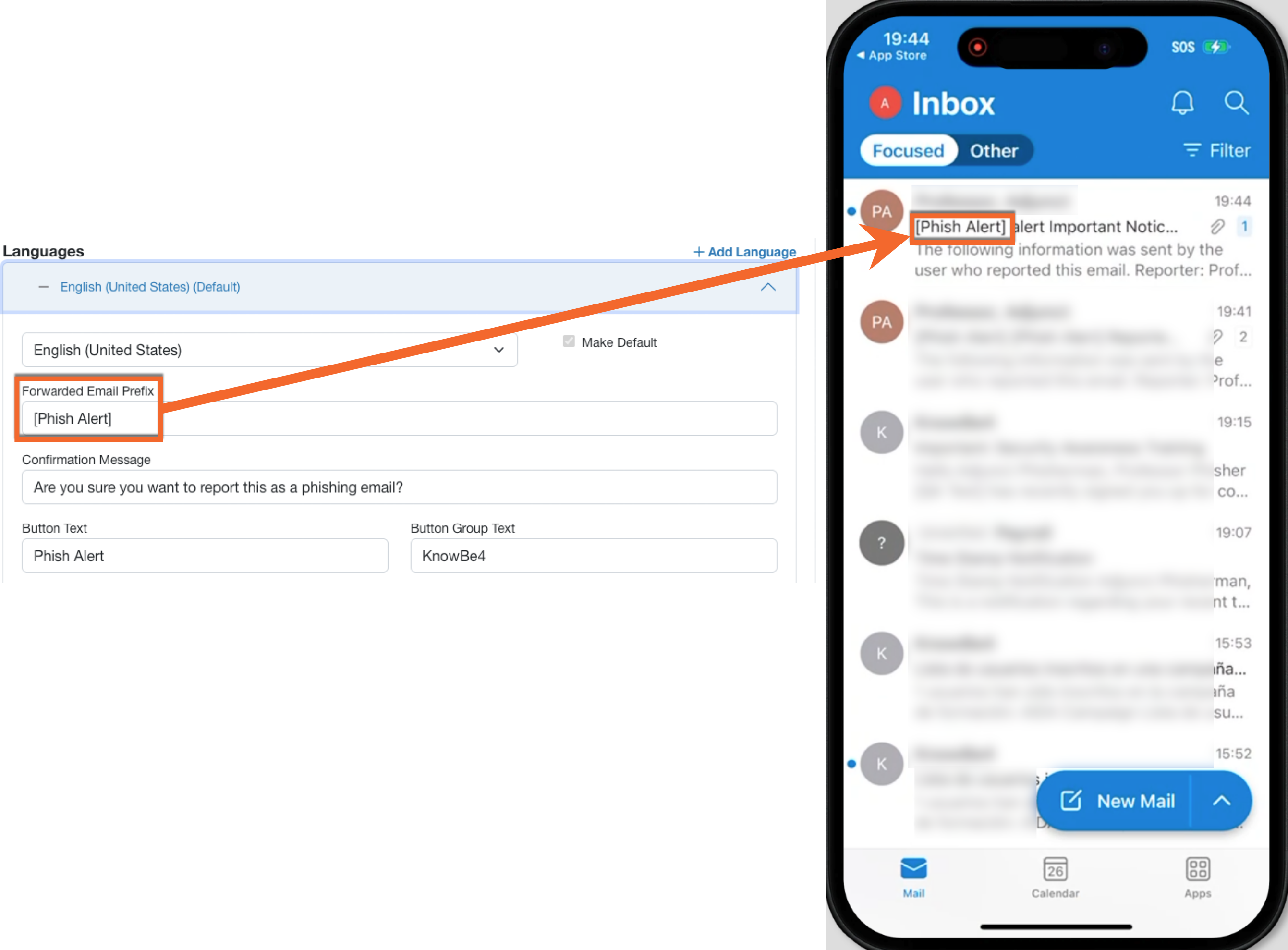
Screenshot: The Forwarded Email Prefix field, where admins configure the text that will appear in the Phish Alert Button (PAB) menu when users access it to report suspicious emails.
Ignore Training Notifications - Training Email Response
Click the tabs below to see how this setting will display for your PAB version.
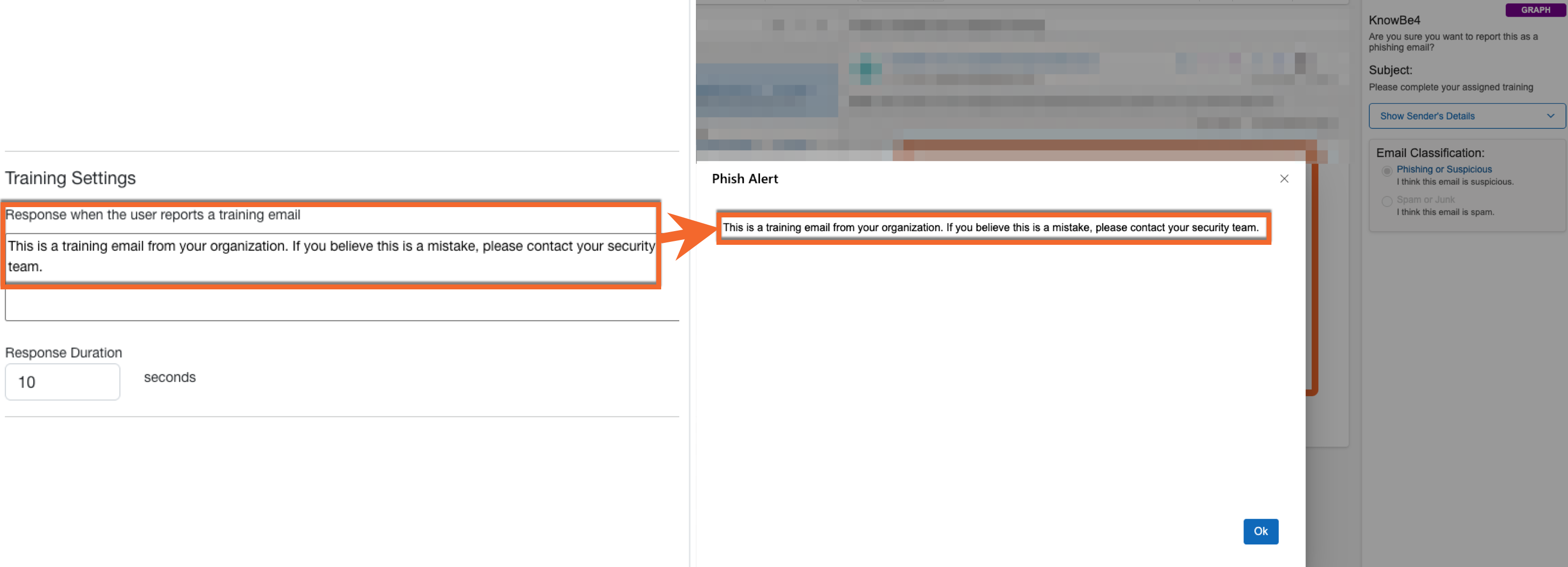
Screenshot: The Response when the user reports a training email field, where admins configure the text that will appear in the Phish Alert Button (PAB) menu when users access it to report suspicious emails.
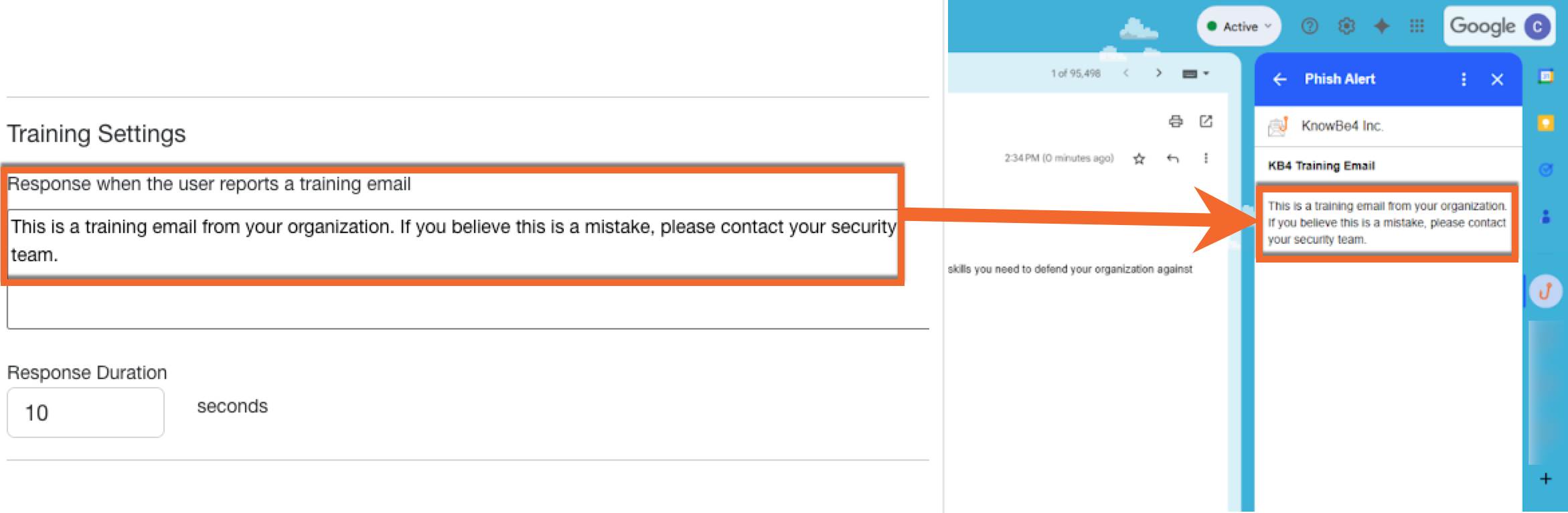
Screenshot: The Response when the user reports a training email field, where admins configure the text that will appear in the Phish Alert Button (PAB) menu when users access it to report suspicious emails.
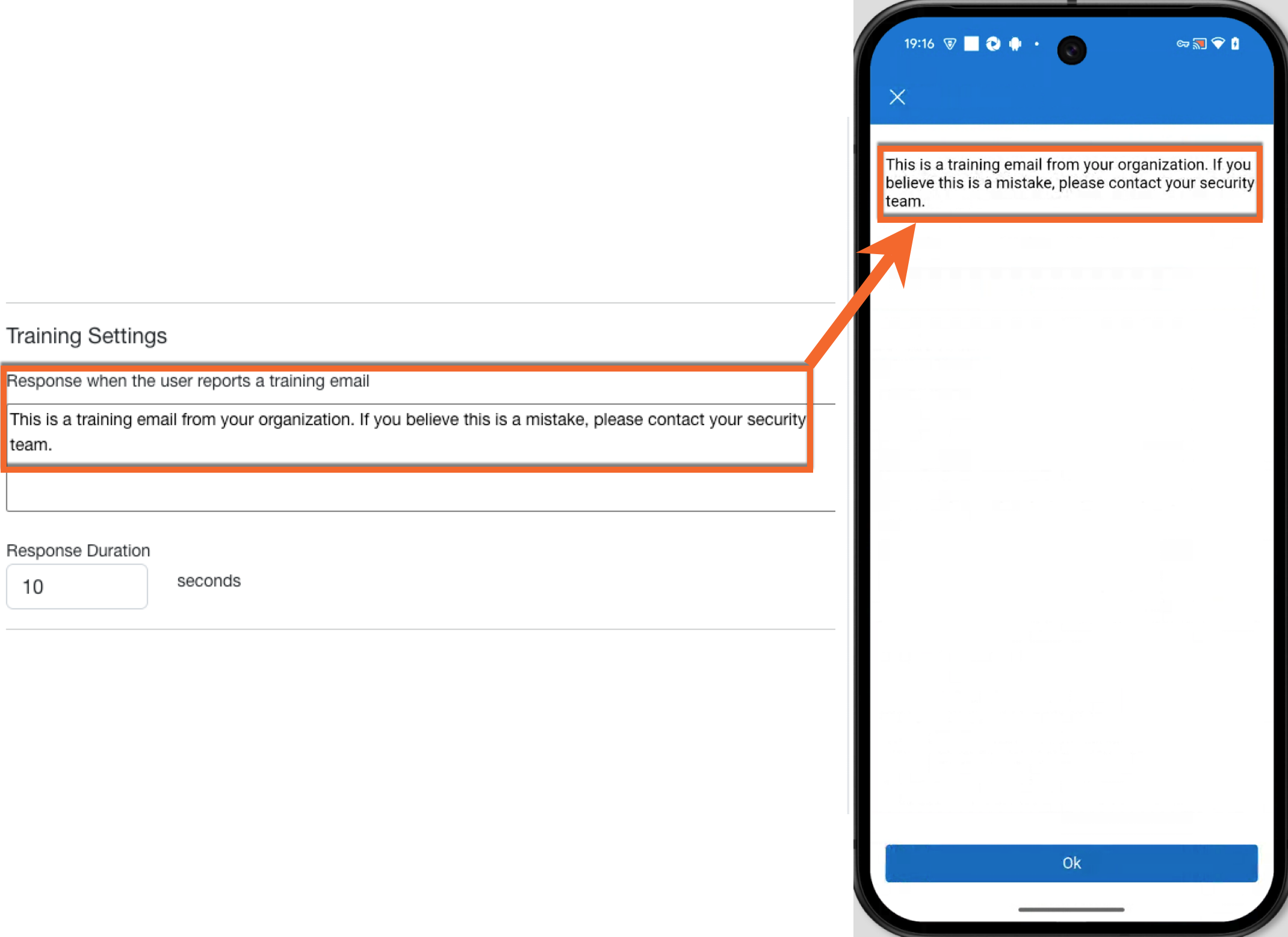
Screenshot: The Response when the user reports a training email field, where admins configure the text that will appear in the Phish Alert Button (PAB) menu when users access it to report suspicious emails.

Screenshot: The Response when the user reports a training email field, where admins configure the text that will appear in the Phish Alert Button (PAB) menu when users access it to report suspicious emails.