Smart Groups allow admins to categorize individuals based on profile attributes, actions, and risk levels. Once created, these groups can be used to schedule testing, training, and communication.
Key benefits of Smart Groups in reporting include:
- Comparison: Enabling the sorting of users by profile details, actions, and risk assessments.
- Analysis: Filtering reports using Smart Groups to identify trends.
- Action: Utilizing Smart Groups for subsequent actions and interventions.
Reporting Use Cases with Smart Groups
There are several ways you can use Smart Groups with reporting:
- User History: Reviewing phishing and training performance.
- Profile Attributes: Filtering by location, job title, or department.
- Creation Date: Comparing recent hires with long-term employees.
- PhishER Data: Examining interactions with actual threat emails.
To track security objectives, it's helpful to convert those objectives into Smart Groups. For example, you can monitor repeat reporters by creating Smart Groups that monitor users who have reported phishing emails multiple times within specified quarterly periods.
For more information, see our Smart Groups Reporting Automation Guide.
Creating Reports to Answer Specific Questions
Reports can address specific questions about various data points, such as regional phishing performance, failure trends over time, and quarterly progress. You can use Smart Groups to create reports and filter your data more specifically.
Regional Phishing Performance
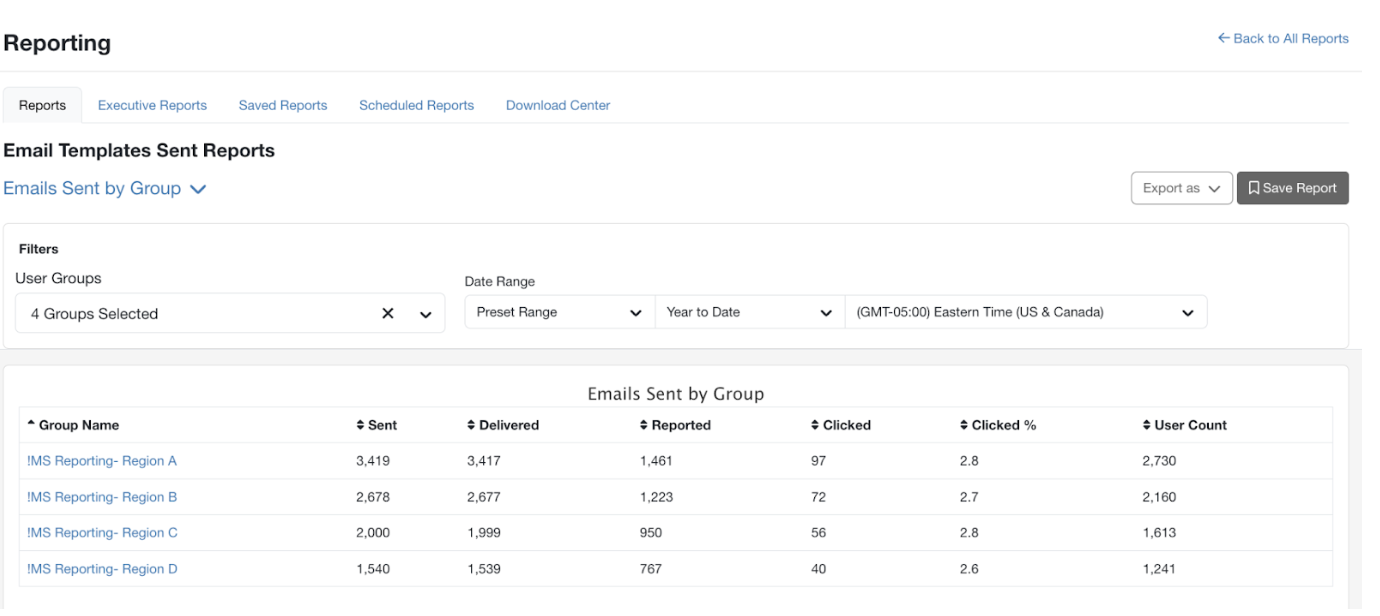
You can use the Email Templates Sent Reports to compare phishing performance across Smart Groups in various regions.
- From your KSAT console, navigate to the Reports tab > Email Templates Sent Reports tile.
- Ensure the Emails Sent by Group report is selected.
- In the User Groups filter, select the Smart Groups you want to compare.
- Select the Date Range you want to compare the different regions over.
- Click Apply Changes.
Failure Trends Over Time
You can use the Phishing Activity Reports to provide an overview of users in Smart Groups who failed or reported multiple tests, including their manager information. These reports can be exported for comprehensive data analysis.
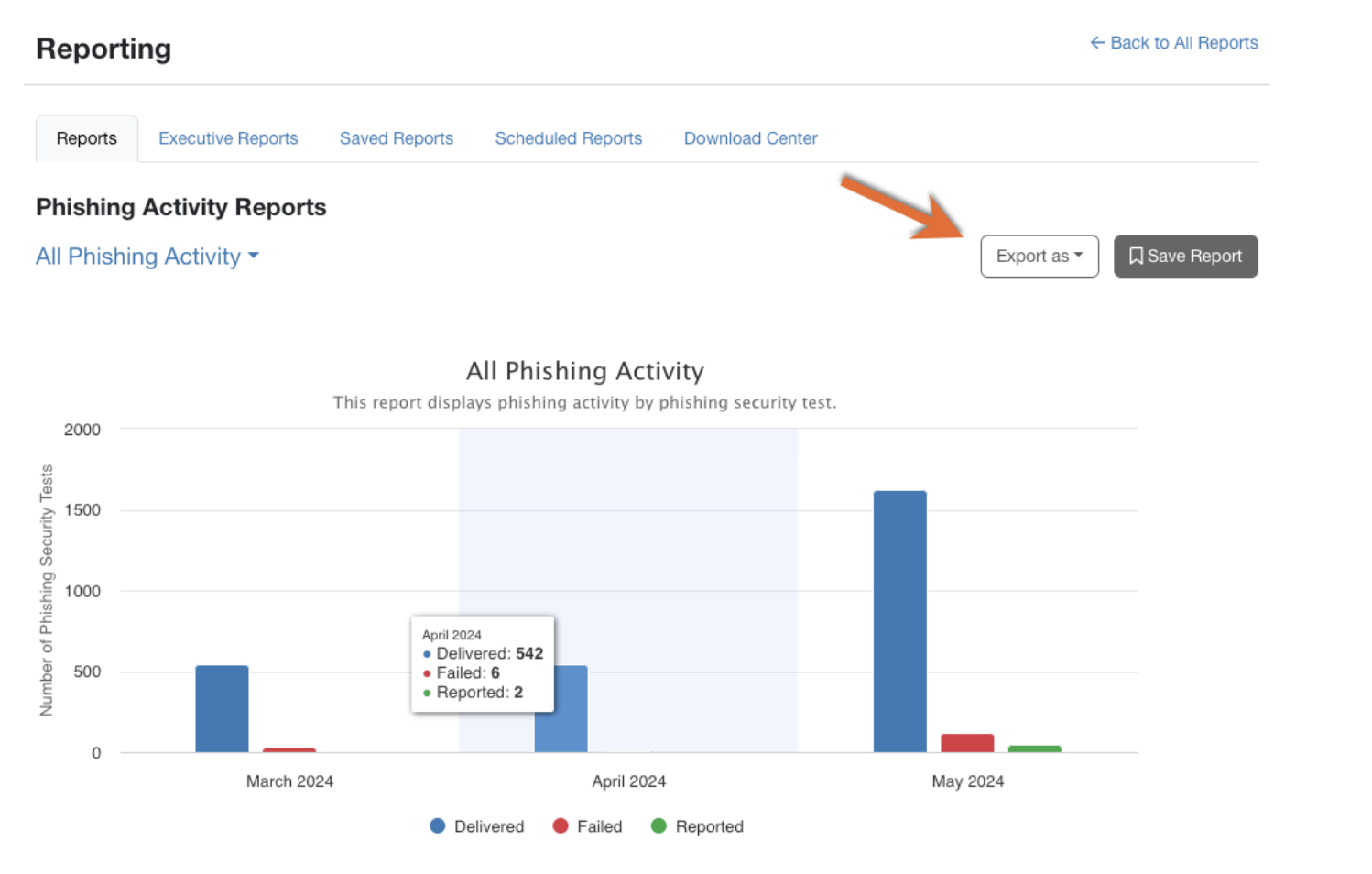
- From your KSAT console, navigate to the Reports tab > Phishing Activity Reports.
- Ensure the All Phishing Activity Grouped by User report is selected.
- Adjust the filters and timeframe to include the data you want selected. The data includes user groups, phishing campaigns, user status, and more.
- Click Apply Changes.
Quarterly Progress
You can create custom dashboards in executive reports to track and share global and regional quarterly progress.
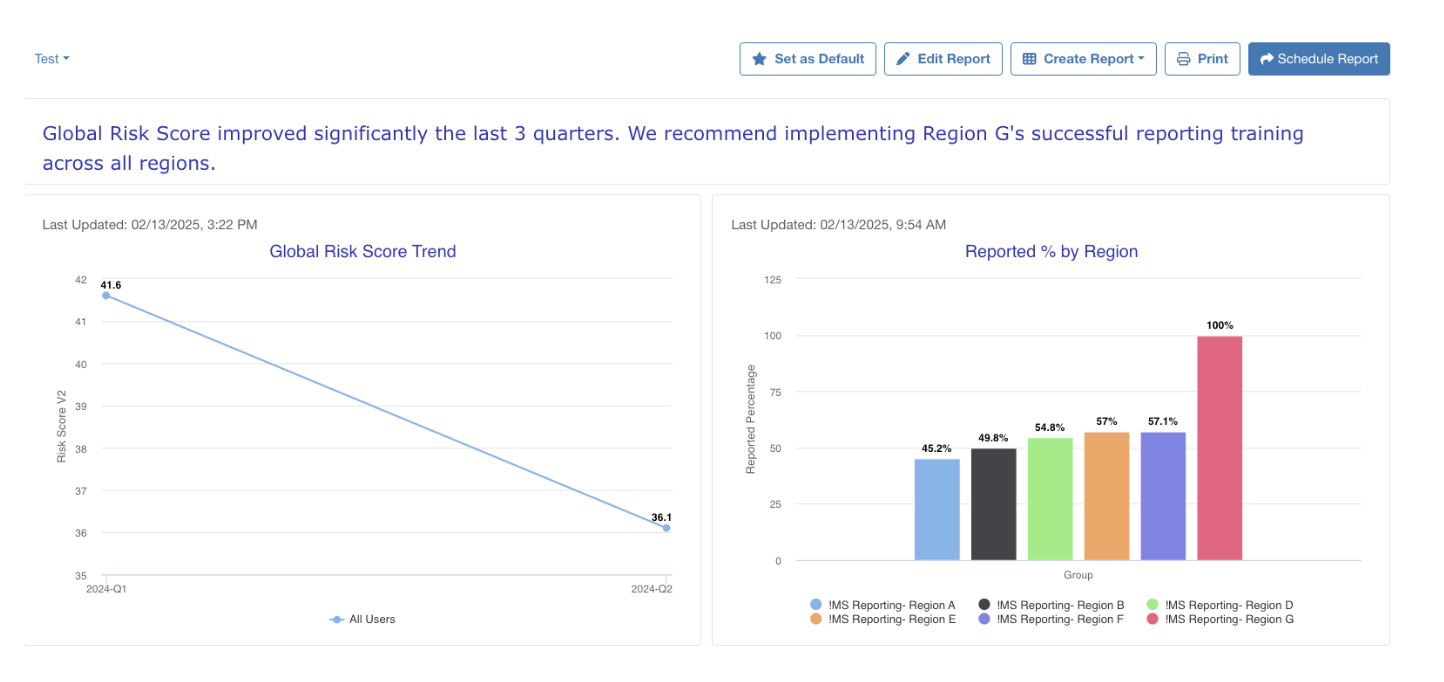
Executive reports provide a toolset to compare multiple metrics simultaneously, addressing high-level inquiries such as quarterly performance in specific regions. These reports visualize trends like Risk Score fluctuations or reported phishing percentages by region.
- From your KSAT console, navigate to the Reports tab > Executive Reports subtab.
- Edit, create, or schedule your report to generate automatically as needed.