This guide explains how to deploy the web add-in for your Microsoft 365 users. This feature enhances your organization's security by delivering real-time guidance when sending emails. It ensures consistent protection throughout your organization, as the add-in will be deployed to all supported devices, including Outlook Web Access (OWA), Mac, and Windows.
Prerequisites
Before you get started, please ensure you have the following:
- Global admin rights to your organization's Microsoft 365 admin portal
- Microsoft Outlook JavaScript (JS) API requirement set 1.8 or later
- A gateway must be provisioned for all web add-in deployments and requires a minimum of 25 licensed seats.
- If you are using Prevent with the Web Add-in, you must have Graph API ingestion and Email Nudge functionality enabled.
Deployment Steps
To deploy the web add-in, follow the steps below:
- Log in to your Microsoft 365 admin portal.
- Navigate to Settings > Integrated apps > Upload custom apps.
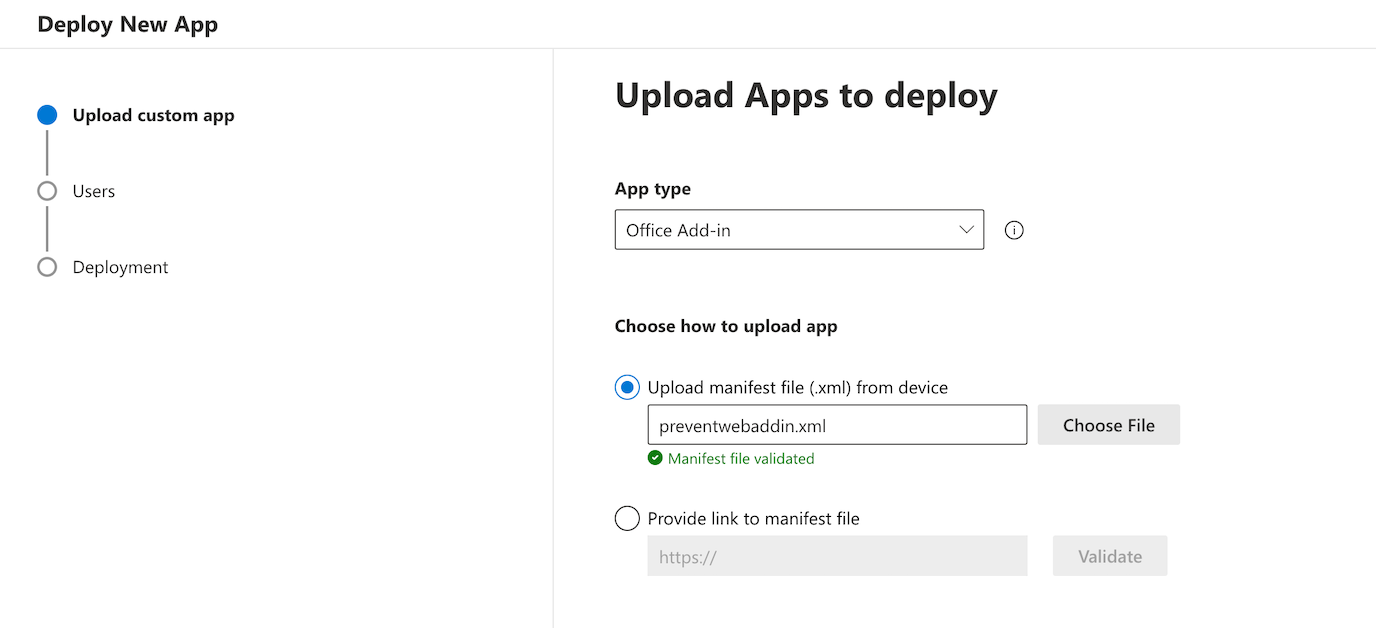
- Use the App type drop-down menu to select Office Add-in.
-
Select Provide link to manifest file and enter the manifest file URL. The manifest files are listed below.
- Global Manifest: https://knowbe4.com/hubfs/prod-global-manifest.xml
- UK Manifest: https://www.knowbe4.com/hubfs/prod-uk-manifest.xml https://www.knowbe4.com/hubfs/prod-uk-manifest.xml (link opens in new window)
- US Manifest: https://www.knowbe4.com/hubfs/prod-us-manifest.xml https://www.knowbe4.com/hubfs/prod-us-manifest.xml (link opens in new window)
- EU Manifest: https://www.knowbe4.com/hubfs/prod-eu-manifest.xml https://www.knowbe4.com/hubfs/prod-eu-manifest.xml (link opens in new window)
- AU Manifest: https://www.knowbe4.com/hubfs/prod-au-manifest.xml https://www.knowbe4.com/hubfs/prod-au-manifest.xml (link opens in new window)
- Select Validate.
- Select Next.
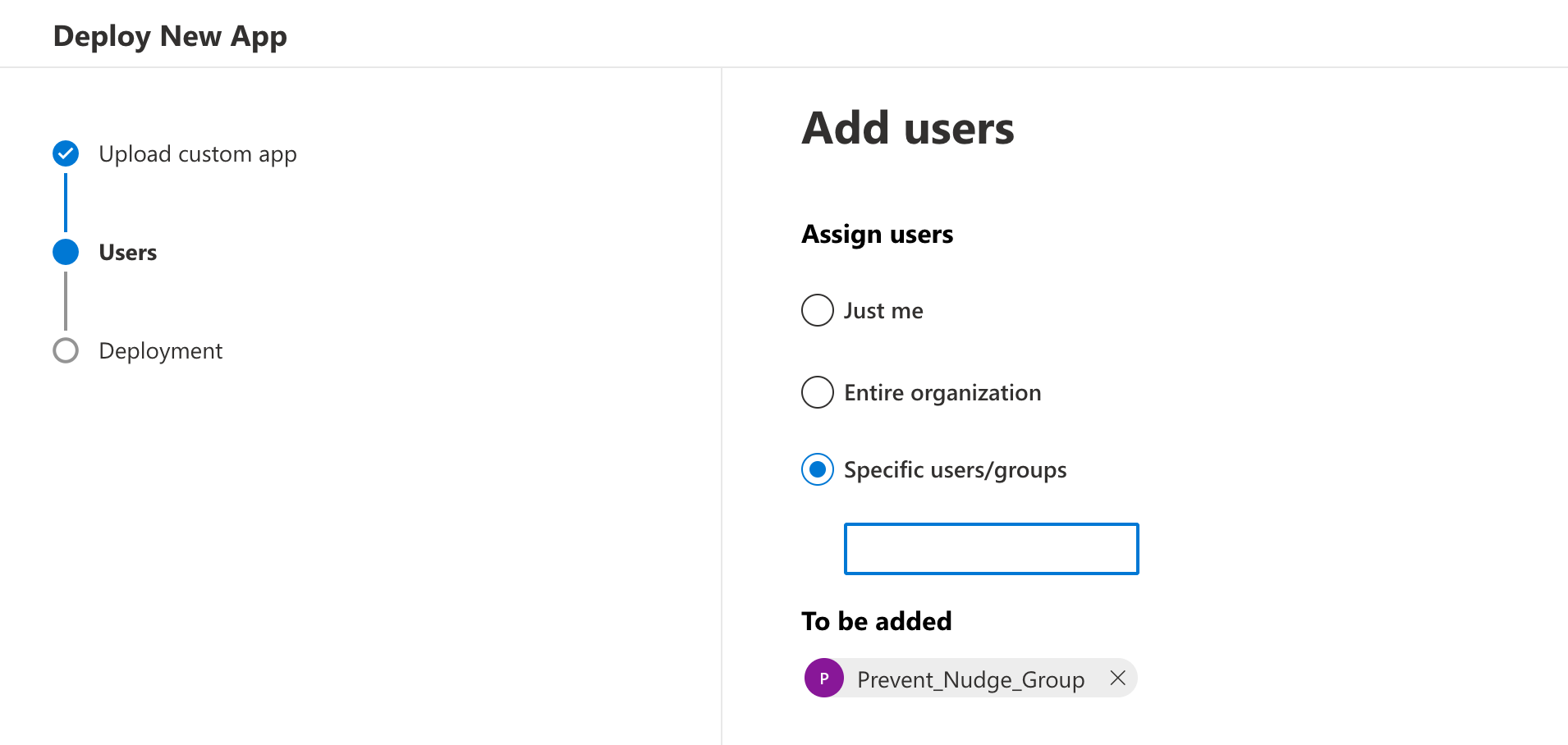
- Under Assign users, select Specific users/groups.
-
Search for and select the nudge group you created in the deployment center. The default name for this group is Prevent_Nudge_Group.
- Select Next.
- Read the app permissions and capabilities.
- In the pop-up window, log in to your Microsoft admin account.
- Review the permissions request and select Accept.
- Select Next.
- Review the deployment summary.
- Select Finish deployment.
Allowlisting
To allow the proper functioning of our services, ensure the following URLs are listed on your firewall or proxy:
- switch.egress.com
- gc.egress.com
Use the correct URLs for your region:
- uk.intelligence.egress.com
- uk.kes.knowbe4.com
- us.intelligence.egress.com
- us.kes.knowbe4.com
- eu.intelligence.egress.com
- eu.kes.knowbe4.com
- au.intelligence.egress.com
- au.kes.knowbe4.com