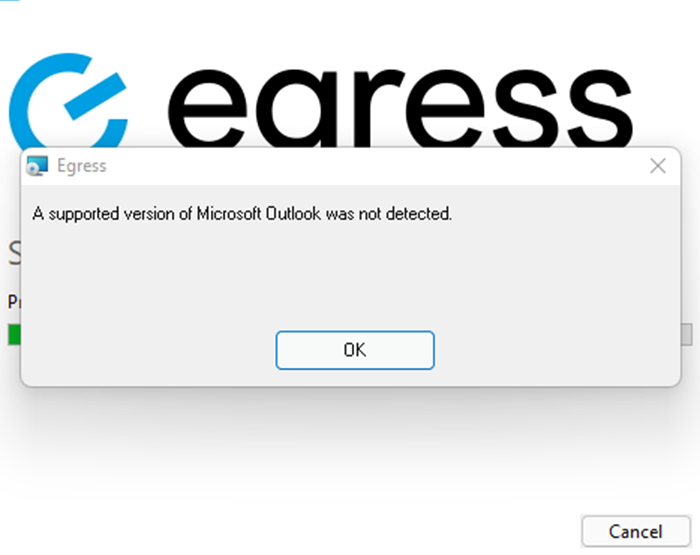
Pre-installed Microsoft Store apps of Outlook may cause issues when installing the Outlook add-in. This installation may result in a similar error as seen in the screenshot below:
To remove the pre-installed Microsoft Store version of Office, run the script below in PowerShell:
Get-AppxPackage -name “Microsoft.Office.Desktop” | Remove-AppxPackage
Get-AppxProvisionedPackage -online | %{if ($_.packagename -match "Microsoft.Office.Desktop") {$_ | Remove-AppxProvisionedPackage -AllUsers}}
Ensure no registry keys from the older versions are still in place by following the steps below:
- Open up Regedit.
- Locate to HKEY_CLASSES_ROOT\TypeLib\{00062FFF-0000-0000-C000-000000000046}.
- Make a backup of this registry location before making any changes.
- Delete the version keys for any version of Microsoft Outlook that is not installed on the machine based on the version table provided below.
| Outlook Version | Version Number |
|---|---|
| Outlook 2007 | 9.3 |
| Outlook 2010 | 9.4 |
| Outlook 2013 | 9.5 |
| Outlook 2016 | 9.6 |
| Outlook 2019 | 9.7 |