Protect allows you to revoke access to a secure email at any time, even after you've sent the secure email. You can do this in two ways:
Option One: Revoking Access in Microsoft Outlook
You can revoke a message in Microsoft Outlook by selecting the message and then clicking on Revoke Access, located in the top ribbon of the viewing pane.

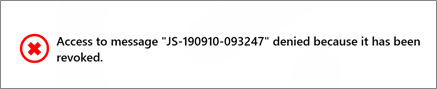
Once access has been revoked, the recipient will see the following notification when they attempt to view the message.
Option Two: Revoking Access in the Administration Panel
To revoke access in the administration panel, follow the steps below:
- Log in to the administration panel.
-
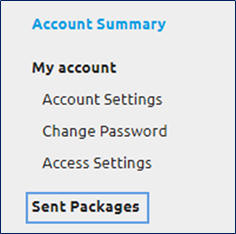
Select Sent Packages on the left-hand side menu.
-
Select the secure email in question. You can filter through these using the tabs as shown below:

- Open the Details tab for the email in question.
- Change the Status field from Active to Revoked.
-
Click Save Changes at the bottom of the screen to apply your changes.
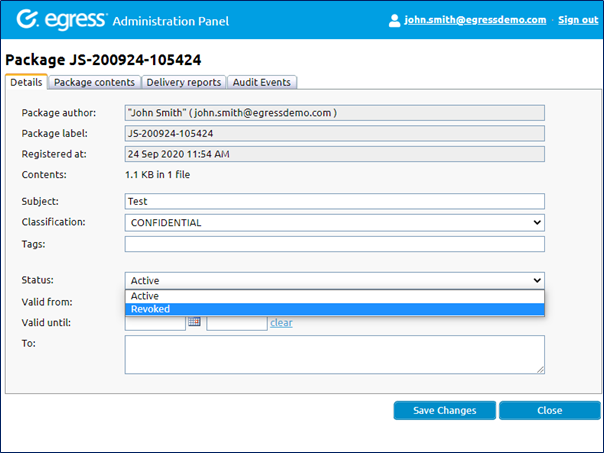
Once the status is changed to Revoked the email will no longer be visible to anyone. You can change the status back to Active at any time to re-allow recipient access.