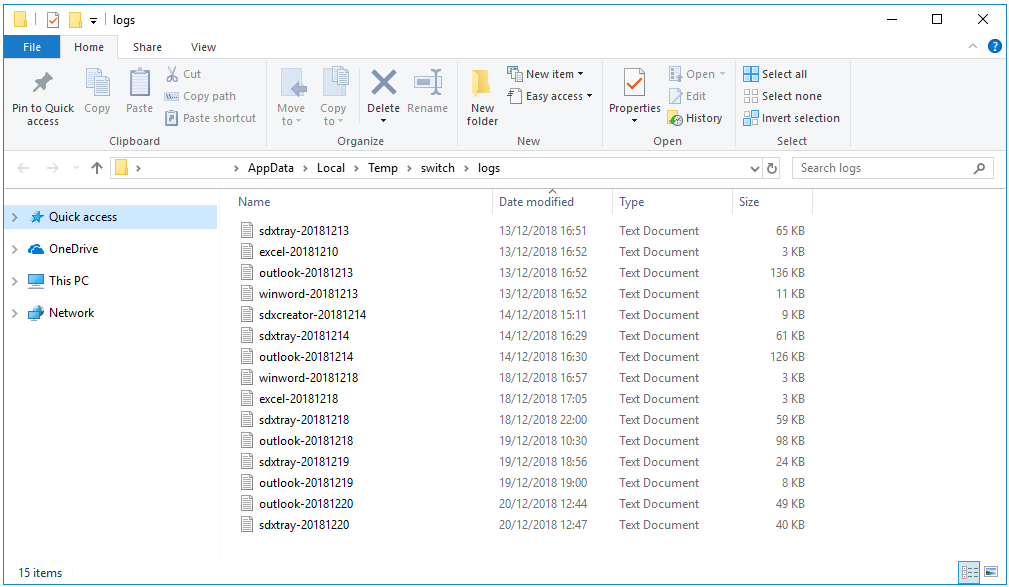
If you have been asked to send the logs to our support team for analysis, please ensure you can replicate the issue at least once after logging has been enabled. This action will ensure that the issue you may be experiencing is recorded in these logs and allow the support team to see this in more detail.
Versions 23.9 and Later
From versions 23.9 and later, logging should be enabled by default.
To check this and locate the logs, please follow the steps below:
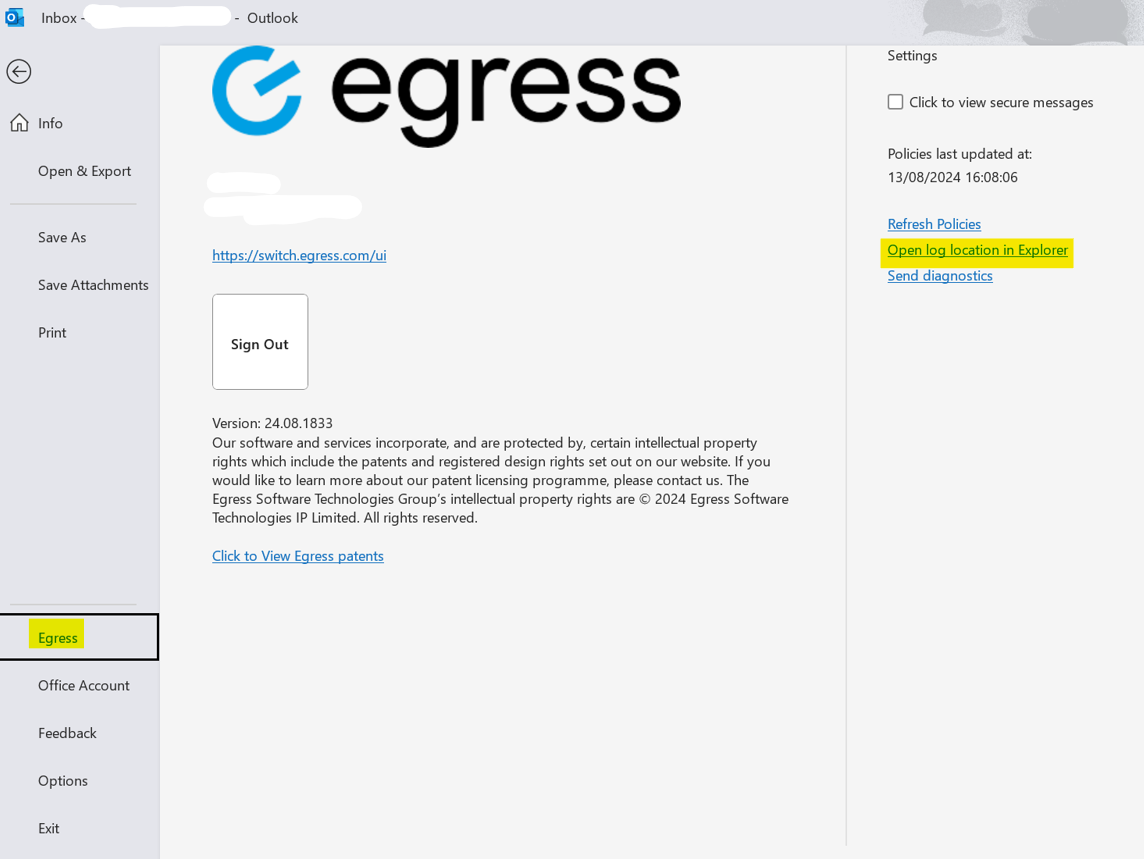
- In Microsoft Outlook, navigate to File and then Egress option on the bottom-left side of the options, as shown in the screenshot below.
- Once on the Settings page on the right side of the screen, click Open log location in Explorer, which will open a folder.
-
From the folder, attach all of the logs found in this location unless the support team asks you to provide a specific log file.
Versions Below 23.9
Logging can be enabled in Microsoft Outlook or via the registry key.
Option One: Outlook
To enable logging in Microsoft Outlook, follow the steps below:
- In Microsoft Outlook, under the File menu, select Egress.
-
On the right side of the page, ensure that the Enable Logging check box is selected.
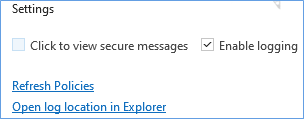
- After logging is enabled and the issue has been replicated, navigate back to where the logging was enabled and select the Open log location in Explorer option.
Option Two: Registry Key
To enable logging by registry key, follow the steps below:
- Open Regedit.
- Click the Start button.
- In the Start menu, either in the Run or Search box, type "regedit" and press Return or Enter.
- Navigate to: HKEY_LOCAL_MACHINE\Software\Egress\Switch and HKEY_LOCAL_MACHINE\Software\Wow6432Node\Egress\Switch
- Right-click in the white space on the right side of Regedit and create a DWORD called LoggingLevel, with a value of 4.
To retrieve the logs, navigate to: C:\Users\[USER]\AppData\Local\Temp\switch\logs
If using an RDS environment, please be aware that logging may instead be present in the following file location: C:\Users\[USER]\AppData\Local\switch\logs.