Multi-Layer Authentication (MLA) can be configured to have a password set automatically for all users, or it could be created by the individual each time they send a secure email.
The steps below demonstrate how to set and locate your password for a secure email. These steps will allow you to recall the password should you forget it, or you can change it if required.
How to Send a Secure Email with Added MLA
To send a secure email with added MLA, follow the steps below:
- Create a new email in Microsoft Outlook.
-
Select the classification that has MLA applied.
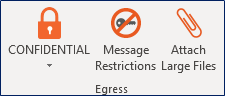
-
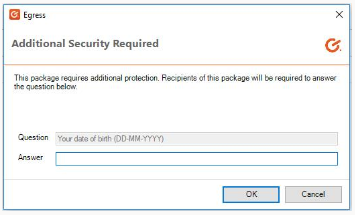
Once your email is filled out and ready to send, click the Send button. This action will bring up the MLA prompt box and display the predetermined question that you can then set an "answer" which the recipient will need to enter upon opening your email.
How to Find the Answer to an Email You Have Sent
- Log in to your administration panel.
- On the left side of the screen, select Sent Packages.
-
Use the date tabs to find the email you want to check and click the Package Label of that email.

-
Once you have clicked on the package, the Details tab will display the password you have set in the Tag field.
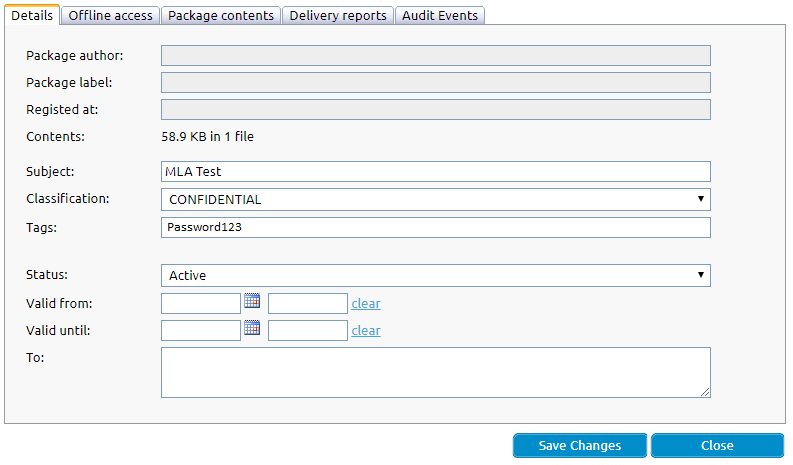
Remember to Save Changes if you make any amendments to your package details.