You may occasionally get reports that the Prevent shield icon has disappeared from a user's Microsoft Outlook. There are multiple potential causes for this problem. This article will walk you through the most common issues behind the missing Prevent shield icon and how to resolve them.
Simplified Ribbon
The most common cause of the Prevent shield icon disappearing is the Simplified Ribbon view, which reduces the number of icons visible on the toolbar. This issue can occur if the user has either manually selected this option or if a Microsoft Outlook update has automatically switched to this view.
To restore the Prevent shield icon in this case:
- Open a new email window in Microsoft Outlook.
- Navigate to the far-right side of the toolbar and select the downward arrow icon.
- From the drop-down menu, select Classic Ribbon.
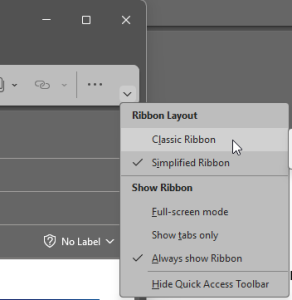
This option will restore the ribbon to its original, more detailed view, allowing the full array of icons, including the Prevent shield icon, to be displayed.
Multiple Outlook Add-Ins
If a user has multiple Microsoft Outlook add-ins, one of them may have taken precedence over the Prevent shield icon in the ribbon.
To resolve this issue, follow the steps below:
- In Microsoft Outlook, navigate to File Options Add-ins.
- Disable or reorder the add-ins to ensure the Prevent shield icon is given priority.
- Restart Microsoft Outlook to apply the changes.
These steps will ensure that the Prevent shield icon remains visible on the ribbon.