Prevent integrates with Microsoft Outlook to help protect you and your organization from data breaches. Prevent uses pattern-matching technology to notify you when you may be at risk of emailing the wrong person or sending the wrong content to recipients. By combining analysis of email behavior over time with granular scrutiny of message and attachment content, costly data breaches can be prevented by helping you fix mistakes before a message is sent.
This article walks you through a typical interaction with the Outlook Web Add-In and consists of 2 main functionalities: Recipient analysis and Nudges. Expand the below sections to learn more.
-
Prevent analyzes the recipients you add to an email draft to ensure there are no issues with the recipients you are emailing.
When a risk is found, the following workflow is typically seen:
- In Microsoft Outlook, write your email and add recipients as normal.
-
Open the Prevent task pane.
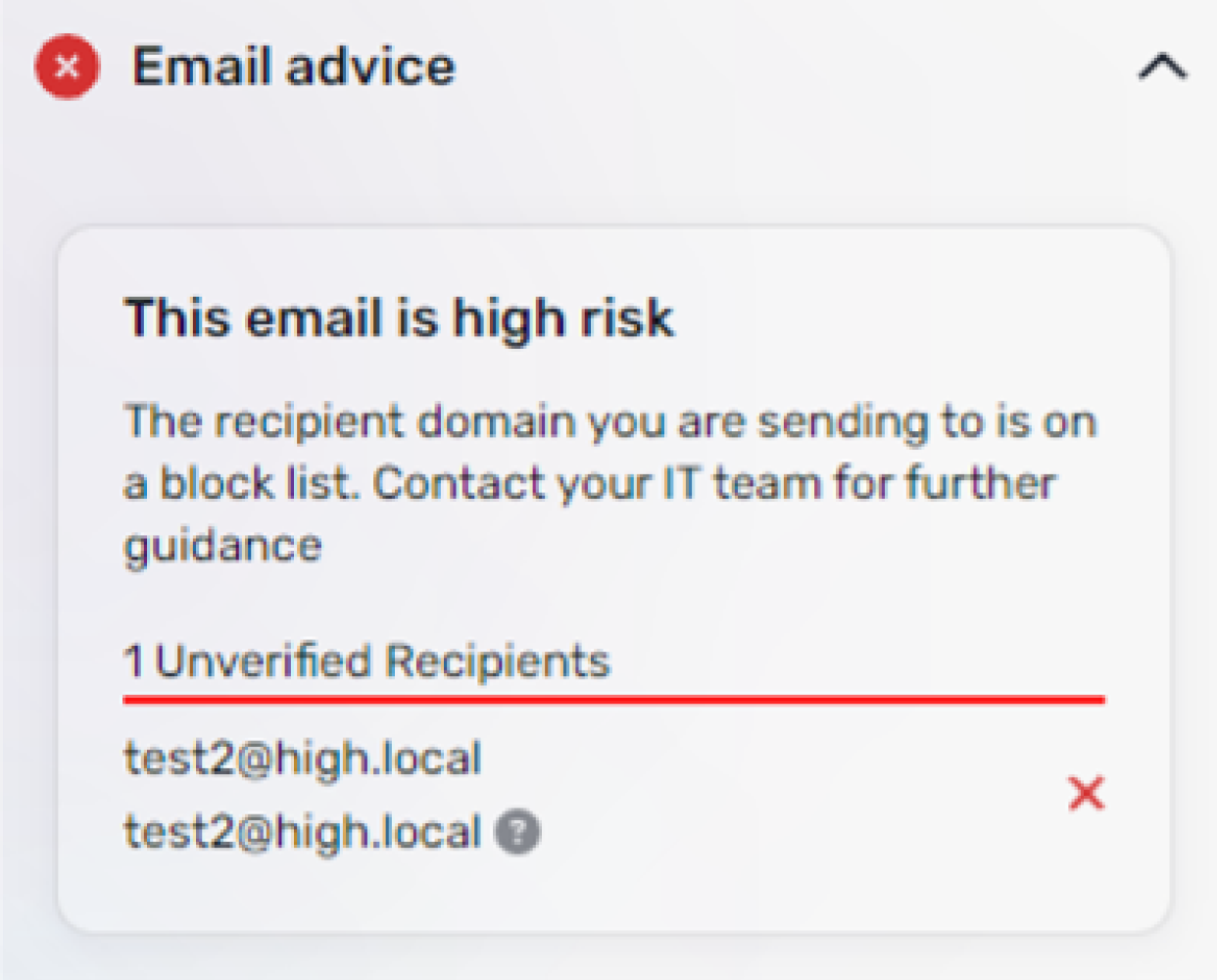
- If Prevent detects potential risks regarding the email recipients, the red or amber sections on the task pane will automatically expand to display further information.
-
Review your recipients and adjust accordingly.
- Send your email as normal.
Triggers
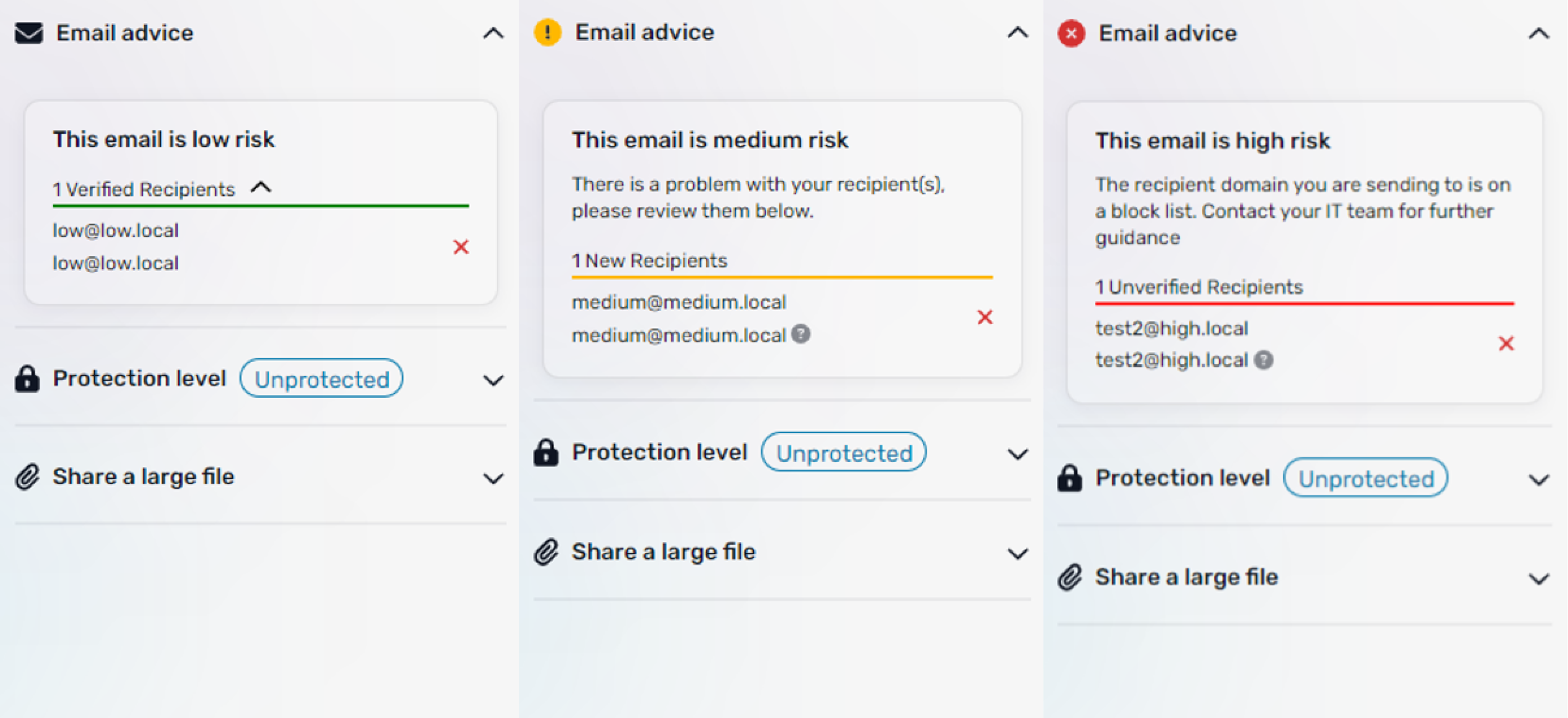
As you add recipients to your email, Prevent will be working in the background to detect anything unusual. If you have the Prevent task pane open, you will see the Email Advice section update dynamically as you change your recipient list. The advice displayed to you will be color-coded in relation to the severity of the risk detected. The task pane will give you further information about what has been detected and may offer you suggested actions.
-
By analyzing the subject line, message body, and attachments, Prevent can help you ensure that incorrect or sensitive data is not sent to the wrong recipients. This reduces the risk of critical data breaches occurring and their subsequent consequences.
When a risk is found, the typical workflow is followed:
- In Microsoft Outlook, compose your email as normal.
- Select Send.
-
If Prevent detects a risk, you will receive a nudge.
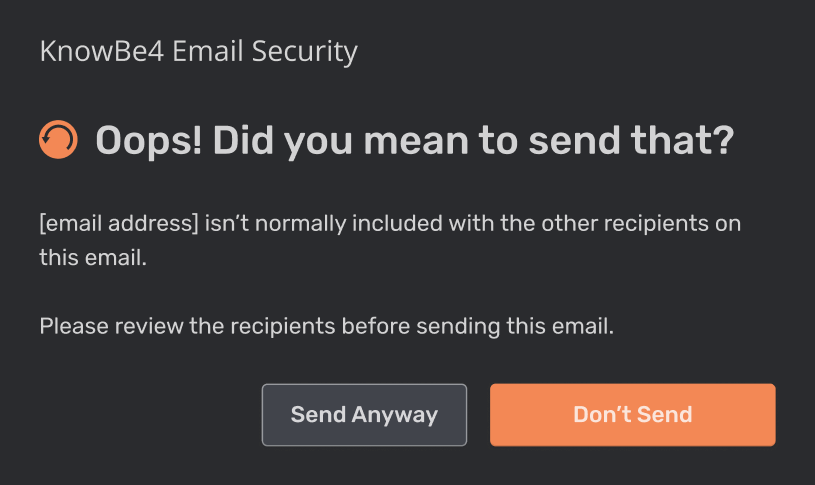
- You can select either Send anyway or Don't Send, at which point you can edit the content of the email and resend it.
Triggers
See the Prevent - Nudges article to learn more about the triggers that can cause Prevent to nudge you when you send an email.