Prevent helps to avoid data breaches such as sending an email to the wrong recipient, attaching the wrong file to an email, and ensuring sensitive data is not shared with unauthorized recipients.
- When composing an email, you will see the Prevent shield icon in your Microsoft Outlook ribbon. As you add recipients to your email, the shield icon will respond to your choices. The color of the shield icon is representative of Prevent’s status:
Shield Description 
Prevent is not active yet, or your Microsoft Outlook is offline. 
Prevent is active and has not detected anything unusual. 
Prevent has identified potential risks, and suggested actions are available in the side panel or upon pressing send. 
Prevent has identified high risks, and suggested actions are available in the side panel or upon pressing send. To open the task pane containing more information and suggested changes, select the Prevent shield icon.
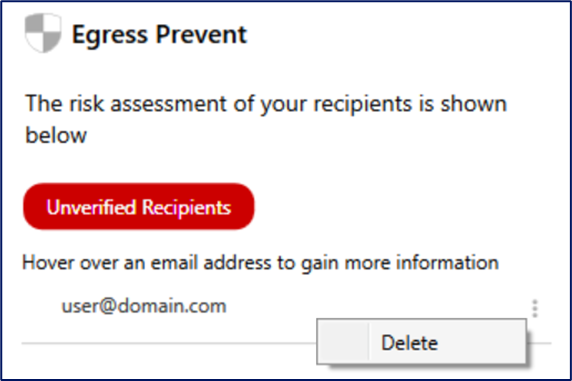
Clicking on the shield icon when composing your email will display a risk assessment of your recipients. When Prevent detects a risk, hover over the email address to understand why. Select the three-dot icon to select the suggested action. An example is shown in the screenshot below:
Upon sending, you may also be prompted with guidance. An example is shown in the screenshot below:
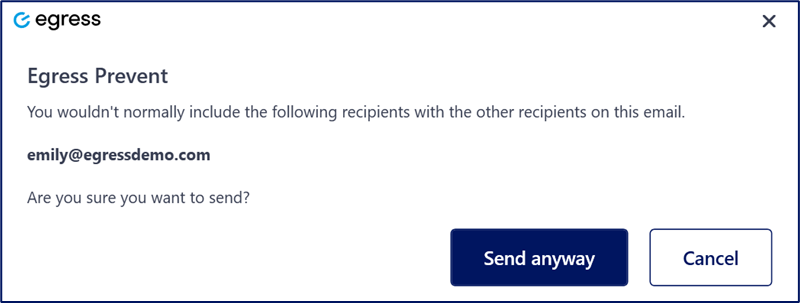
Review the information provided in the prompt, which will be tailored to the risk detected. In most cases, a Send Anyway option is presented that can be selected if you want to proceed. If you need to cancel and, for example, replace misaddressed recipients, select Cancel. See the Prevent - On-Send Prompt Triggers article to learn about all the different scenarios that can lead to receiving a prompt.
-
The Prevent experience is different on mobile compared to Microsoft Outlook Add-In. You will receive feedback in an email when a potential risk is identified. This email will provide a risk assessment summary and give you a chance to approve and send the email or reject and discard the email, as seen in the screenshot below:
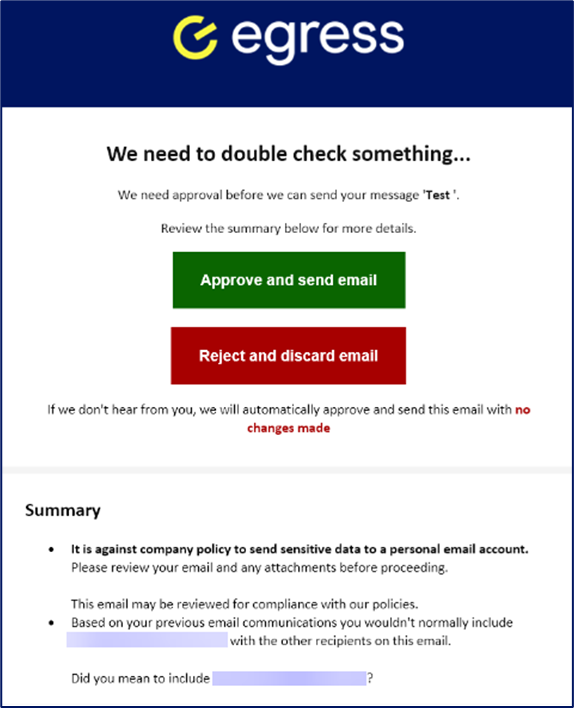
Depending on the configuration set by your admins, if you do not action this email, your email will automatically be sent or rejected after a given time period.