Prevent works in the background of Microsoft Outlook to provide real-time advice when adding recipients to an email. You will see the Prevent shield icon in your Microsoft Outlook ribbon when composing an email. The shield icon will respond to your choices as you add recipients to your email. The color of the shield icon is representative of Prevent's status:
|
Shield |
Description |
|---|---|
 |
Prevent is not yet active, or your Outlook is offline. |
 |
Prevent is active and has not detected anything unusual. |
 |
Prevent has identified potential risks, and suggested actions are available in the side panel or upon pressing send. |
 |
Prevent has identified high risks, and suggested actions are available in the side panel or upon pressing send. |
Advice Prompts
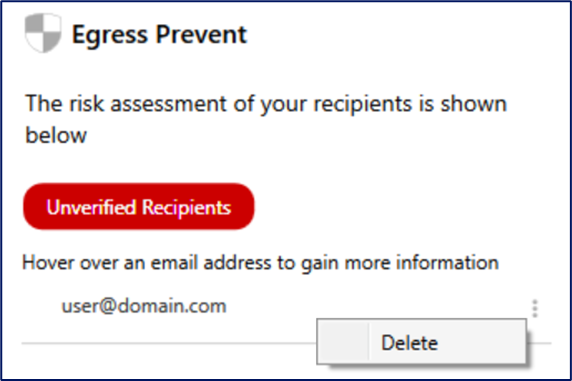
Clicking on the shield icon when composing your email opens a side panel to display a risk assessment of your recipients. When Prevent has detected a risk, hover over the email address in question to understand why. Click on the shield icon to select the suggested action. An example is shown in the screenshot below:
Upon sending, you may also be prompted with guidance. An example is shown in the screenshot below:
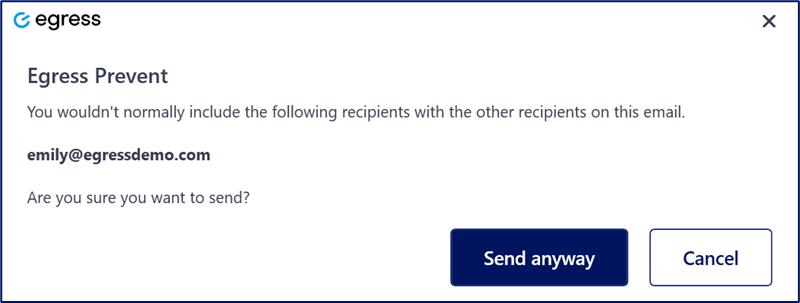 Review the information provided in the prompt, which will be tailored to the risk detected. In most cases, a Send Anyway option is presented, and you can select it if you want to proceed. For example, if you need to cancel to replace misaddressed recipients, select Cancel.