This article guides you through creating a mail flow rule in Microsoft 365 to bypass Defend scanning for Secure/Multipurpose Internet Mail Extensions (S/MIME) encrypted emails. This rule is required because S/MIME emails are already encrypted. As a result, our Defend system cannot scan or process the contents of these emails for security purposes. The preexisting encryption prevents any further analysis or modification by Defend.
Prerequisites
The only prerequisite for bypassing Defend scanning is to have admin access to Microsoft 365.
Instructions
Follow the steps below to bypass Defend scanning:
- Log in to the Microsoft Admin Center.
- In the left sidebar, navigate to Show All > Admin Centers > Exchange.
- In the Exchange admin center, navigate to Mail flow > Rules > + > Create a new rule.
- Configure the rule by filling out the fields as shown in the screenshot and list below:
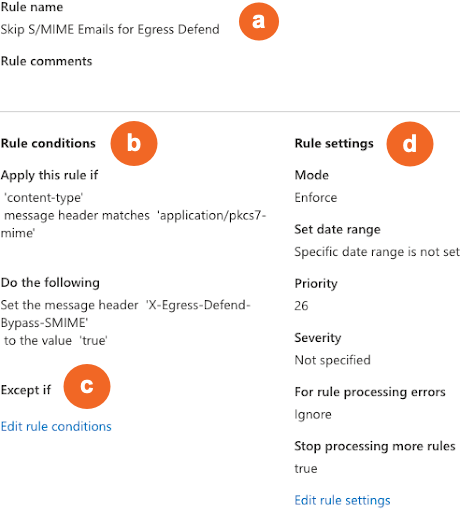
- Rule name: Enter a descriptive name, such as "Skip S/MIME Emails for Defend".
- Rule conditions: Under Apply this rule if..., select The message properties > Include any of these words in the message header. In the Specify words or phrases dialog box, enter"Words=Content-Type" and "matches=application/pkcs7-mime". Under Do the following... select Modify the message properties > Set a message header. Enter the header name as "X-Egress-Defend-Bypass-SMIME" and set the header value to true.
- Except if: Under Except if..., add any necessary exceptions. This step is optional.
- Rule settings: Set the rule priority to run before the Defend mail flow rules and select Stop processing more rules.