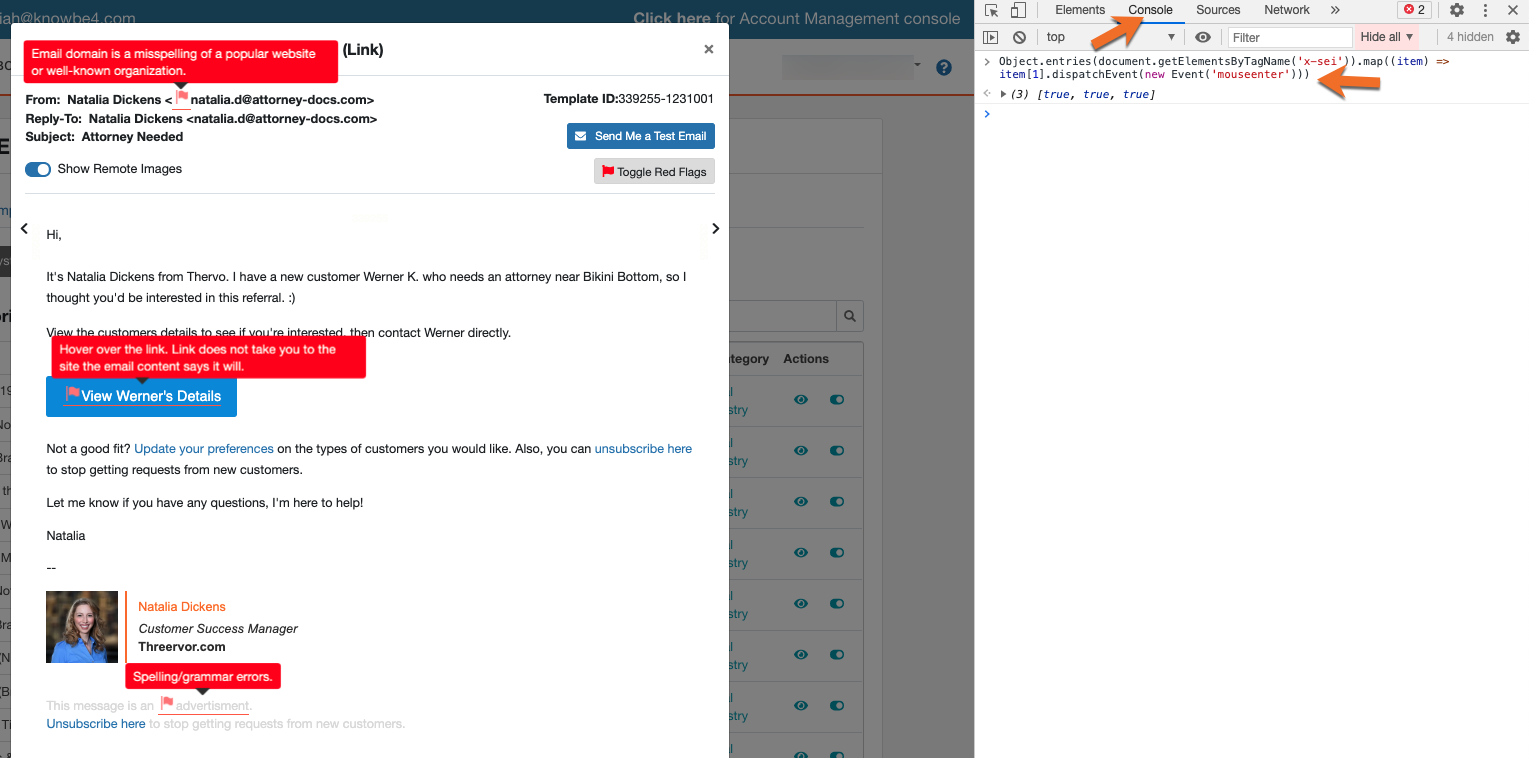
You can take a screenshot of all of the red flags on a phishing test your users recently failed and share it with them to indicate what they should have noticed. To display all of the red flags at once for your screenshot, follow the instructions in the below sections.
How to Display All Red Flags in Google Chrome
To display all red flags in Google Chrome, follow the steps below:
- Navigate to Phishing > Email Templates in your KSAT console.
- Locate an email template of your choice and preview it by clicking on the eye icon.
-
Click Toggle Red Flags in the top-right corner of the preview window.

-
Right-click on the email template and select Inspect. This will open the inspection window.

- In the inspection window, click on the Console tab.
-
Paste the below script into the Console area:
Object.entries(document.getElementsByTagName('x-sei')).map((item) =>
item[1].dispatchEvent(new Event('mouseenter')))
-
Press the Enter key to run the script.
How to Display All Red Flags in Firefox
To display all red flags in Firefox, follow the steps below:
- Navigate to Phishing > Email Templates in your KSAT console.
- Locate an email template of your choice and preview it by clicking on the eye icon.
-
Click Toggle Red Flags in the top-right corner of the preview window.
-
Right-click on the email template and select Inspect Element. This will open the inspector window.

- In the inspector window, click on the Console tab.
-
Paste the below script into the Console area:
Object.entries(document.getElementsByTagName('x-sei')).map((item) =>
item[1].dispatchEvent(new Event('mouseenter')))
-
Press the Enter key to run the script.
