Whitelisting in Sophos firewalls allows users who've failed your phishing tests to access KnowBe4's landing pages.
Note:The instructions below were created for Sophos XG firewalls, so other versions of Sophos firewalls may require a different set of steps. We recommend reaching out to Sophos for specific instructions on how to whitelist KnowBe4.
- Log in to your KnowBe4 console.
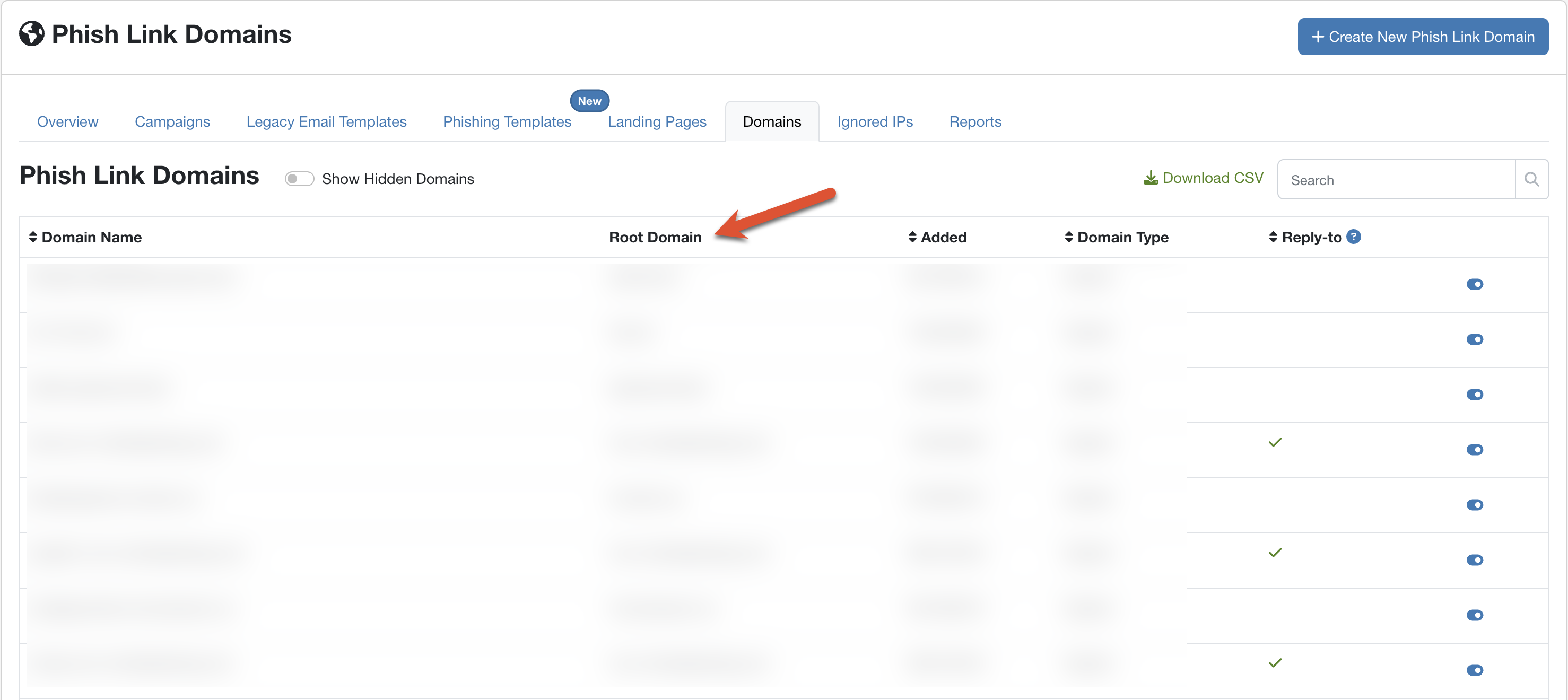
- Navigate to Phishing > Domains.
- From the Root Domain column, copy your phish link domains and save them in a place you can access later.
- Log in to the portal for Sophos firewalls.
- Click Web on the left side of the page.
- Click Exceptions at the top of the page.
- If you don’t have an exception list, click Add Exception.
- Enter "KnowBe4" for the name and add an optional description for the list.
- On the right side of the page, under Skip the selected checks or actions, select the check boxes for the services you purchased.
- Check URL pattern matches.
- Enter each phish link domain one line at a time in the Search/Add box. XXXXXX and .com represent each phish link domain. The following is an example format:
^([A-Za-z0-9.-]*\.)?XXXXXX\.com\.?/ - Click Save at the bottom of the page.
After following this article, we recommend setting up a test phishing campaign with one or two users to ensure your whitelisting was successful. As a last resource, we suggest reaching out to your service provider for assistance. Visit the Troubleshooting section of our Whitelisting Guide for an email template you can send to your service provider.
Tip:To ensure that you have whitelisted correctly, see our Verify Your Whitelisting article.