Phishing attachment opens are tracked by a small tracking image placed within the attachment. If your users are opening phishing attachments, but their Attachment Opened failures aren't being tracked, a firewall or proxy may be blocking the connection to our KnowBe4 domains. You can view our whitelisting article for information on how to whitelist our domains.
You can optionally test whether your web filter is blocking the Attachment Opened failures by extracting the URL within the attachment. To locate the URL, open the email that contains the attachment you want to find the URL for. Once you have located the attachment, use the jump links below for instructions on how to extract the URL for that attachment type. For more information about how our phishing campaign attachments are tracked, view our Phishing Campaign Attachments article.
Microsoft Office Attachments
Microsoft Office attachments use XML-based files. Follow the steps below to view the XML data and locate the URL.
- Download the Microsoft Office attachment.
- Change the file's extension to .zip by right-clicking the file and selecting change to '.zip'.
-
Open the .zip archive, and then open the word subfolder.

-
Open the document.xml file in a text editor.

-
Once you have opened the document.xml file, you will see a string like the one highlighted in the text box below. This string contains the URL.

- INCLUDEPICTURE \d "http://online-banking.kb4.io/XcmVTjaXBpZWc50X2lkPTeMxMTQ0LaNjg5jNSZjYW1wYYWXlnbl9ydW5faWQ9OTAwqODAzJmFjdGlvbj1hdHRhY2htZW50" \* MERGEFORMATINET
PDF Attachments
A phishing attachment failure is reported when the user follows the link inside a PDF attachment. You can find the URL in a PDF attachment by pasting the link address in a text editor. Follow the instructions below for detailed steps to locate the URL.
- Download the phishing test attachment.
- Open the attachment using a text editor.
-
The URL will display, as show in the example below.
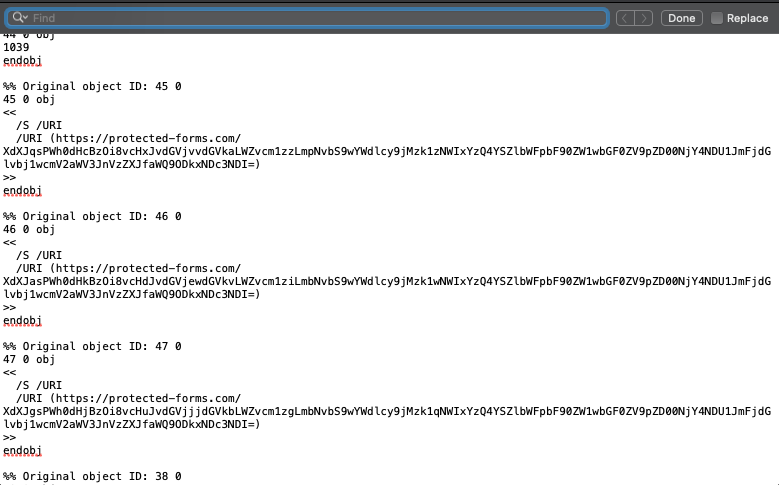
- << /S /URI /URI (https://phishtest.knowbe4.com/xxxxxxxxxxxxxxxxxxxxxxxxxxxxxxx) >>
HTML Attachments
You can find the URL in an HTML attachment by pasting the link address in a text editor. Follow the instructions below for detailed steps to locate the URL.
- Hover over the HTML attachment within the email.
- Right-click the HTML attachment, and select Copy Link Address.
- Open a text editor, and then paste the link into the text editor.
-
Once you have pasted the link, you will see a string like the one in the text box below that contains the URL.

- <a href="http://online-banking.kb4.io/XjayZ1cmw9aHR0cHM6y5rbm93YmU0LmNvbS9wYWdlcy9jMzk1NWIxYzQ4YQ==">Go Now</a>