As part of ongoing improvements to maintain high availability and resiliency across our platforms, changes have been made to the Defend backend infrastructure, bringing additional IP addresses into service.
The full updated list of Defend IP addresses is below, including the newest ones highlighted in bold.
| UK | US | EU | AU |
|---|---|---|---|
| 18.130.212.176 | 34.204.210.91 | 54.220.109.92 | 13.210.31.177 |
| 18.135.85.199 | 52.0.5.153 | 34.253.34.167 | 54.252.196.160 |
| 13.43.19.144/29 | 52.71.53.79 | 34.250.90.89 | 13.237.163.139 |
| 3.253.208.184/29 | 44.216.154.56/29 | 3.78.201.96/29 | 16.51.86.24/29 |
| 18.246.145.200/29 | 13.39.210.152/29 |
Alternatively, you can query the relevant Defend SPF record to get the latest set of IP addresses.
- UK - spf.london.aquilaiajax.com
- US - spf.us1.defend.egress.com
- EU - spf.eu1.defend.egress.com
- AU - spf.au1.defend.egress.com
Do the IP Address Changes Apply to You?
For the majority of customers, no action is required to support the additional Defend IP addresses because the default installation of Defend does not require any modifications to the customer environment that explicitly state or allow the IP addresses.
However, there may be a small number of instances where changes may need to be made if one or more of the following items apply:
- You made changes to Microsoft Defender Advanced Delivery Policy to support a phishing simulation tool with Defend.
- You have custom Exchange mail flow rules that explicitly state the Defend IP addresses.
- You made any changes to your SPF record to support the Defend service.
- You made any other custom changes to your Microsoft environment to support the Defend service, like specifying IP addresses in spam policies.
If any of the above apply to you, follow the guidance below to make the relevant changes.
Microsoft Advanced Delivery Policy
If you have added the Defend IP addresses to your advanced delivery policy in Microsoft Defender to support third-party phishing simulations, then you will need to add the bolded IP addresses listed above to the policy.
To add more IP addresses to your policy, follow the steps below:
- Log in to https://security.microsoft.com/
-
Navigate to Policies & rules > Threat policies > Advanced delivery > Phishing simulation.
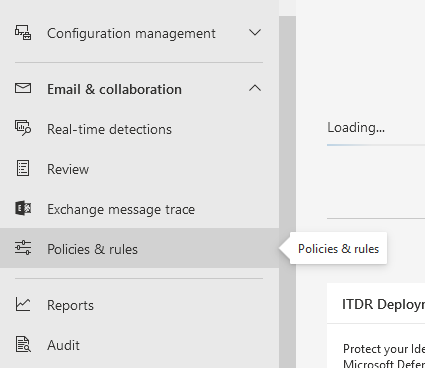
- Edit the existing policy and ensure all the Defend IP addresses are added.
SPF Record
Please check your SPF record to see if the Defend IPs are listed. It may look like this SPF entry:
v=spf1 a include:spf.us1.defend.egress.com include:spf.protection.outlook.com -all
No changes are needed if your SPF record looks like the example above. This is because you are using the DNS hostname in your record, which w ill automatically pick up any additional IP addresses.
However, if your SPF record explicitly lists individual Defend IP addresses, ensure you replace these with the relevant SPF hostname. An example SPF address with individual IP addresses might look like this:
v=spf1 a ip4:34.204.210.91 ip4:52.0.5.153 ip4:52.71.53.79 include:spf.protection.outlook.com -all
Custom Mail Flow Rules or Policies
If you have any custom Microsoft Exchange mail flow rules or policies that block or modify emails based on source IP addresses and the Defend IP addresses are explicitly stated in any of the rules, then changes to the Defend IP addresses will need to be reflected in any of the rules or policies in place.