The Settings menu allows access to the Defend console's main configuration options. When making changes, always select Save Changes at the top-right corner of the screen.
To update, review, and make changes to your settings, follow the steps below:
- Log in to the Defend console.
- Navigate to Settings.
- Configure your settings accordingly.
- When you have finished making changes, select Save Changes in the top-right corner of the page.
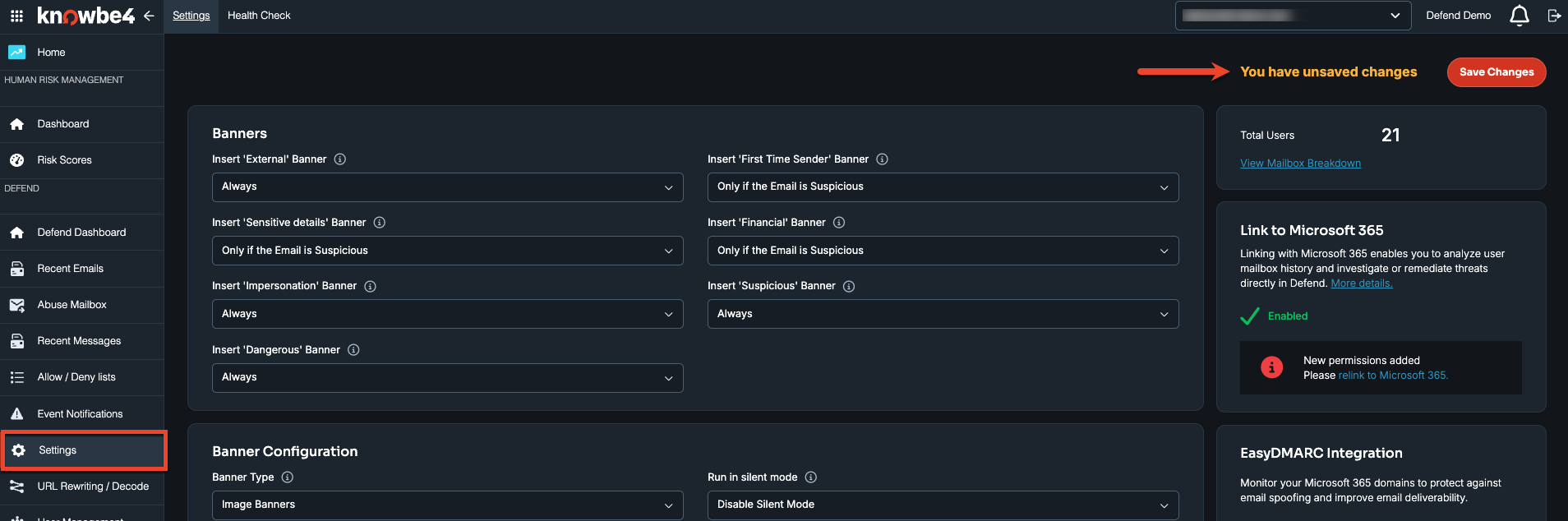
Configurable Settings
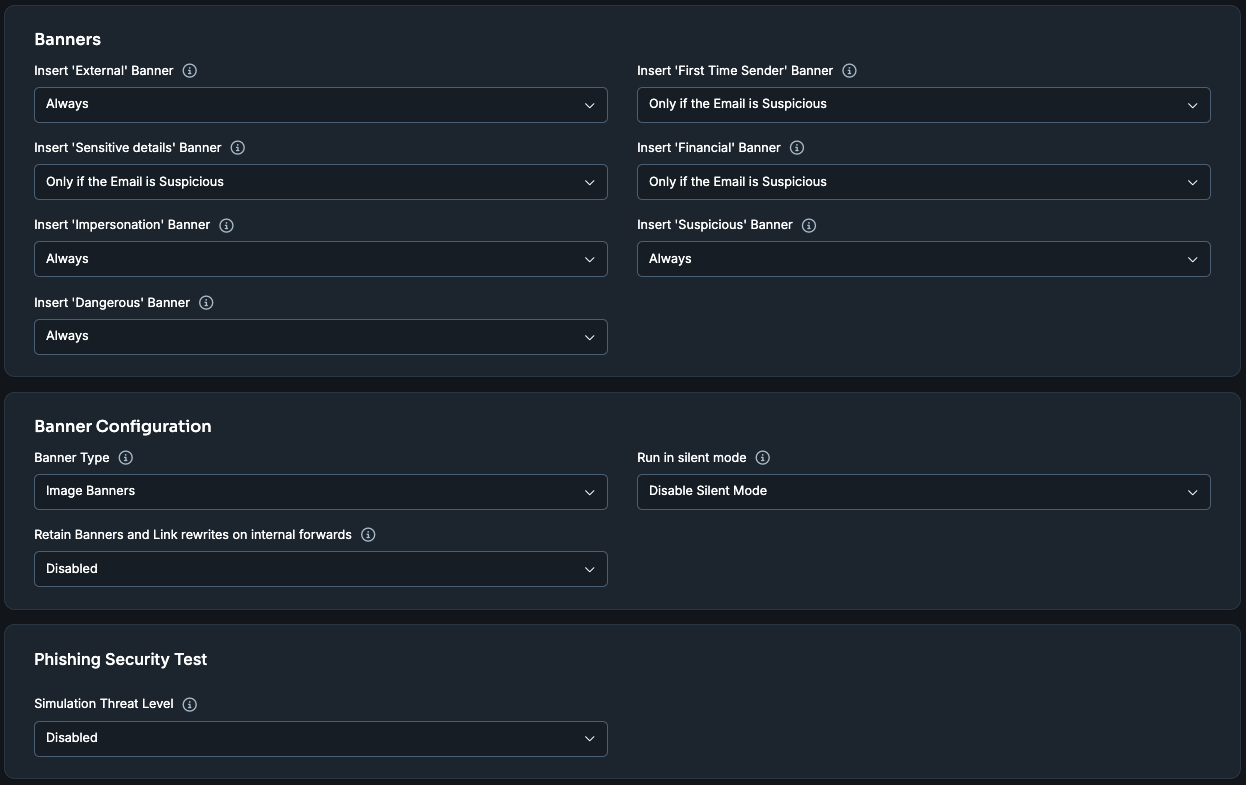
The configurable settings are:
-
Banners:
- Choose when each specific banner type is applied to emails.
-
Banner Configuration:
- Select which type of banners are used and enable or disable silent mode.
-
Phishing Security Tests:
Choose how Defend classifies phishing security test emails:
- Disabled (default): Defend classifies the email as it normally would.
- Benign: Applies External-level banners and actions to the email.
- Suspicious: Applies Suspicious-level banners and actions to the email.
- Dangerous: Applies Dangerous-level banners and actions to the email.
This setting defaults to Disabled, and any changes you make are recorded in the admin audit log.
For more information, see the Defend | Pre-Delivery Best Practices for Phishing Security Tests article.
-
Graymail (Email Productivity):
Choose to enable graymail management, and how these messages are handled once identified,
- Configure whether these messages are moved out of the inbox, whether their banners are inserted, whether users can report graymail, and the associated user group.
-
Spam (Email Productivity):
Choose to enable spam management, and how these messages are handled once identified,
- Configure whether these messages are moved out of the inbox, whether their banners are inserted, whether users can report spam, and the associated user group.
-
Abuse Mailbox Automation:
- Enter the address the Defend console should monitor for the abuse mailbox and select whether emails should be automatically remediated.
-
Link Rewriting:
Choose to enable link rewriting and what users will experience when interacting with rewritten links.
- Rewrite URLs to be scanned by Defend: Yes or No.
- Show Warning Page when the user clicks a link: Choose whether to always show it or only on potentially harmful links.
- Prohibit users from accessing potentially harmful links: Choose whether to prevent users from following such links on the Warning page.
- Display Defend URL scanning page: Enable or disable the URL scanning page shown while Defend evaluates a link.
-
Summary Page:
- Select whether to display or hide the Report Phish/Report Not Phish, Report Graymail/Not Graymail, and Report Spam/Report Not Spam buttons to users.
- Users can also register these preferences directly from Microsoft Outlook by moving emails between folders. For more information, see the Folder-Move Preferences section below.
-
Harmful Code Removal:
Select whether to sanitize emails of JavaScript and other potentially harmful scripts.
- Sanitize HTML format emails: Choose whether to sanitize all HTML emails.
-
Quarantine:
Select what action to take, before and after delivery, when emails are classified as dangerous or highly dangerous.
Pre-delivery Quarantine:
Directs incoming emails to Microsoft's quarantine system before they reach user inboxes, reducing the risk of end users clicking links or opening attachments. However, sending these emails to quarantine before delivery means users won't get the benefit of Defend's Teachable Moments. Use the filters on the Recent Emails page to determine which threats to send to quarantine. Phishing security test emails are always excluded from quarantine.
- Do not send to Microsoft quarantine (default): Emails aren't sent to quarantine, but Defend still attaches the appropriate banners and delivers them to the recipient.
- Send all phishing emails with an attachment to Microsoft quarantine: Quarantines Defend-classified, dangerous phishing emails, including high-confidence phishes that contain an attachment.
- Send all phishing to Microsoft quarantine: Quarantines all Defend-classified dangerous phishing emails, including high-confidence phishing, regardless of attachments.
- Send high-confidence phish to Microsoft quarantine: Quarantines only high-confidence phishing emails classified by Defend, regardless of attachments.
- Send high-confidence phish with attachments to Microsoft quarantine: Quarantines only high-confidence phishing emails classified by Defend that contain attachments.
Post-delivery Quarantine:
Remediates emails from users' inboxes and places them in Microsoft's quarantine system using the Set Verdict API. This quarantine method requires a suitable quarantine policy in Microsoft 365. Phishing security test emails are always excluded from quarantine.
-
Message Security: Configure how Defend protects Microsoft Teams messages for this tenant.
Microsoft Teams Message Scanning Scope: Enable or disable scanning of Microsoft Teams messages across the tenant. The following options are available:
- Disabled: Microsoft Teams message scanning is turned off. No messages are scanned.
- Entire Tenancy: Microsoft Teams message scanning is enabled for all users. Every user's Teams messages across your Microsoft 365 tenancy are scanned.
Configuration Posture Monitoring: Enable or disable monitoring of the tenant's Microsoft Teams security configuration posture.
-
Link to Microsoft 365:
- Grant permissions on Microsoft 365 to allow the analysis of historical emails and mailbox details to protect your users, as well as the ability for admins to view, remediate, restore, and locate emails.
- Select Relink to Microsoft 365 if you need to re-establish the connection.
-
EasyDMARC Integration:
- Monitor your Microsoft 365 domains to protect against email spoofing and improve email deliverability.
- Select View DMARC Configuration (or Set up DMARC monitoring) to get started.
-
Allow Filtering By All In Recent Emails:
- This setting can be used to determine which admins can view all the emails processed on the Recent Emails page.
- The All threat filter can be enabled or disabled for all admins or just enabled for Global Admins and admin policies.
-
Allow View, Download, or Delete of an External Email:
- Enable or disable actions admins can take on external emails.
-
Allow KnowBe4 Intelligence to View Emails:
- Controls whether the KnowBe4 Intelligence team can view email content.
- When enabled, KnowBe4 Intelligence can access phish and suspected missed phish in the Recent Emails Operations tab to investigate and identify phishing emails and ensure service delivery.
- When disabled, this access is blocked.
-
Secure Email Gateway (SEG):
- Tell Defend about your current email gateway setup so it can integrate with your email system.
-
Company Impersonation Attacks:
- Add your organization's secondary domains and protected names so Defend can help safeguard your organization's identity against impersonation.
-
Linguistic Analysis:
- Defend uses natural language processing (NLP) to analyze the emotion and intent behind emails and detect suspicious behavior. Add any custom subject phrases here to help avoid false positives.
-
Default Language:
- Select which language banners, summary pages, and link rewriting summaries are written in.
- If a mail rule language cannot be detected for a user, we will use the default language, which you can choose from the drop-down menu.
- The languages available for the user experience, including email banners, email summaries, and link scanning, are Chinese (Mandarin) Simplified, Dutch, English, French, French Canadian, German, Hungarian, Italian, Japanese, Norwegian, Portuguese, Portuguese (Brazil), Spanish, and Spanish (Latin America).
Folder-Move Preferences
When Productivity is enabled, users can register their graymail and spam preferences by moving emails between folders in Microsoft Outlook without visiting the Email Summary page.
Folder-move preferences are registered below:
| Folder-Move | Registered Preference |
|---|---|
| _Graymail to Inbox | Not graymail |
| Inbox to _Graymail | Graymail |
| Junk to Inbox | Not spam |
| Inbox to Junk | Spam |
Preferences are applied at the sender level and are treated the same as preferences set via the Email Summary page or the Phish Alert Button (PAB). Registering a graymail preference for a sender clears any existing spam preference for that sender, and registering a spam preference clears any existing graymail preference.
Recommended Default Settings
The recommended default settings are displayed below:
| Option | Default Setting |
|---|---|
| External | Always |
| Sensitive details | Only if the email is suspicious |
| Impersonation | Always |
| Dangerous | Always |
| First Time Sender | Only if the email is suspicious |
| Financial | Only if the email is suspicious |
| Suspicious | Always |
| Graymail | Always |
| Spam | Always |
| Option | Default Setting |
|---|---|
| Rewrite URLs to be scanned by Defend | Yes |
| Show Warning Page when user clicks on a link | Only show a Warning page when a user clicks on a link |
| Prohibit users from accessing potentially harmful links | Prevent users from following potentially harmful links from the warning page |
| Disable Defend URL scanning page | Disable |
| Option | Default Setting |
|---|---|
| Display Report Phish or Not Phish Option | Show report phish or not phish |
| Display Report Graymail or Not Graymail Option | Show report graymail or not graymail |
| Display Report Spam or Not Spam Option | Show report spam or not spam |
| Option | Default Setting |
|---|---|
| Send dangerous phish to quarantine | Only send highly dangerous phishing emails with an attachment to Microsoft quarantine |