If you're a Diamond-level customer, you can create and edit templates for callback phishing, including email templates, greeting templates, and response templates. You can then use these templates in callback phishing campaigns to test your users.
Creating and Editing Email Templates
In your KnowBe4 console, you can create and edit callback phishing email templates. These templates will prompt your users to call the callback phone number.
To create or edit an email template, follow the steps below:
- In your KnowBe4 console, navigate to Phishing > Callback Phishing.
- Select the Email Templates subtab, then click My Templates.
- To create a new template, click the + Create Email Template button. To edit an existing template, click the name of that template. When you click the button or template name, the template editor will open.
-
Customize the settings for your new or existing template. For more information about the fields in the template editor, see the screenshot and list below:
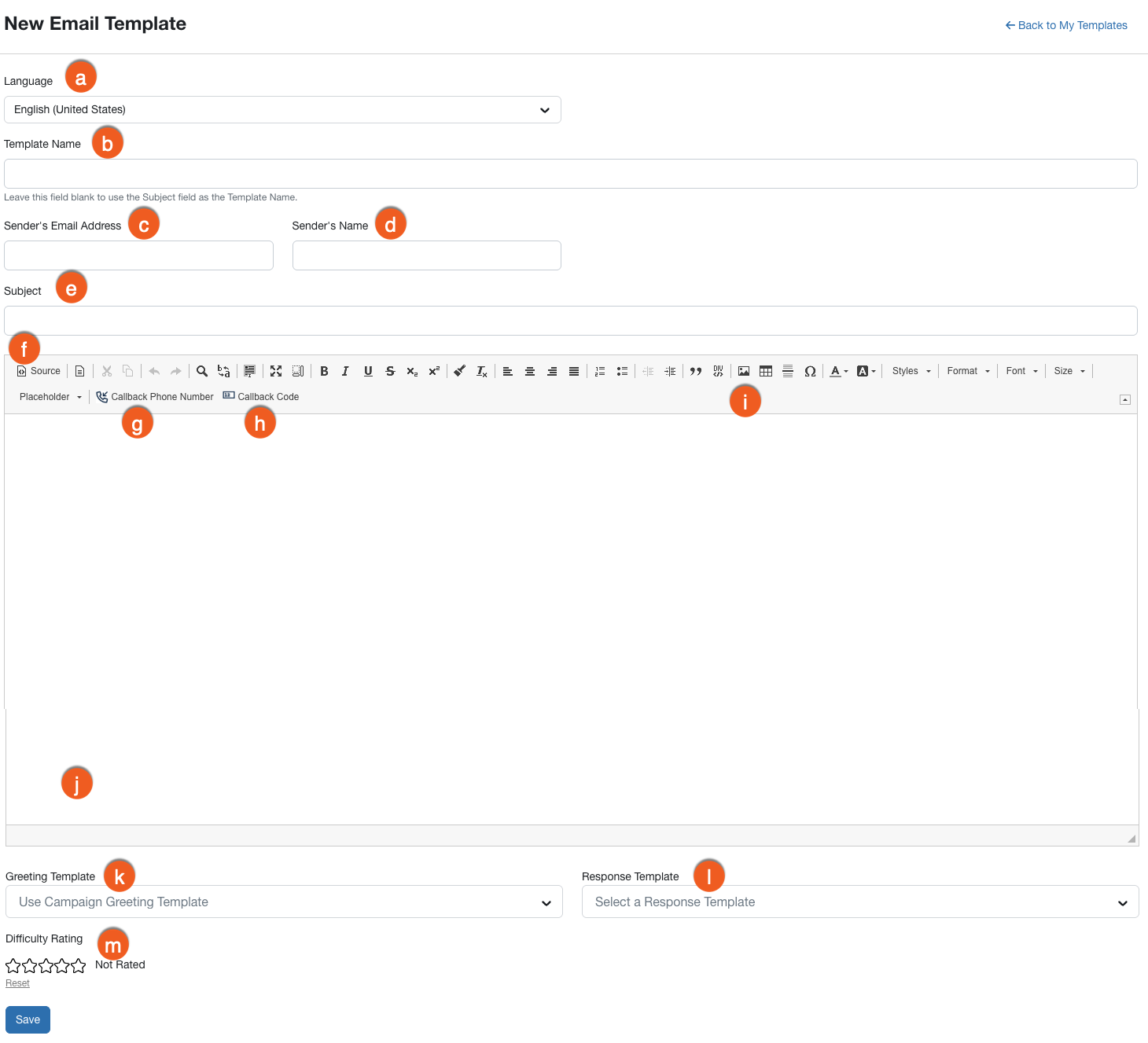
- Language: From this drop-down menu, select the language for your template.
- Template Name: Enter a name for your email template. This name will not be visible to your users. If you don't enter a name here, the text that you enter in the Subject field below will be used instead.
- Sender's Email Address: Enter the sender's email address that users will see in the email.
- Sender's Name: Enter the sender's name that users will see in the email.
- Subject: Enter the subject line that users will see in their inboxes.
- Source: Click this button to switch to a source code view. If you're familiar with HTML, you can use it to create the template.
- Callback Phone Number: Use this placeholder to populate a system-generated phone number for your users to call.
- Callback Code: Use this placeholder to populate the callback code for your users to enter.
-
Image: Click this icon to add or edit your own template images. If you resize the image, make sure to edit the width and height using the style tag. For more information, see our Add Custom Template Images article.
Important:If you resize an image, make sure to edit the width and height using the style tag. For more information, see our Troubleshooting Template Image Issues article. - Body: Enter the text you want to display in your email template. You can use the options in the What You See Is What You Get (WYSIWYG) editor to customize your template with tables, lines, and more.
- Greeting Template: From this drop-down menu, select the greeting template your users will hear if they call the callback phone number.
- Response Template: From this drop-down menu, select the response template your users will hear if they enter the callback code.
- Difficulty Rating: Assign a difficulty rating to your email template. This rating is based on a scale of one to five stars, with one being the least difficult and five being the most difficult.
- Click Save to save your email template.
Creating and Editing Greeting Templates
In your KnowBe4 console, you can create and edit callback phishing greeting templates. These templates are audio messages that greet your users and prompt them to enter the callback code. You can upload audio files up to 20 MB in size in .mp3, .wav, or .m4a formats.
To create or edit a greeting template, follow the steps below:
- In your KnowBe4 console, navigate to Phishing > Callback Phishing.
- Select the Greeting Templates subtab, and then click My Templates.
- To create a new template, click the + Create Greeting Template button. To edit an existing template, click the name of that template. When you click the button or template name, the template editor will open.
-
Customize the settings for your new or existing template. For more information about the fields in the template editor, see the screenshot and list below:
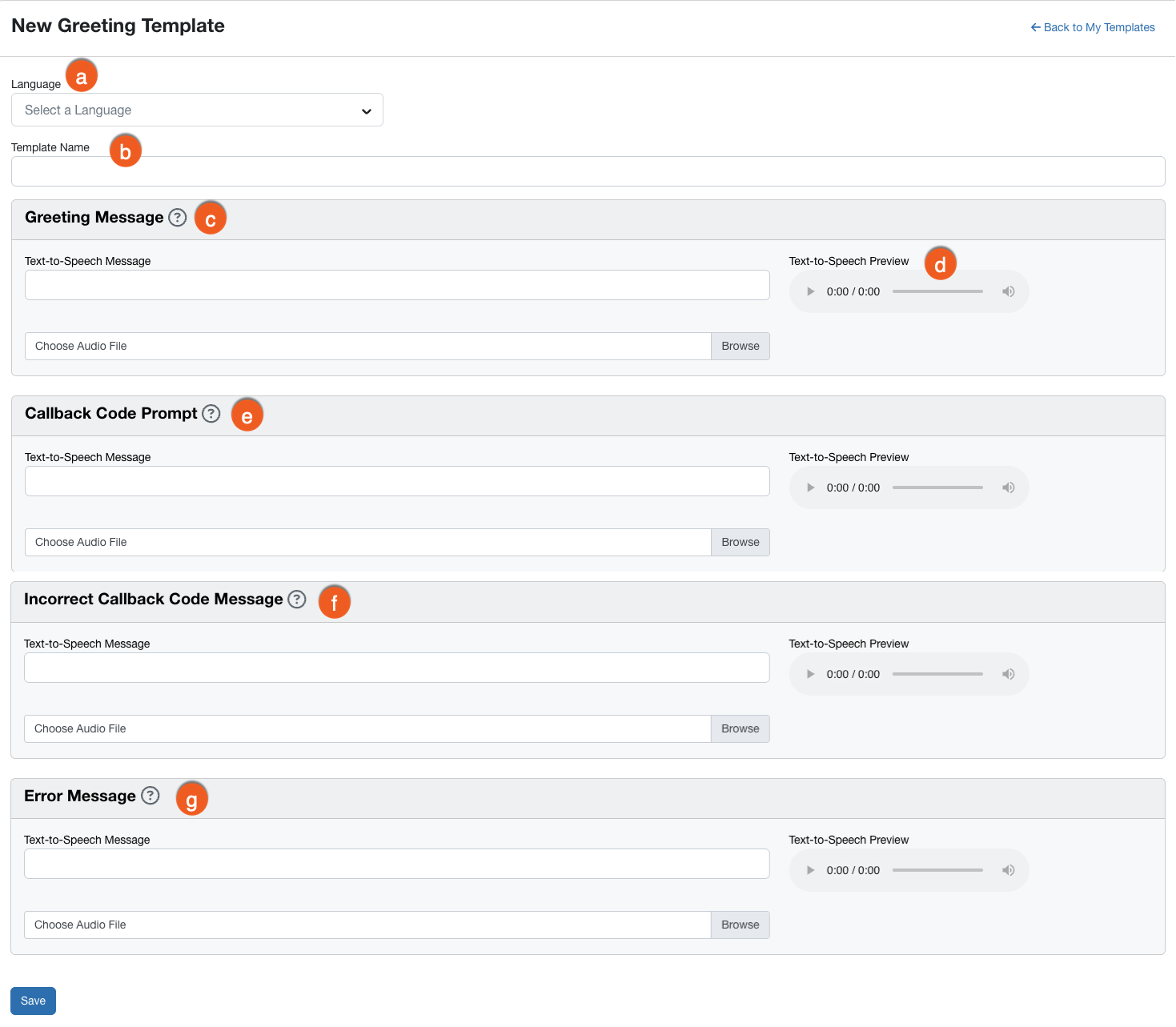
- Language: From this drop-down menu, select the language for your greeting template.
- Template Name: Enter a name for your greeting template.
- Greeting Message: Enter the text-to-speech message that will greet your users when they call the callback phone number. This field is required. Optionally, you can also upload a custom audio file.
- Text-to-Speech Preview: Preview your audio message by selecting the play button.
- Callback Code Prompt: Enter the text-to-speech message that will prompt users to enter the callback code. This field is required. Optionally, you can also upload a custom audio file.
- Incorrect Callback Code Message: Enter the text-to-speech message that will play when users enter an incorrect callback code. This field is required. Optionally, you can also upload a custom audio file.
- Error Message: Enter the text-to-speech message that will play if an error occurs. This field is required. Optionally, you can also upload a custom audio file.
- Click Save to save your greeting template.
Creating and Editing Response Templates
In your KnowBe4 console, you can create and edit callback phishing response templates. These templates are audio messages that will prompt your users to enter the secondary callback code or personal information. For example, these templates could prompt your users to enter the last four digits of their credit card numbers. You can upload audio files up to 20 MB in size in .mp3, .wav, or .m4a formats
To create or edit a response template, follow the steps below:
- In your KnowBe4 console, navigate to Phishing > Callback Phishing.
- Select the Response Templates subtab, then click My Templates.
- To create a new template, click the + Create Response Template button. To edit an existing template, click the name of that template. When you click the button or template name, the template editor will open.
-
Customize the settings for your new or existing template. For more information about the fields in the template editor, see the screenshot and list below:
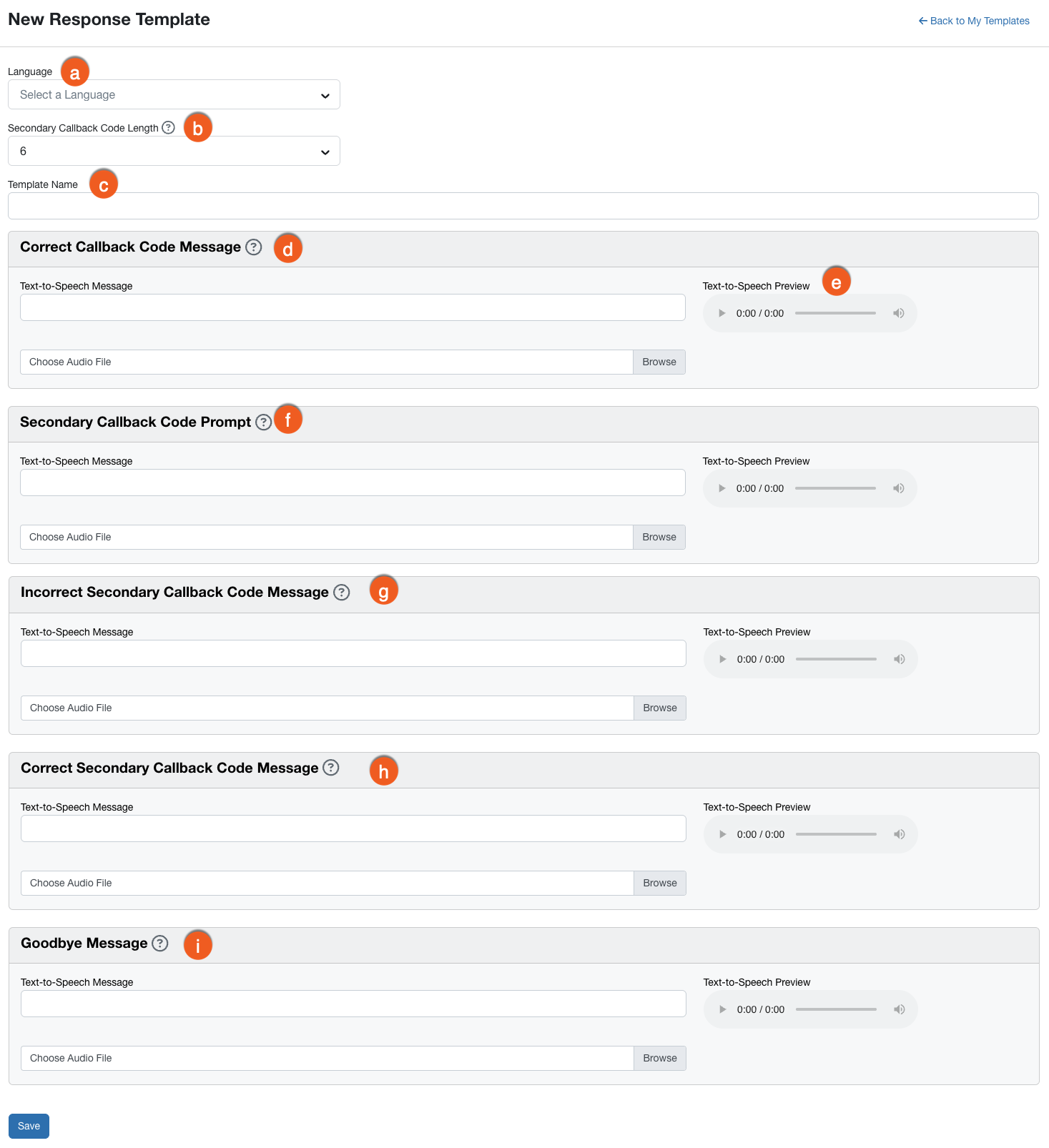
- Language: From this drop-down menu, select the language for your response template.
- Secondary Callback Code Length: From this drop-down menu, select the number of digits for the secondary callback code. For example, if your callback phishing test prompts users to enter the last four digits of their credit card numbers, you could select 4.
- Template Name: Enter a name for your response template.
- Correct Callback Code Message: Enter the text-to-speech message that will play when users enter the callback code from the email. This field is required. Optionally, you can also upload a custom audio file.
- Text-to-Speech Preview: Click the play button to preview your audio message.
- Secondary Callback Code Prompt: Enter the text-to-speech message that will prompt your users to enter personal information. This field is required. Optionally, you can also upload a custom audio file.
- Incorrect Secondary Callback Code Message: Enter the text-speech message that will play if users enter the wrong number of digits for a secondary callback code. This field is required. Optionally, you can also upload a custom audio file.
- Correct Secondary Callback Code Message: Enter the text-to-speech message that will play if users enter the correct number of digits for a secondary callback code. This field is required. Optionally, you can also upload a custom audio file.
- Goodbye Message: Enter the text-to-speech message that will play when the phone call is ending. This message can let users know they failed a callback phishing test, or it can just say goodbye. This is a required field. Optionally, you can also upload a custom audio file.
- Click Save to save your response template.