This article covers how to download files for training modules, video modules, games, and PDF documents to use in your learning management system (LMS). For more information about the available formats, see our Can I Use Your Training in My Learning Management System (LMS)? article.
While the content does not have to be added to your library to be downloaded, we recommend adding it for your own tracking purposes.
For SCORM content available in multiple languages, you have two download options:
- Individual Language File - Download the full SCORM package for a single language.
- Multi-Language File - Download a remote-hosted file that contains links to all available language versions on KnowBe4's servers.
You can also upload your own custom SCORM-compliant content and MP4s to your KnowBe4 console so that you can use the KnowBe4 console for training. For more information, see our Uploading Custom Content article.
Follow the steps below to download files:
- From the ModStore tab, search for the desired content and click View Details.
- If you already added the content to your library, you can go to the Library subtab of the ModStore and click the information icon to the right of the desired content.
- From the item details page, click Download.
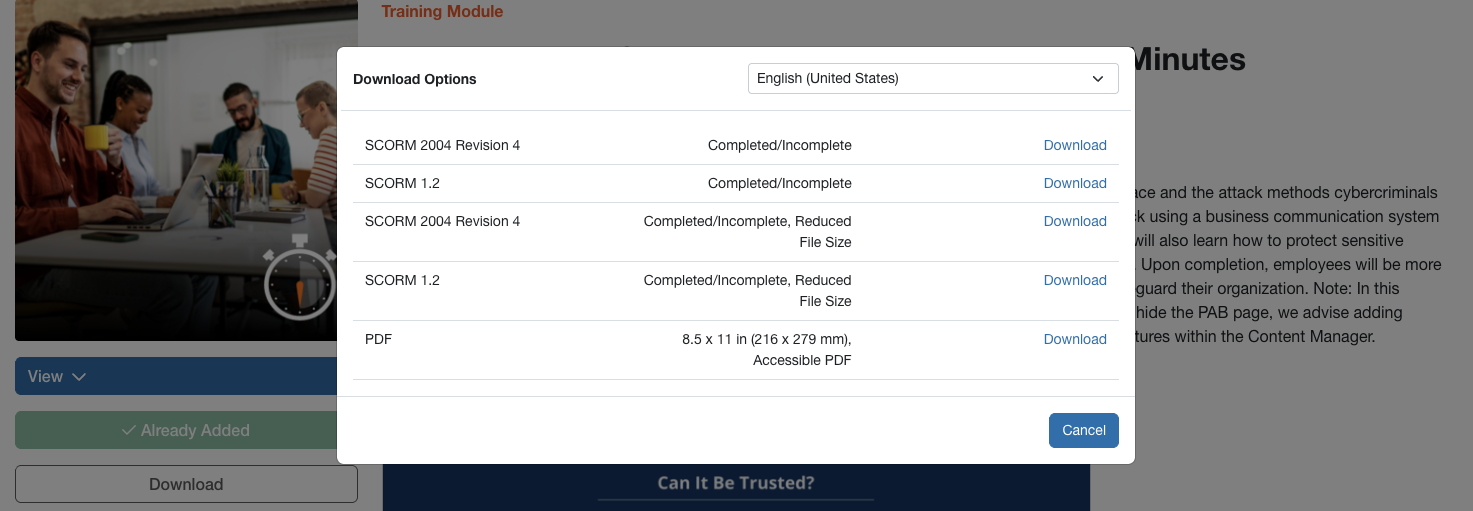
- From the Download Options pop-up window, select the language for the file you want to download from the drop-down menu in the top right, find the file format you need, and then click Download.
Important: If you do not see any files available for download, please contact your account manager or our support team for assistance.