Since Real-Time Coaching is part of the KnowBe4 Security Awareness Training (SAT) console, you can use Real-Time Coaching delivery methods to send your users notifications about their assigned training via Slack, Microsoft Teams, or Google Chat. For more information about training notifications, see our Training Campaign Notifications article.
Once your delivery method has been set up, you can select it whenever you set up a training notification. For more information, see the sections below.
Update Delivery Methods for Automated Notifications
You can set up automated training notifications when you create a new training campaign or edit an existing campaign. To send automated training notifications using your Real-Time Coaching delivery method, follow the steps below:
- Log in to your KnowBe4 console.
- Navigate to Training > Campaigns > Active.
- Create a new campaign by selecting + Create Training Campaign, or edit an existing campaign by locating the campaign name, selecting the three-dots icon to its right, then selecting Edit from the drop-down menu. A training campaign configuration page will open.
- On the campaign configuration page, navigate to the Notifications section.
- Create a new notification by selecting + Add Notification, or edit an existing notification by selecting the pencil icon. A training notification window will display.
-
From the top of the training notification window, select your preferred Delivery Method.
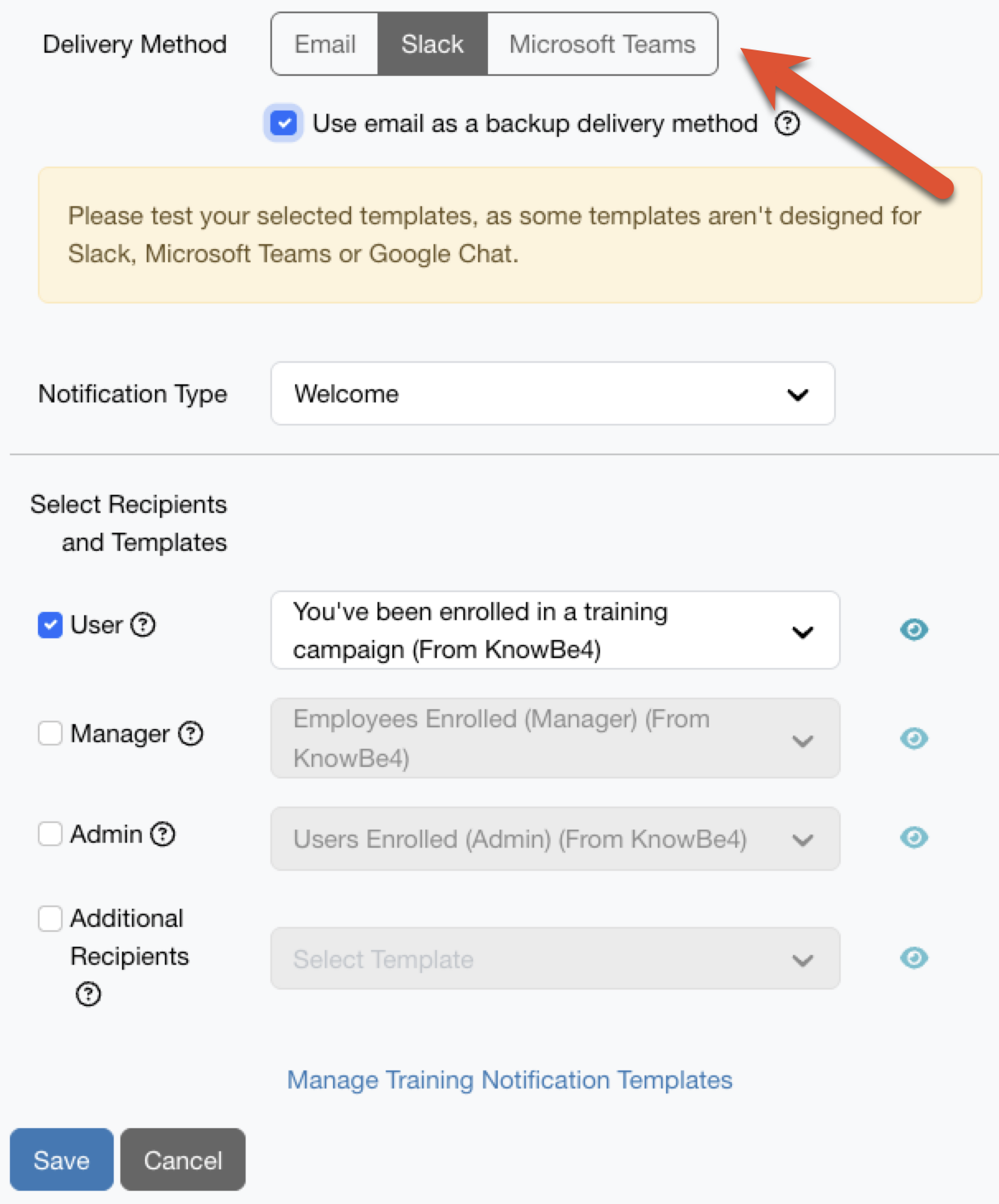
- We also recommend enabling Use email as a backup delivery method. When this option is enabled, email will be used as a backup delivery method if your primary delivery method is unavailable.
- Select your desired Notification Type.
-
Select your desired recipients and templates.
Note:Not all training notification templates are optimized for Slack and Microsoft Teams. We recommend testing your notification templates by setting up a training campaign assigned to select admins. - Select Save.
Update Delivery Methods for Manual Notifications
You can send manual training notifications from a training campaign’s Overview subtab. To send manual training notifications using your Real-Time Coaching delivery method, follow the steps below:
- Log in to your KnowBe4 console.
- Navigate to Training > Campaigns > Active.
- Find and select the name of the campaign you want to send a manual notification from.
- Select Notify Users. A Send Manual Training Notifications window will display.
-
From the top of the Send Manual Training Notifications window, select your preferred Delivery Method.
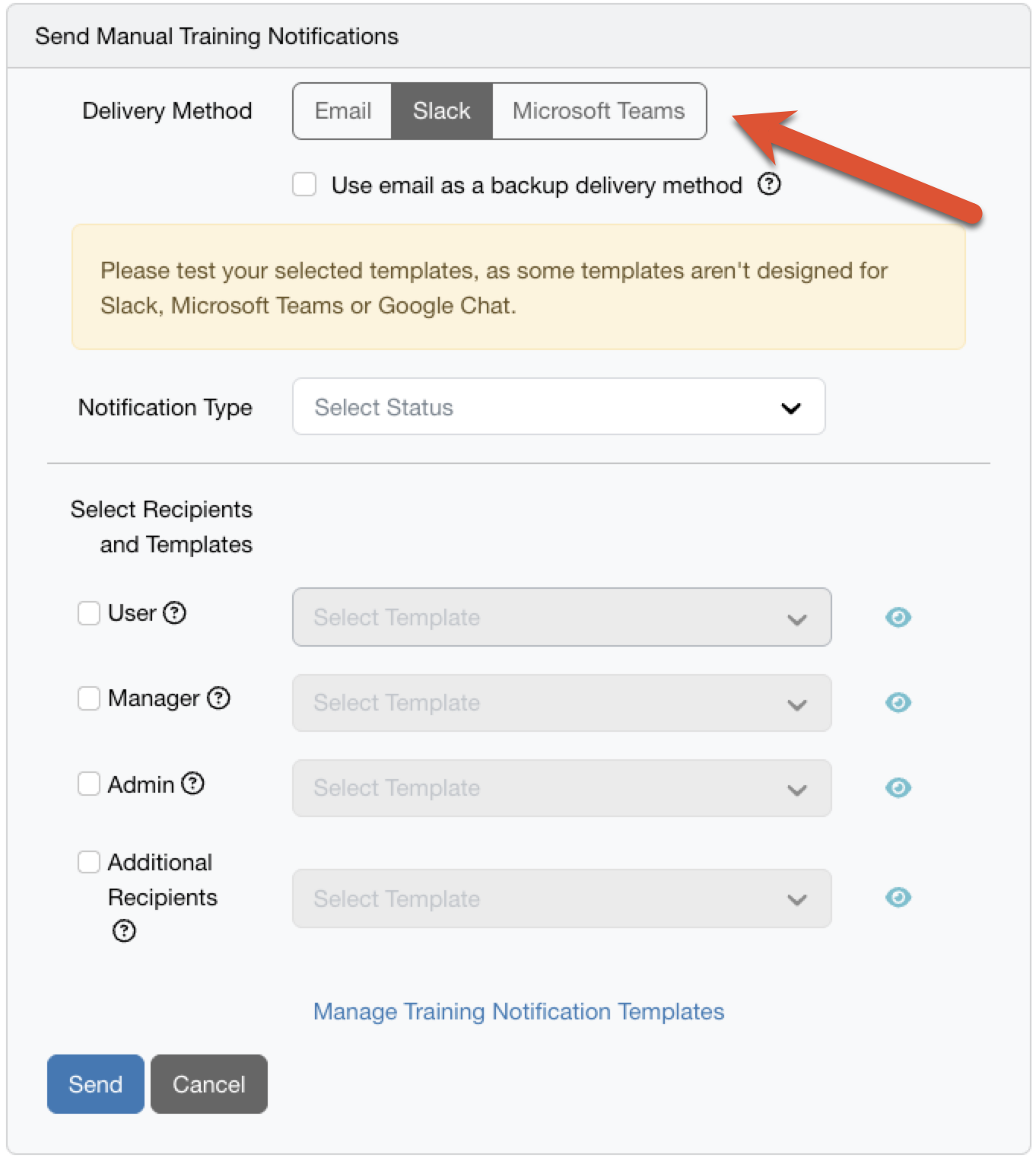
- We also recommend enabling Use email as a backup delivery method. When this option is enabled, email will be used as a backup delivery method if your primary delivery method is unavailable.
- Select your desired Notification Type.
-
Select your desired recipients and templates.
Note:Not all training notification templates are optimized for Slack and Microsoft Teams. We recommend testing your notification templates by setting up a training campaign assigned to select admins. - Select Send.