From the Reports tab of your KSAT console, you can view the Real-Time Coaching Activity Grouped by User report for SecurityCoach to monitor your organization's coaching-related data grouped by user. You can also customize the report to display specific data based on criteria such as real-time coaching campaigns, user groups, or delivery methods.
See the sections below to learn how to customize and view this report.
Customize the Real-Time Coaching Activity Grouped by User Report
When you create a Real-Time Coaching Activity Grouped by User report, you can also select filters to further refine the data in the report.
To learn about the filters you can apply to the Real-Time Coaching Activity Grouped by User report, see the screenshot and list below: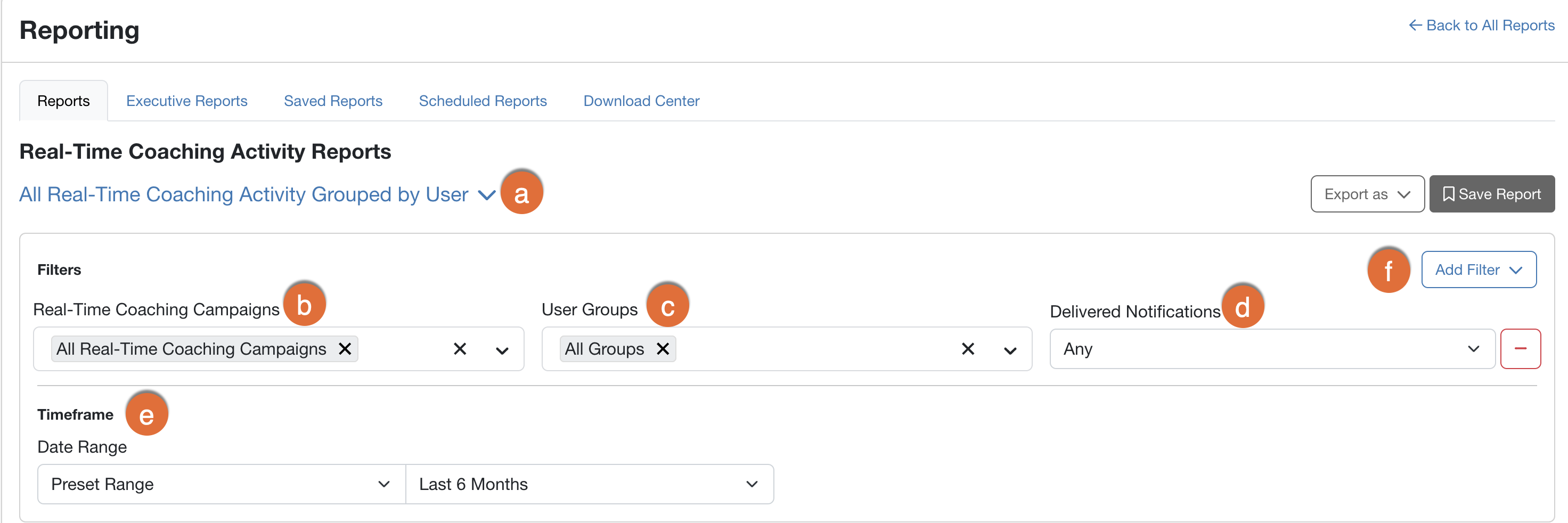
- Report type: Use this drop-down menu to select the report type All Real-Time Coaching Activity Grouped by User.
- Real-Time Coaching Campaigns: Use this filter to select specific campaigns to include in this report or keep the default section to include all real-time coaching campaigns.
- User Groups: Use this filter to select the user groups to include in this report.
- Delivered Notifications: Use this filter to select the number of delivered SecurityTips to include for each user. You can select Any, 1, More than 1, or More than 5.
- Date Range: Use this filter to select the date range of this data.
-
Add Filter: You can customize your real-time coaching report with the following additional filters.
- Delivery Methods: Use this filter to select the delivery methods to include in this report. You can select from All Delivery Methods, Email, Slack, Microsoft Teams, and Google Chat.
- Only Show New Users Coached: Select this option to only display users that received their first SecurityTip during the selected date range.
- User Groups Criteria: Use this filter to select specific criteria for the user groups that you would like to display data for.
- User Status: Use this filter to select the user statuses to include in this report. You can select from All User Statuses, Active, or Archived.
Review the Real-Time Coaching Activity Grouped by User Report for SecurityCoach
The Coaching Activity Grouped by User report type displays detailed information for each SecurityTip delivered grouped by user.
To customize the columns of this table, click Add or Remove Columns. From the drop-down menu that opens, select or deselect the columns displayed in the table.
You can click Generate CSV at the bottom of the page to download a copy of this report. You can also save, send and schedule this report. For more information see our Download Center Guide and How to Save and Send Reports articles.